

 Dansk
 Svenska
 Deutsch
 Norsk bokmål
Write and edit messages
Everything the platform sends a customer comes from a template: emails, text
messages and push notifications. Journeys and campaigns use them, so a wording change
is made once, here, rather than in every place that sends it.
1. Open Templates
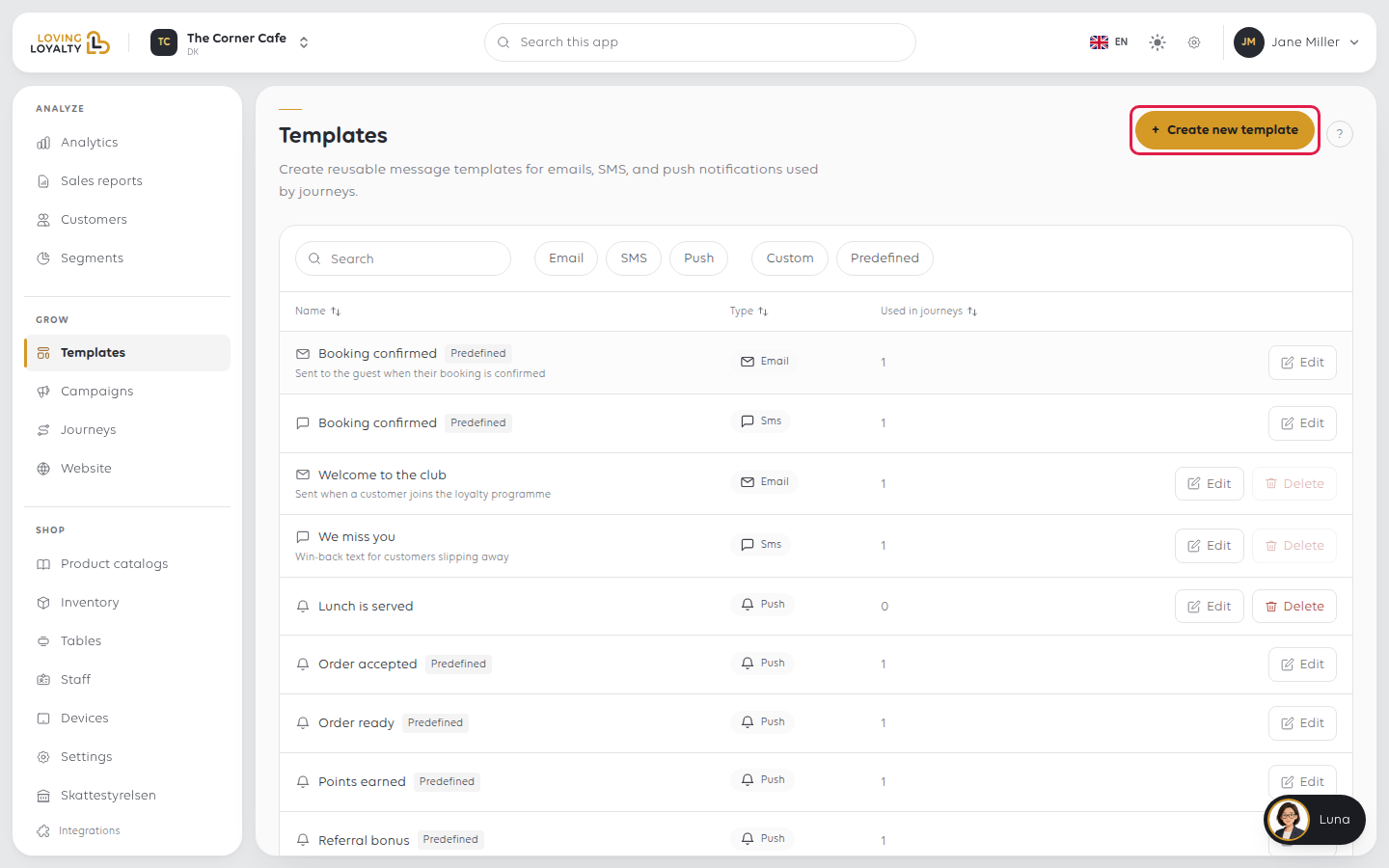
In the sidebar, open Grow and then Templates. Templates are on every plan. You
can filter the list by channel (Email, SMS, Push) and by Custom or
Predefined.
2. Create a template
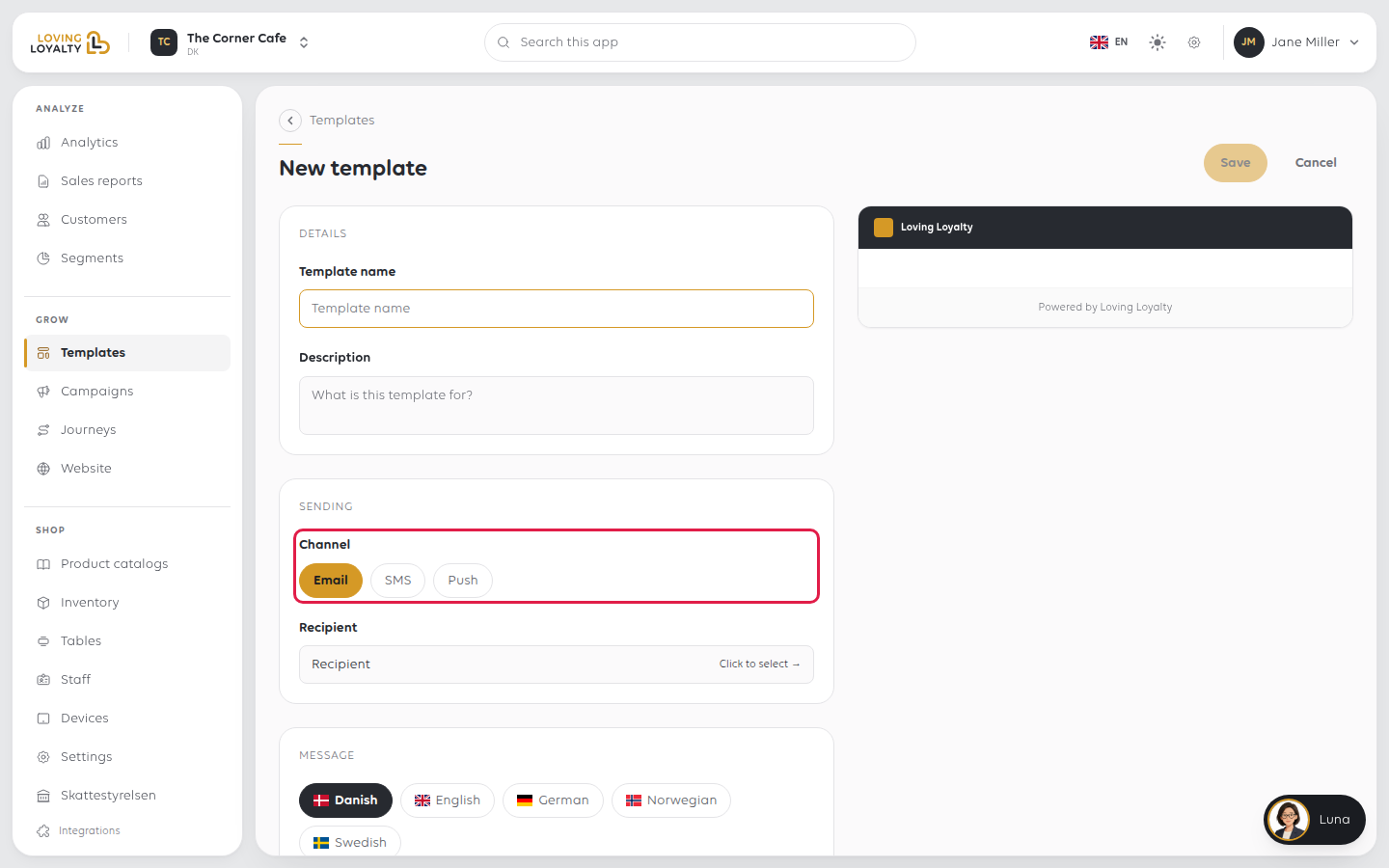
Click Create new template. The form has three parts:
- Details: the Template name (required) and an optional Description.
- Sending: the Channel and the Recipient. For an email, the recipient is
the customer's email address. - Message: what the customer reads.
3. Choose the channel
Pick Email, SMS or Push. An email has a Subject and formatting, a text
message is plain and short, a push notification shorter still. The channel cannot be
changed once the template is saved.
4. Write it in each language
The editor carries a tab per language, your shop's own language first, then the rest
of Danish, English, German, Norwegian and Swedish, so one template
covers every language your customers read. A live preview beside the form shows how
it will arrive; on a narrower screen, Edit and Preview are tabs.
Fill in your shop's own language at least. A language left empty gets your shop's
own language instead.
5. Add the customer's own details (optional)
A message does not have to be the same words for everybody. Select attribute →
by the body inserts a value that is filled in per customer when the message is
sent.
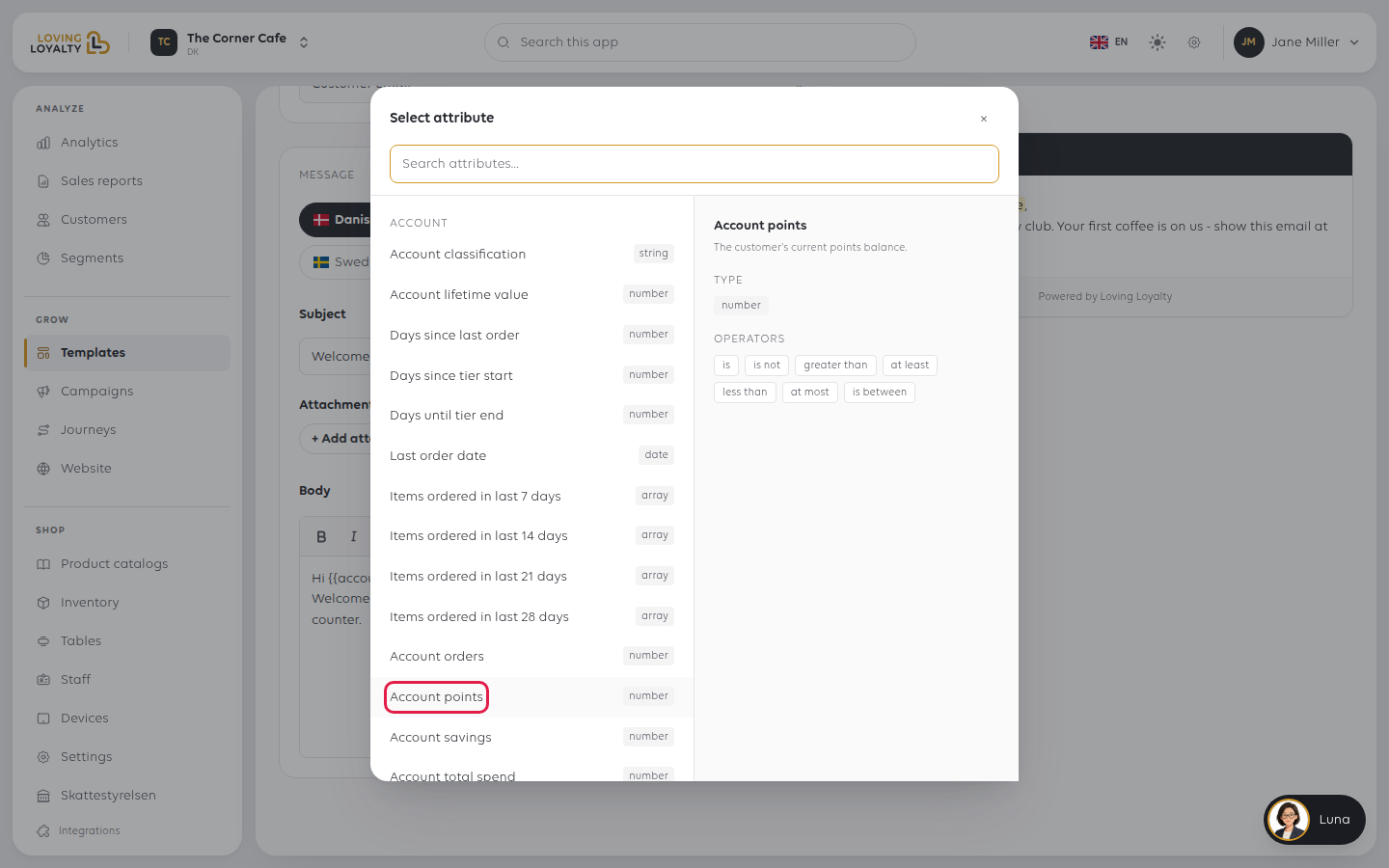
The attributes are grouped by what they describe:
| Group | Examples |
|---|---|
| Account | The customer's tier, points, total spend, lifetime value, days since their last order |
| Account metrics | Average days between orders, days since their first order |
| Order | Points earned on the order, its promise time, the referrer's first name |
| Place | The shop's name and phone number |
| System | The current date |
Each one shows its Type beside it (string, number, date or array), which
decides how it reads in a sentence. Account points is a number; Account tier
is a word.
The preview shows the message with the attributes filled in, so you can see what a
customer will actually receive.
6. Save it
Click Save. Save stays greyed out until the template has a name. You go back
to the Templates list, where the template now appears.
If something goes wrong
| What you see | What it means | What to do |
|---|---|---|
| A customer got the message in the wrong language | That language has no version | Fill in the language tab, or rely on your shop's own language |
| The message is too long | SMS and push are limited | Shorten it, or use email for anything long |
| Editing a template changed several journeys | Templates are shared by design | Create a new template and point only that journey at it |
| A template cannot be deleted | The list says it is used in a journey and cannot be deleted | Remove it from those journeys first |
Was this article helpful?
Thanks for your feedback!
