

 Dansk
 Svenska
 Deutsch
 Norsk bokmål
Text customers when their order is ready
A customer waiting for takeaway wants one message: it is ready. Order texts are sent
by journeys in the manager app. A journey starts when the order changes status and
sends the customer an SMS from a template you write once.
Before you start
- Journeys are part of the Customer marketing plan.
- The order needs a customer with a mobile number on it. An order rung up as
Anonymous has nobody to text. See Add a customer to an order.
1. Write the message
Create an SMS template with the text the customer gets, for example Your order
from us is ready to collect. See Write and edit messages.
2. Start a new journey
In the sidebar, open Grow and then Journeys, and click Create new journey.
Give it a name, for example Text when the order is ready.
A journey for order texts is three boxes: the trigger, one message step and End.
3. Set the trigger and the message
-
Click the trigger box and pick the Trigger event:
Trigger event The customer is texted when Order ready The till marks the order ready Order accepted The shop accepts the order Order out for delivery A delivery order leaves the shop 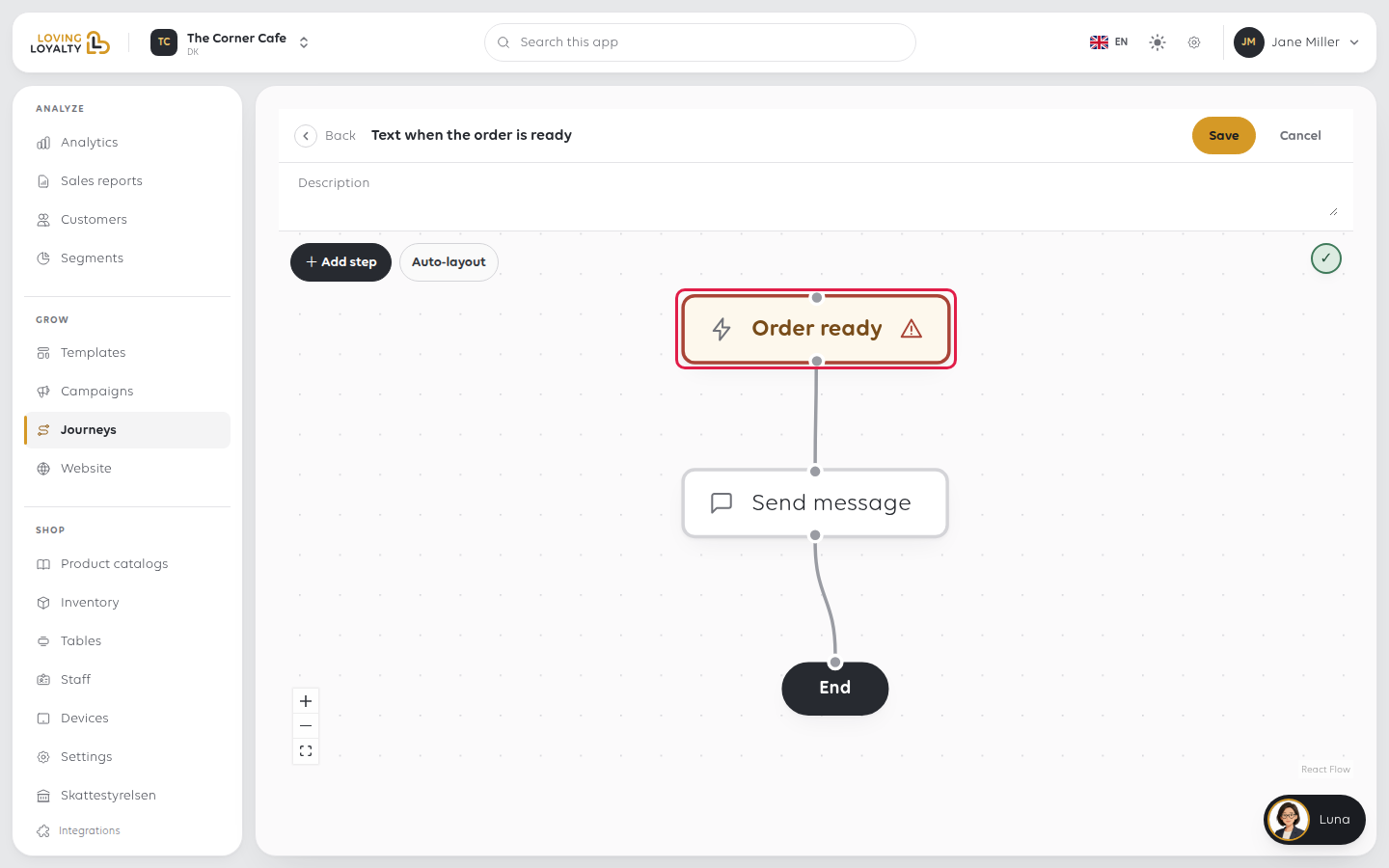
-
Click + Add step, choose Send SMS and pick your template. Change
swaps it for another one.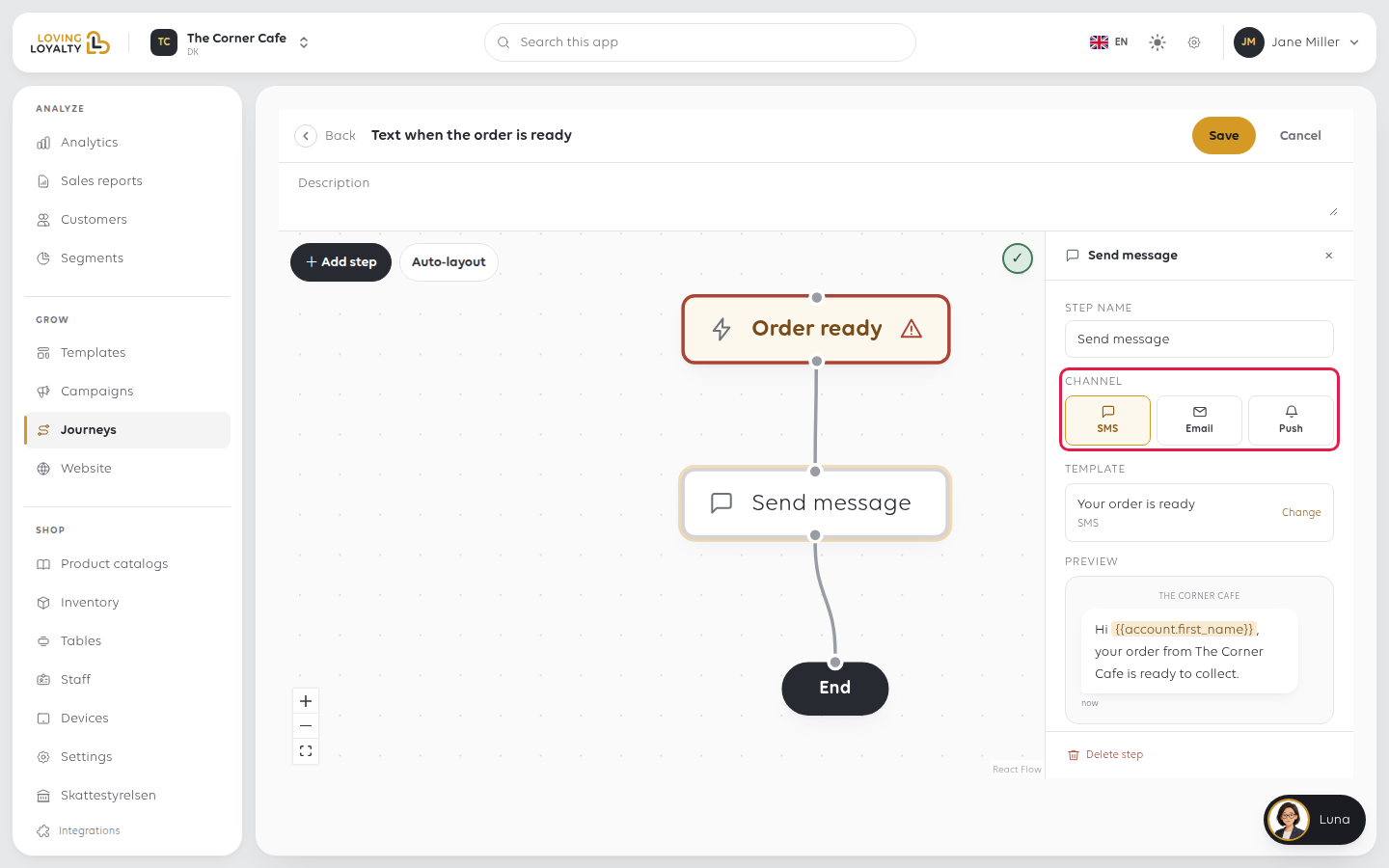
The trigger cannot be changed once the journey is saved. For a second kind of text,
for example on accepted as well as ready, make a second journey.
4. Save and start it
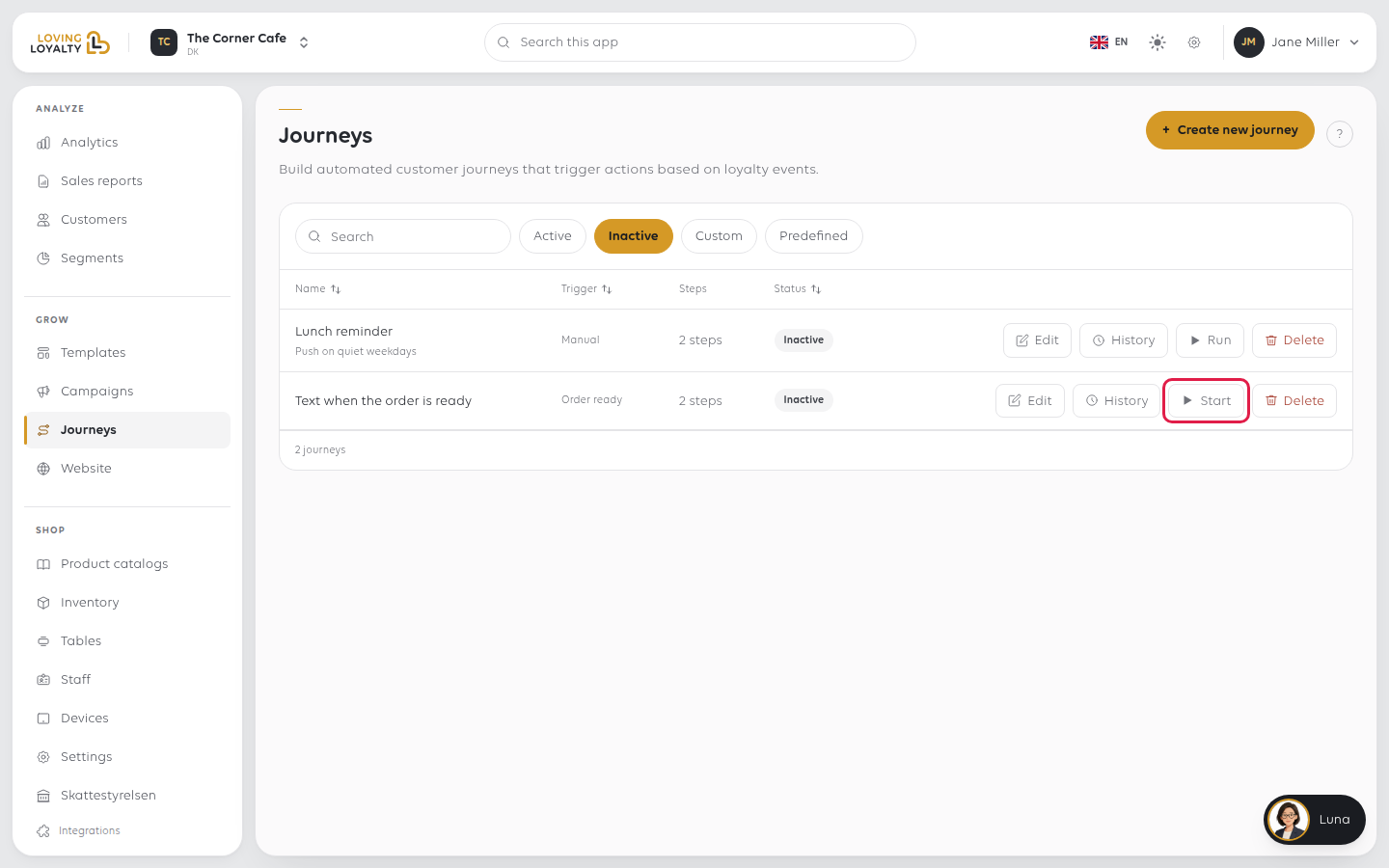
Click Save, then check the journey on the Journeys list. If it shows
Inactive, click Start. From then on every order that reaches that status
sends the text by itself.
If something goes wrong
| What you see | What it means | What to do |
|---|---|---|
| Nobody gets a text | The journey is inactive | Click Start on the Journeys list |
| One customer did not get a text | The order had no customer or no mobile number | Add the customer before the order is closed |
| The text says the wrong thing | Journeys send the template | Edit the template, not the journey |
| You need to see what was sent | Every send is logged | Open the journey's History |
Was this article helpful?
Thanks for your feedback!
