

 Dansk
 Svenska
 Deutsch
 Norsk bokmål
Add a customer to an order
An order with a customer on it earns them points, appears in their history, and lets
you tell them when it is ready. An order without one is anonymous - the sale counts,
but nothing attaches to a person.
While you are taking the order
The customer's details sit at the top of the basket: Customers name and Mobile
phone. They only show when the shop collects customer details for that order type.
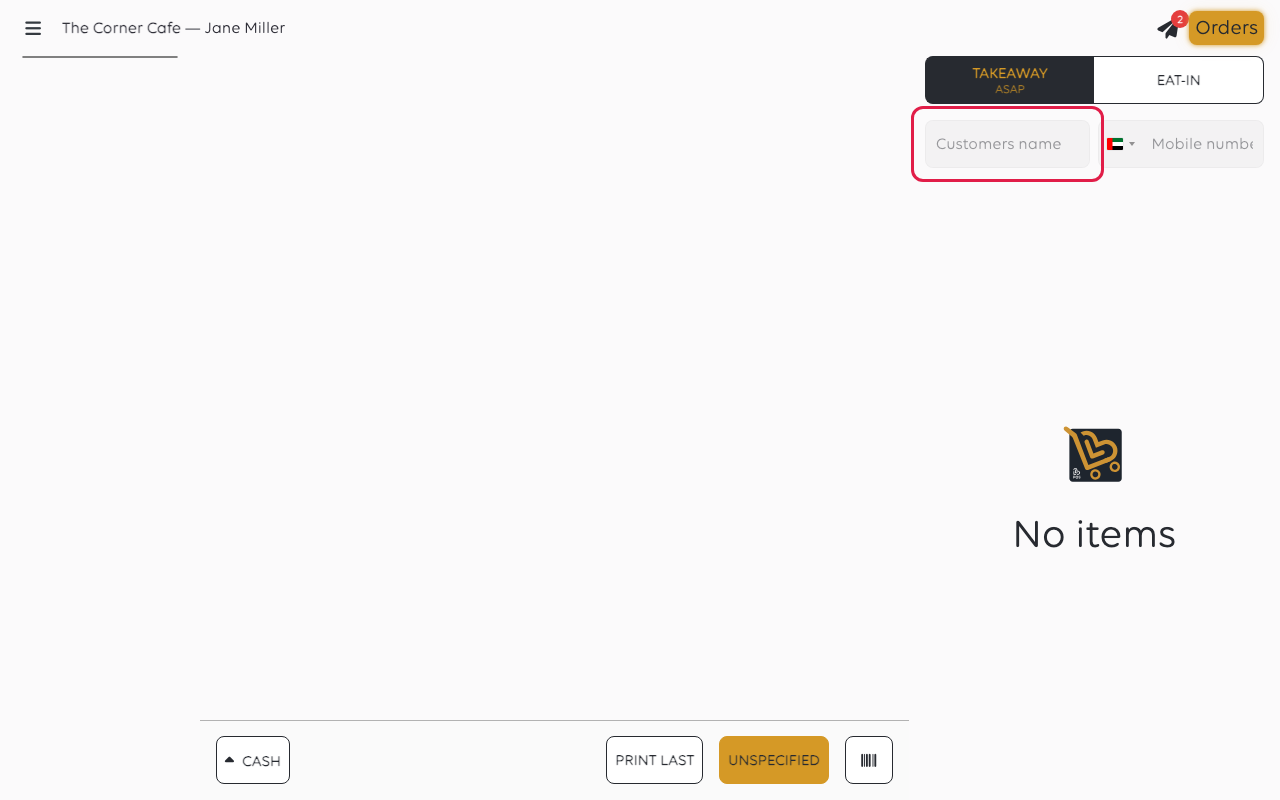
Fill them in before placing the order. The mobile number is the part that matters
most - it identifies a returning customer, and it is how an order-ready message
reaches them.
A name on its own is a label. It does not find an existing customer and it does not
earn anyone points: the number is what links the order to a person.
On an order that is placed but not yet closed
Every order in the list shows who it belongs to. An order with nobody on it reads
Anonymous. While the order is still open, tap the card to open it, tap the
customer part (Anonymous or the name) and Update customer details opens. Type
the name and mobile number and tap Continue.
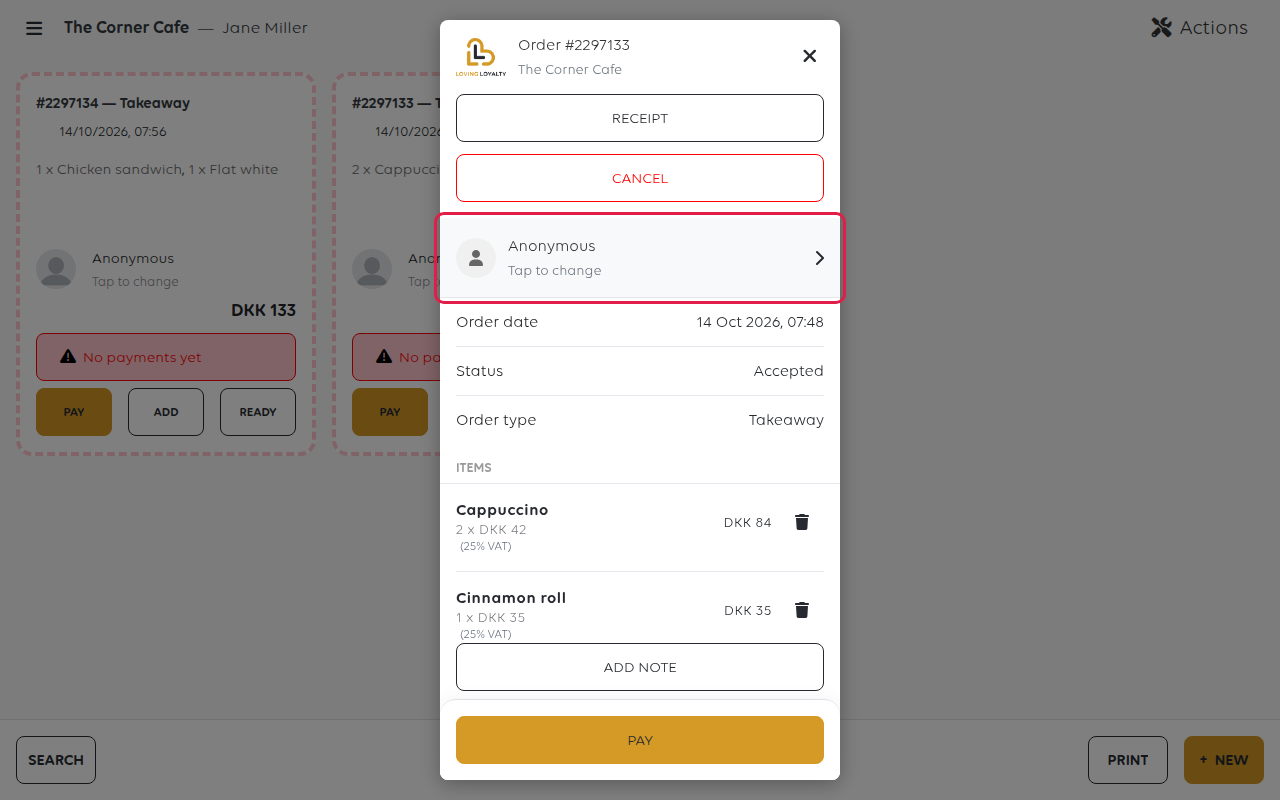
Use it for a number typed wrongly, or a customer who gives their details before you
take payment.
Once the order is closed
A paid or cancelled order is a closed record and cannot be changed, including the
customer on it. If a customer asks for their points afterwards, they claim them
themselves by scanning the loyalty QR code. The till cannot add them to a closed
order.
If something goes wrong
| What you see | What it means | What to do |
|---|---|---|
| The customer says they got no points | The order was closed without a number on it | Ask them to scan the loyalty QR code to claim the points |
| Two customers look the same | Names repeat; numbers do not | Identify by mobile number |
| The number was typed wrongly | It attached to nobody, or to somebody else | Correct it on the order while it is still open |
| The order still reads Anonymous | The details were typed but the order was placed before they registered | If it is still open, open it and set the customer there; once closed, the customer scans the QR code |
Was this article helpful?
Thanks for your feedback!
