

 Dansk
 Svenska
 Deutsch
 Norsk bokmål
Sign in to the POS
Signing in to the POS has two parts, and they are easy to confuse. First the
device signs in to your shop - done once, by a manager, when the till is set up.
After that, staff identify themselves with a PIN each time they use it.
This article covers the first part: getting a device signed in to a shop.
Before you start
- The device is connected to the internet.
- You know the email address and password of a user who has access to the shop. If
you do not have a password yet, or have forgotten it, see Reset a forgotten POS
password.
1. Choose how to sign in
On the opening screen, tap Continue with email.

The phone number field above it is for signing in with a mobile number instead.
Use whichever your account was created with - if you are not sure, use email.
2. Enter the email address
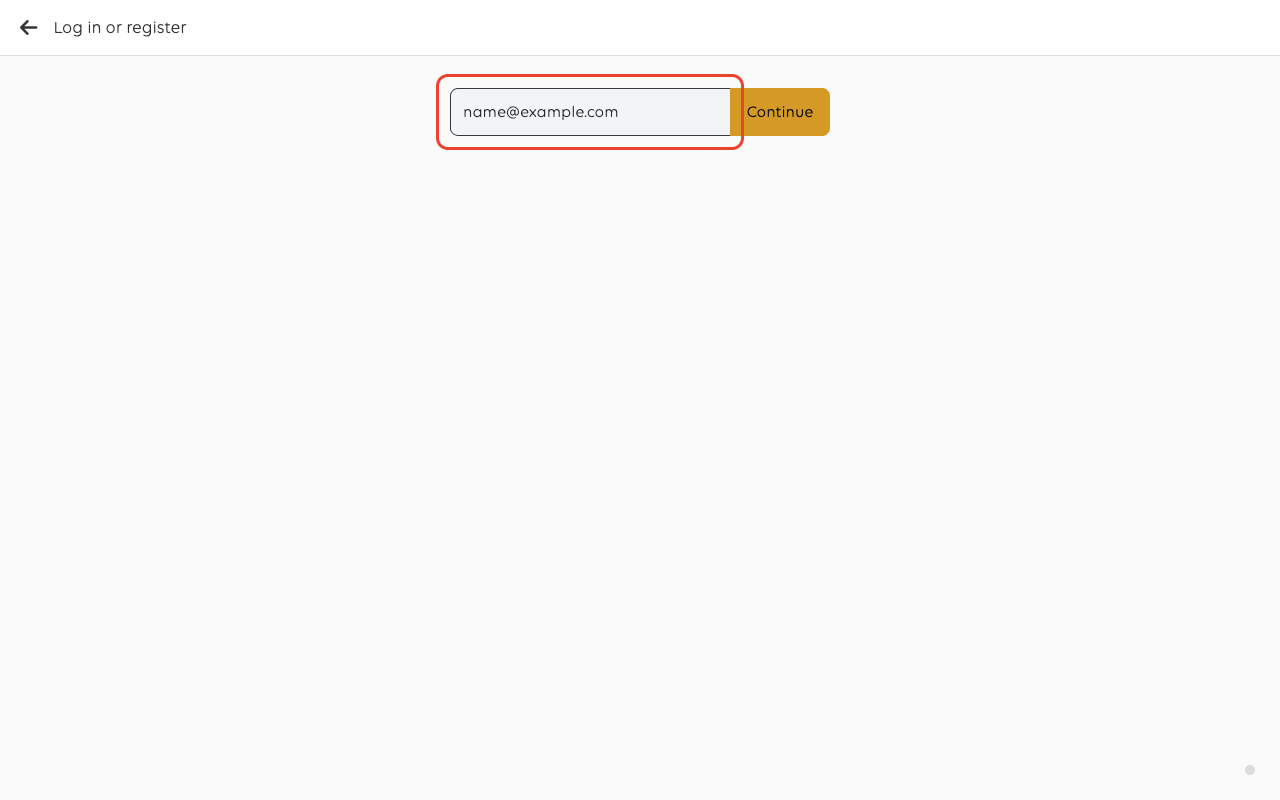
Type the email address of the account, then tap Continue.
3. Enter the password
Type the password, then tap LOG IN.
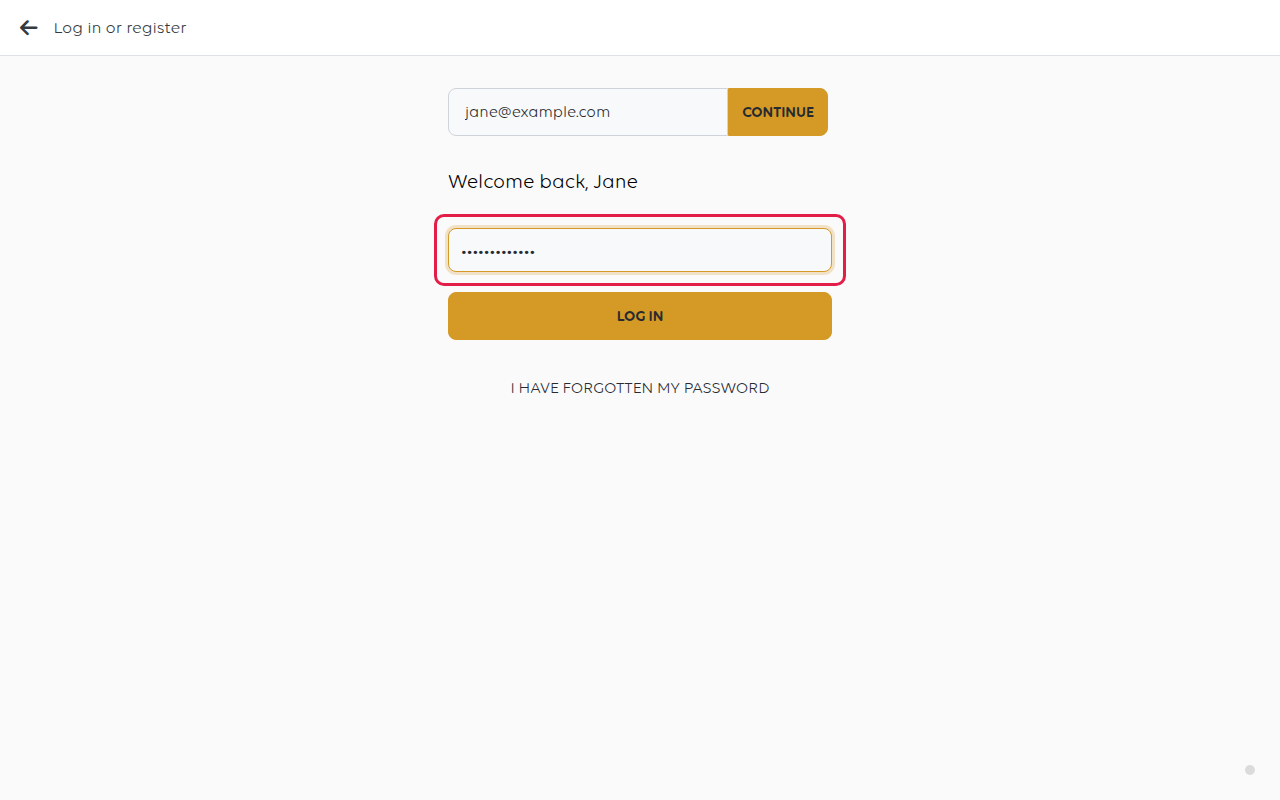
Tapping I HAVE FORGOTTEN MY PASSWORD here starts the reset - see Reset a
forgotten POS password.
4. Choose the role and the shop
I am a... asks how this device will be used. Tap Cashier for a till. The other
choices, Driver and Payment Terminal, are for other kinds of device - see
Switch role or shop.
Select restaurant then lists the shops the account can reach. Tap the one this
device belongs to.
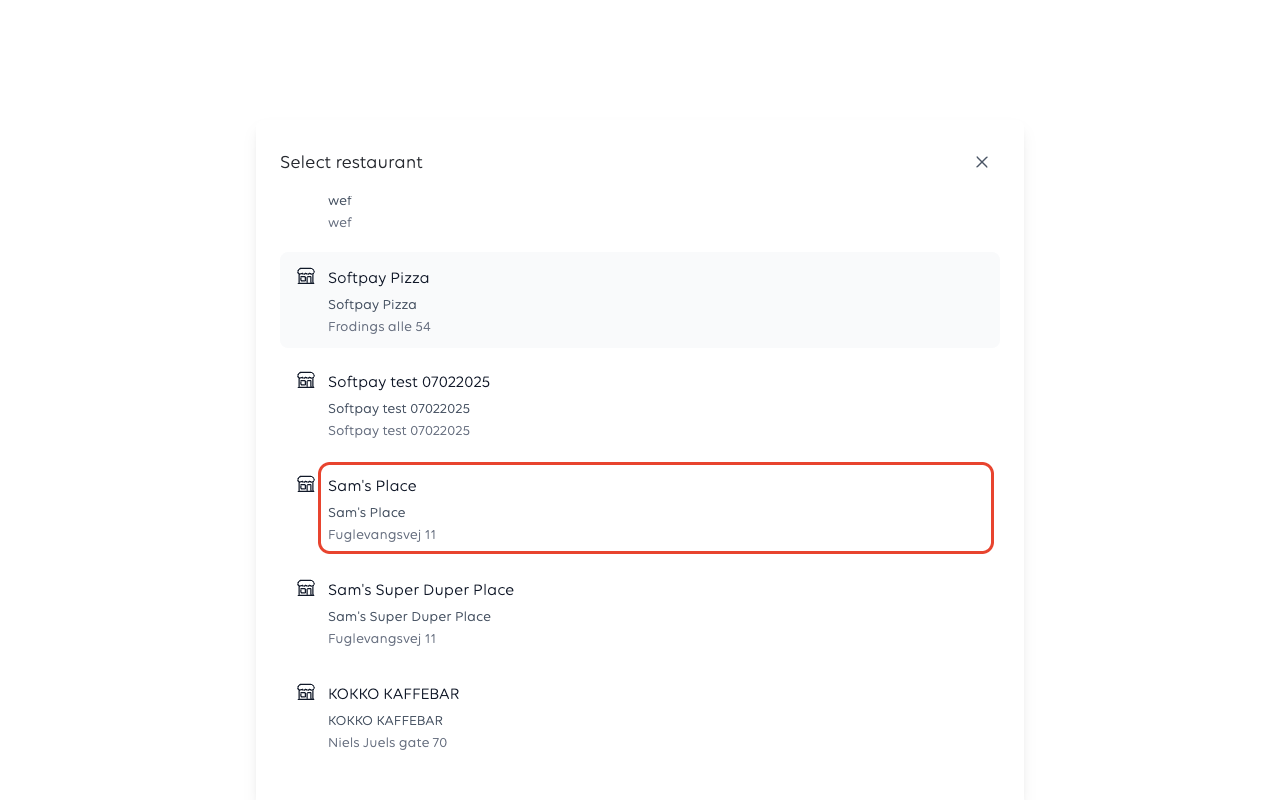
Choose carefully. Orders, reports and cash balances all belong to the shop picked
here, so a device signed in to the wrong one puts its takings in the wrong place.
If the account only has one shop, you may not be asked.
5. You are in
The POS opens on the cashier home screen, ready to take orders. The device stays
signed in - staff do not repeat these steps at the start of a shift.
Switching role or shop later
Staff who work across more than one shop, or who have more than one role, can switch
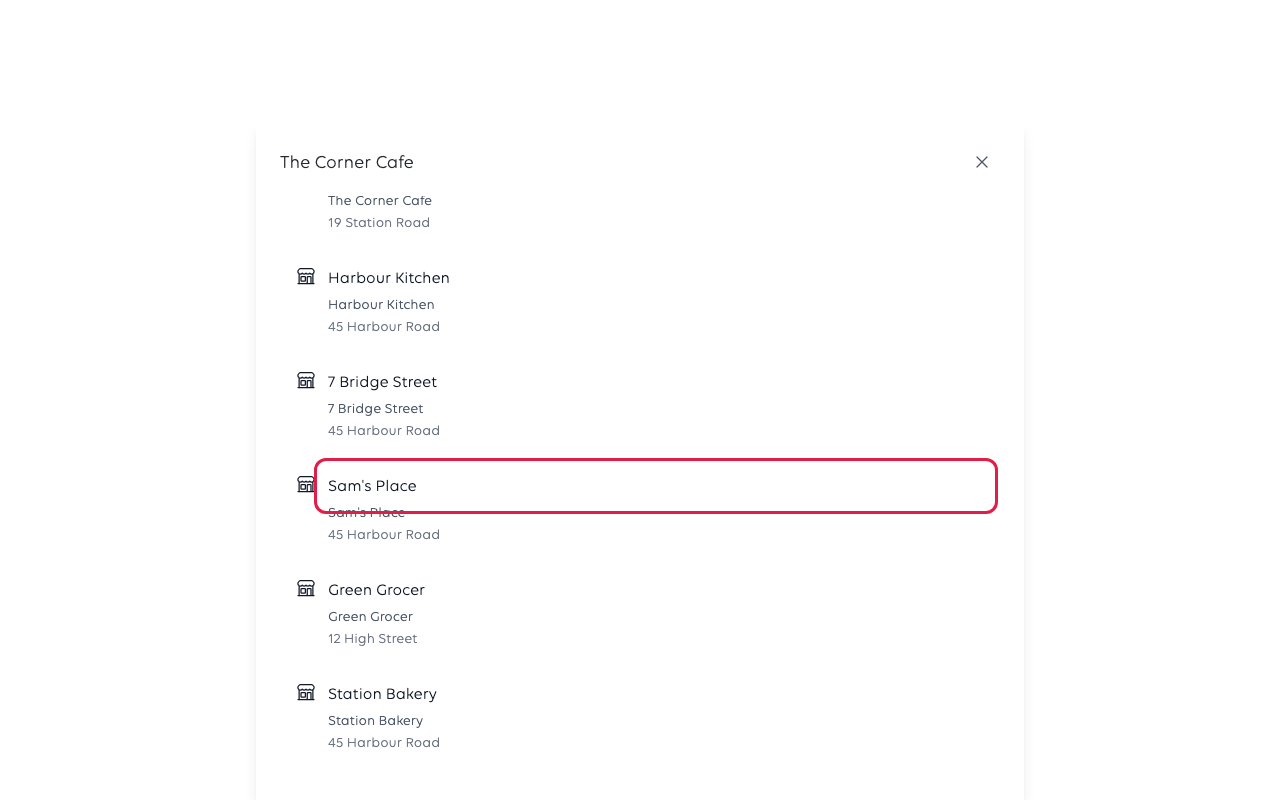
without signing out. Open Switch Role from the cashier menu and pick the role,
then the shop.
Staff PINs
Once a device is signed in, individual staff are identified by a PIN rather than
by email and password. A manager creates staff and their PINs in the manager app.
To take over the till, tap the cashier name at the top of the home screen and type
your PIN on the Switch cashier keypad. Your name then shows at the top. Clocking in
asks for the same PIN again - see Open the shop.
Two different PINs
They are easy to confuse, and they protect different things.
Your own cashier PIN is who you are. It is what you type to take over the till and
to clock in, and it comes from the PIN column of the staff list in the manager
app.
The shop's manager PIN is permission, not identity. When the shop turns it on, it
stands in front of the parts of the till that are a manager's business:
| Protected by the manager PIN |
|---|
| X/Z reports, and opening a report |
| Sales reports |
| Settings |
| Discount codes |
| Emergency broadcast |
Refunds and discounts on an order are not on that list - a cashier can take a
refund without a manager PIN. If your shop wants those held back, that is worth
raising rather than assuming it already happens.
A shop with the manager PIN switched off shows none of these prompts. See Protect
till settings with a manager PIN.
If something goes wrong
| What you see | What it means | What to do |
|---|---|---|
| The password is refused | Wrong password, or the account uses a phone number | Use Reset a forgotten POS password, or try signing in with the mobile number |
| The shop you want is not listed | The account does not have access to it | A manager adds the user to that shop in the manager app |
| The POS signs in to the wrong shop | The wrong shop was chosen in step 4 | Use Switch Role to move to the right one |
Was this article helpful?
Thanks for your feedback!
