

 Dansk
 Svenska
 Deutsch
 Norsk bokmål
Sign in to the manager app
The manager app is where you set your shop up and see how it is doing. It runs in a
web browser on a computer, so there is nothing to install. Go to
manager.lovingloyalty.com.
You need an account with the Manager role. Cashier-only accounts cannot sign in here.
1. Type your email address and password
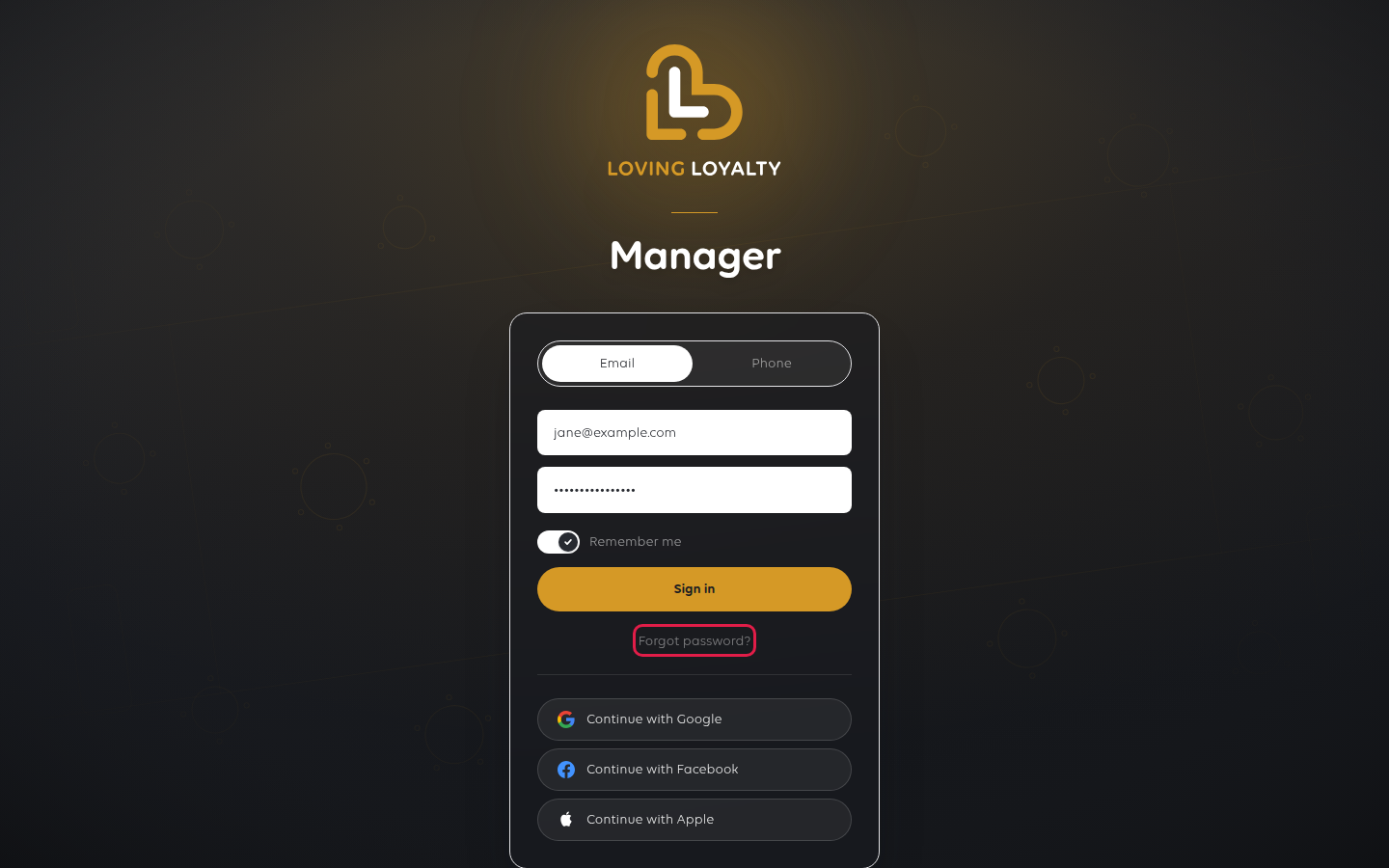
The sign-in card offers Email and Phone. Email is the usual way in.
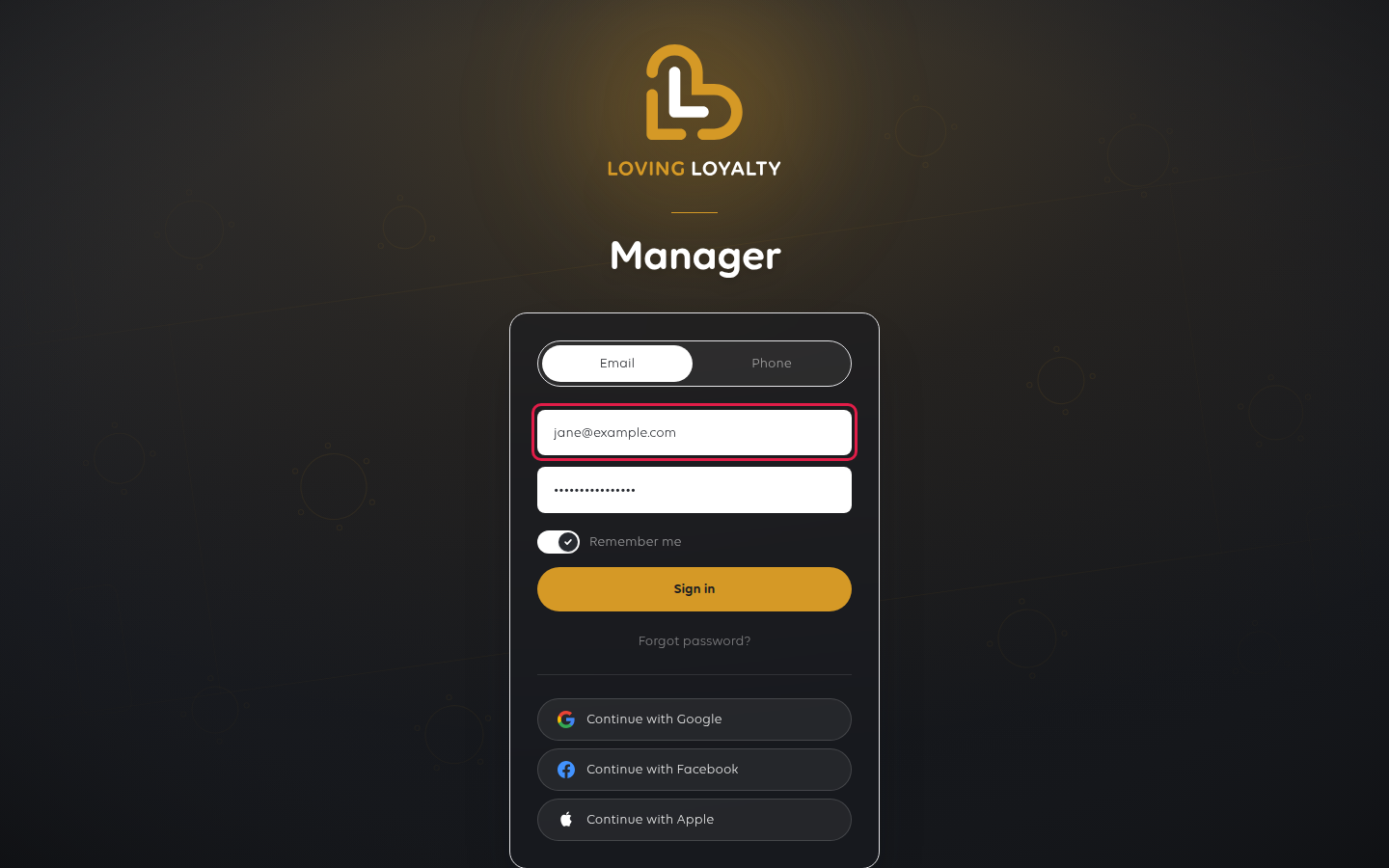
Type the address your account was created with, then your password, and select
Sign in.
Remember me keeps you signed in on that computer. Leave it off on a shared
machine, or anyone who opens the browser afterwards gets your shop.
2. Or sign in with your phone number instead
Select Phone if you would rather not use a password. Choose your country code,
type your mobile number and select Send code. A code arrives by text message,
and that code signs you in.
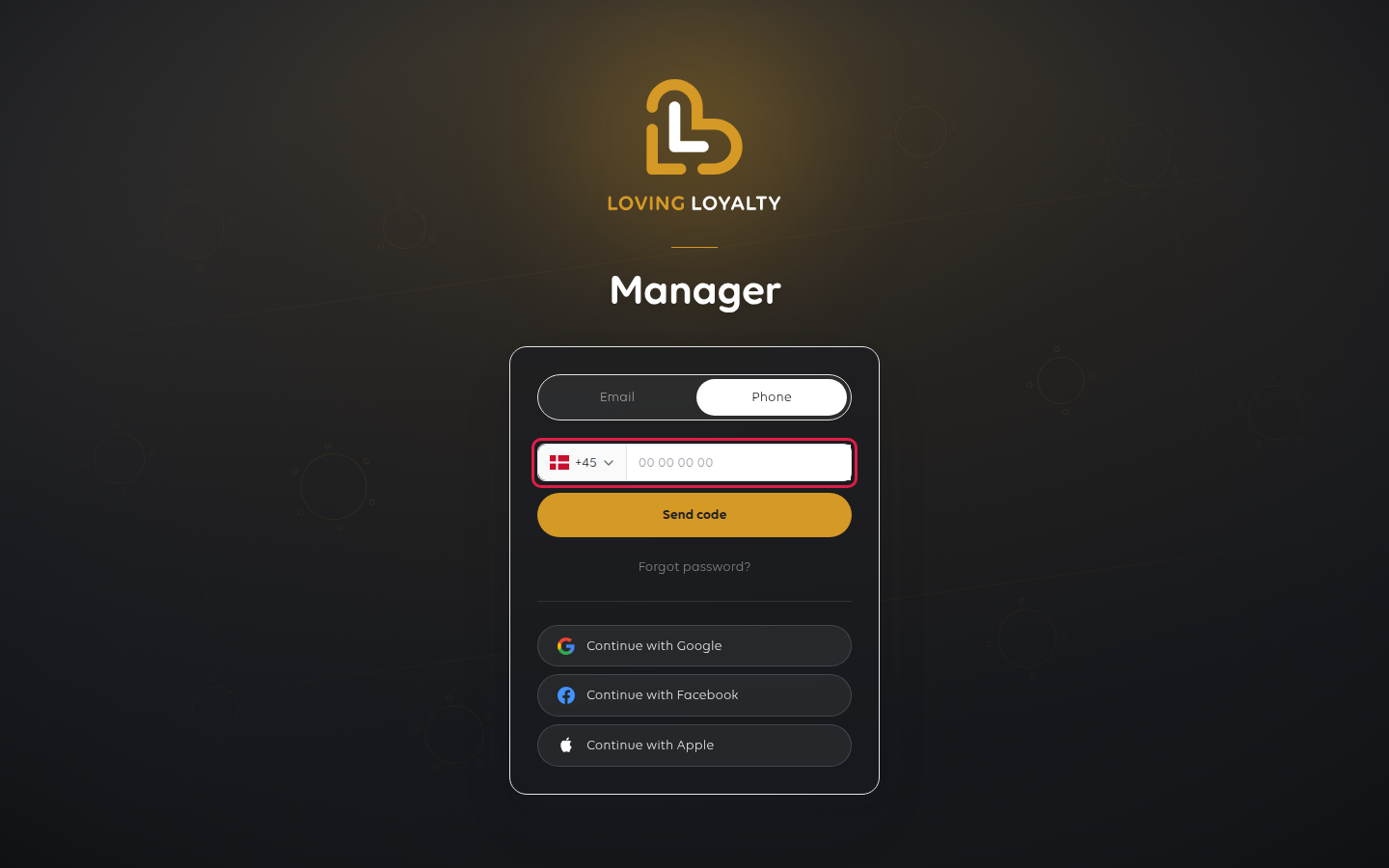
It is the same account either way, just a different way of proving who you are.
Below the form are Continue with Google, Continue with Facebook and
Continue with Apple, if your account uses one of those instead of a password.
3. Choose the shop you want to manage
With more than one shop, Select location asks which one before it shows you
anything. With only one shop, this step is skipped.
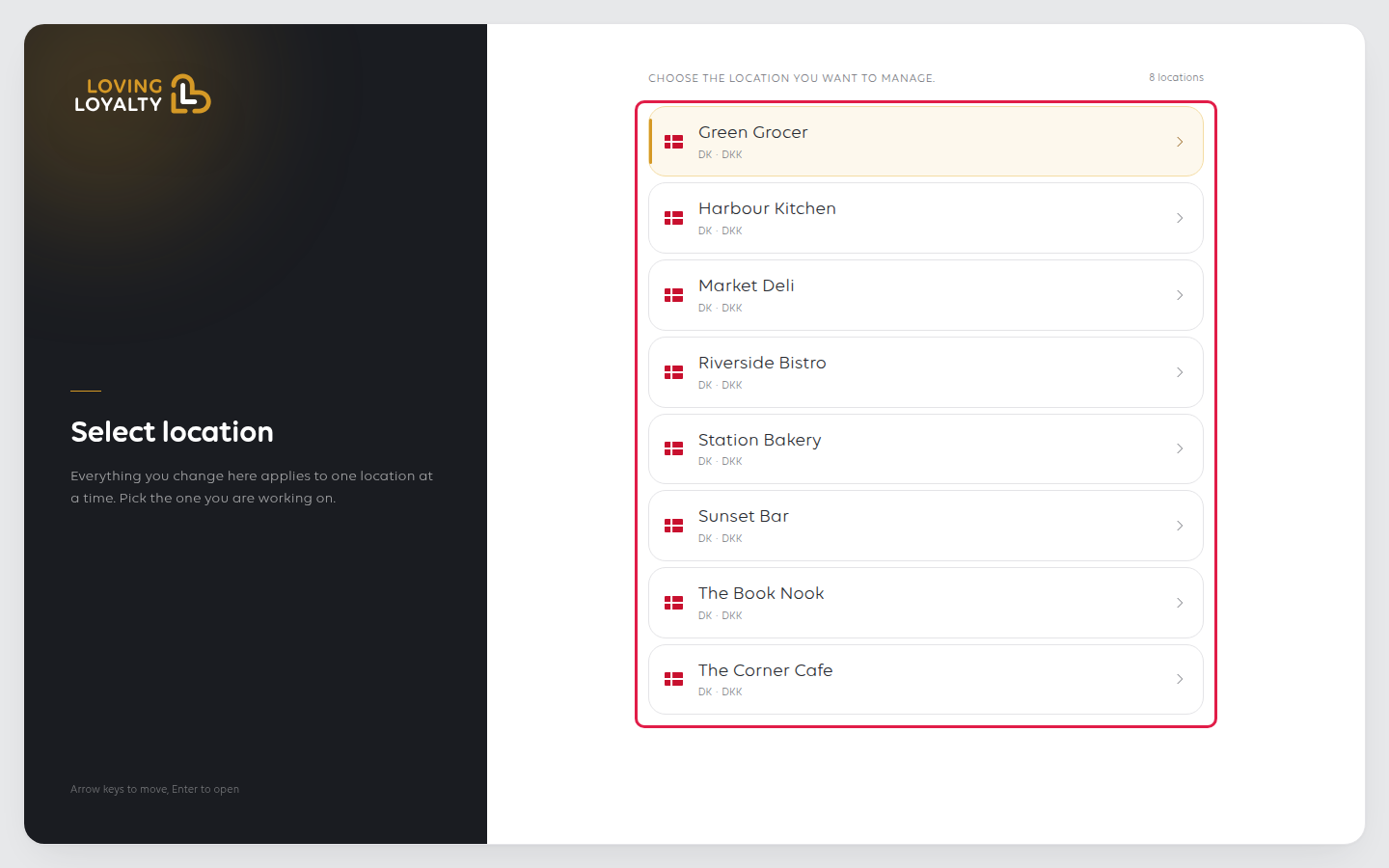
Search by name if the list is long, then pick one with the mouse, or the arrow keys
and Enter. Everything you change from here on applies to that shop, so check it is
the right one.
4. Where you land
You arrive on Analytics, and the menu down the left is how you reach everything
else: Analyze for your figures, Grow for customers and campaigns, Shop
for your settings and catalogue, and Billing for invoices and your plan (not shown
for shops in Norway).
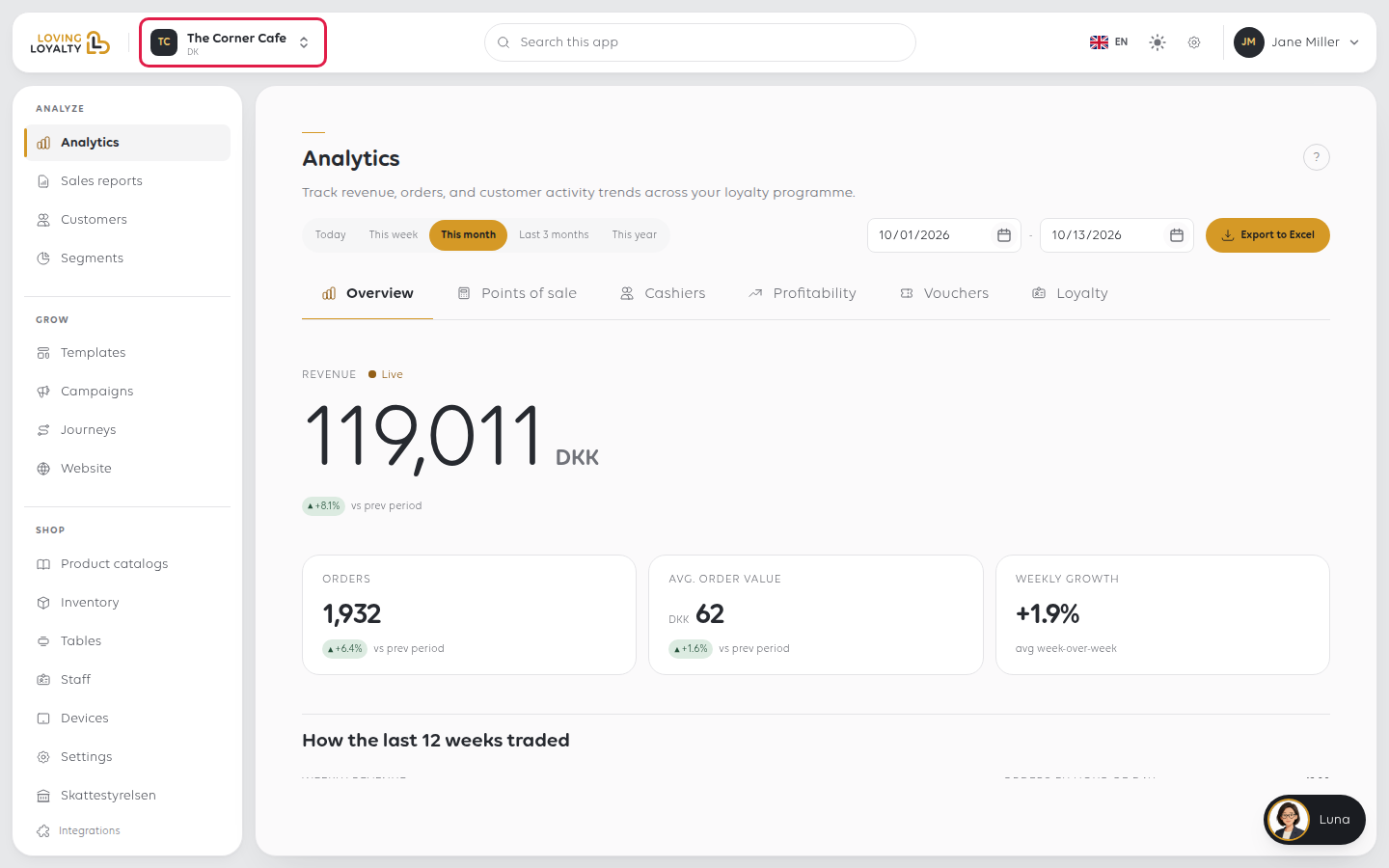
The name in the top bar, next to the logo, is the shop you are working on. Select it
to move to another shop without signing out. Your own account sits at the top right.
If you cannot get in
If the password will not work, select Forgot password? on the sign-in card and
follow Reset a forgotten manager password.
| What you see | What it means | What to do |
|---|---|---|
| Invalid email or password. | The address or password is wrong, or the account is on a different address | Use Forgot password?, and check which address the account was created with |
| Access denied. This portal is for managers only. | Your account has no Manager role | Ask a manager to give you the role. See Change what a staff member can do |
| Could not send the verification code. Please try again. | On the Phone tab, the code could not be sent this time | Wait a moment and select Send code again, or sign in by email |
| No text message arrives | The number on the account is not the one you typed | Sign in by email instead, then check the number on your profile |
| You sign in but your shop is not listed | Your account has not been given access to that shop | Ask whoever manages the shop to add you. See Add a staff member |
| You are in the wrong shop | Another shop was picked at step 3 | Select the shop name in the top bar and choose again |
Was this article helpful?
Thanks for your feedback!
