

 Dansk
 Svenska
 Deutsch
 Norsk bokmål
Use the Luna AI assistant
Luna is an assistant built into the Manager. You ask it something in plain language
and it answers from your shop's own data, or does the setting-up for you.
Open it
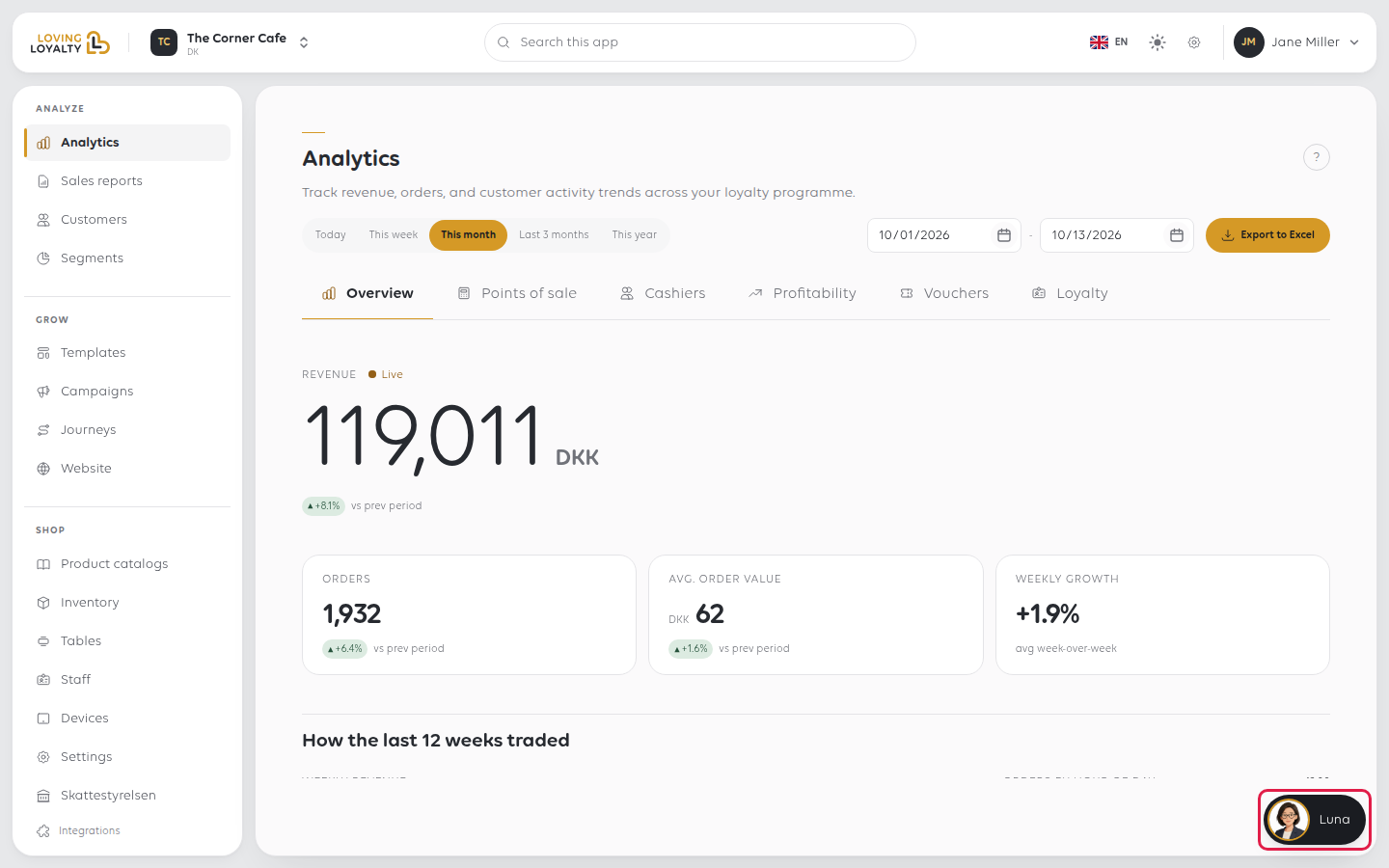
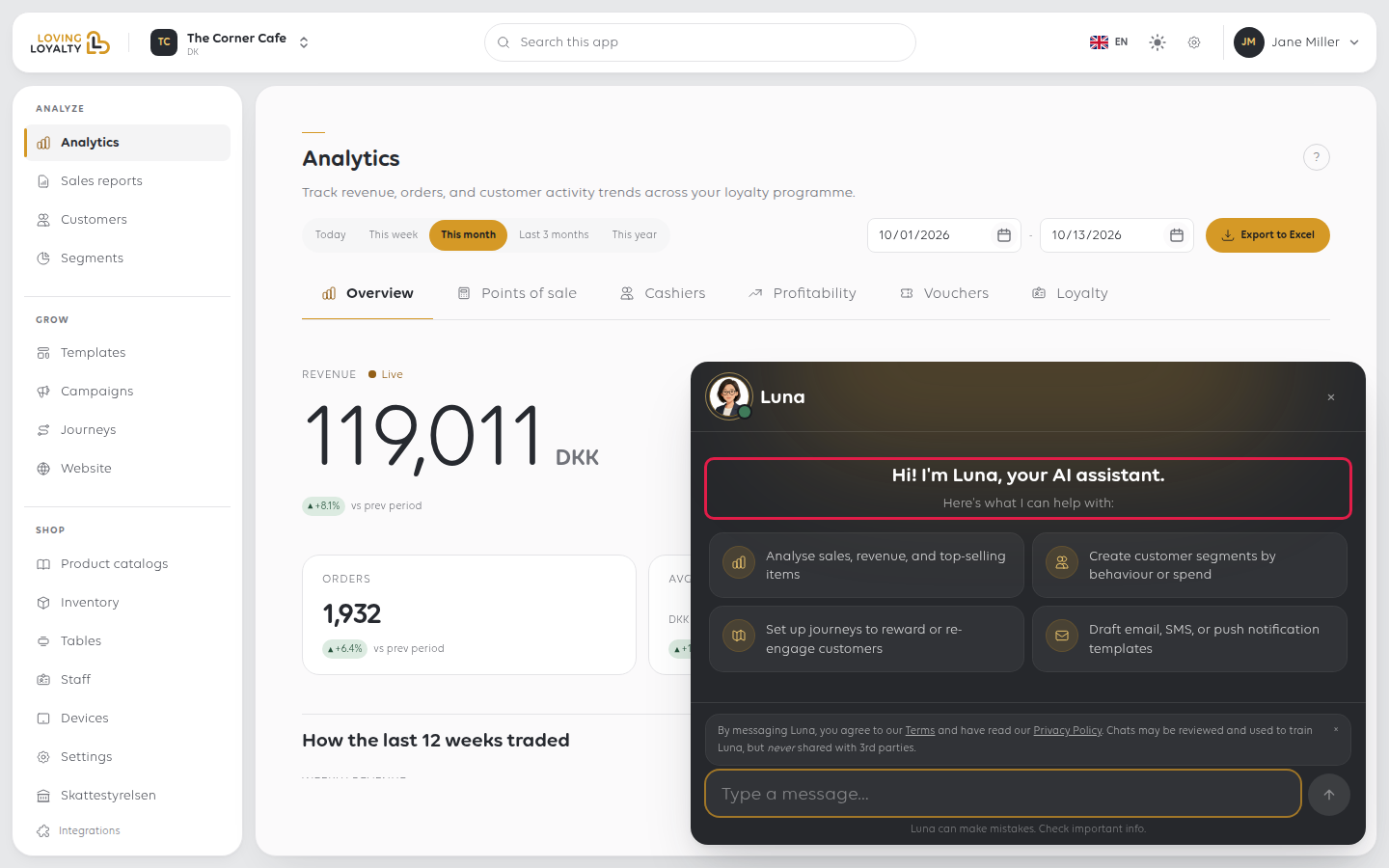
Luna sits in the bottom right of every page. Select it and the chat opens. Type in
Type a message… and select Send.
What it is for
Luna tells you itself, on the way in:
| It can | Example of what to ask |
|---|---|
| Analyse sales, revenue and top-selling items | What sold best last month? |
| Create customer segments by behaviour or spend | Customers who spent over 500 kr but have not been back in 60 days |
| Set up journeys to reward or re-engage customers | Send a voucher to customers who have not visited in three months |
| Draft email, SMS or push templates | Write a reminder for a booking tomorrow |
When Luna creates something, the chat says so, for example Segment created or
Journey created, with View to open it.
Ask it properly
Luna answers about the shop you are in. Switch shop and you are asking about a
different set of figures. See Switch between your shops.
Be specific about the period and the thing. How were sales? gets a vague answer;
compare revenue this month against last month gets a useful one.
Check what it tells you
The chat says so at the bottom: Luna can make mistakes. Check important info.
- For a figure that matters, such as a month's revenue or a VAT amount, check it in Analytics or a sales report before acting on it.
- For something Luna created, select View and check it before it goes out. A journey sends real messages to real customers, and a sent message cannot be recalled.
What happens to what you type
The notice in the chat says that by messaging Luna you accept the Terms and the
Privacy Policy, and that chats may be reviewed and used to train Luna, but never
shared with 3rd parties.
So do not paste anything you would not want reviewed: a customer's personal details,
card numbers, or staff matters. Ask about the data rather than
pasting the data in.
If something goes wrong
| What you see | What it means | What to do |
|---|---|---|
| The answer is about the wrong shop | Luna answers for the shop you are in | Check the shop name in the top bar |
| A figure does not match your reports | It can be wrong, and reports are the record | Verify in Analytics or a sales report |
| It created something you did not want | It acts on what it understood | Open the segment, journey or template and change or delete it |
| Nearing limit or Limit reached | You have used most or all of your messages | The chat shows how many are used; do the task in the relevant screen meanwhile |
| It cannot answer | Not everything is within reach | Do it in the relevant screen, or ask support. See Get help from inside the app |
Was this article helpful?
Thanks for your feedback!
