

 Dansk
 Svenska
 Deutsch
 Norsk bokmål
Reset a forgotten POS password
If the password for signing a device in to a shop has been forgotten, reset it from
the sign-in screen itself.
This is the password for the account that signs a device in to a shop - not a
cashier's PIN. Staff who cannot remember their PIN do not use this: a manager reads
or changes their PIN in the manager app.
1. Start the reset from the sign-in screen
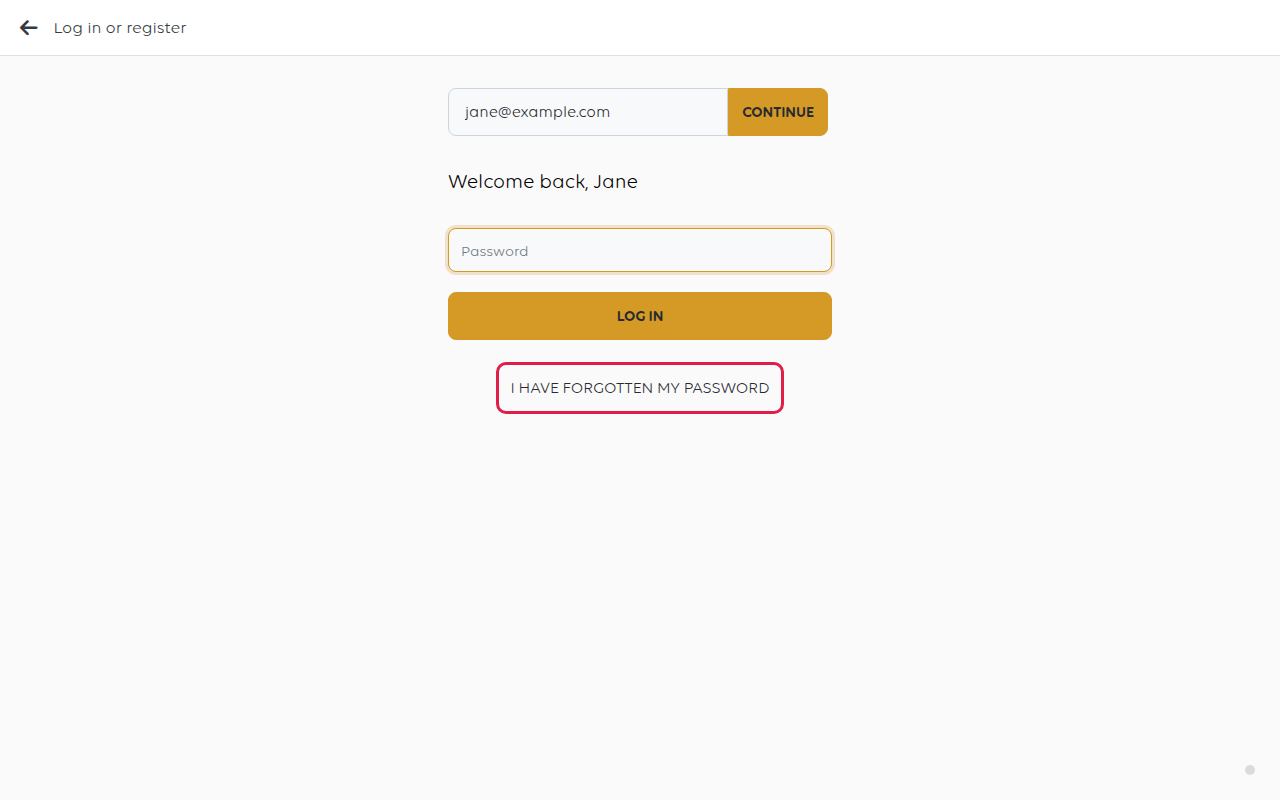
Sign in as far as the password step, then tap I HAVE FORGOTTEN MY PASSWORD.
2. Enter the email address
I have forgotten my password opens. Type the email address of the account, then tap
Continue. The till shows Sending verification code.
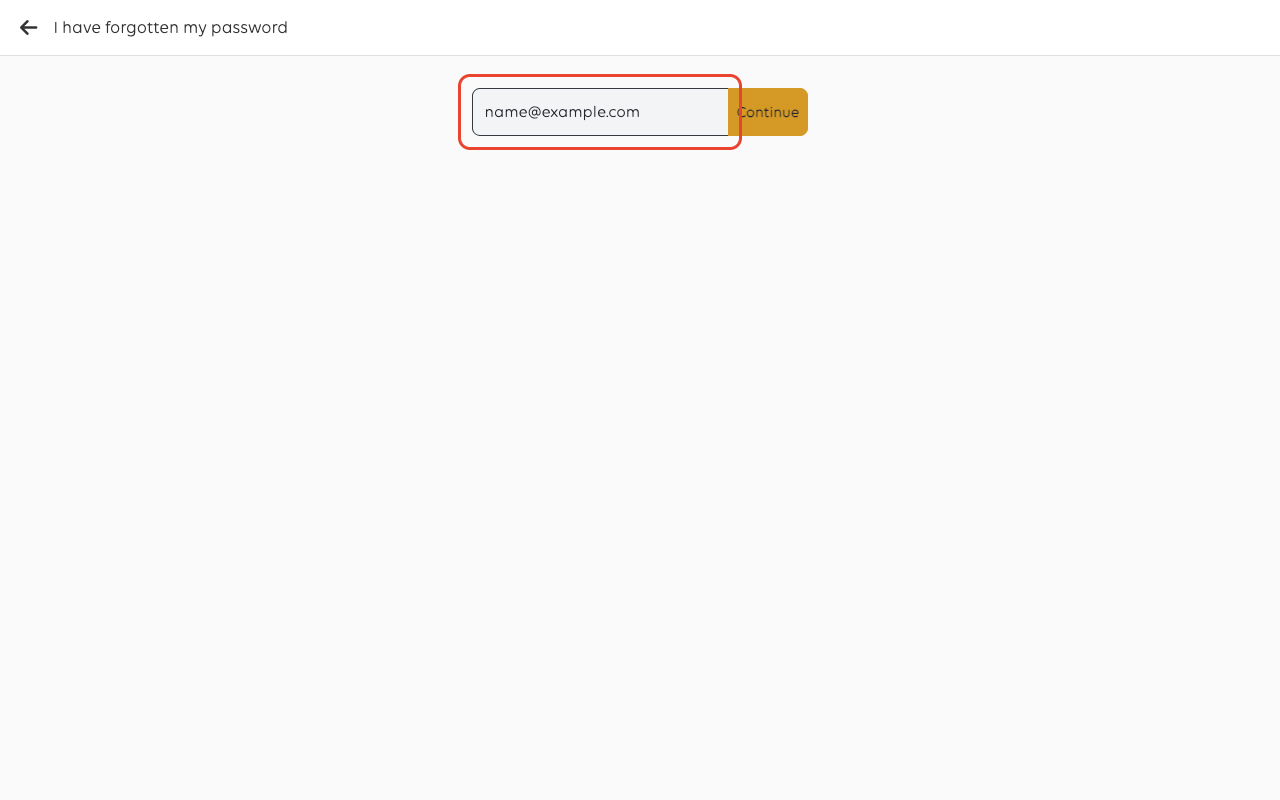
Use the address the account was created with. An address with no account behind it
is refused with Failed to send verification code.
3. Enter the code
A six-digit code goes to that address - a code, not a link. Type it in
Confirmation code and tap Check confirmation code.
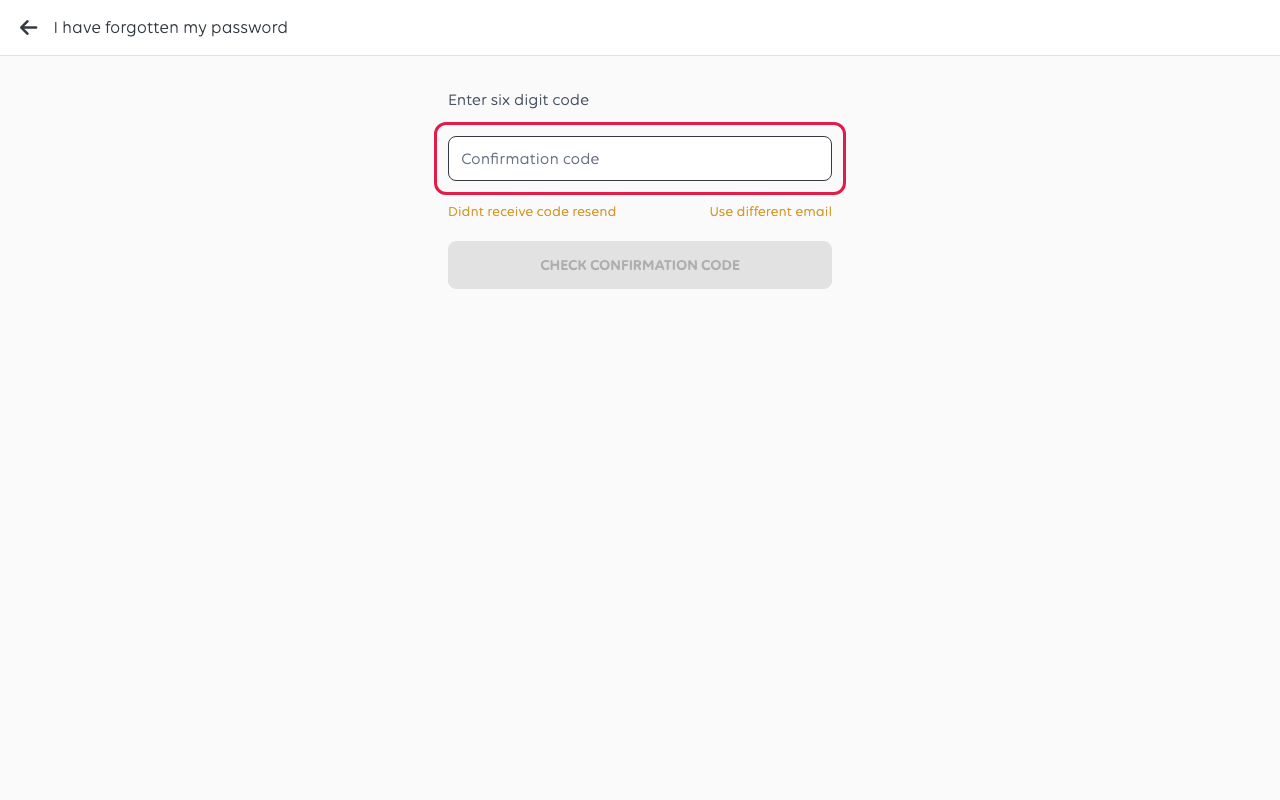
If it does not arrive, check the spam folder, then tap the resend link under the box.
If the account is under another address, tap Use different email.
The code goes to the email on the account, not to the till. Someone who only ever
signs in at the counter may not have that mailbox to hand - a manager resetting it
for them is usually quicker.
4. Choose a new password
Create new password opens. Type the new password in New password and again in
Confirm password, then tap Reset password.
The till goes back to the sign-in screen and shows Password reset successful. Sign
in with the new password.
If something goes wrong
| What you see | What it means | What to do |
|---|---|---|
| Failed to send verification code | No account uses that address | Check the spelling, then confirm the address with whoever set the account up |
| No code arrives | It went to spam, or the address is not the one on the account | Check the spam folder, then tap the resend link |
| Passwords do not match | The two boxes differ | Type the same password in both |
| The account signs in with a phone number | There is no email address to send a reset to | Sign in with the mobile number instead |
| A cashier has forgotten their PIN | PINs are not passwords and are not reset here | A manager changes the PIN in the manager app |
Was this article helpful?
Thanks for your feedback!
