

 Dansk
 Svenska
 Deutsch
 Norsk bokmål
Register a new place (Nexi Norway)
This is the onboarding portal used to register a Norwegian shop, by partner staff
who onboard on Nexi's behalf. It is not the manager app, and it is not something a
shop owner does for themselves.
Before you start
- You have the business's registration number. Everything else can be corrected later; the merchant is what the place is attached to.
1. Open the places list
Sign in and choose Places. Every place you have onboarded is listed, with its
registration number, whether it is active, its address, the contract start and who
onboarded it.
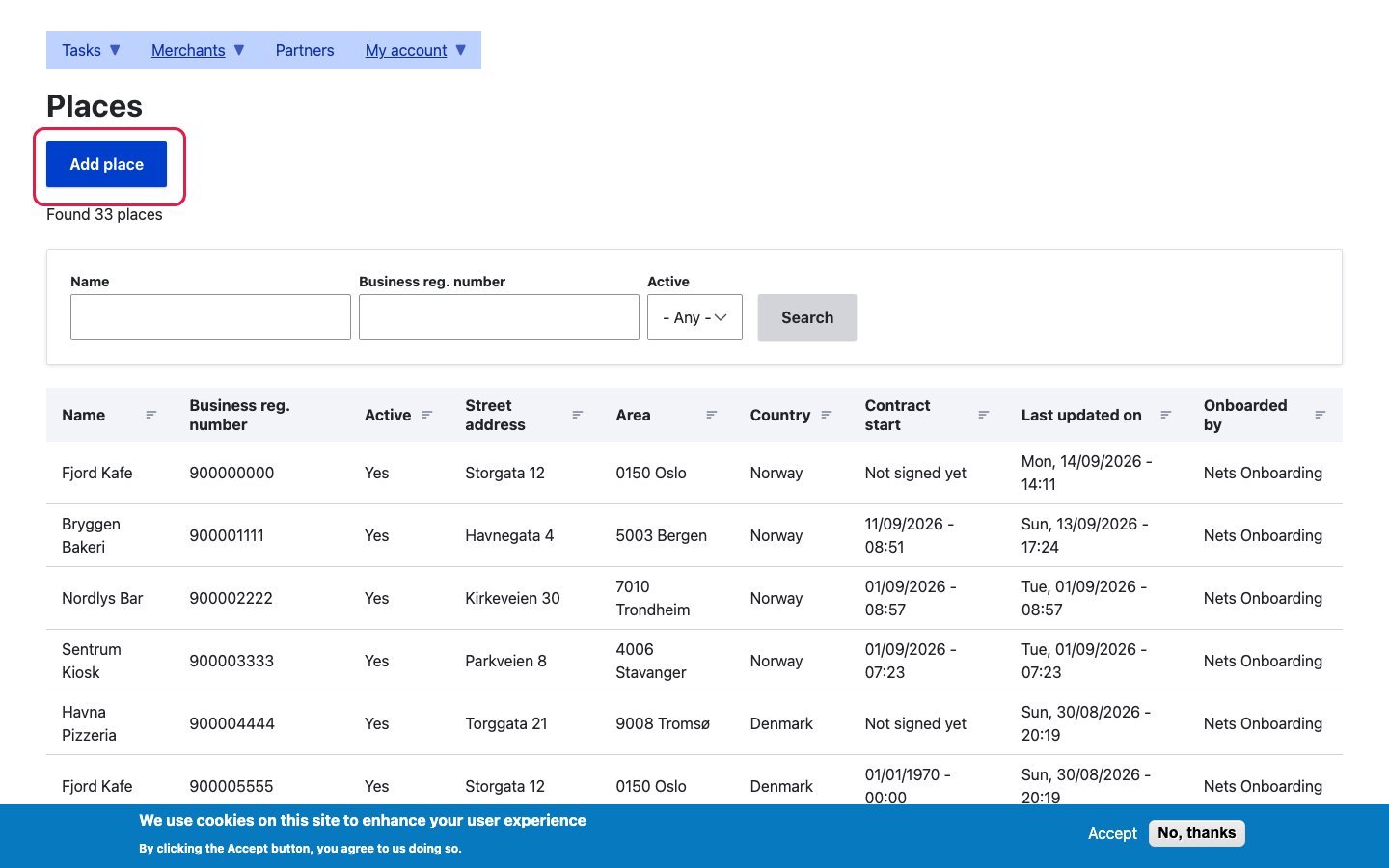
Check here before creating anything. The filters at the top search by name and by
registration number. A shop already onboarded, by you or a colleague, should be
corrected rather than duplicated.
2. Add the place
Select Add place. The new place opens as Untitled, with a warning that it is
inactive. That is expected: it stays inactive until it has what it needs.
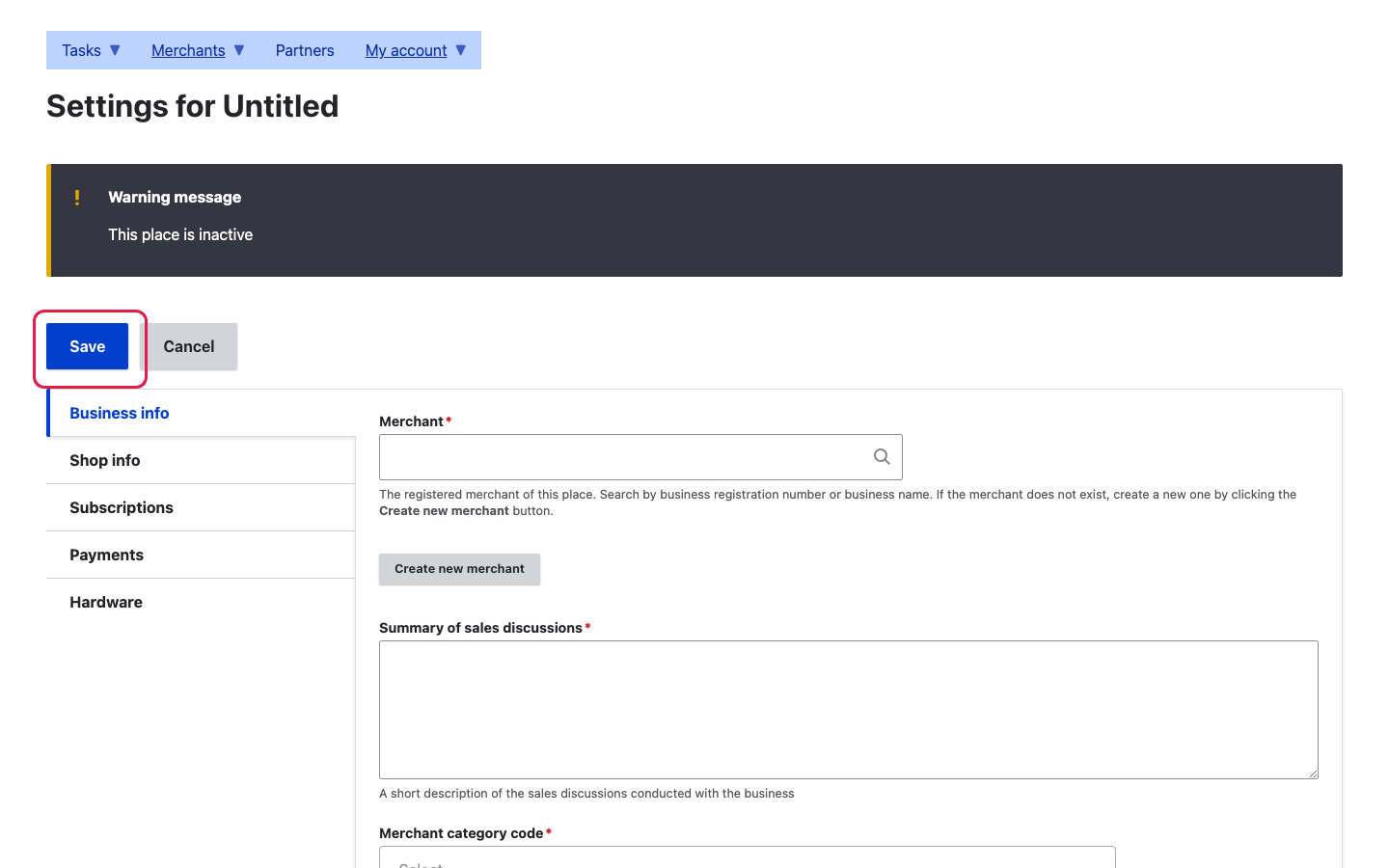
The form is in tabs, and Business info is where you start:
| Tab | Covers |
|---|---|
| Business info | The merchant, the sales discussion, the merchant category code |
| Shop info | The shop itself, as customers see it |
| Subscriptions | What the place is signed up to |
| Payments | How it takes money |
| Hardware | What it is getting |
3. Attach it to a merchant
Merchant is the registered business behind the place. Search by business
registration number or business name. Use the number: trading names repeat and
change.
If the business is genuinely new to us, Create new merchant makes one. Search
first. A merchant created twice splits one business's places across two records, and
that is unpicked by hand afterwards.
4. Fill in the rest of Business info
Summary of sales discussions is a short description of what was agreed with the
business. Write it for the person who picks this up in six months, not for yourself
today: what they asked for, what was promised, anything unusual about the deal.
Merchant category code classifies the business. The list is long and specific.
Choose the code that matches what the shop actually sells. It is not cosmetic: the
category affects how the business is treated commercially.
5. Work through the other tabs
Shop info, Subscriptions, Payments and Hardware each hold their own part of the
setup. The place stays inactive while you do. The warning at the top is a status,
not an error.
If something goes wrong
| What you see | What it means | What to do |
|---|---|---|
| This place is inactive | It is not finished, or not activated yet | Expected on a new place; complete the tabs |
| The merchant cannot be found | It may be registered under another name | Search by registration number rather than name |
| Two records for one business | A merchant was created without searching first | Do not create a third; have them merged |
| The shop is already in the list | It was onboarded before | Correct the existing place rather than adding another |
Was this article helpful?
Thanks for your feedback!
