

 Dansk
 Svenska
 Deutsch
 Norsk bokmål
Switch between your shops
Everything in the manager app belongs to one shop: the products, the staff, the
settings, the figures. If you run more than one, you work on one at a time, and the
app always tells you which.
Where you are now
The shop you are working on is named in the top bar, next to the logo.
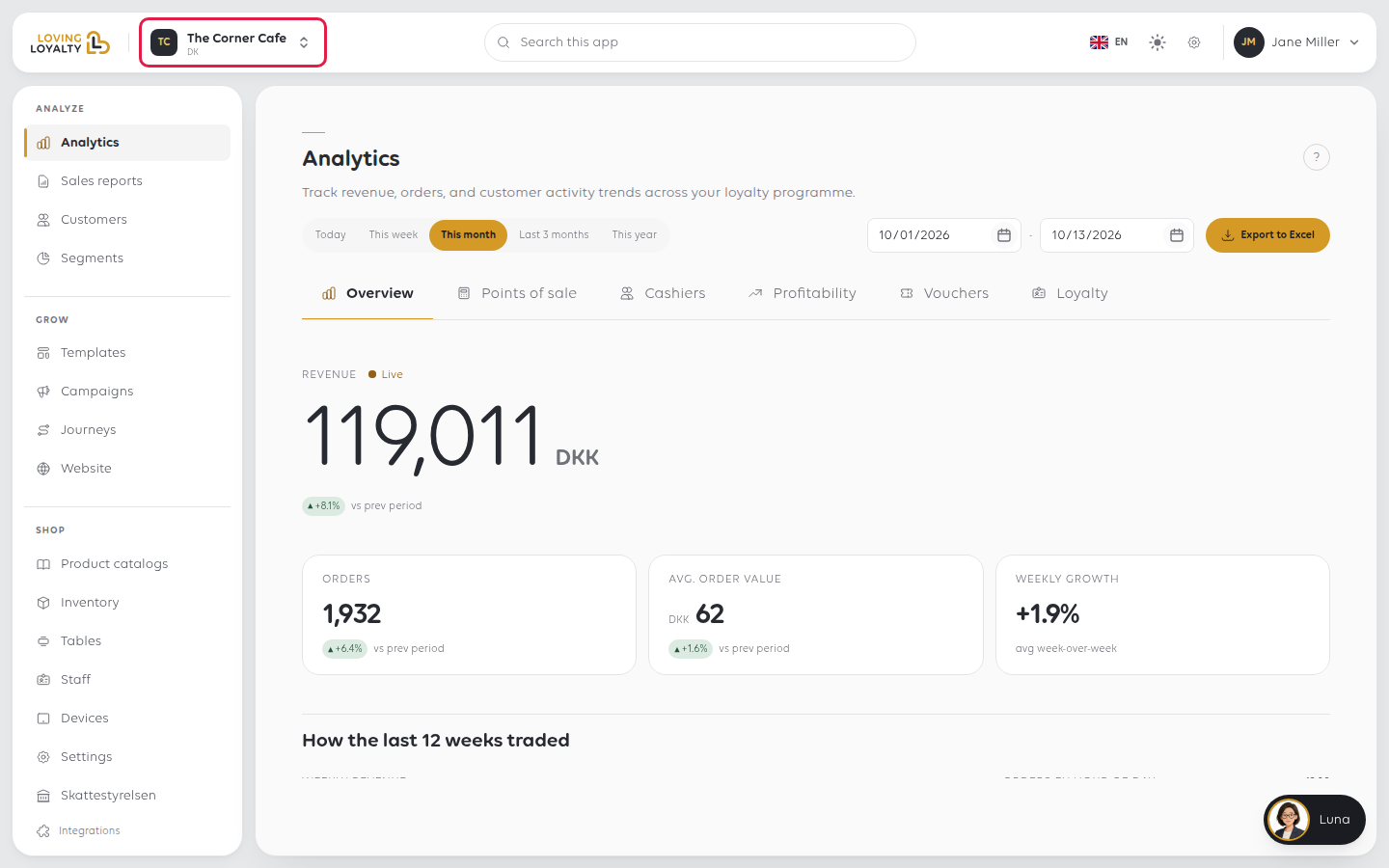
Read that name before you change anything. It is the single most useful habit in the
app: a price changed in the wrong shop looks exactly like a price changed in the
right one.
Change shop
Select the name. Your shops drop down beneath it, with a search box, and All shops
for the full list you saw when you signed in.
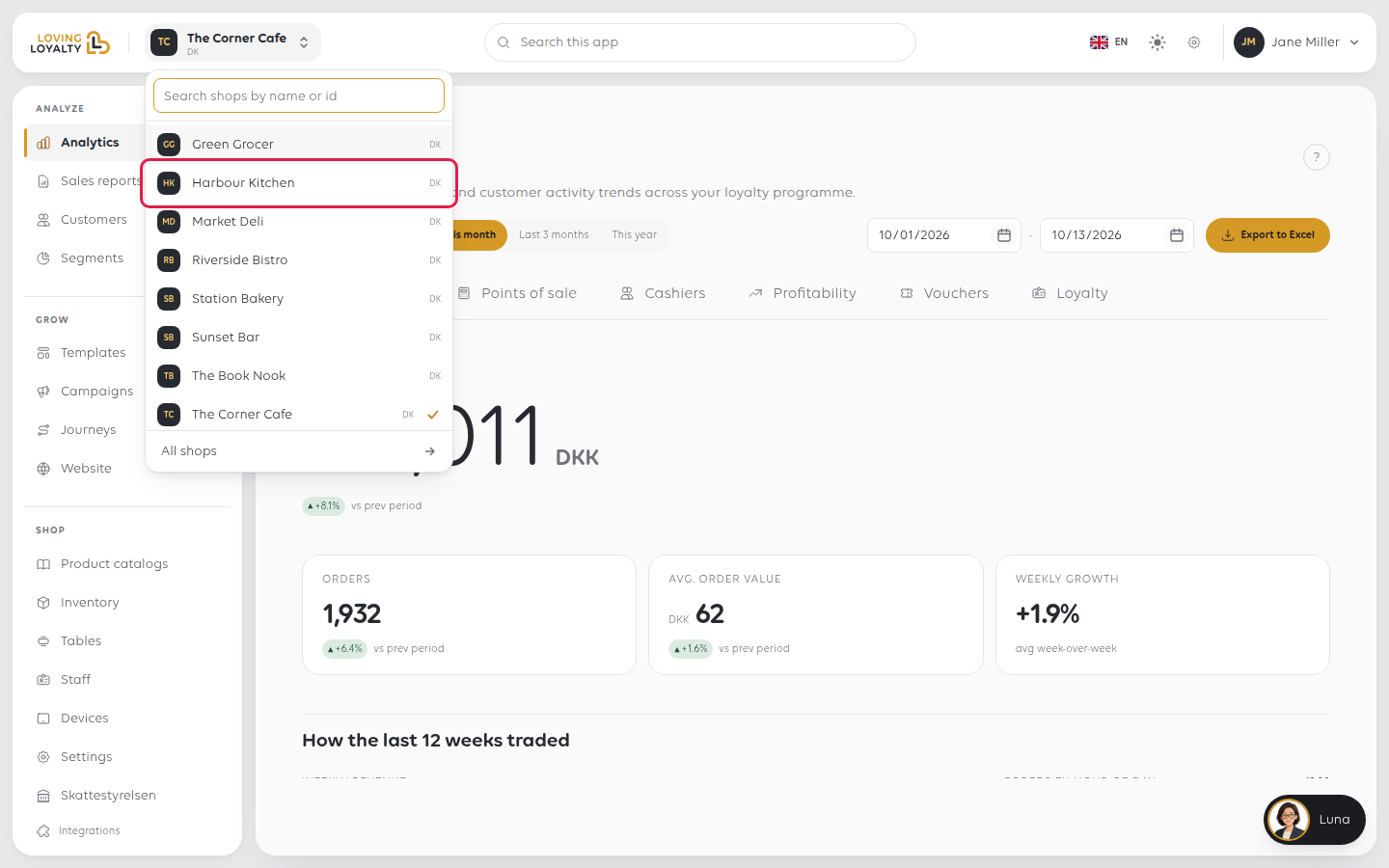
Search by name and choose one. You see Now showing with the shop's name, and you
stay on the same page, now for that shop. A record you had open drops back to its
list.
What does not follow you
Switching shop does not sign you out, and it does not change your own account: your
name, your language, and how you sign in stay as they are. See Update your profile.
What does change is everything you are looking at. An export started in one shop, a
report you were reading, a half-finished settings page: all of it is replaced by the
new shop's version. Save before you switch.
If something goes wrong
| What you see | What it means | What to do |
|---|---|---|
| A shop is missing from the list | Your account has not been given access to it | Ask whoever manages that shop to add you. See Add a staff member |
| You changed something in the wrong shop | The switcher was showing another shop | Switch back and undo it; check the name at the top before editing |
| The list is long | Shops are listed by name with their country | Use the search box |
Was this article helpful?
Thanks for your feedback!
