

 Dansk
 Svenska
 Deutsch
 Norsk bokmål
Edit a journey's steps and timing
A journey is a sequence that runs by itself when something happens: an order is
accepted, points are earned, a referral lands. This is how to change what it does and
when. To create one, see Build an automated journey.
Open it
Open Grow → Journeys. Each journey lists its trigger, how many steps it has and
whether it is active, with Edit, History and Stop (or Start if it is
inactive). A journey with a manual trigger has Run instead of Start and Stop.
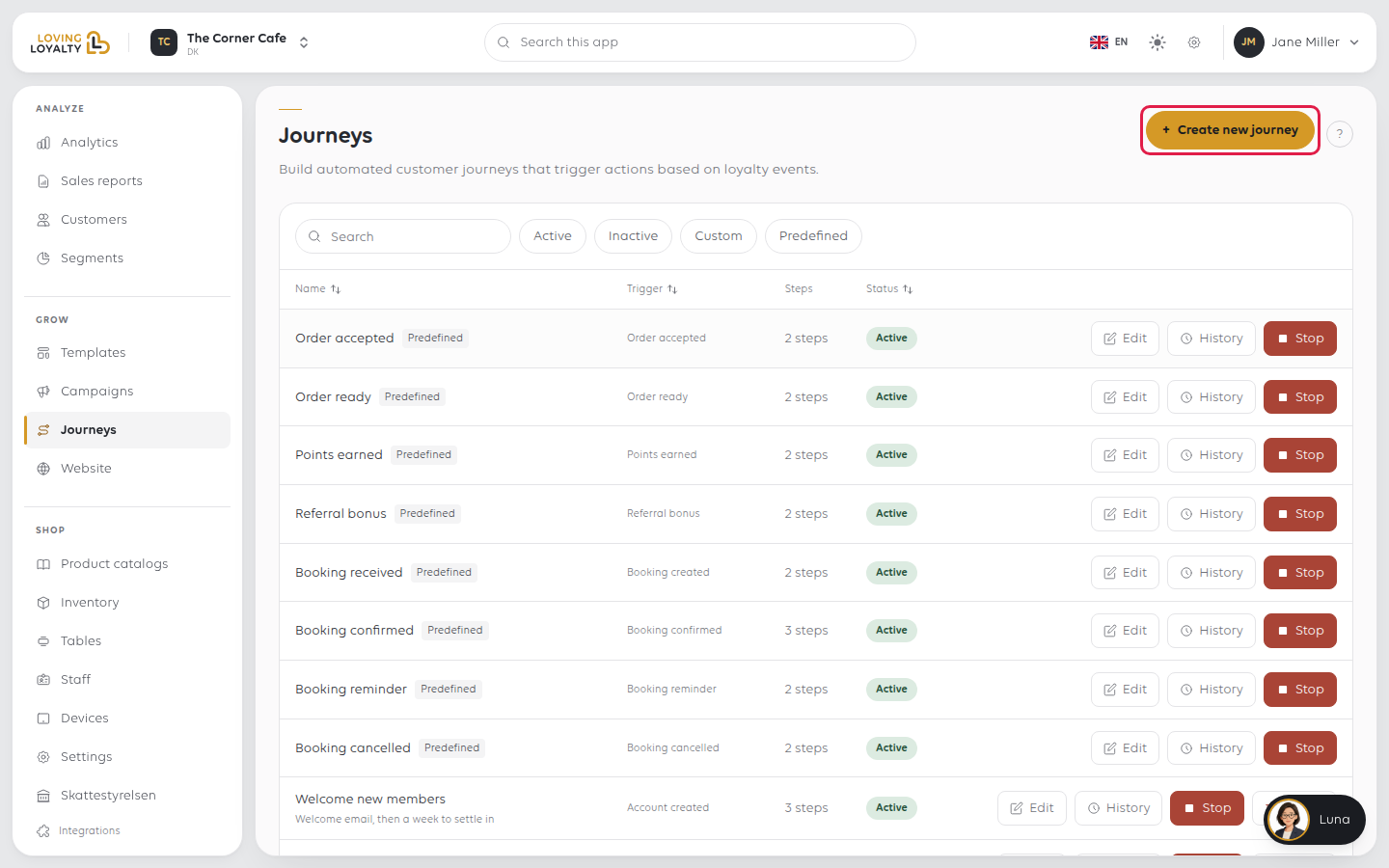
Some are Predefined, such as Order accepted, Order ready, Points earned and Referral
bonus. You can edit their steps, and if they are running, a change takes effect on the
next customer who triggers it.
The trigger itself cannot be changed after a journey is saved. To start on a different
event, create a new journey.
The steps
Edit opens the journey as a flow: the trigger at the top, each step below it,
ending at End.
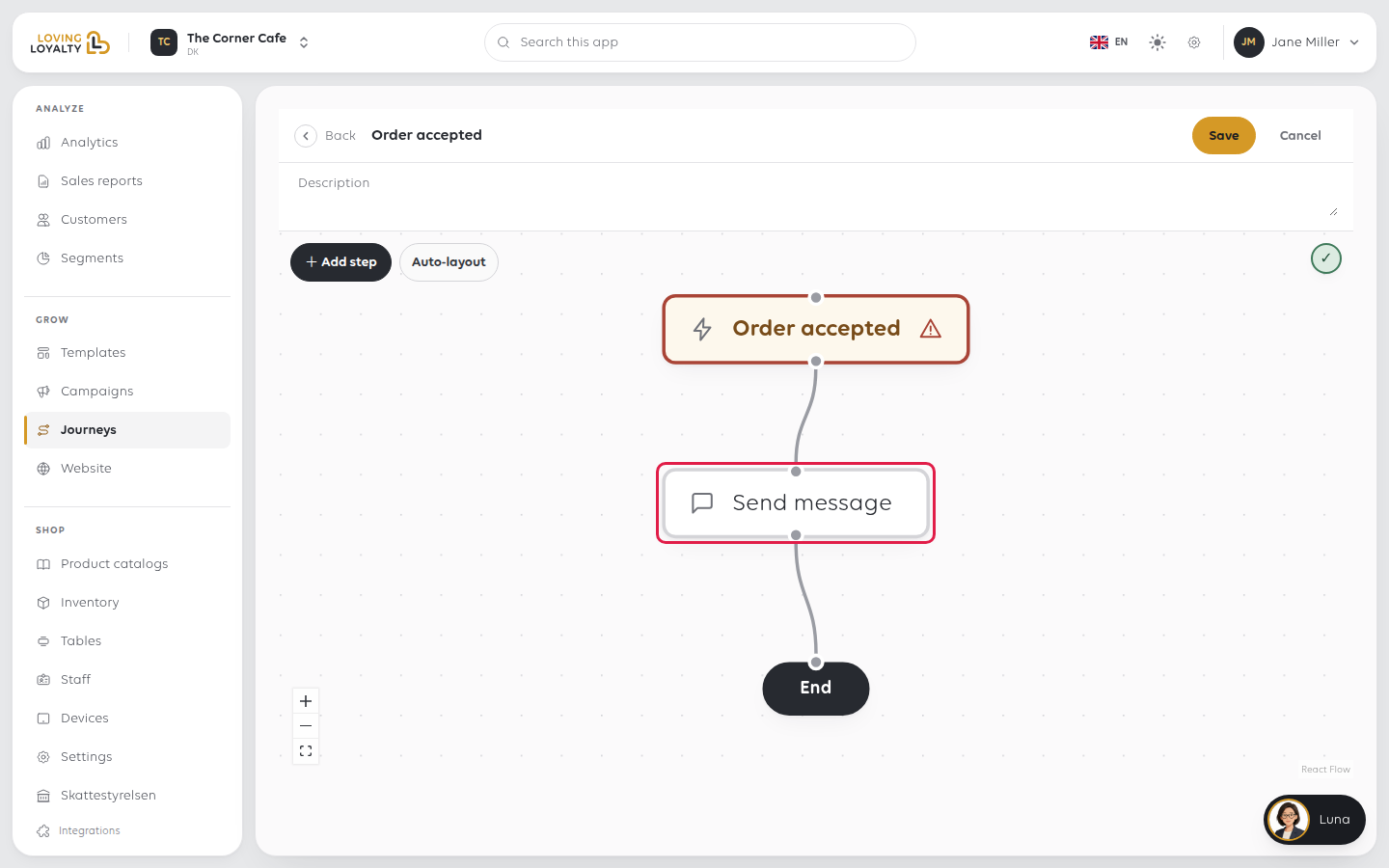
Click + Add step to add one of six kinds. Click any step to change its settings. They open in a side panel, or a sheet from the
bottom on a phone. Delete step at the foot of the panel removes the step.
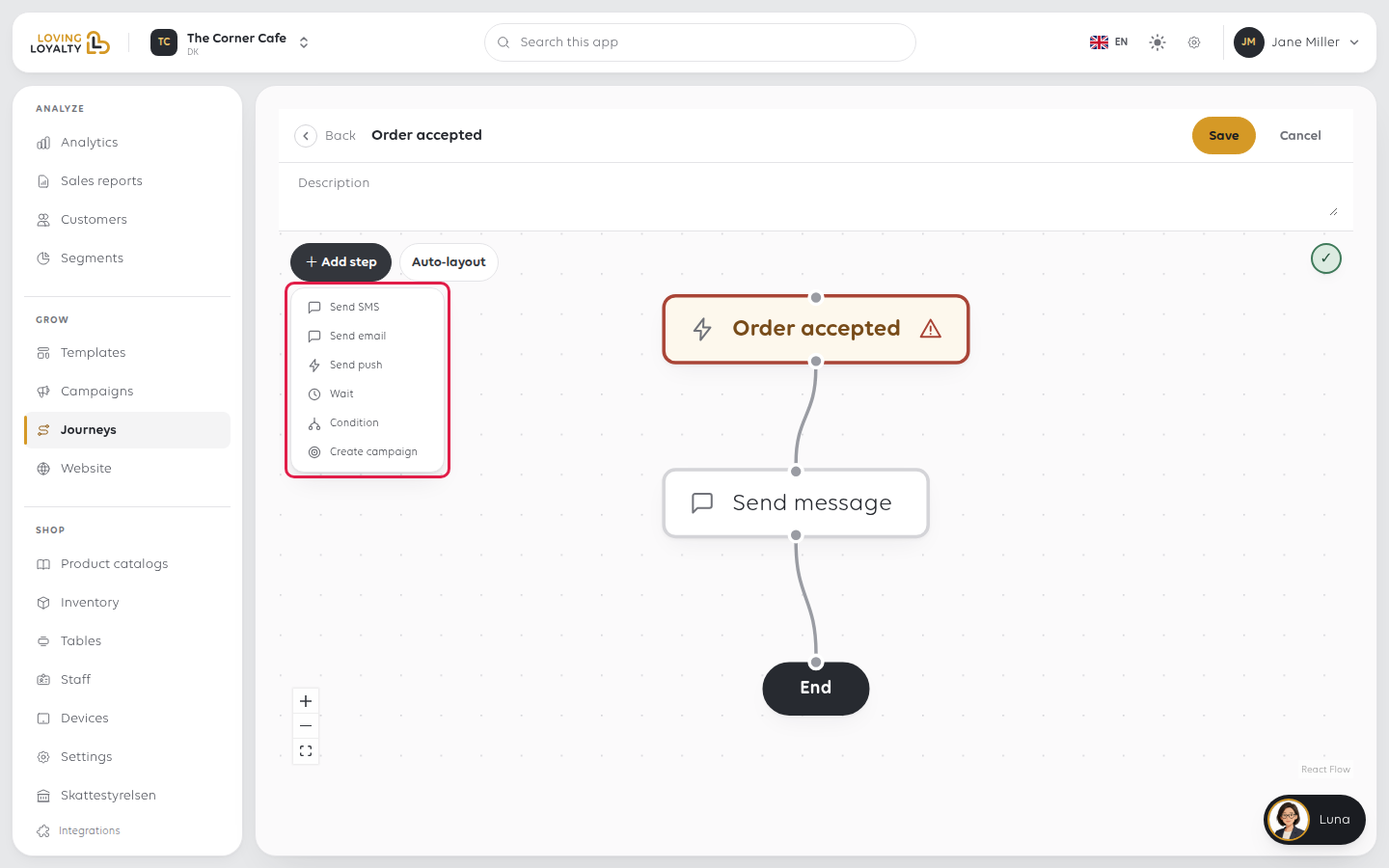
| Step | What it does |
|---|---|
| Send SMS | A text message |
| Send email | An email |
| Send push | A notification to the customer app |
| Wait | Pauses before the next step. This is the timing |
| Condition | Splits the path, so different customers get different things |
| Create campaign | Issues a campaign, such as a voucher |
Auto-layout tidies the arrangement. It changes how the flow is drawn, not what
it does.
Timing is a Wait step
There is no "send this three days later" setting on a message. Delay is its own step:
put a Wait between two messages, set its Days, Hours and Minutes, and the
second message follows that much later.
Which means the order matters. Wait, then send is a reminder. Send, then wait is
a message now, followed by a pause before whatever comes next.
Think about when the wait lands. A journey triggered at 21:00 with a two-hour wait
sends at 23:00. If the message is a text message, that is a phone buzzing beside
somebody's bed.
Conditions
A Condition splits the path. Use it to stop sending something to people it does
not suit, such as a reminder that should not go to someone who has already come back.
A condition has a Yes branch and a No branch, and both must be connected. If a
step is missing a template, a branch or a duration, the check on the canvas shows
Flow has issues. Click it to see which step.
Before you save
A journey sends real messages to real customers, and a mistake is not recallable.
- Read each message. The wording is in a template; see Write and edit messages.
- Check the canvas says Flow is valid.
- Check the waits add up to something you would be happy to receive.
- Remember it applies to everyone who triggers it from now on.
Click Save. A Saved message confirms it, and changes apply from then on. Stop on the list pauses the whole
journey, which is the right move if you are unsure: a stopped journey sends nothing
while you think.
If something goes wrong
| What you see | What it means | What to do |
|---|---|---|
| Customers got nothing | The journey is stopped, or nobody triggered it | Check its status, then History |
| A message went at a bad hour | A Wait landed there | Change the wait, or add one so it lands in the day |
| Some customers got a different message | A Condition split them | Follow both paths in the editor |
| Messages went twice | Two journeys have the same trigger | Stop one |
| You need to stop it now | Click Stop on the journeys list |
Was this article helpful?
Thanks for your feedback!
