

 Dansk
 Svenska
 Deutsch
 Norsk bokmål
Edit the booking confirmation email
The message a guest gets when their booking is confirmed is a template you own. You
can change the wording, the subject, and what it says in each language.
Find the template
Open Grow → Templates. Templates are the reusable messages your shop sends by
email, SMS and push.
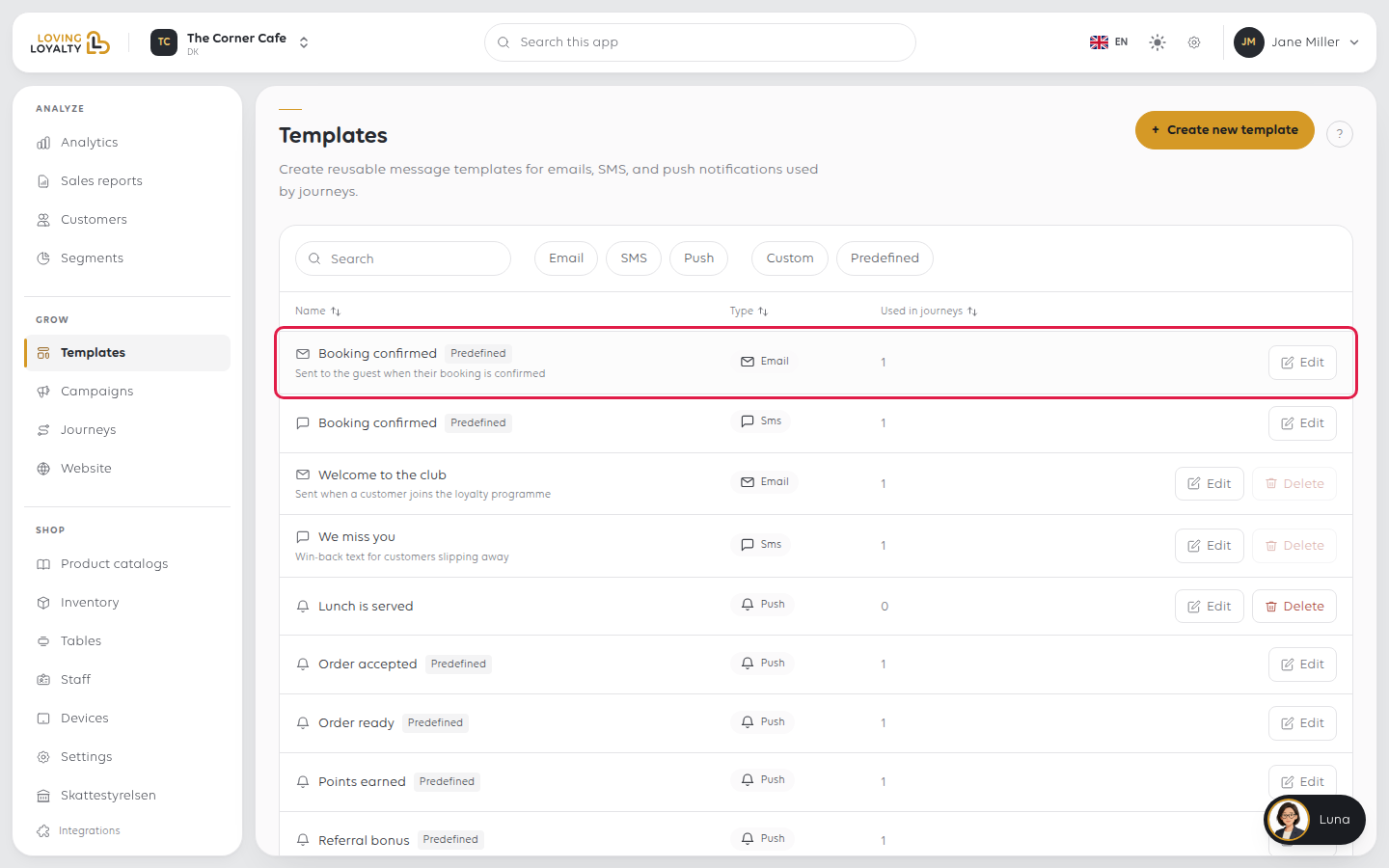
Booking confirmed appears twice, once as email and once as sms. They are
separate messages: editing the email does not change what the text message says.
Select Edit on the one you mean.
What you can change
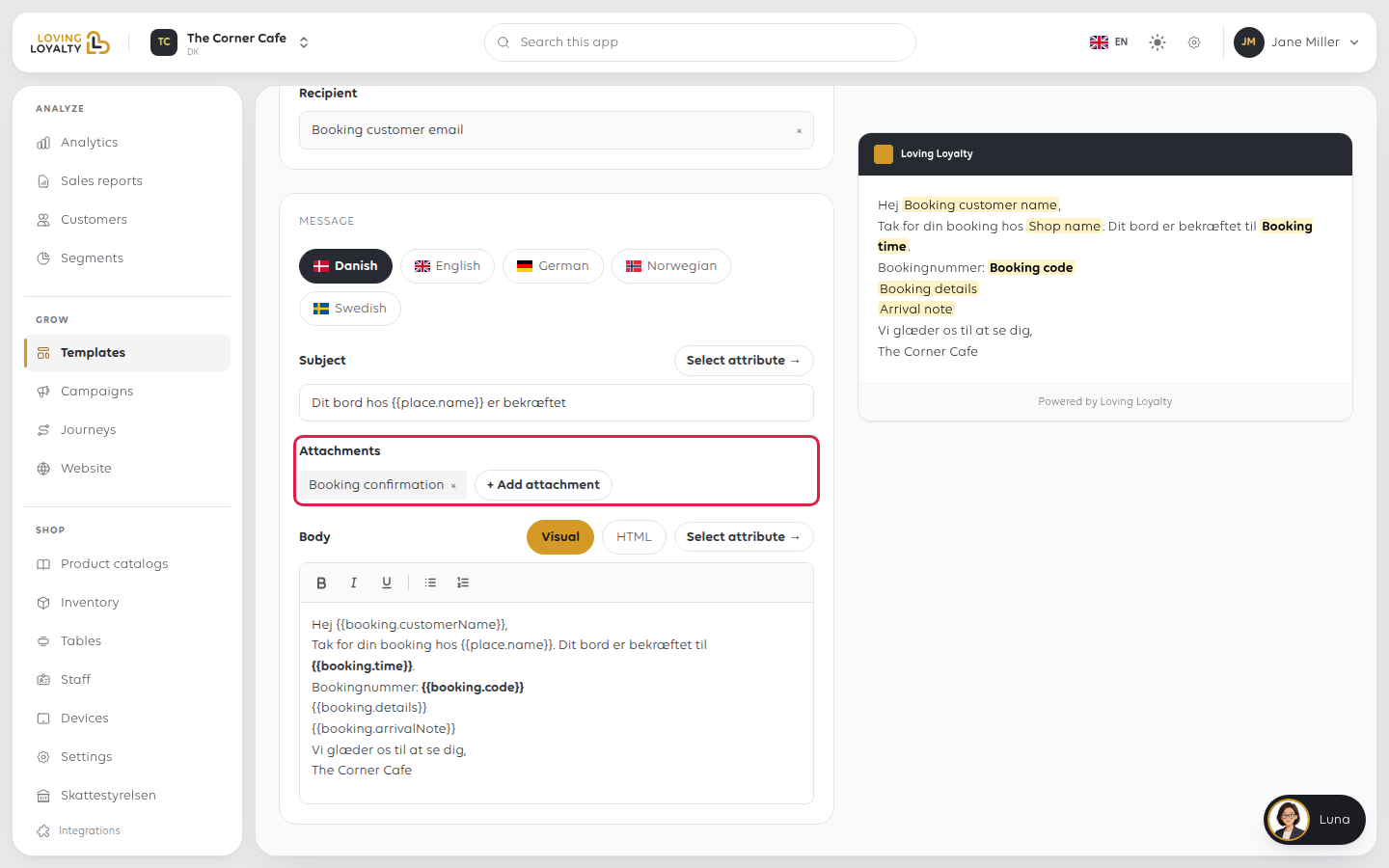
Subject and Body are the message itself. The body has a Visual editor and
an HTML one, so you can write normally or work in markup.
Attachments is already set to the booking confirmation, which is what the guest
needs to bring or show.
Recipient is the email of the person who made the booking.
Placeholders do the personalising
The template is written with placeholders that are filled in per booking:
| Placeholder | Becomes |
|---|---|
{{booking.customerName}} |
The guest's name |
{{place.name}} |
Your shop's name |
{{booking.time}} |
The date and time booked |
{{booking.code}} |
Their booking reference |
{{booking.details}} |
The details of the booking |
{{booking.arrivalNote}} |
What you want them to do on arrival |
Select attribute → inserts one at the cursor, which is safer than typing it: a
misspelled placeholder is not detected, it simply arrives as literal text in the
guest's inbox.
Never delete
{{booking.code}}from the message. It is how the guest identifies
their booking to you, and a confirmation without it is a confirmation of nothing.
Languages
The editor has a tab per language, your shop's own language first, then the rest of
Danish, English, German, Norwegian and Swedish. Each holds its own wording, and a
guest gets the one matching their language, falling back to your shop's own.
Change the English and the Danish stays as it was. If you have edited one language
only, check the others still say the same thing.
Check it before you rely on it
A live preview sits beside the form and shows the message as it will arrive; on a
narrower screen it is the Preview tab next to Edit. Read it in
each language you have written, because that is where a missing placeholder or a
stray tag shows itself.
Click Save when you are done. You go back to the Templates list, and the next
confirmation uses the new wording. Cancel leaves it as it was.
If something goes wrong
| What you see | What it means | What to do |
|---|---|---|
| Guests get the old wording | Another template is being used, or the change was not saved | Check you edited the right channel — email and sms are separate |
| A placeholder appears as text | It is misspelled | Delete it and insert it with Select attribute → |
| Only some guests see the new wording | You edited one language | Update each language tab you use |
| The message is empty in one language | That tab was never written | Fill it in, or leave it so your shop's own language is used |
Was this article helpful?
Thanks for your feedback!
