

 Dansk
 Svenska
 Deutsch
 Norsk bokmål
Update your logo and fonts
Your logo and fonts are what customers see wherever your shop appears. Both are
under Visual Presence in settings.
The logo
Open Shop → Settings and type logo in Search settings.... The Logo
setting, under Visual Presence → Images, has a Replace image button. Select
it and pick your file; the new logo saves as soon as it has uploaded.
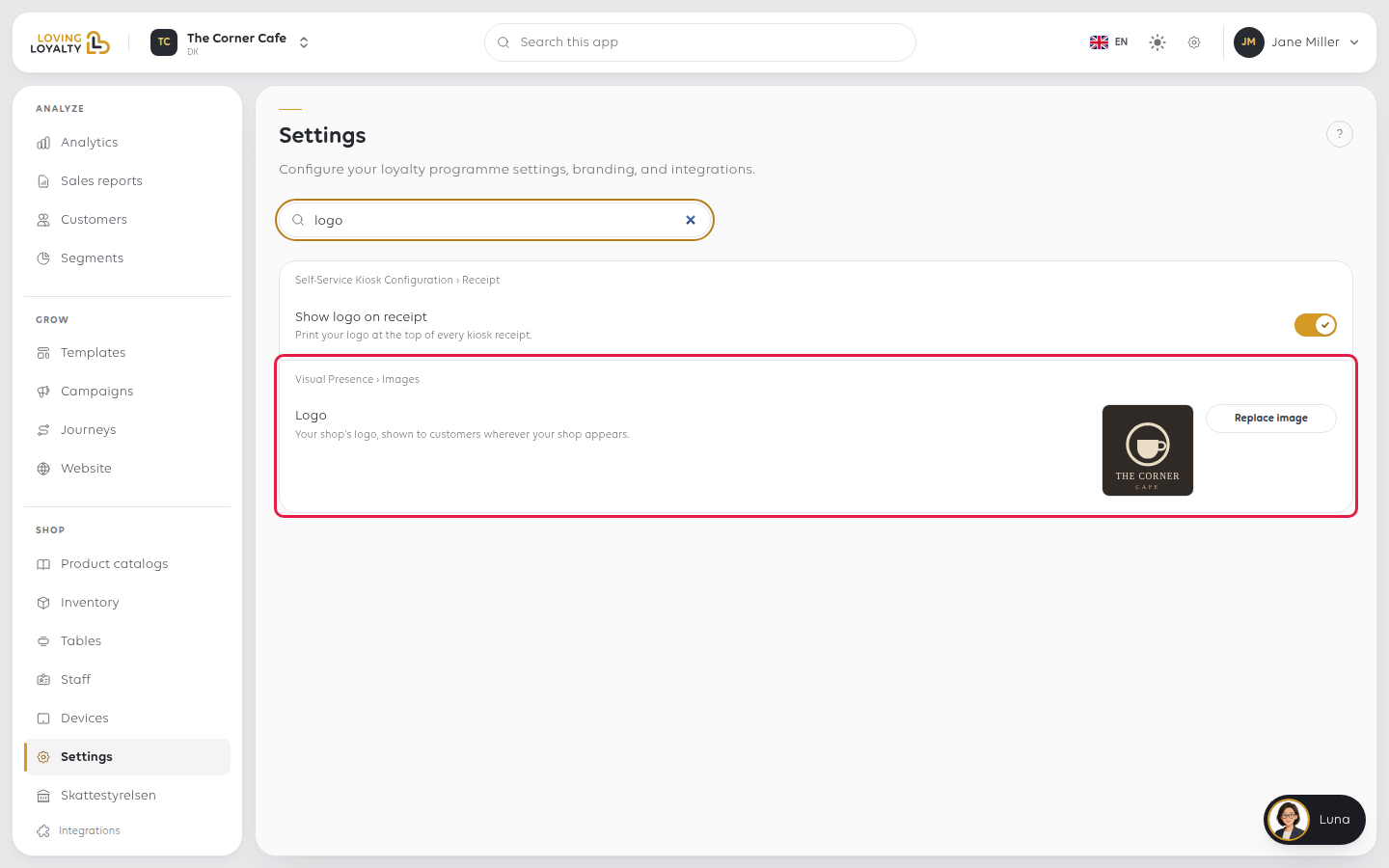
The logo also prints on receipts, in black and white, small and often at low
resolution. A logo with fine detail or pale colours turns into a grey smudge.
Print a receipt to check it. See Reprint a receipt.
There is a separate switch for whether the logo appears on kiosk receipts at all,
under the self-service kiosk settings.
The fonts
Search for font. Visual Presence → Fonts has three. Pick a font from the list
and a preview line under it shows how it looks.
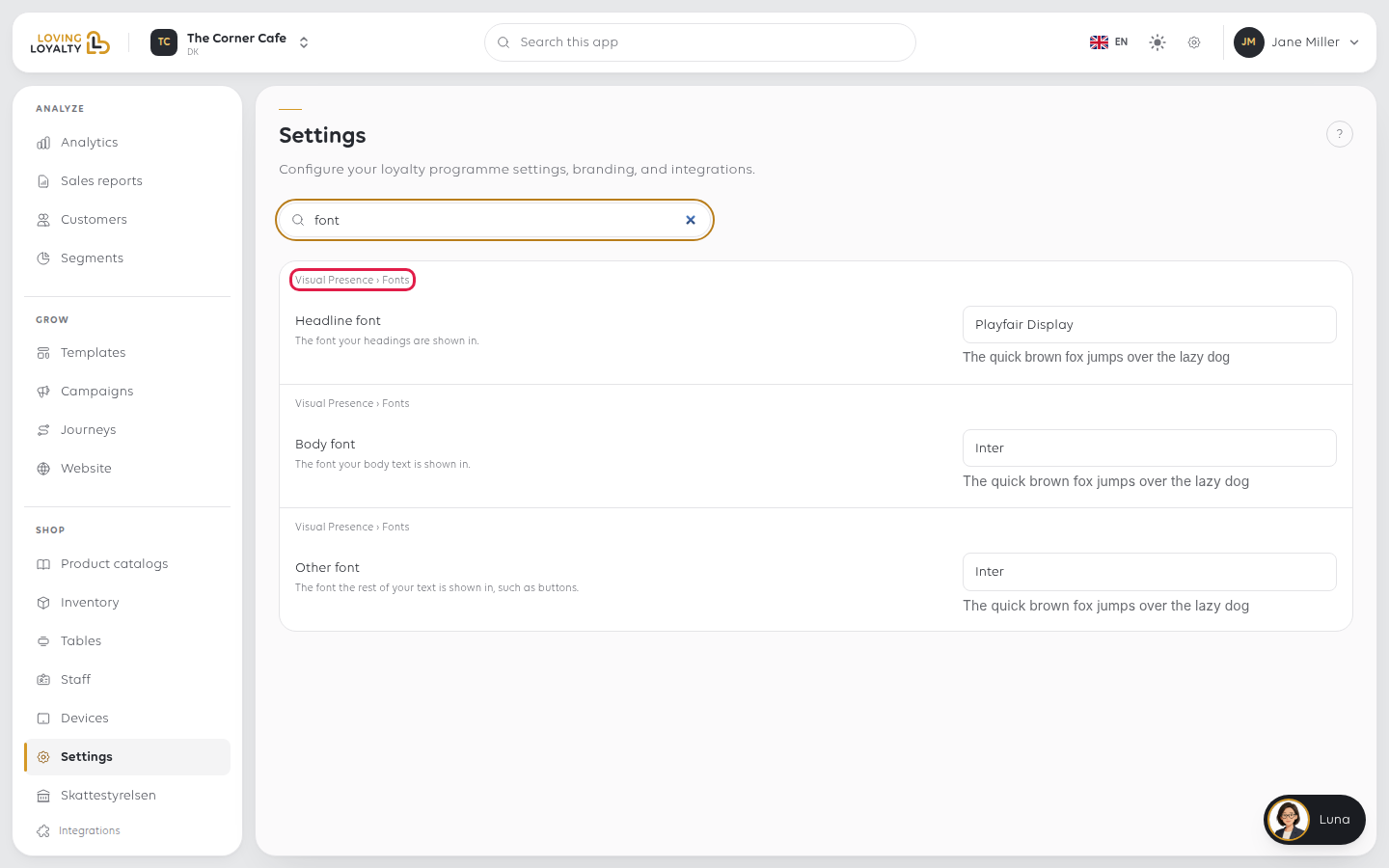
| Font | Used for |
|---|---|
| Headline font | Your headings |
| Body font | Your body text |
| Other font | The rest of your text |
Nothing is saved until you select Save next to that font. Each font has its own
Save, so changing all three means saving three times.
If something goes wrong
| What you see | What it means | What to do |
|---|---|---|
| The old logo is still showing | The page still shows what it loaded earlier | Reload the page; a till picks it up when it next loads its settings |
| The logo is unreadable on receipts | Printed receipts are black, white and narrow | Use a simpler, high-contrast version |
| Only one font changed | Each font has its own Save | Save each one you changed |
| Letters appear wrong in another language | The font lacks those characters | Choose one with the accents your languages need |
Was this article helpful?
Thanks for your feedback!
