

 Dansk
 Svenska
 Deutsch
 Norsk bokmål
Receipt configuration
Open the group
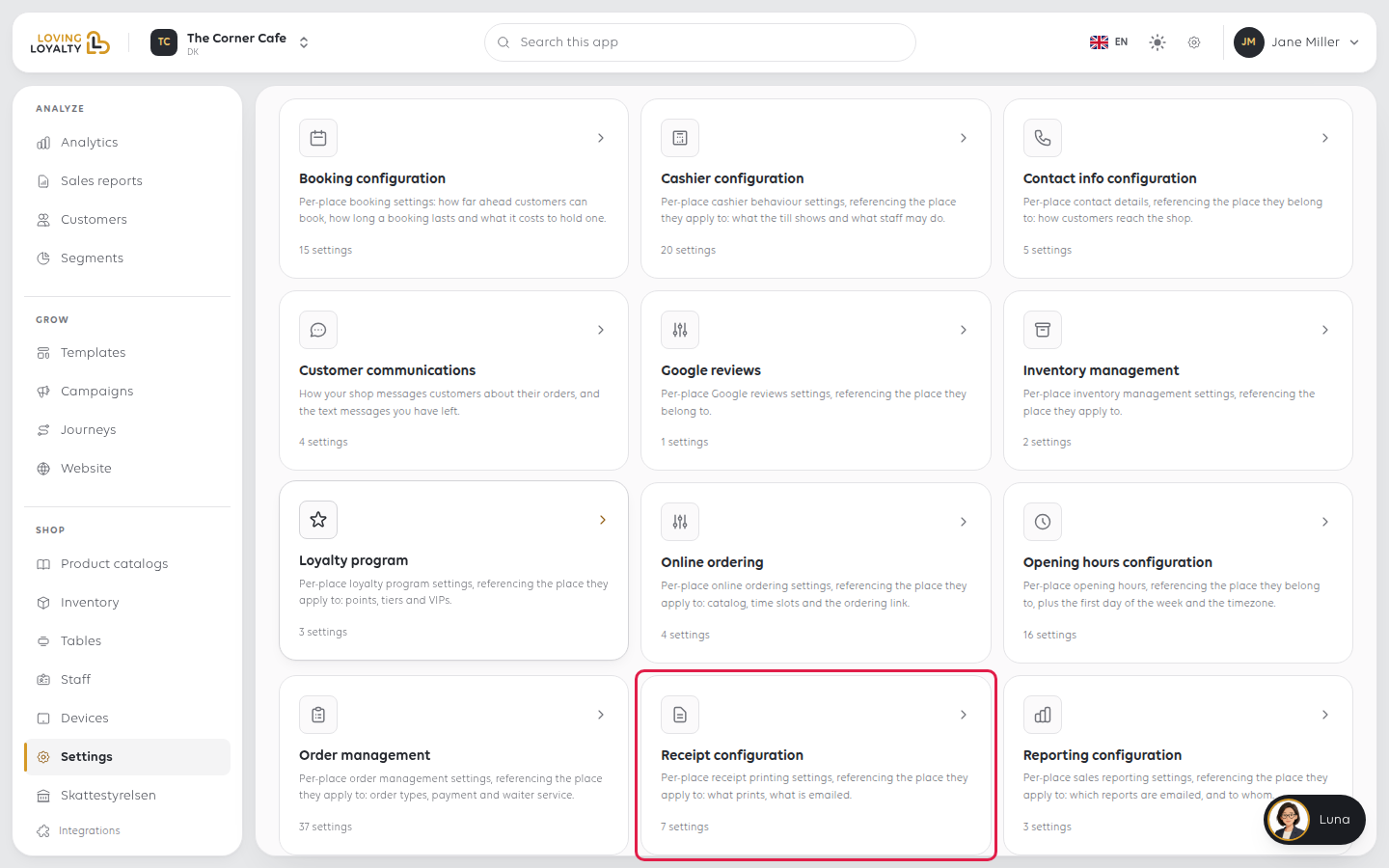
Shop → Settings → Receipt configuration.
The settings sit in three groups: Printing, Email and download and
Message. Switches save as soon as you change them. The message field shows
Save once you change it.
Printing
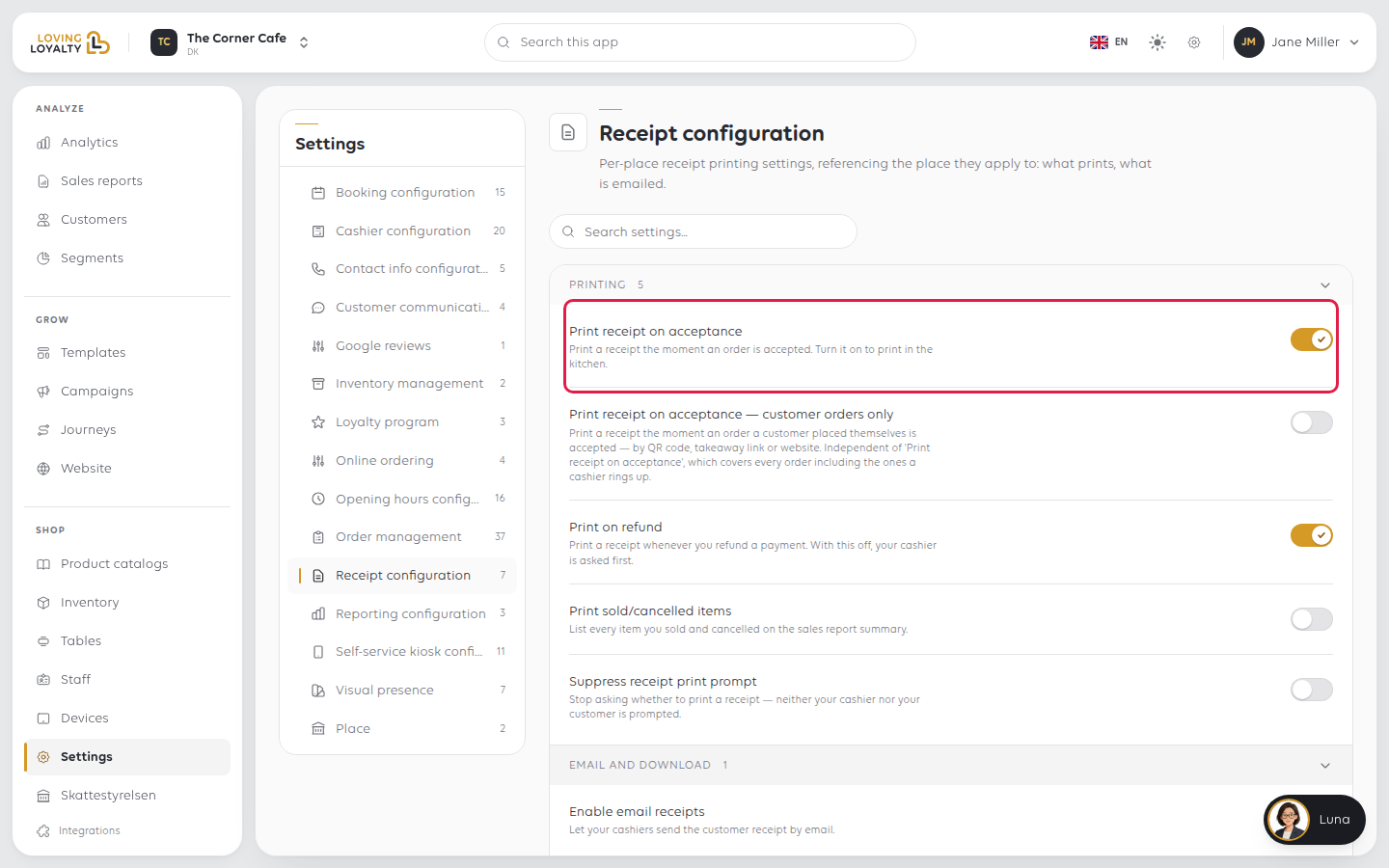
Print receipt on acceptance
Prints a receipt the moment an order is accepted. Turn it on to print in the kitchen.
Print receipt on acceptance — customer orders only
Prints the moment an order a customer placed themselves is accepted - by QR code,
takeaway link or website.
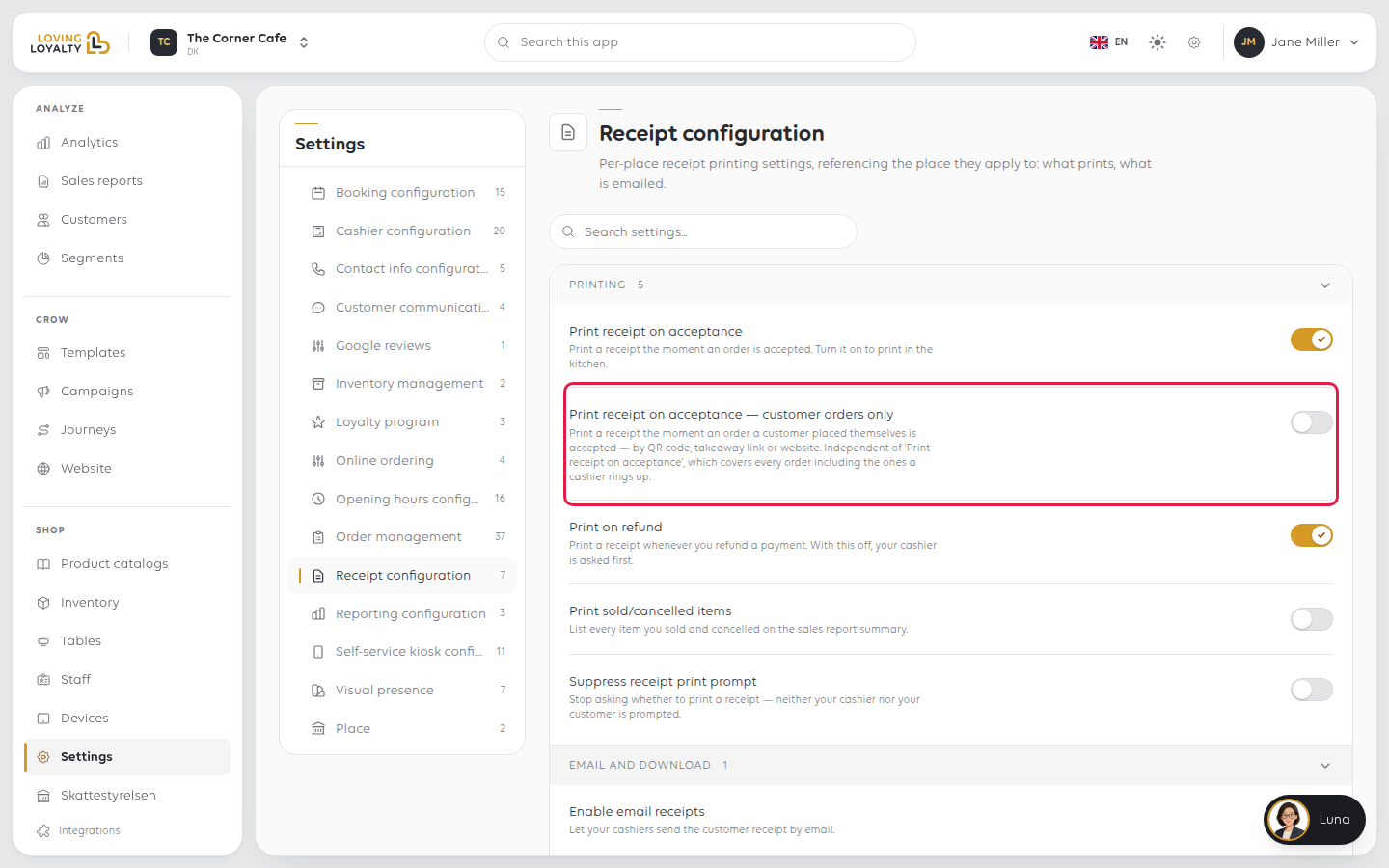
Use this instead of the setting above if you only want customers' own orders
printed. The setting above already covers every order, including the ones a cashier
rings up, so turning both on prints twice for a customer's own order.
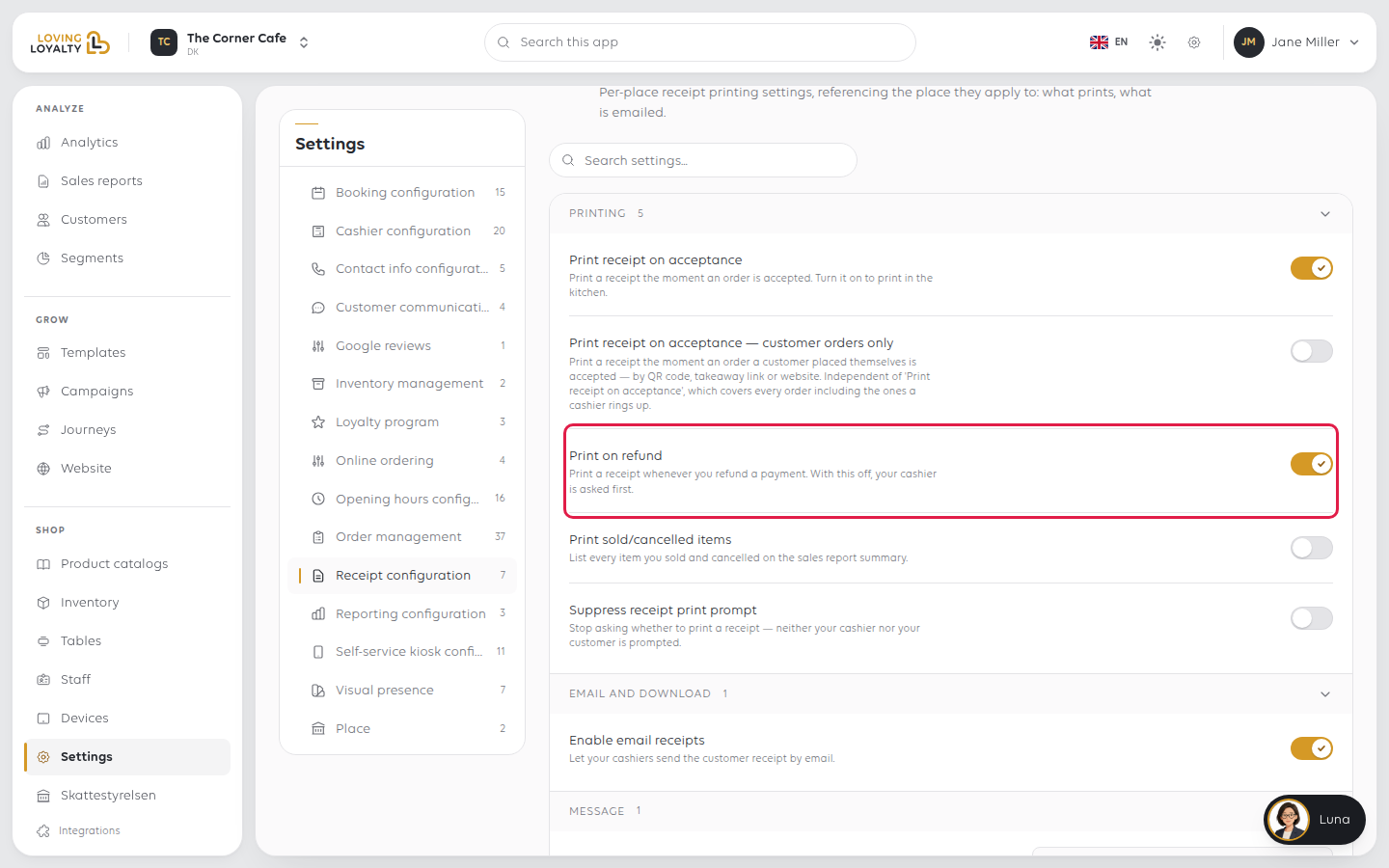
Print on refund
Prints a receipt whenever you refund a payment. With this off, your cashier is asked
first.
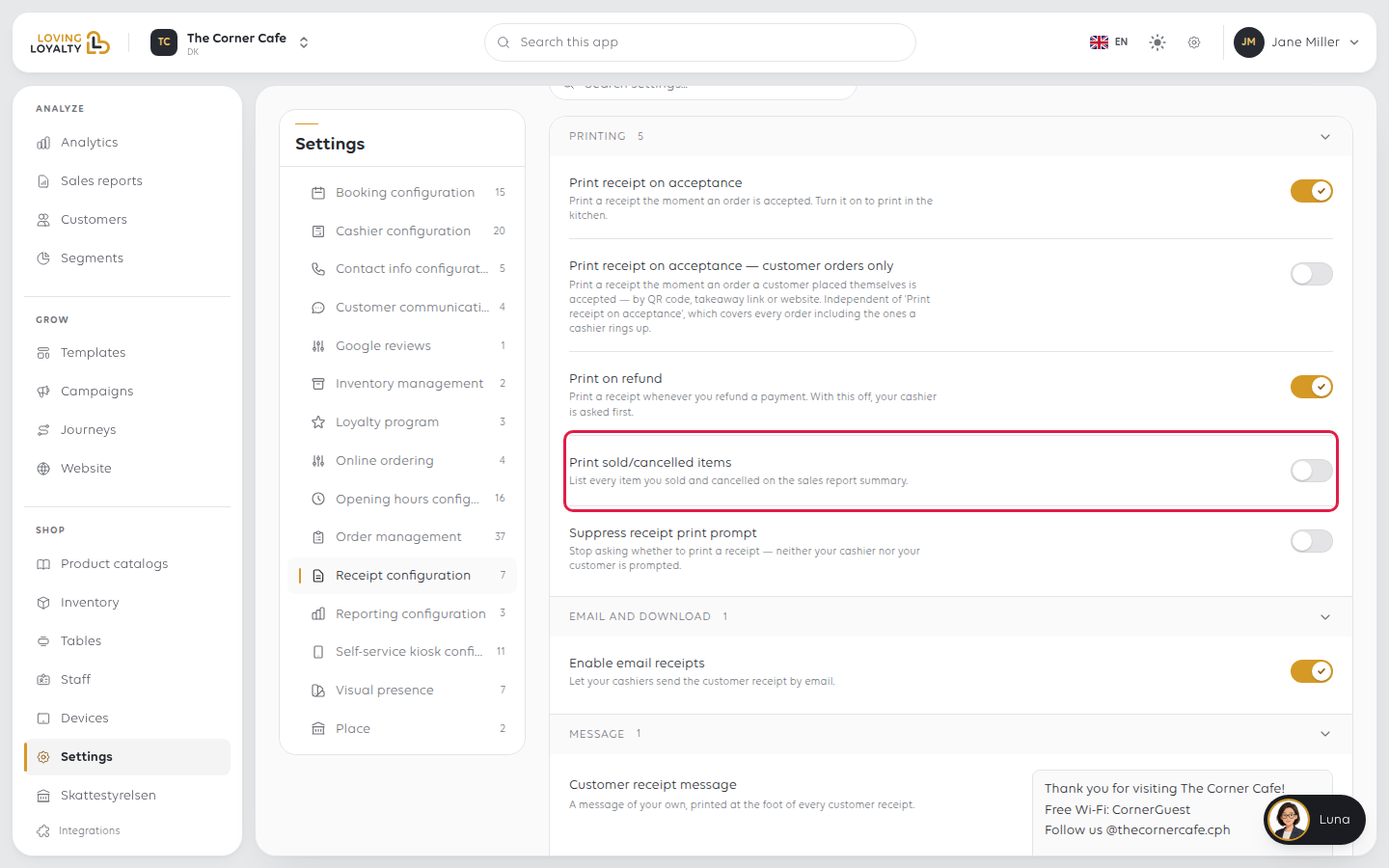
Print sold/cancelled items
Lists every item you sold and cancelled on the printed sales report summary.
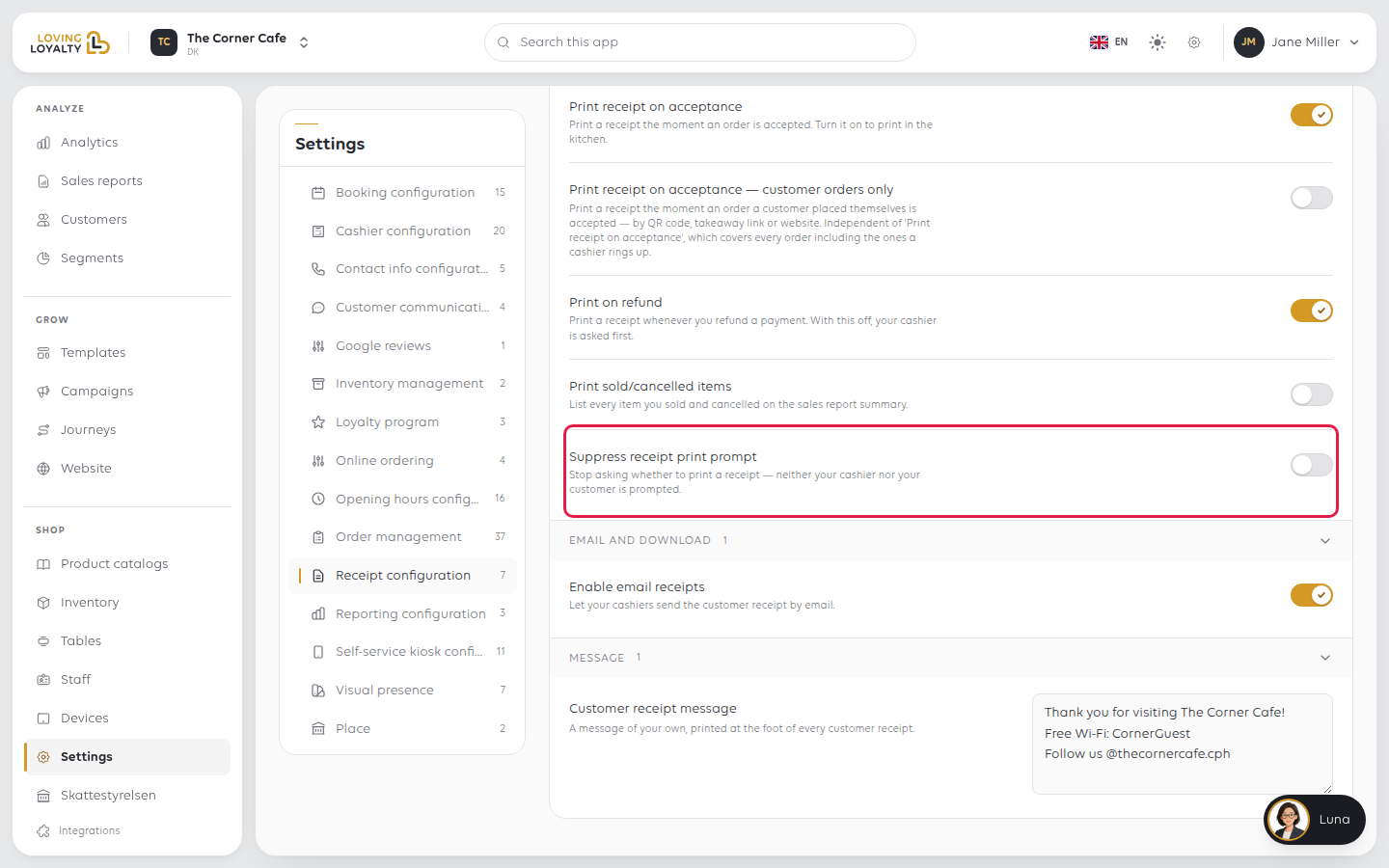
Suppress receipt print prompt
Stops asking whether to print a receipt - neither your cashier nor your customer is
asked.
Email and download
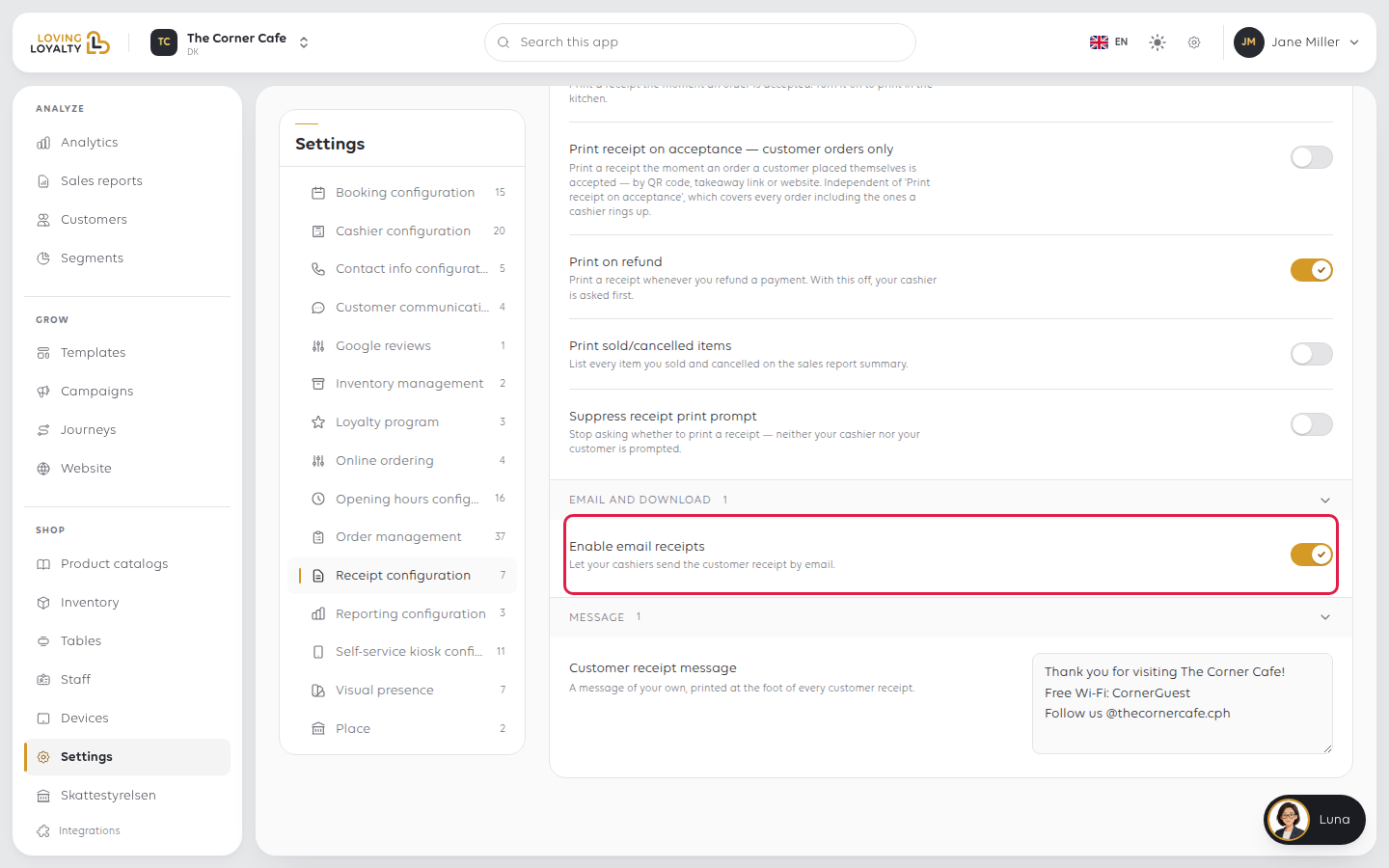
Enable email receipts
Lets your cashiers send the customer receipt by email.
Message
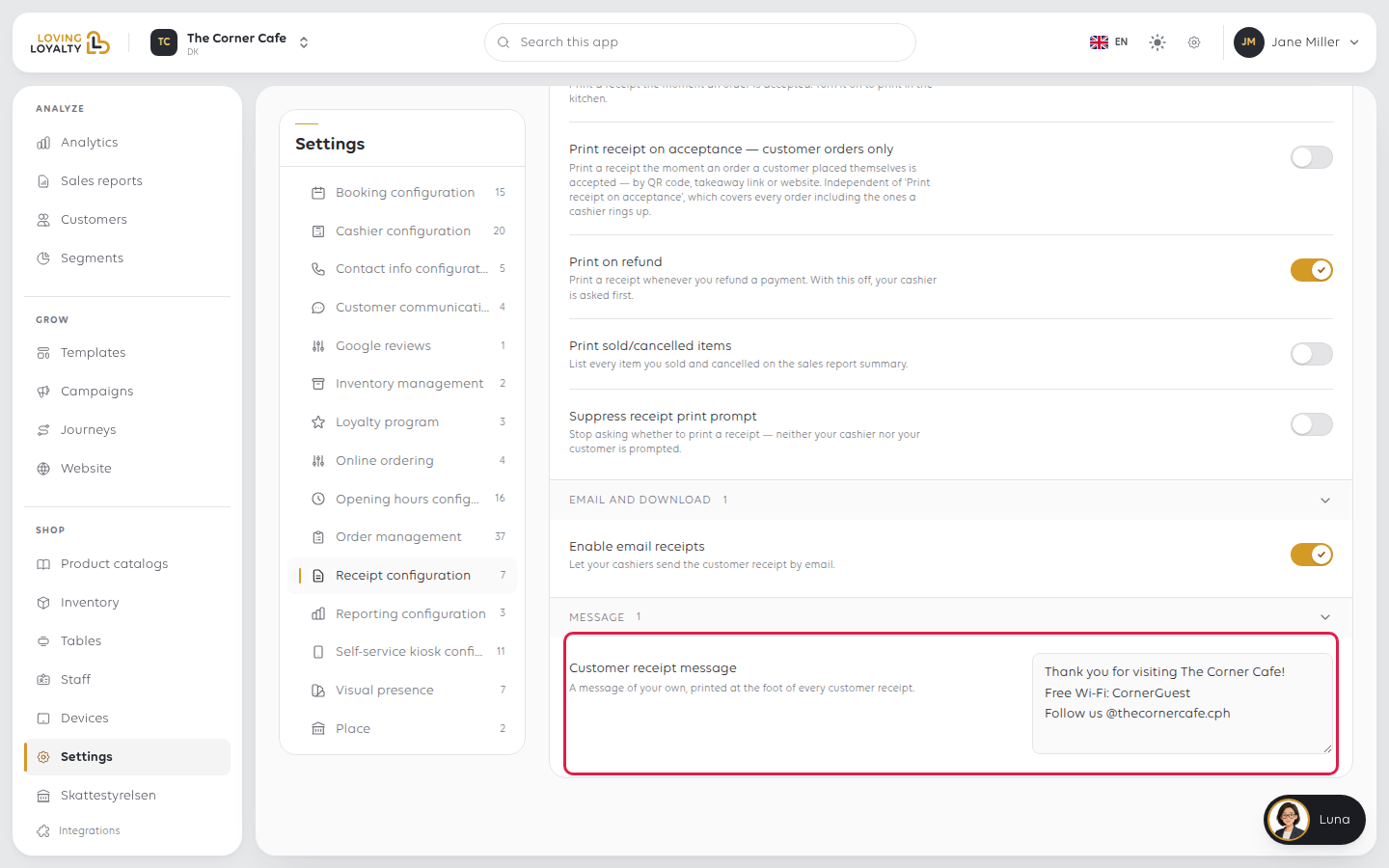
Customer receipt message
A message of your own, printed at the foot of every customer receipt. Type it and
select Save.
If something goes wrong
| What you see | What to do |
|---|---|
| Nothing prints | Check the printer first - see The printer is not printing |
| A customer's own order prints twice | Both acceptance settings are on; turn one off |
| Cashiers are asked about printing every time | Turn on Suppress receipt print prompt |
| Cashiers cannot email a receipt | Turn on Enable email receipts |
| Your message is not on the receipt | It prints at the foot of the customer receipt only |
Was this article helpful?
Thanks for your feedback!
