

 Dansk
 Svenska
 Deutsch
 Norsk bokmål
Cashier configuration
Open the group
Shop → Settings → Cashier configuration.
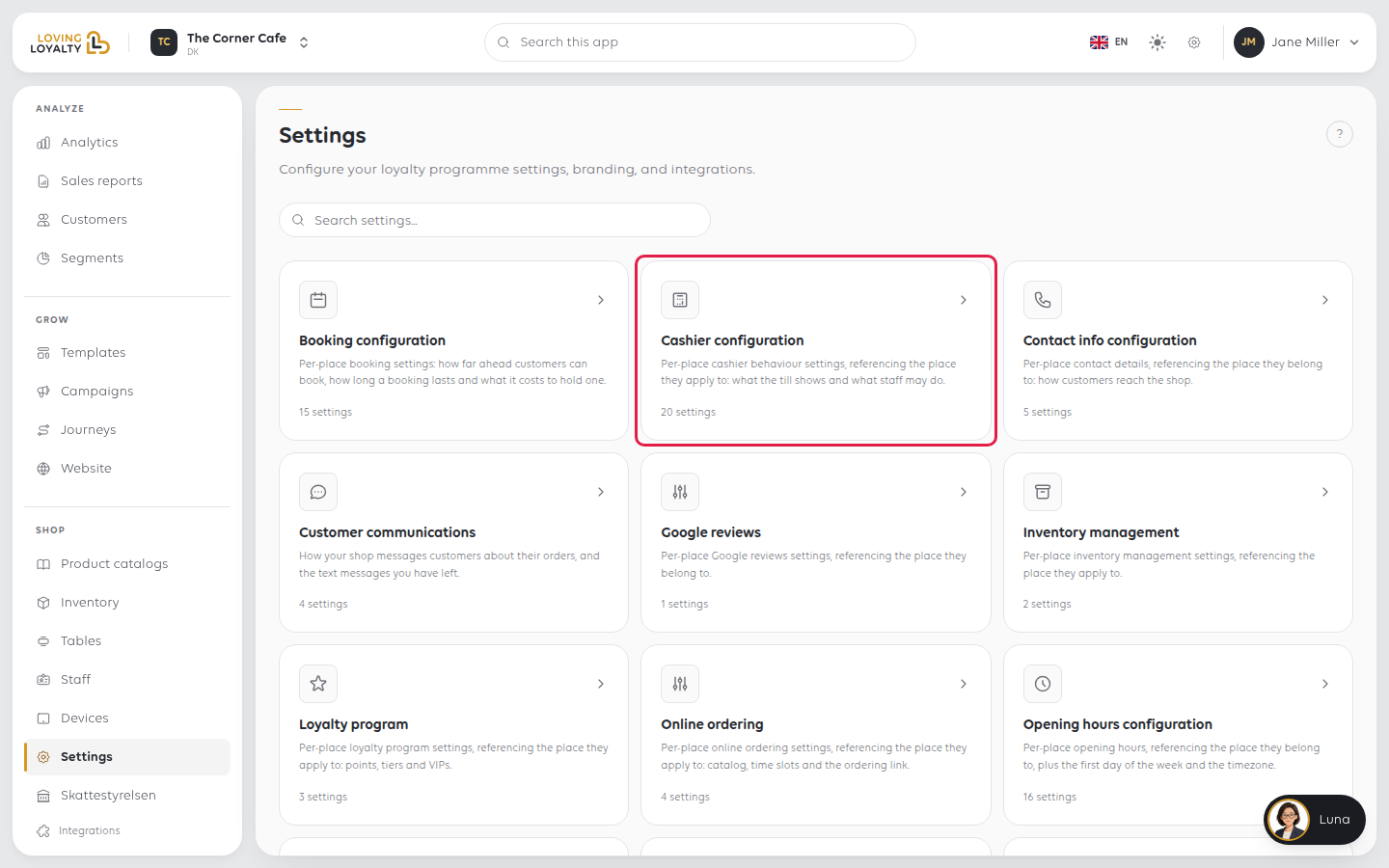
The settings sit in groups on the page. Switches, choices and drop-downs save as soon
as you change them. Manager PIN shows Save once you change it.
General
How the till looks and how cashiers find products.
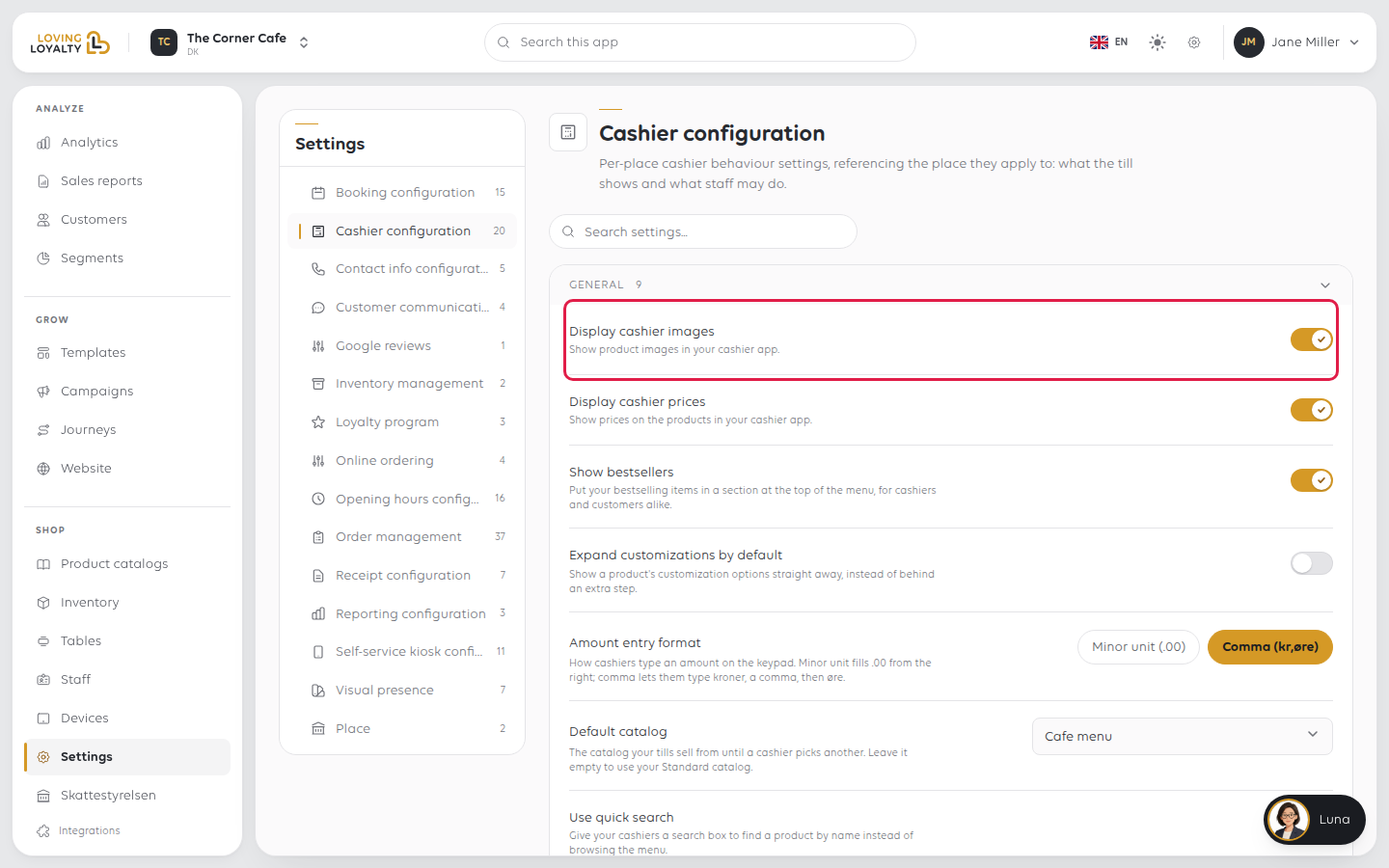
Display cashier images
Show product images in your cashier app.
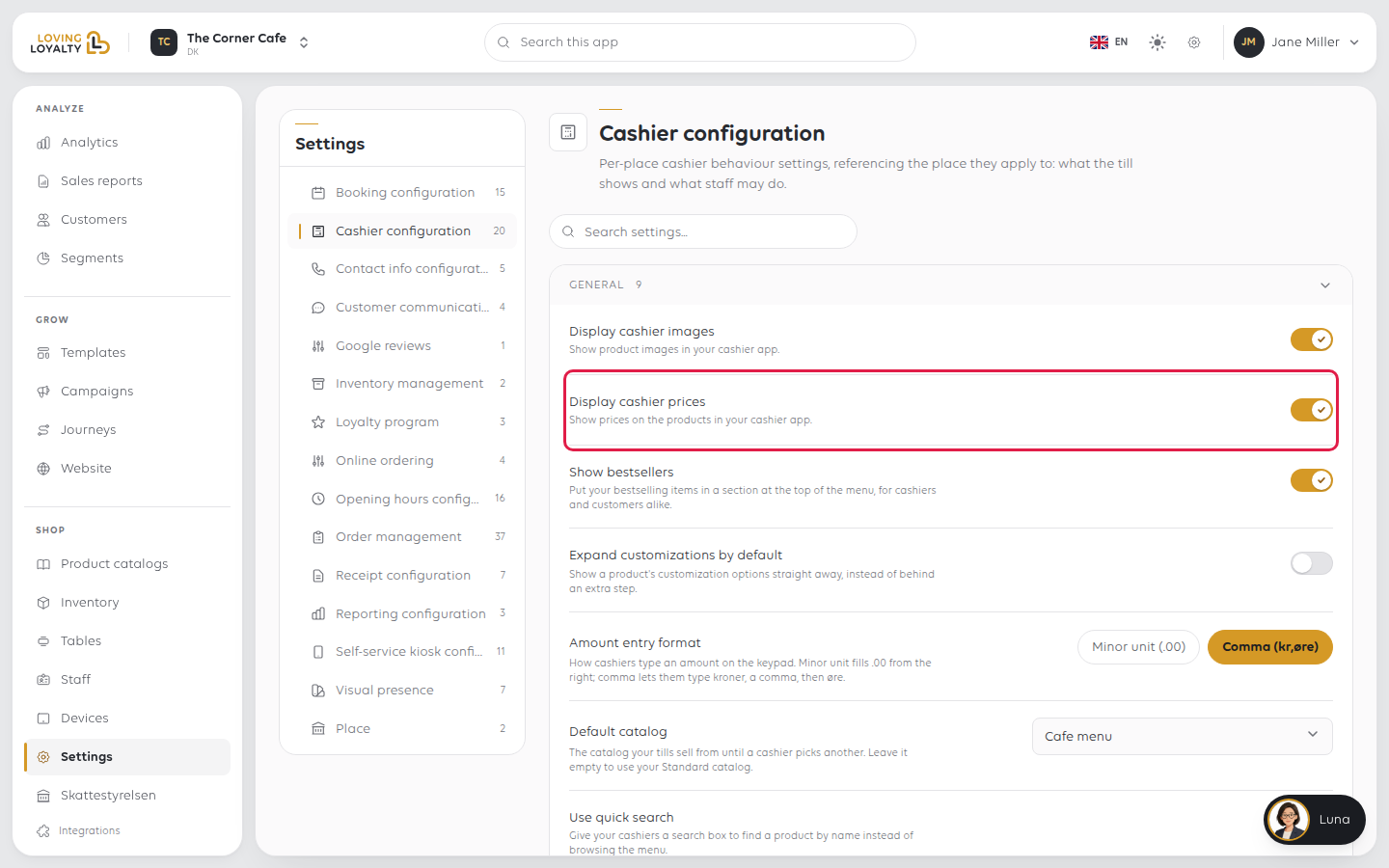
Display cashier prices
Show prices on the products in your cashier app.
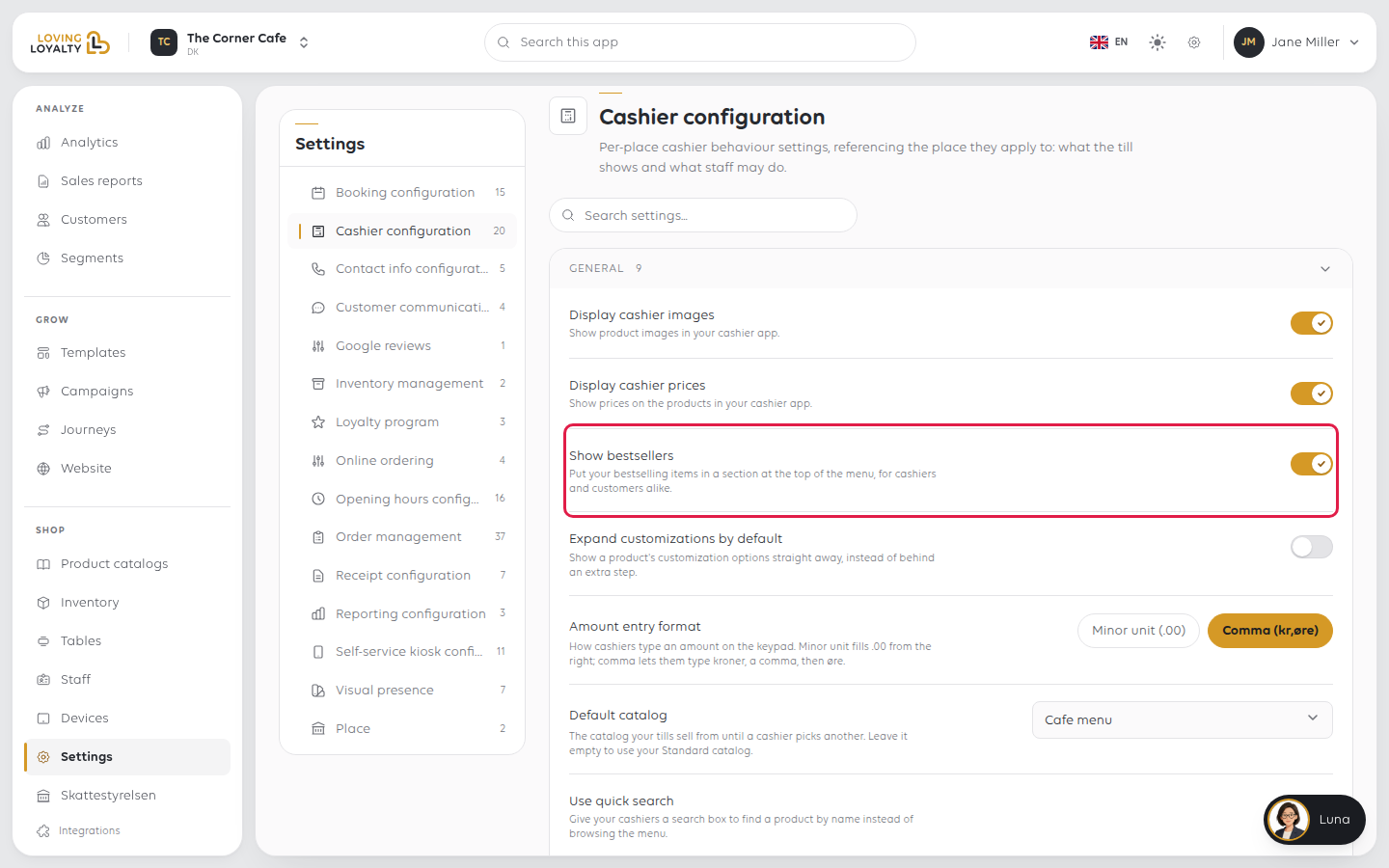
Show bestsellers
Put your bestselling items in a section at the top of the menu, for cashiers and customers alike.
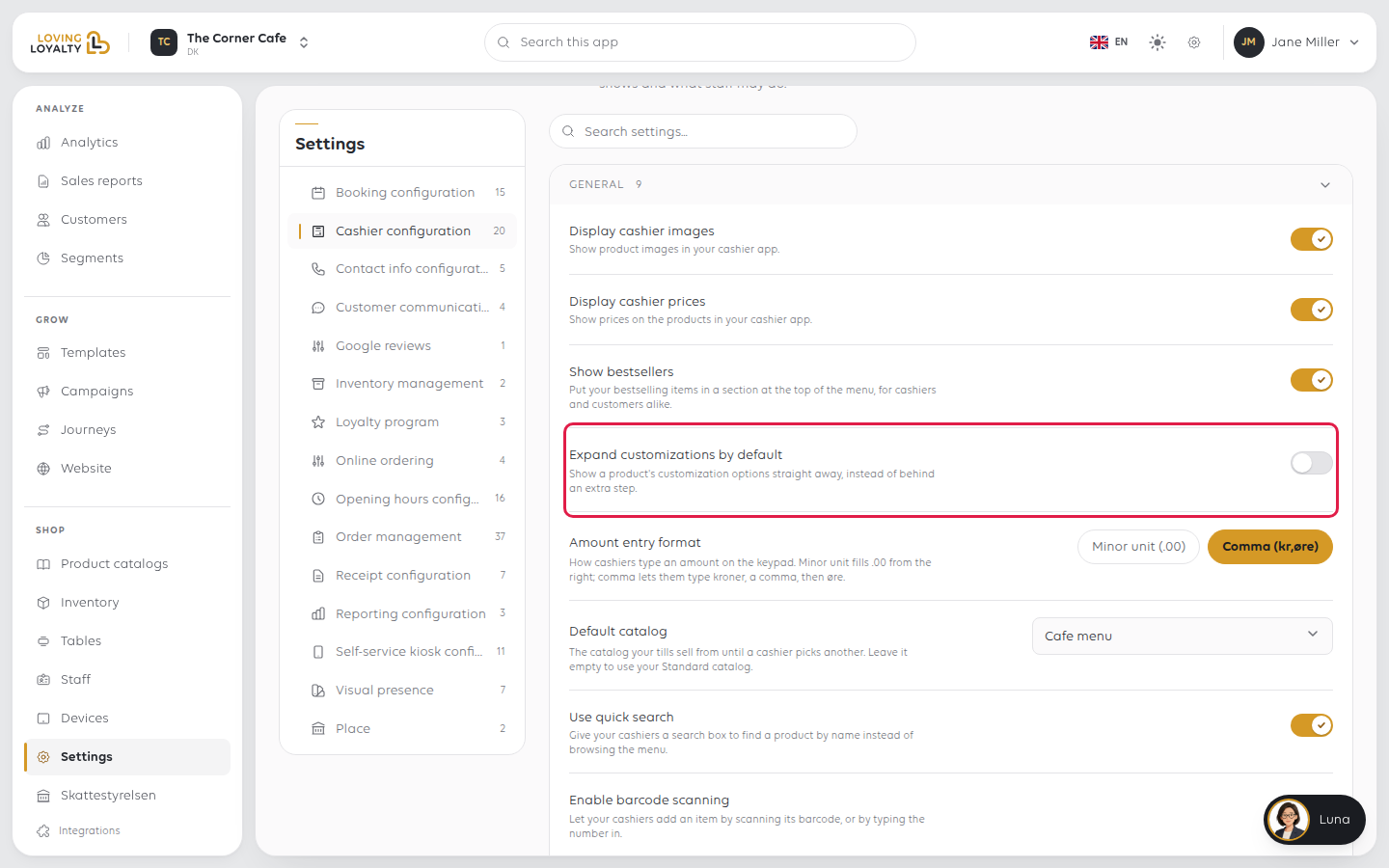
Expand customizations by default
Show a product's customization options straight away, instead of behind an extra step.
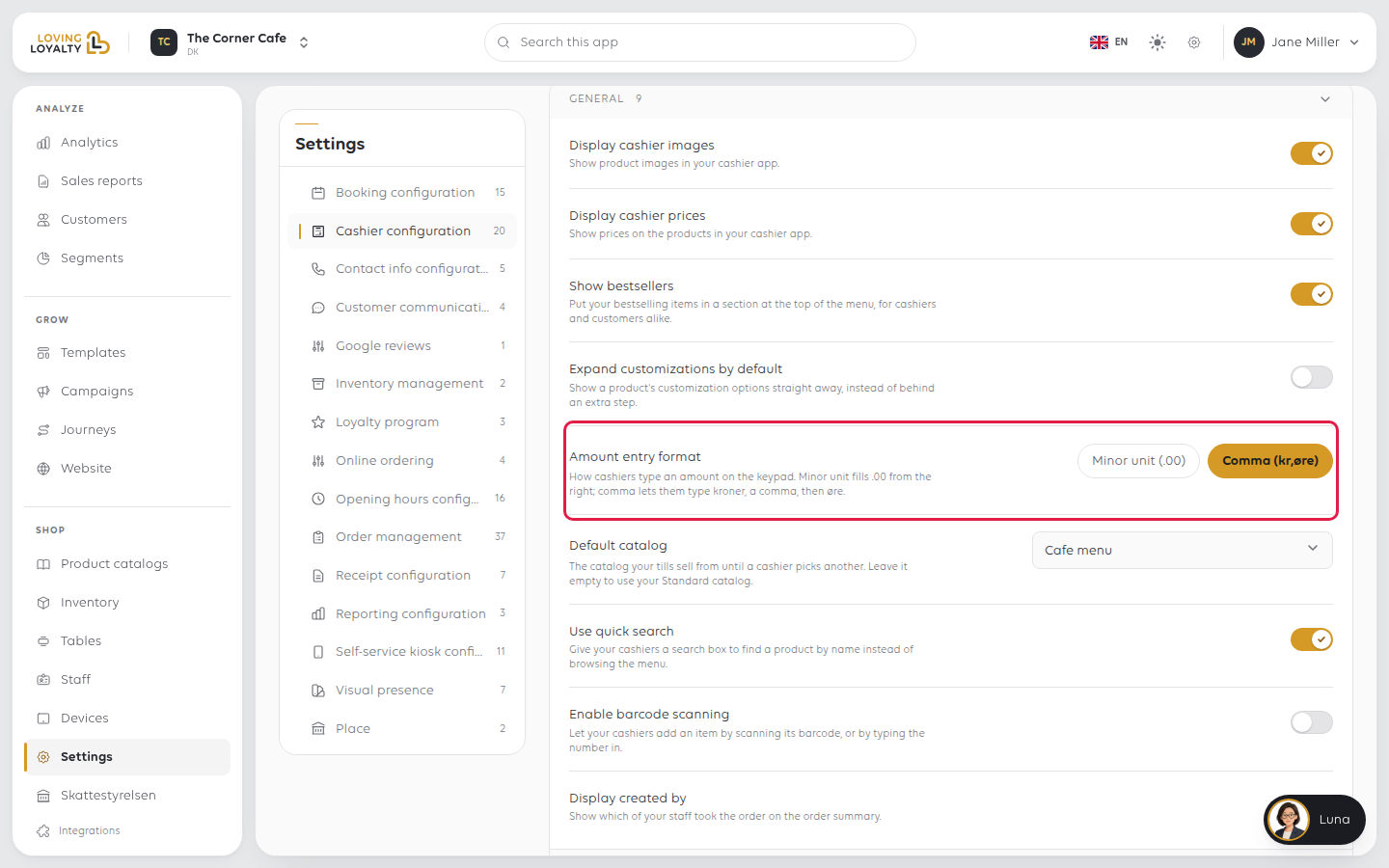
Amount entry format
How cashiers type an amount on the keypad. With Minor unit (.00), digits fill from
the right, so typing 1250 gives 12.50. With Comma (kr,øre), they type kroner, a
comma, then øre.
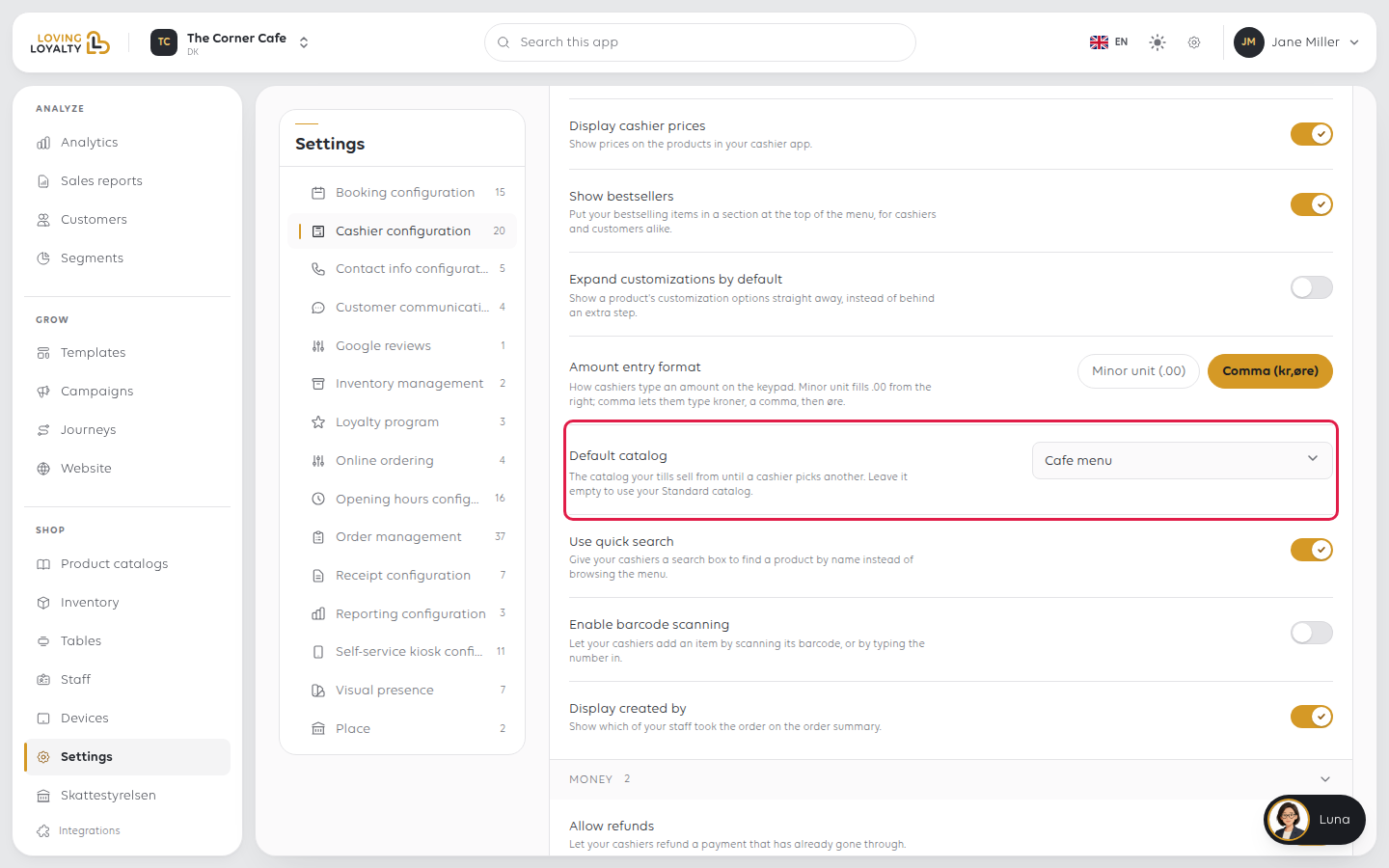
Default catalog
The catalog your tills sell from until a cashier picks another. Leave it empty to use your Standard catalog.
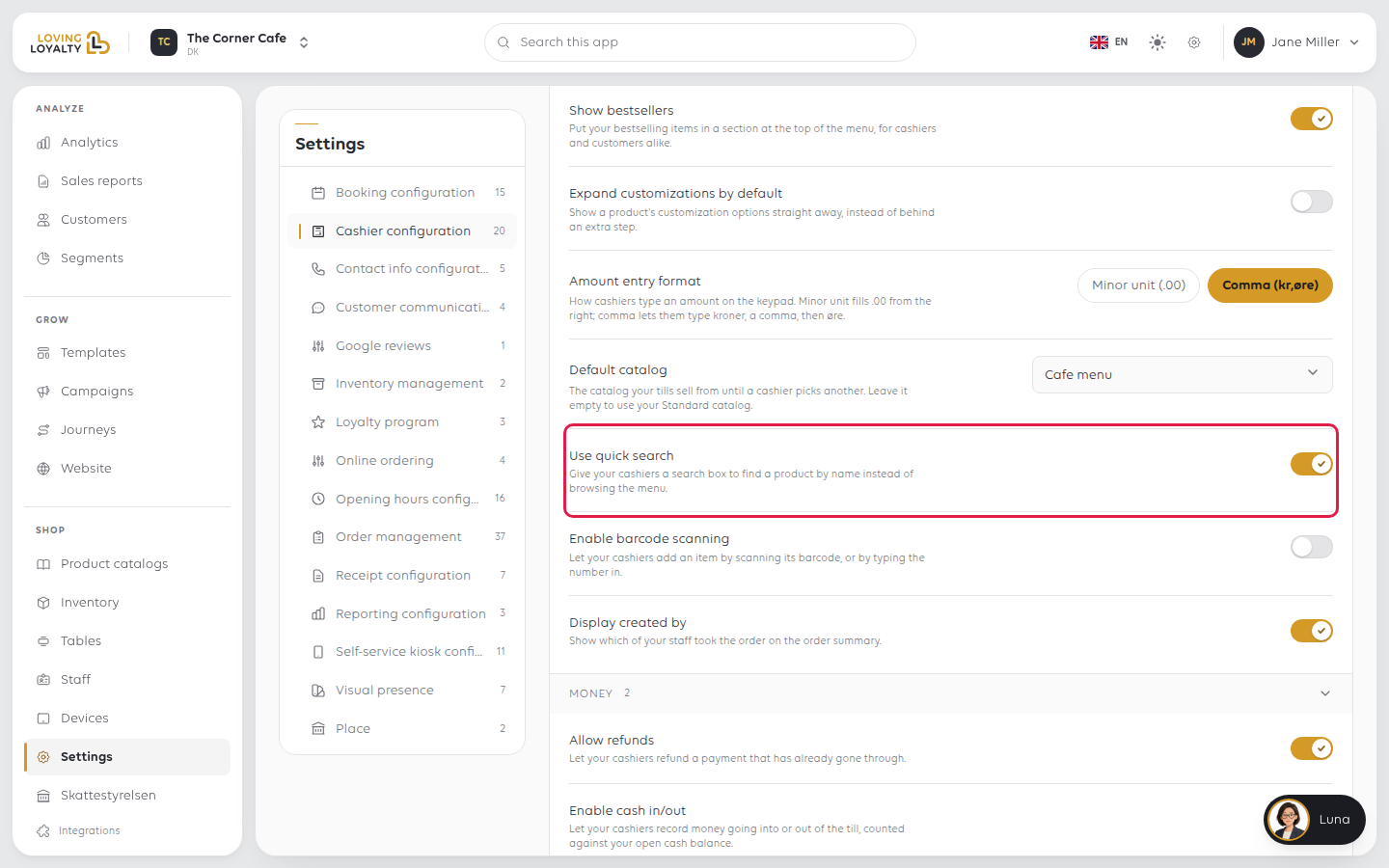
Use quick search
Give your cashiers a search box to find a product by name instead of browsing the menu.
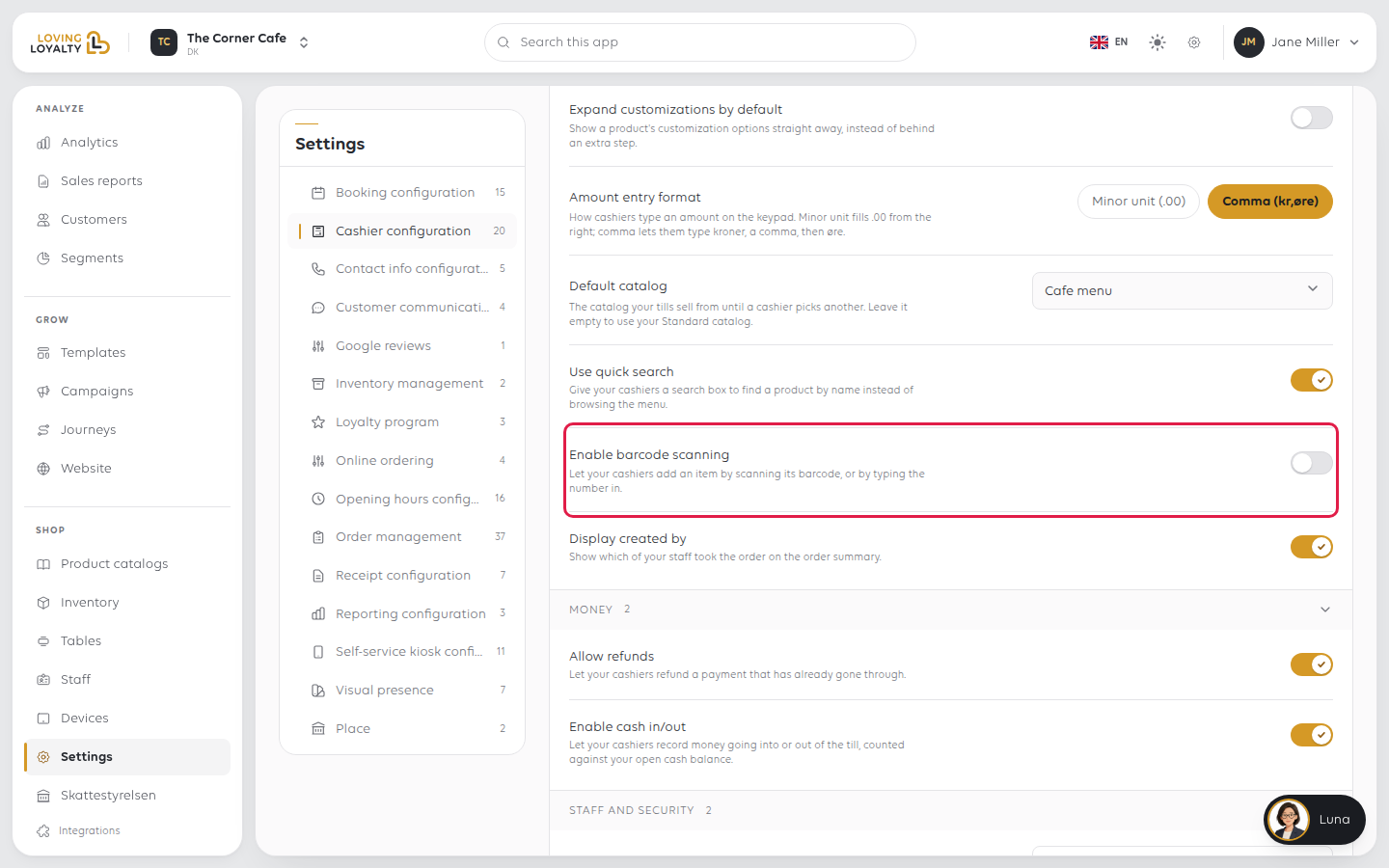
Enable barcode scanning
Let your cashiers add an item by scanning its barcode, or by typing the number in.
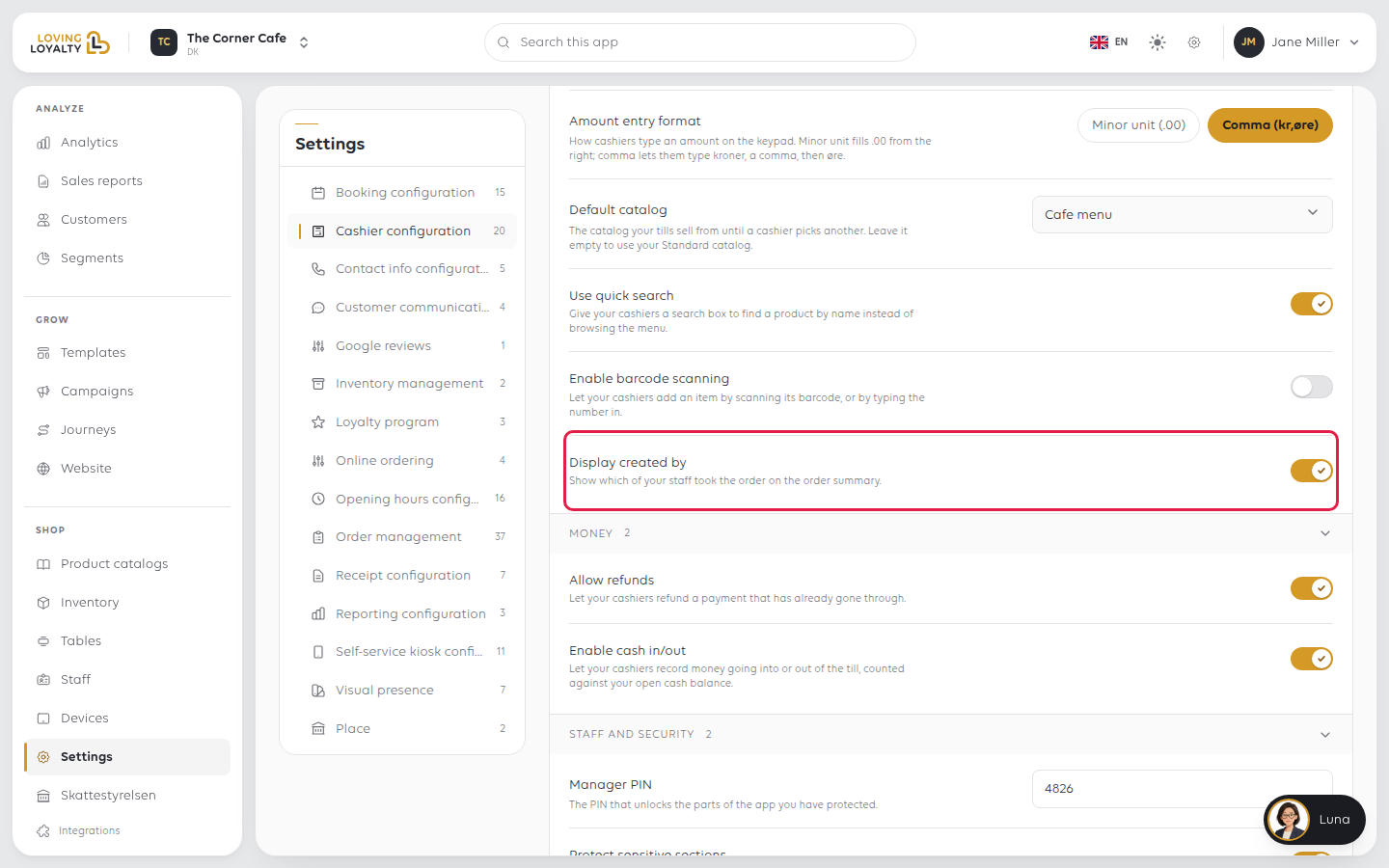
Display created by
Show which of your staff took the order on the order summary.
Money
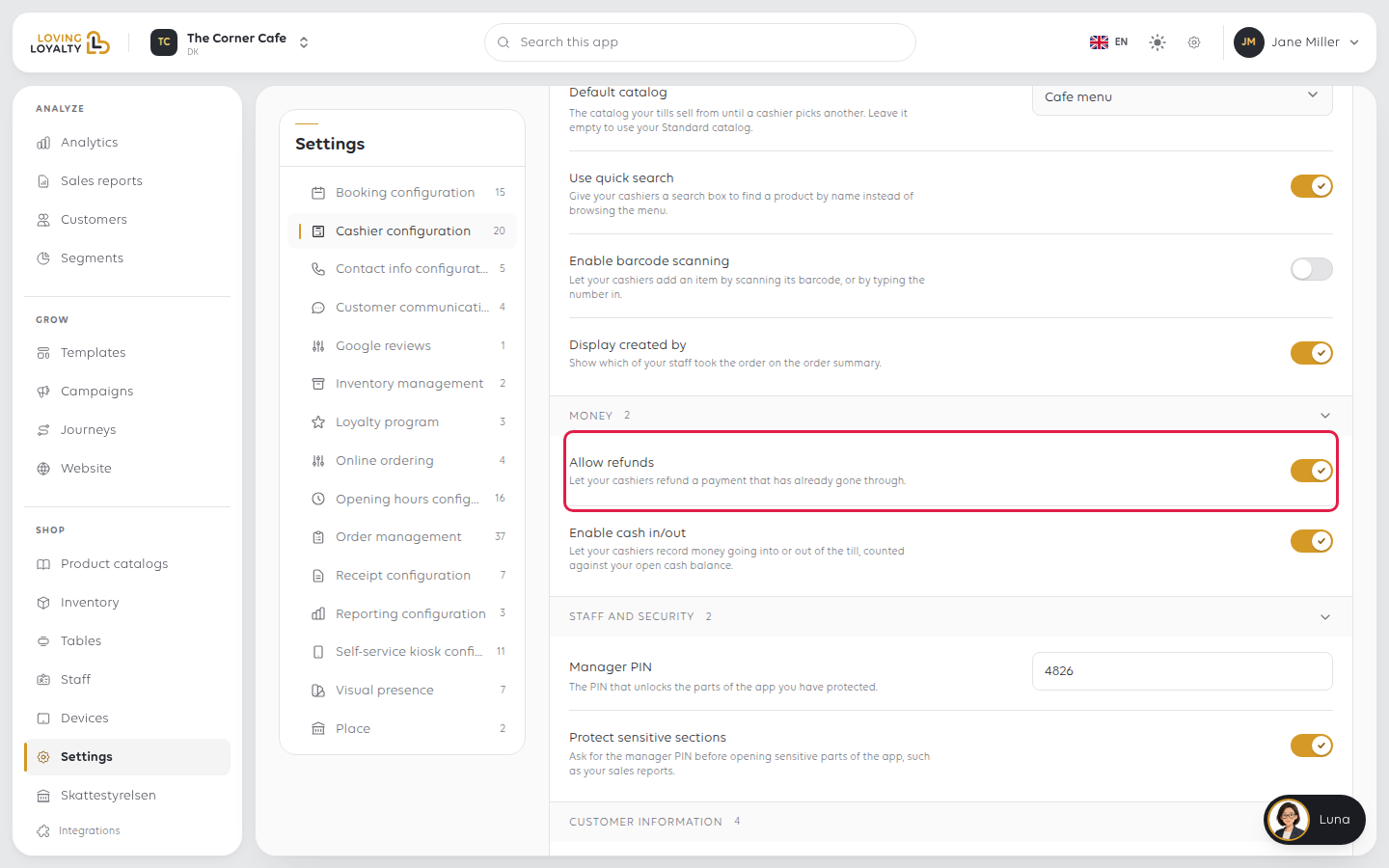
Allow refunds
Let your cashiers refund a payment that has already gone through.
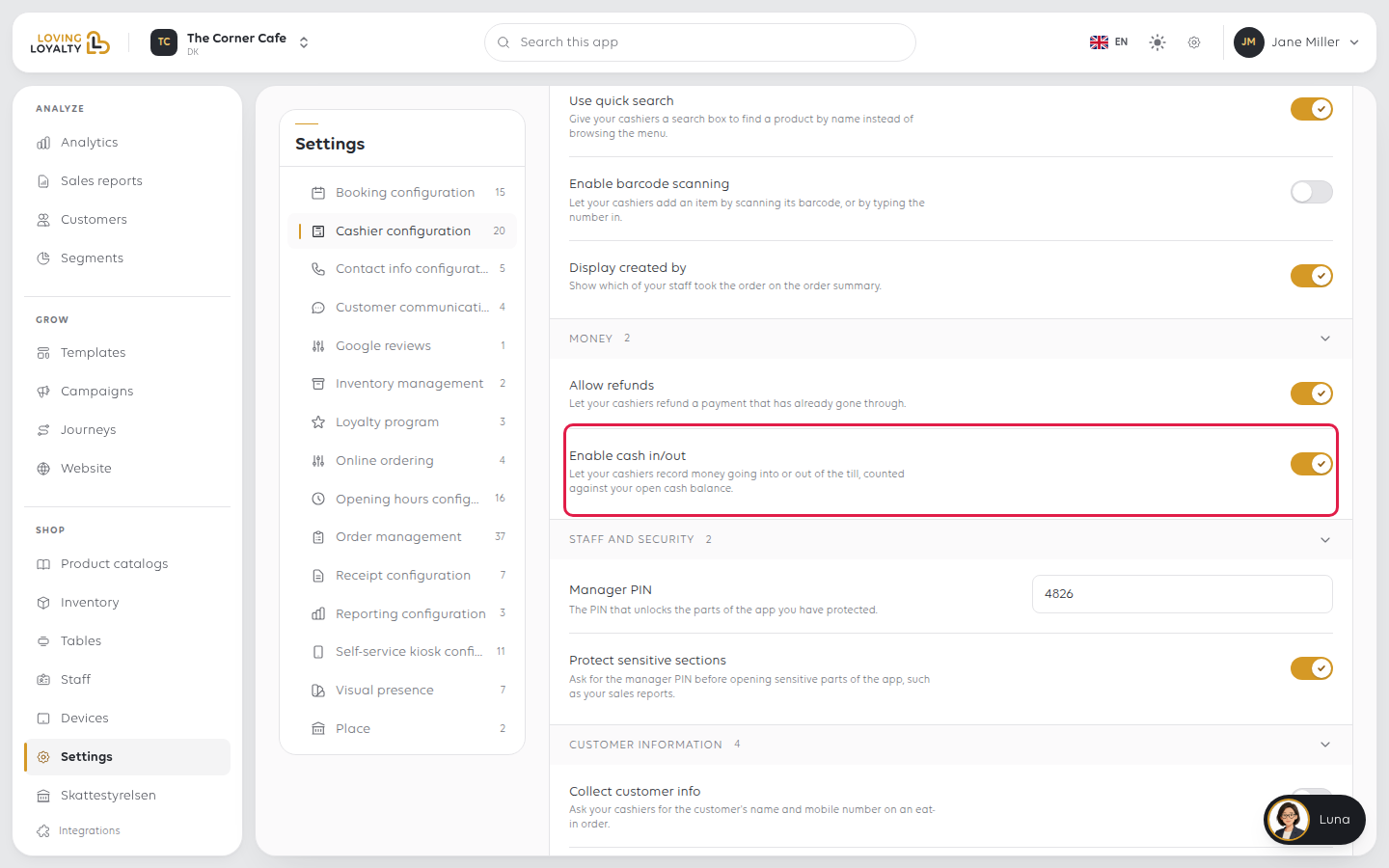
Enable cash in/out
Let your cashiers record money going into or out of the till, counted against your open cash balance.
Staff and security
Set the PIN first, then choose what it protects.
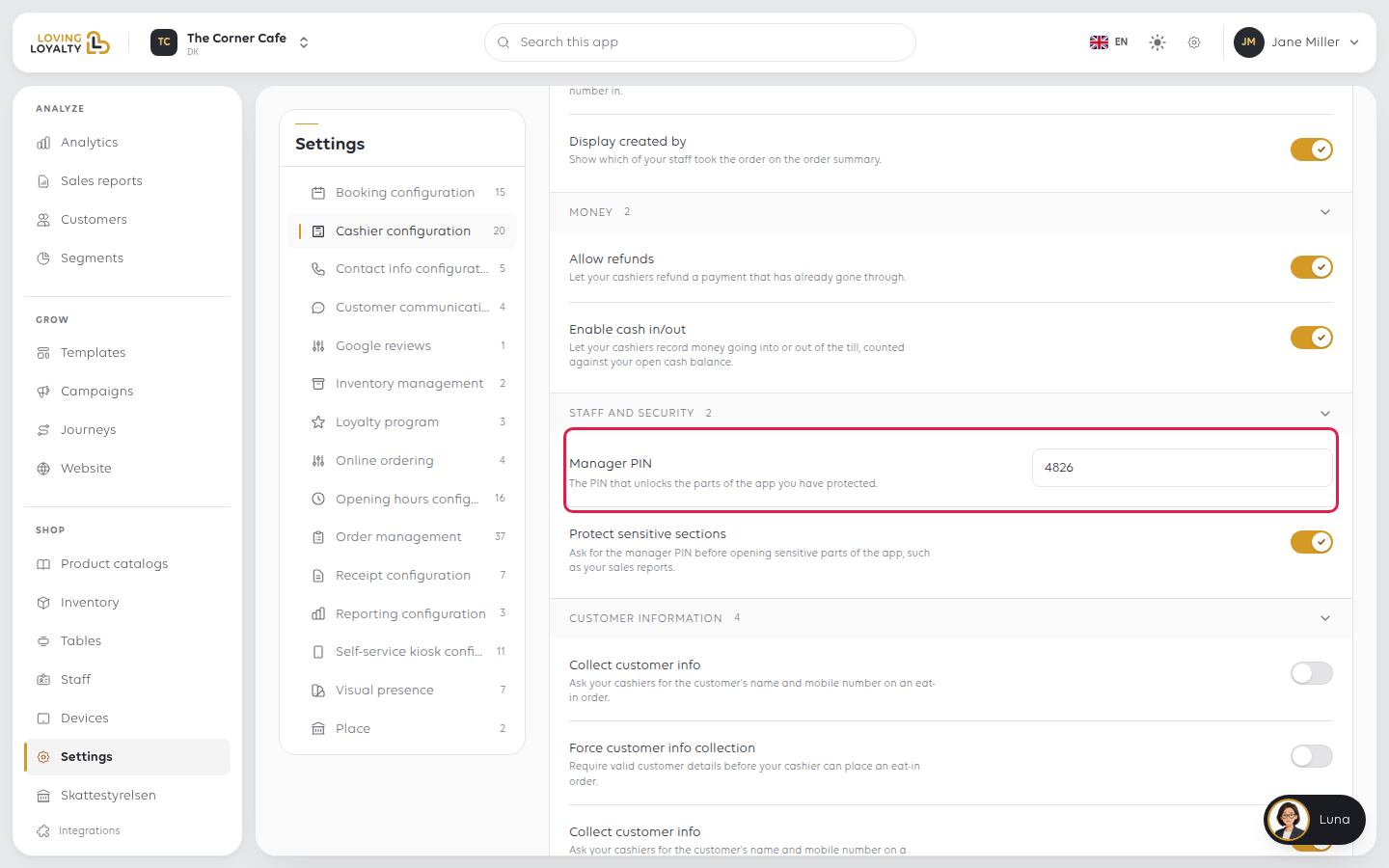
Manager PIN
The PIN that unlocks the parts of the app you have protected. Type it and select
Save.
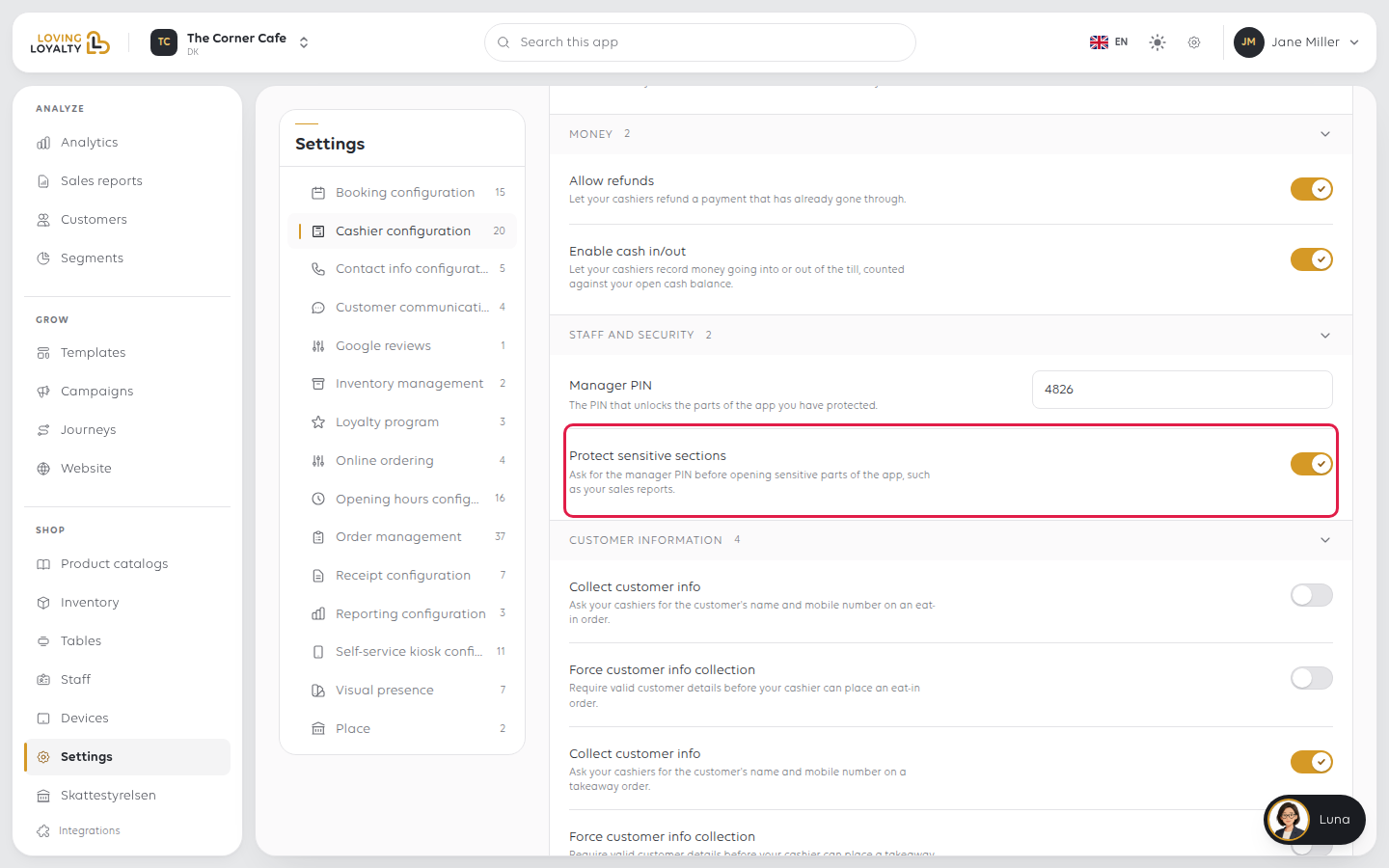
Protect sensitive sections
Ask for the manager PIN before opening sensitive parts of the app, such as your sales reports.
Customer information
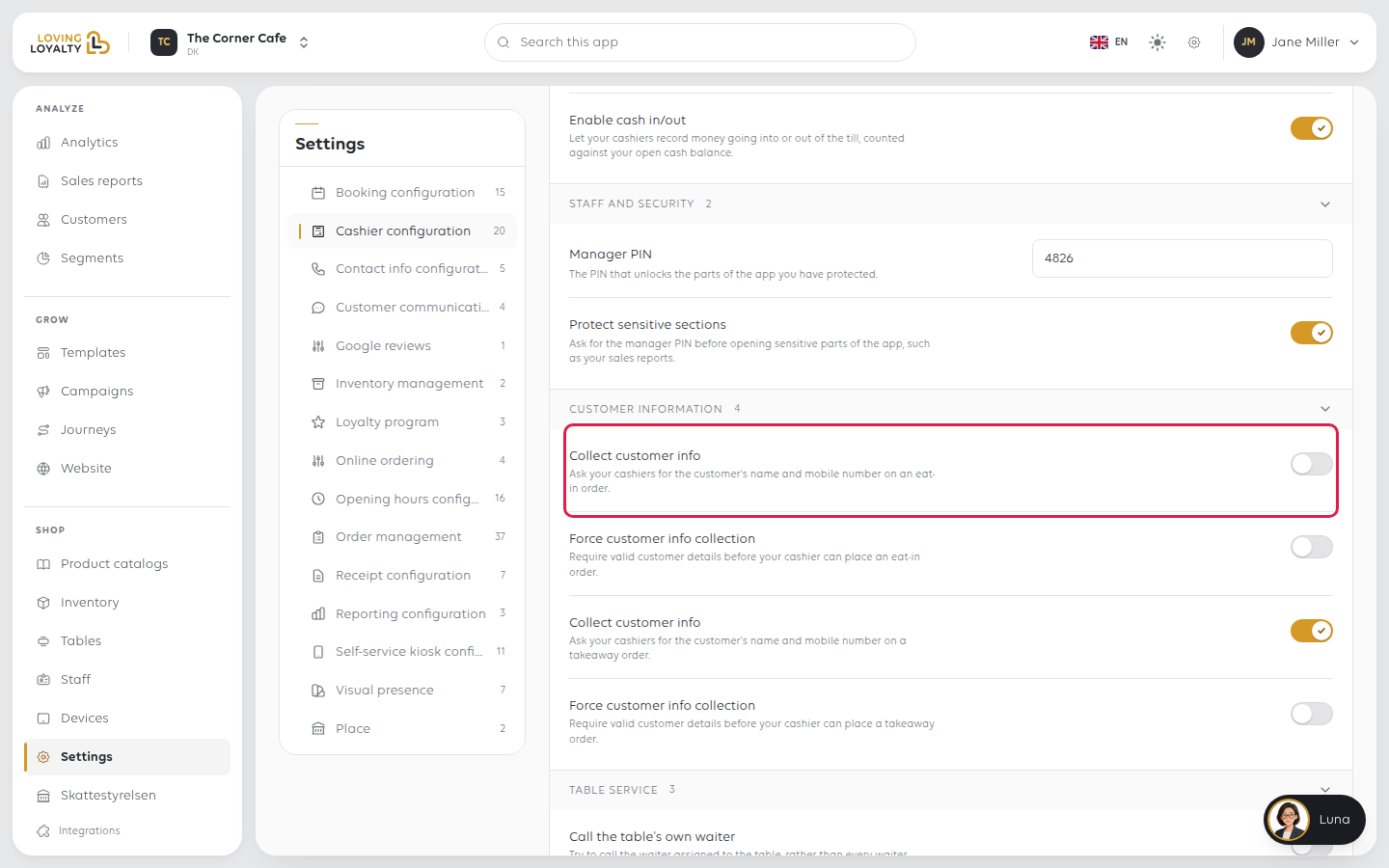
Collect customer info
Ask your cashiers for the customer's name and mobile number on an eat-in order.
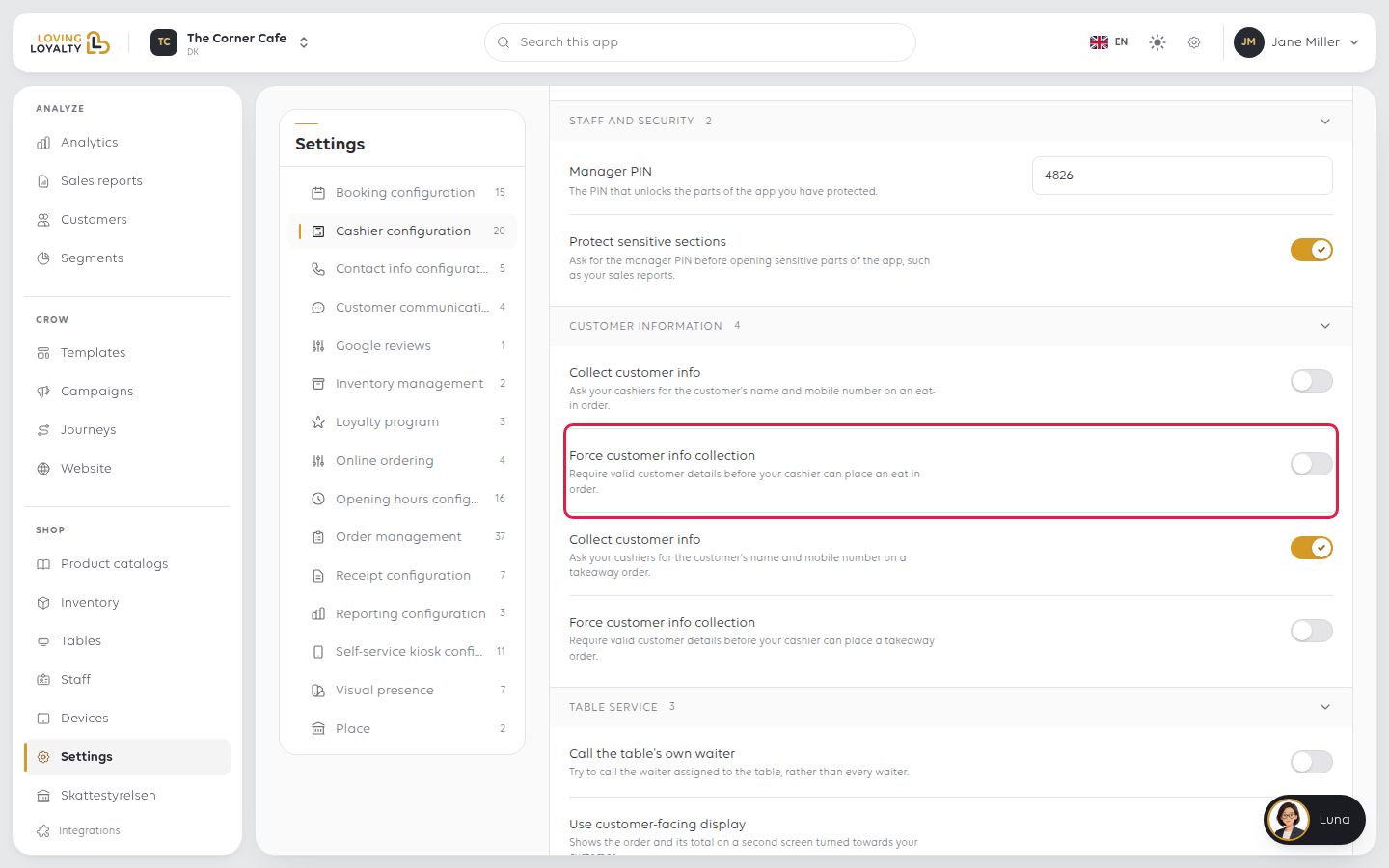
Force customer info collection
Require valid customer details before your cashier can place an eat-in order. Use it
with Collect customer info turned on.
Both settings come three times, once each for eat-in, takeaway and delivery orders,
so you can ask for customer details on one order type and not another.
Waiters, screens and printing
These sit further down the page.
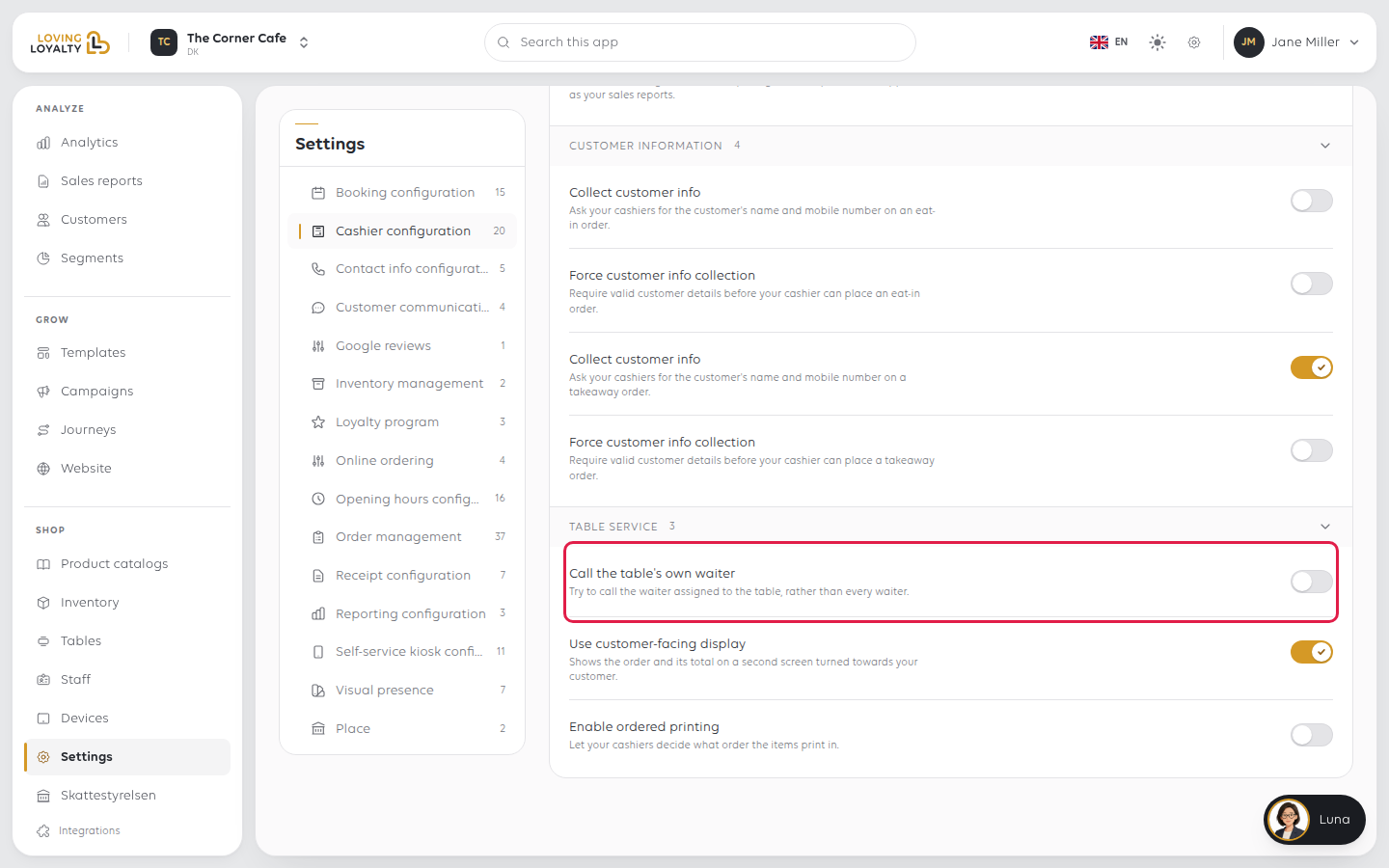
Call the table's own waiter
Try to call the waiter assigned to the table, rather than every waiter.
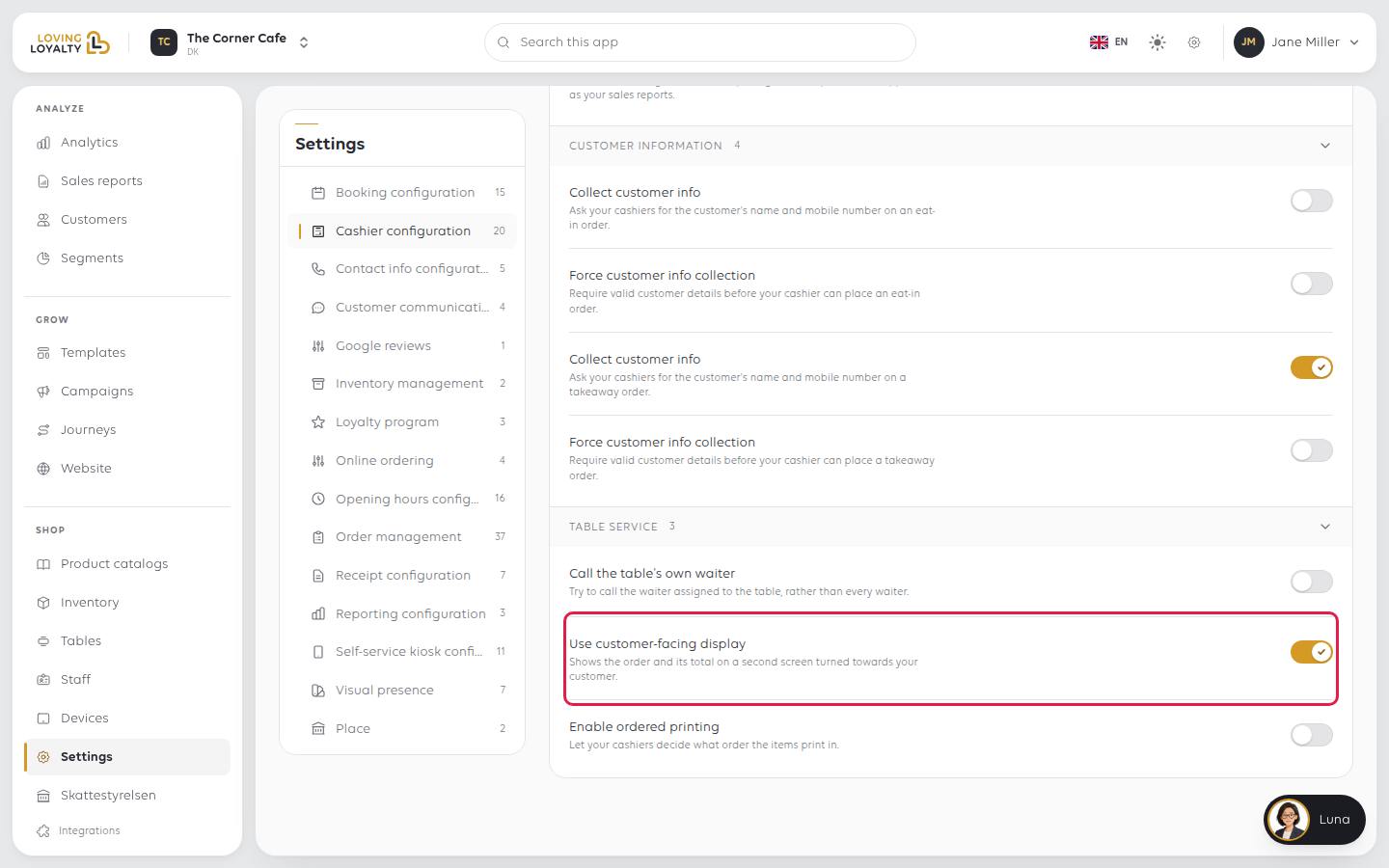
Use customer-facing display
Shows the order and its total on a second screen turned towards your customer.
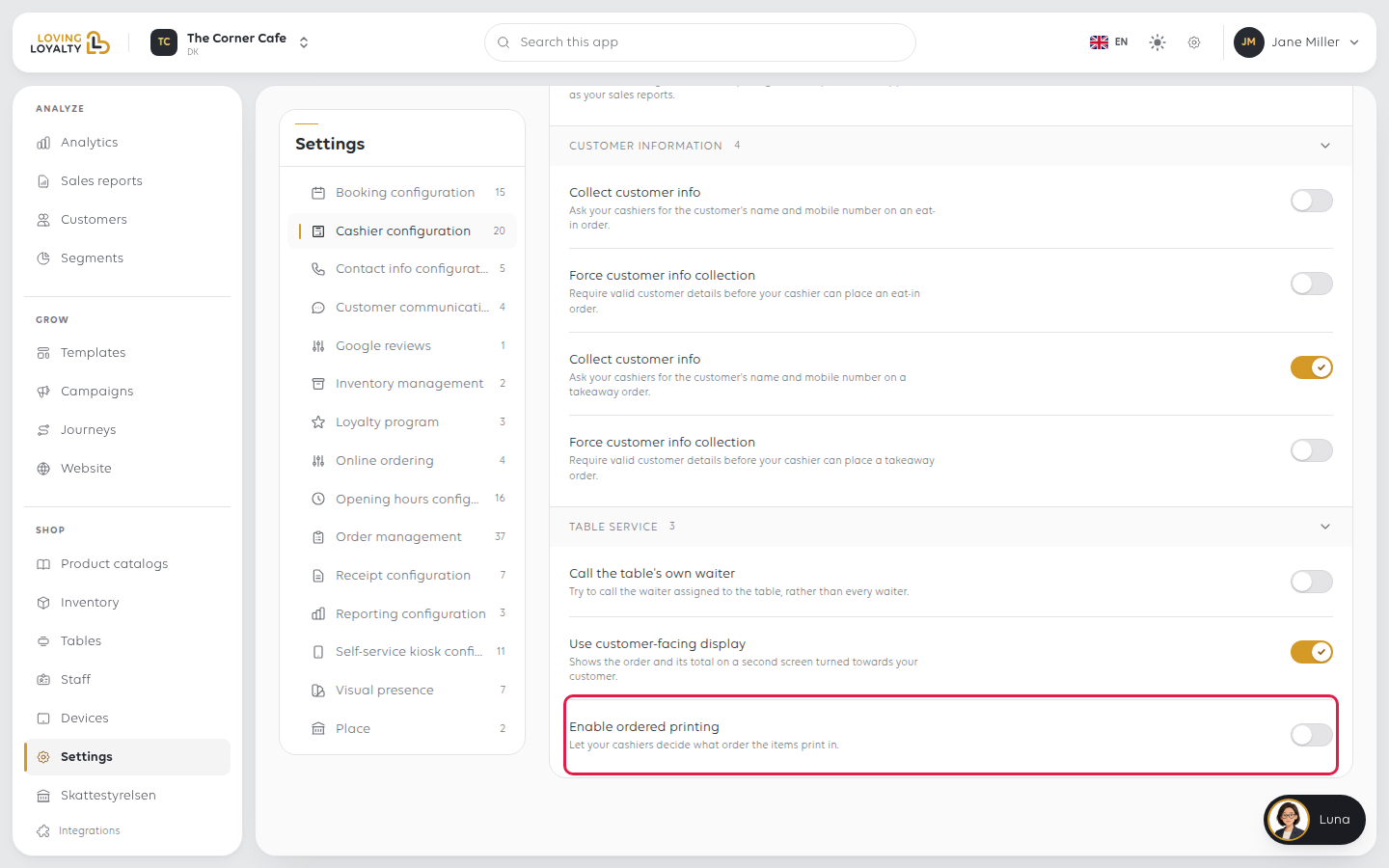
Enable ordered printing
Let your cashiers decide what order the items print in.
If something goes wrong
| What you see | What it means | What to do |
|---|---|---|
| Staff enter the wrong amounts | The amount entry format does not match how they type | Switch between Minor unit (.00) and Comma (kr,øre) |
| The menu is slow to use | Images on a large catalog | Turn off Display cashier images |
| A change has not reached the till | Tills read settings when they load | Reload the till |
Was this article helpful?
Thanks for your feedback!
