

 Dansk
 Svenska
 Deutsch
 Norsk bokmål
Order management configuration
Open the group
Shop → Settings → Order management.
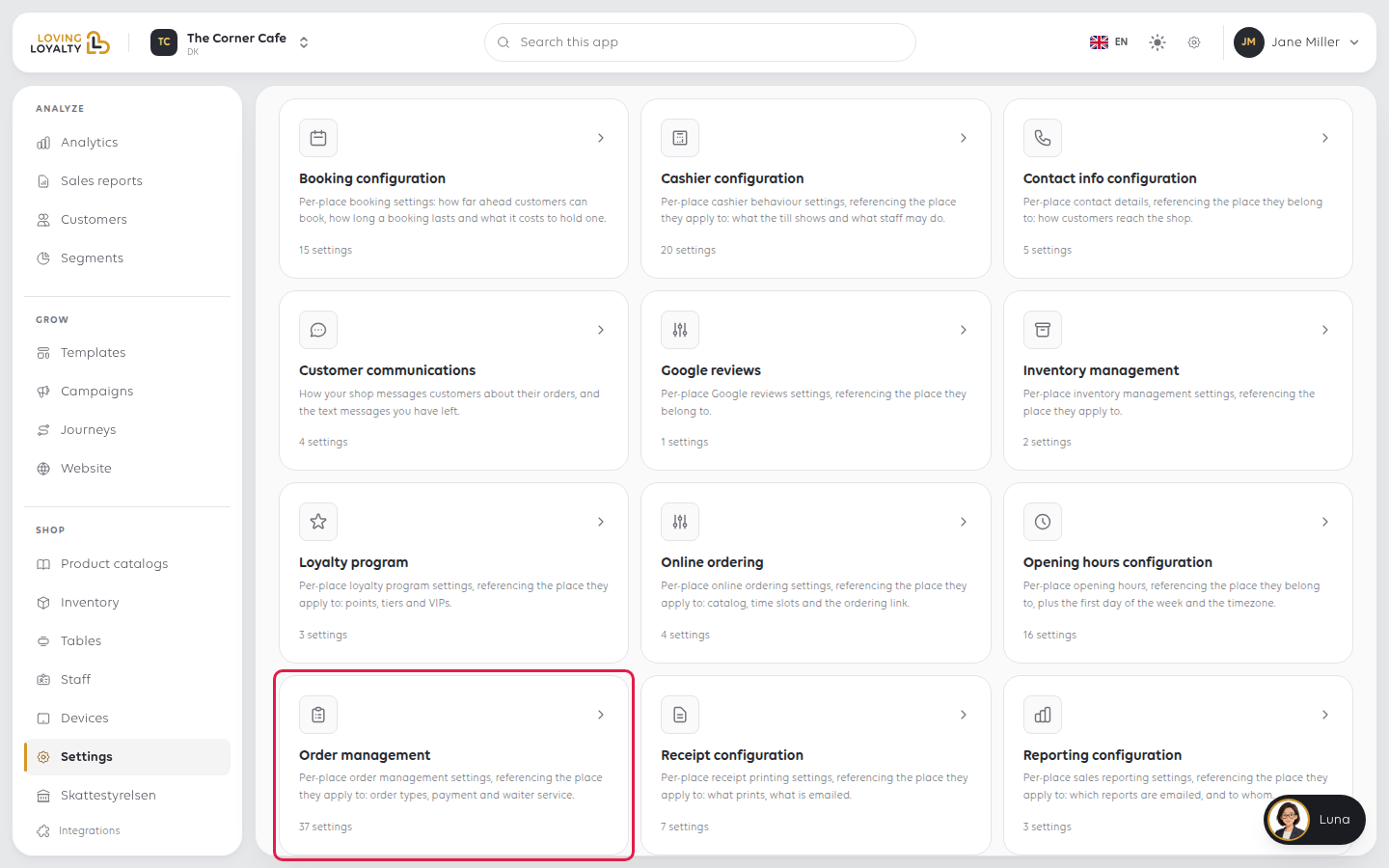
The settings sit in five groups: General, Eat In, Takeaway, Delivery
and Waiter service. Switches, choices and drop-downs save as soon as you change
them. A field you type in, such as a VAT rate, shows Save once you change it.
General
Settings for every order, whatever its type.
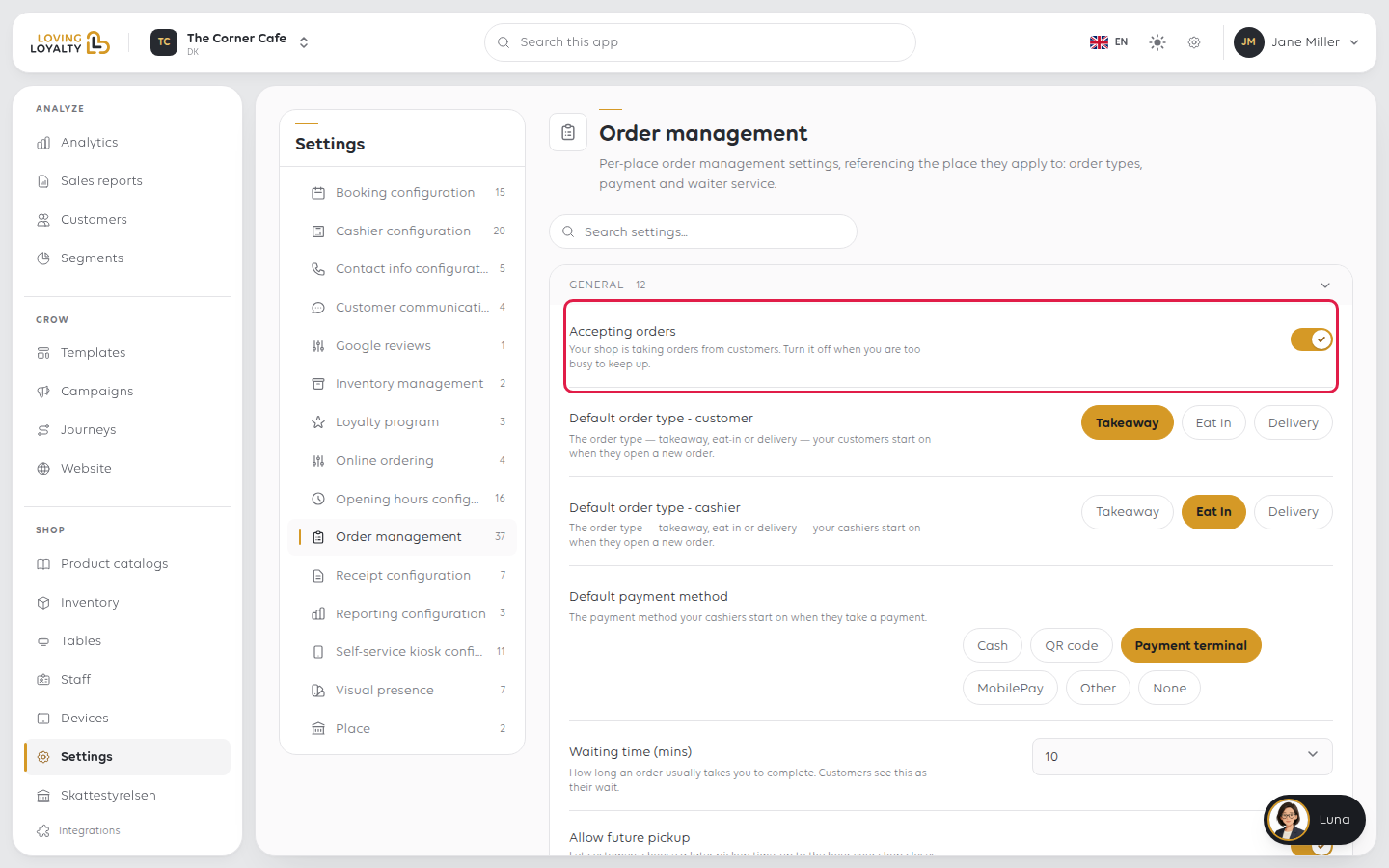
Accepting orders
Your shop is taking orders from customers. Turn it off when you are too busy to keep up.
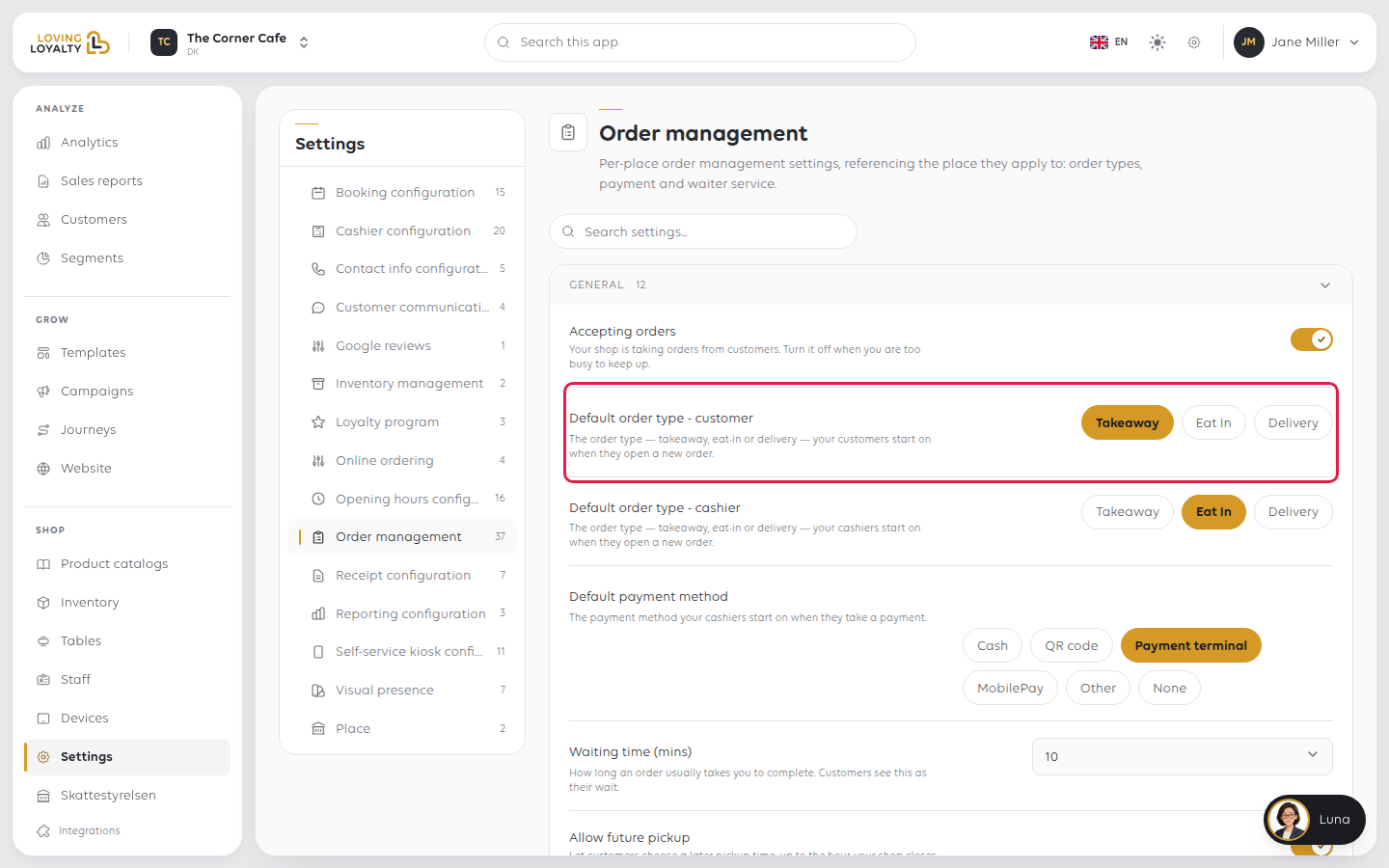
Default order type - customer
The order type your customers start on when they open a new order: Takeaway, Eat In or Delivery.
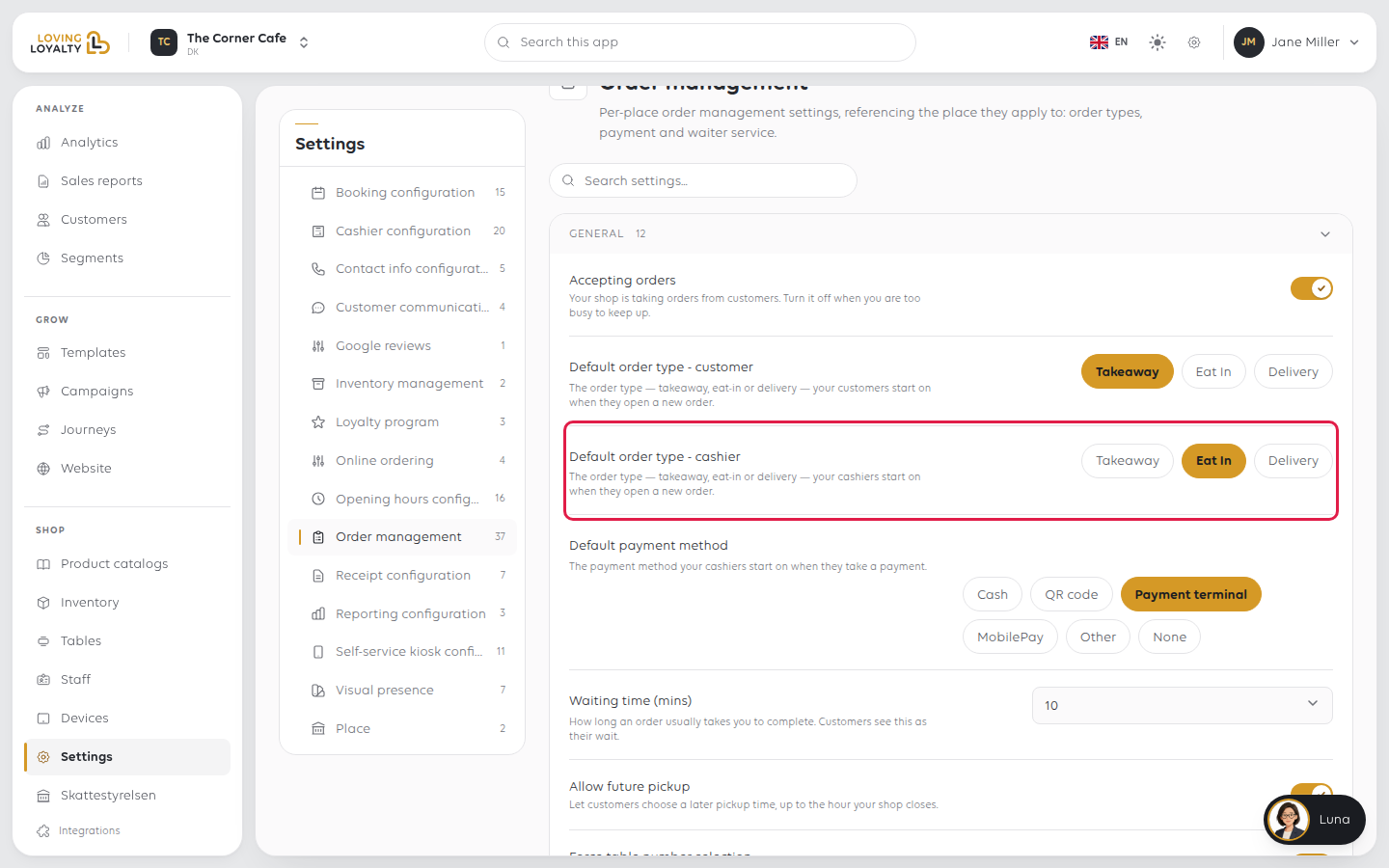
Default order type - cashier
The order type your cashiers start on when they open a new order: Takeaway, Eat In or Delivery.
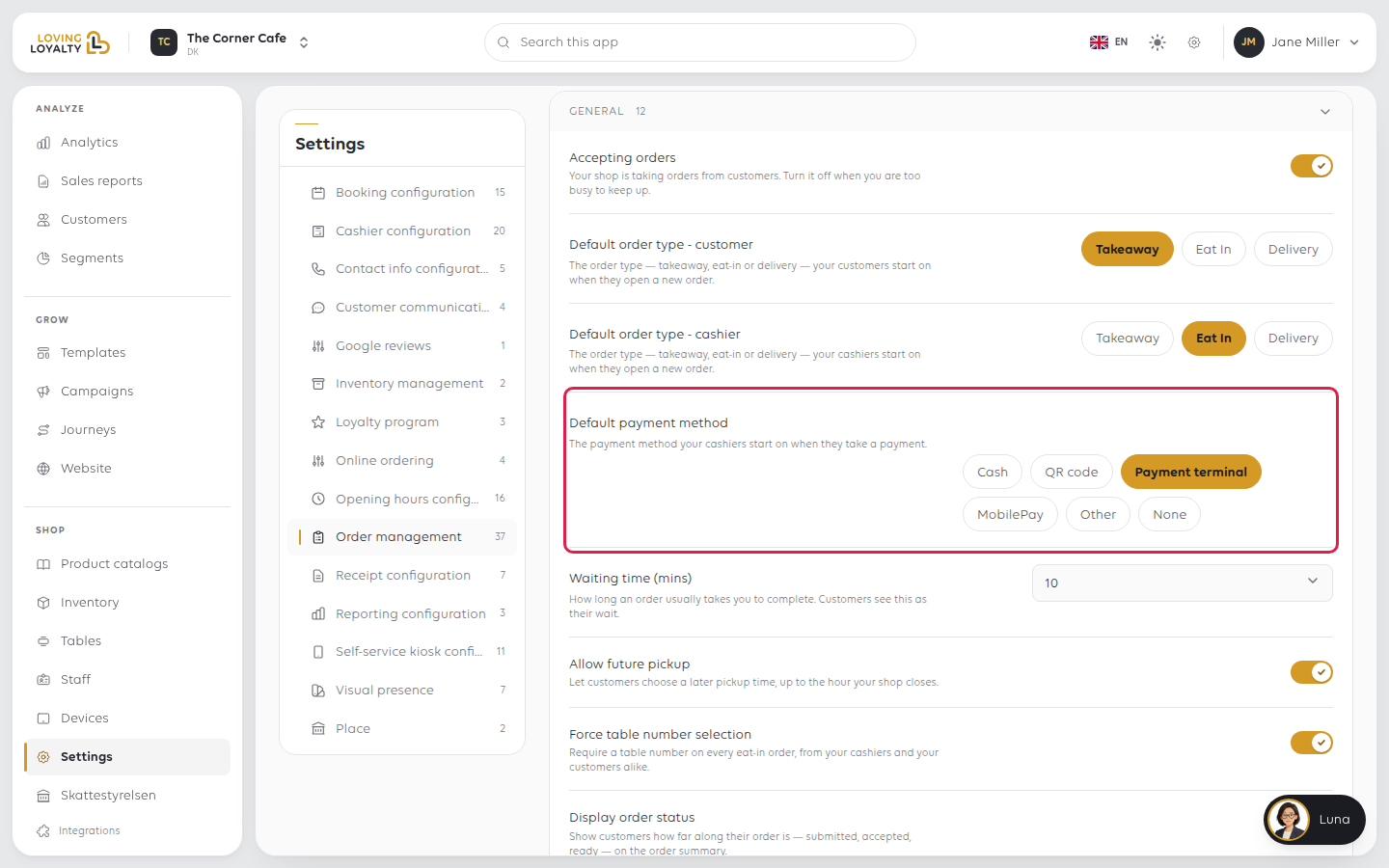
Default payment method
The payment method your cashiers start on when they take a payment, such as Cash
or Payment terminal.
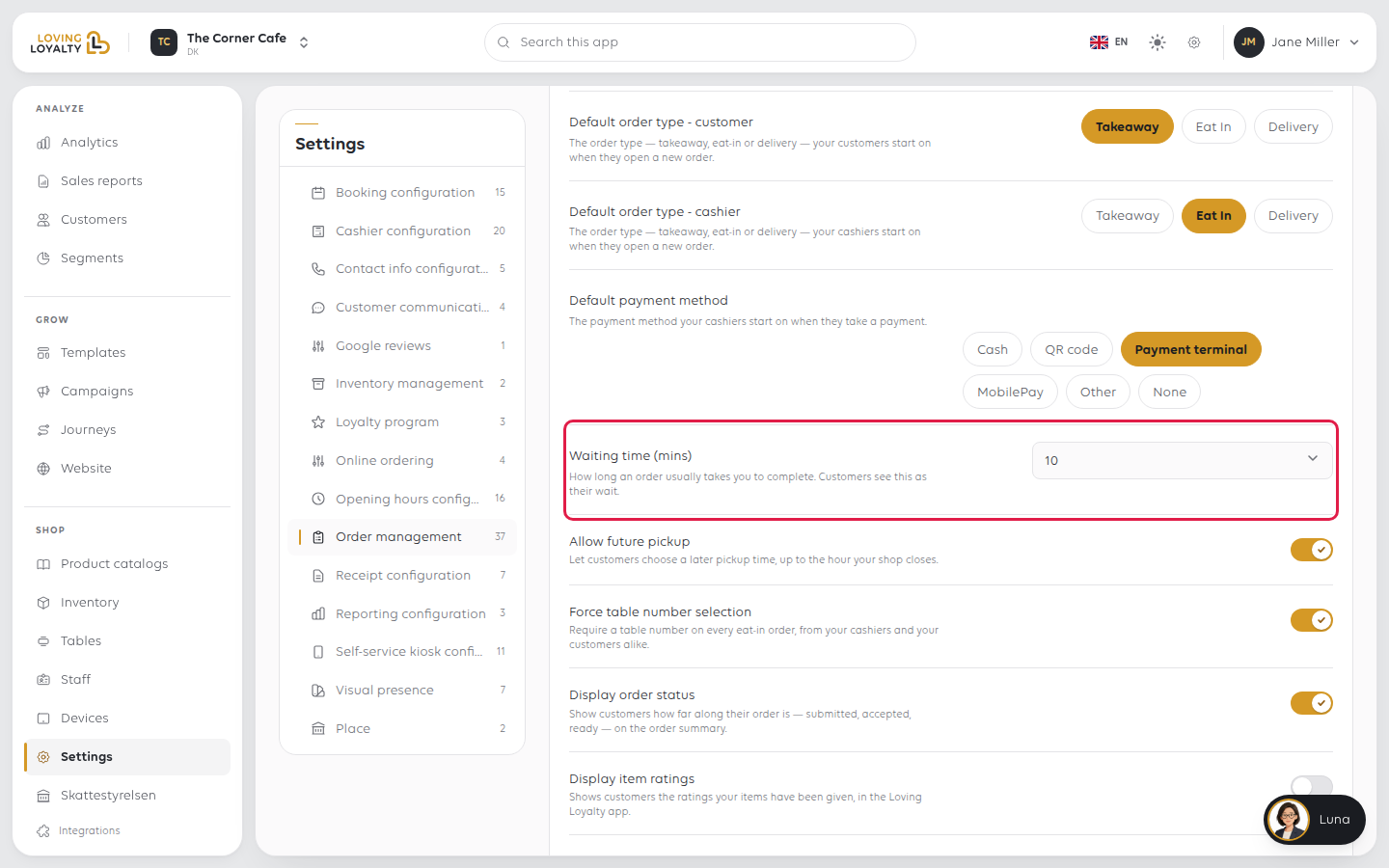
Waiting time (mins)
How long an order usually takes you to complete. Customers see this as their wait,
and it sets the earliest pickup time they can choose online.
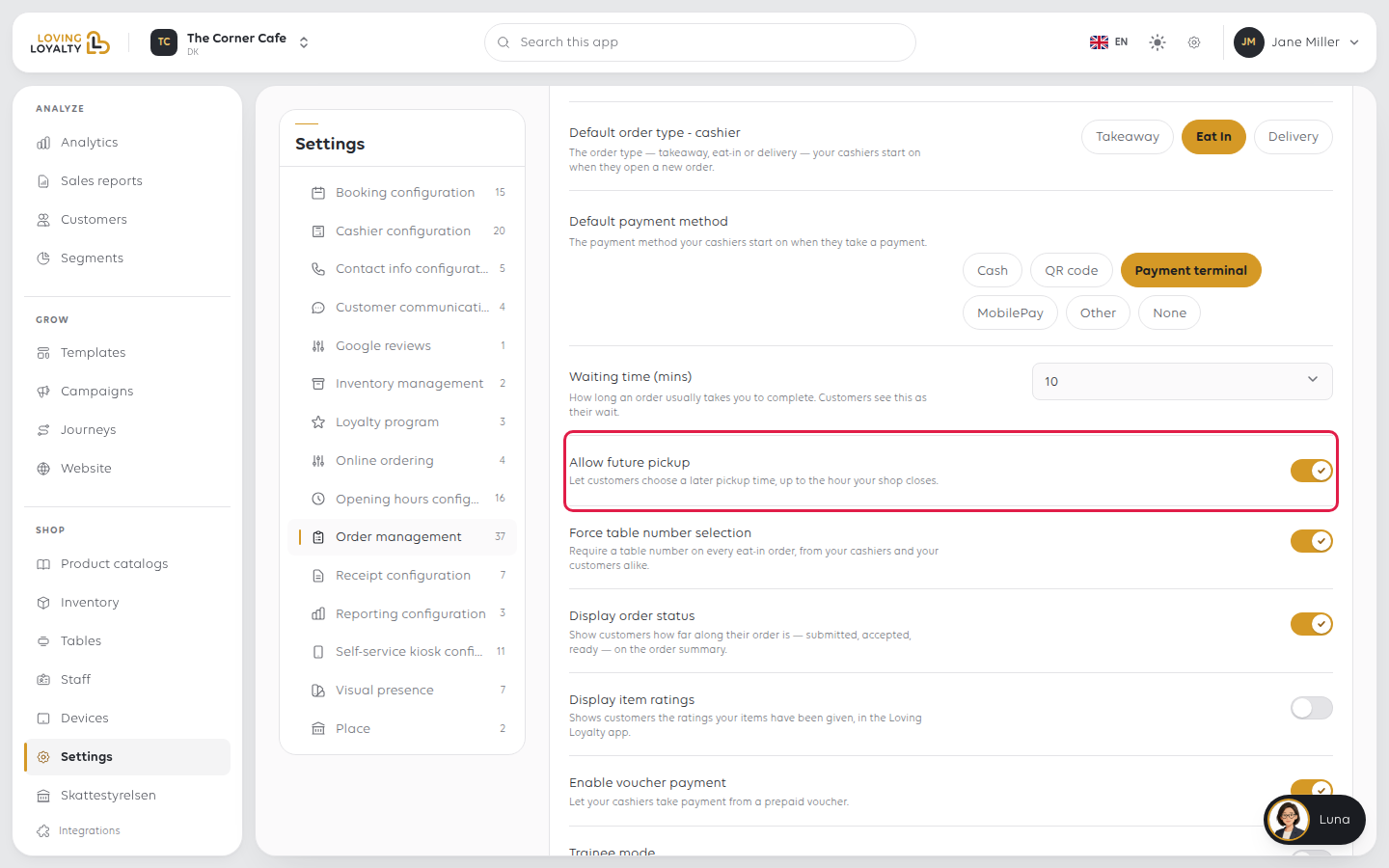
Allow future pickup
Let customers choose a later pickup time, up to the hour your shop closes.
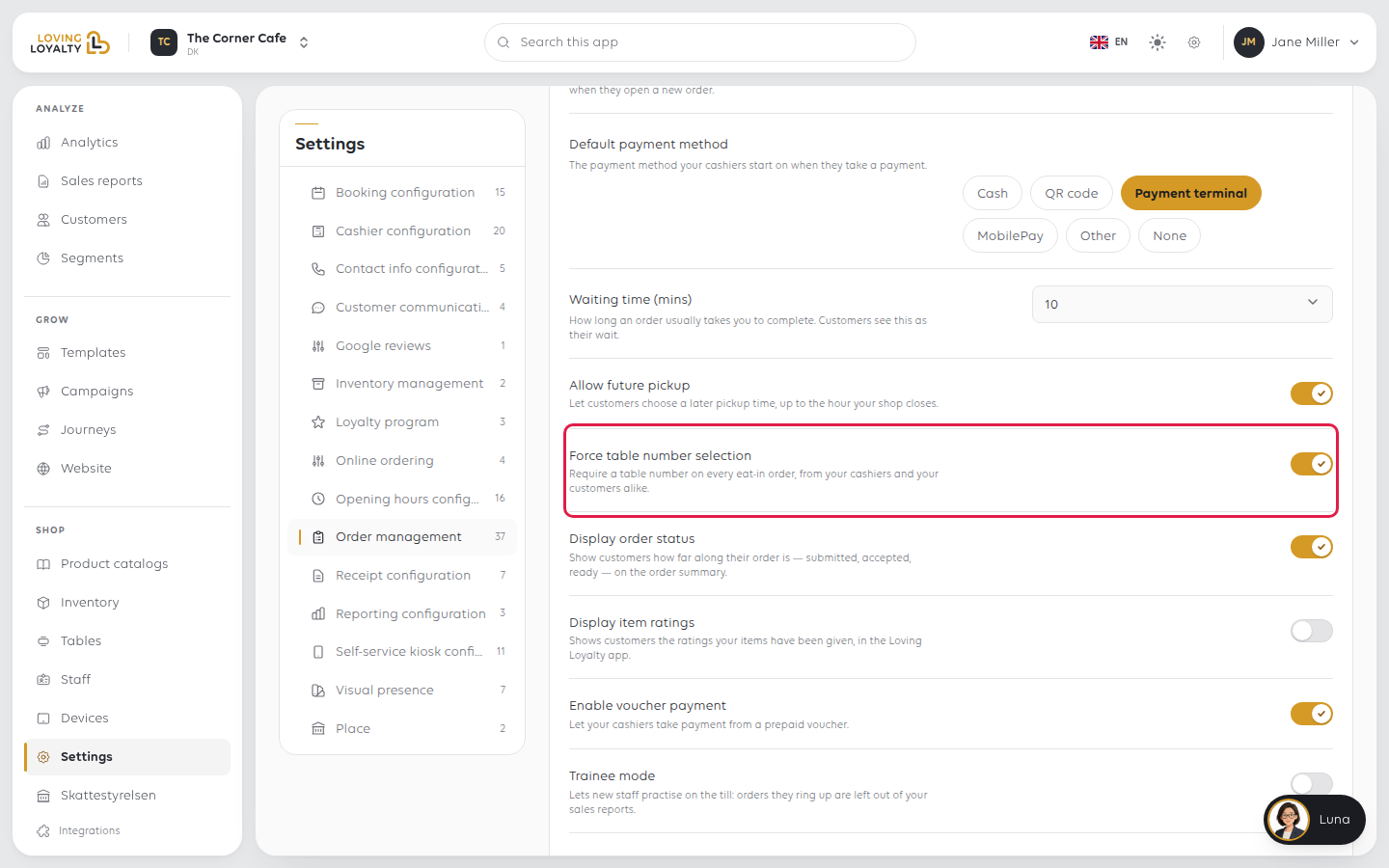
Force table number selection
Require a table number on every eat-in order, from your cashiers and your customers alike.
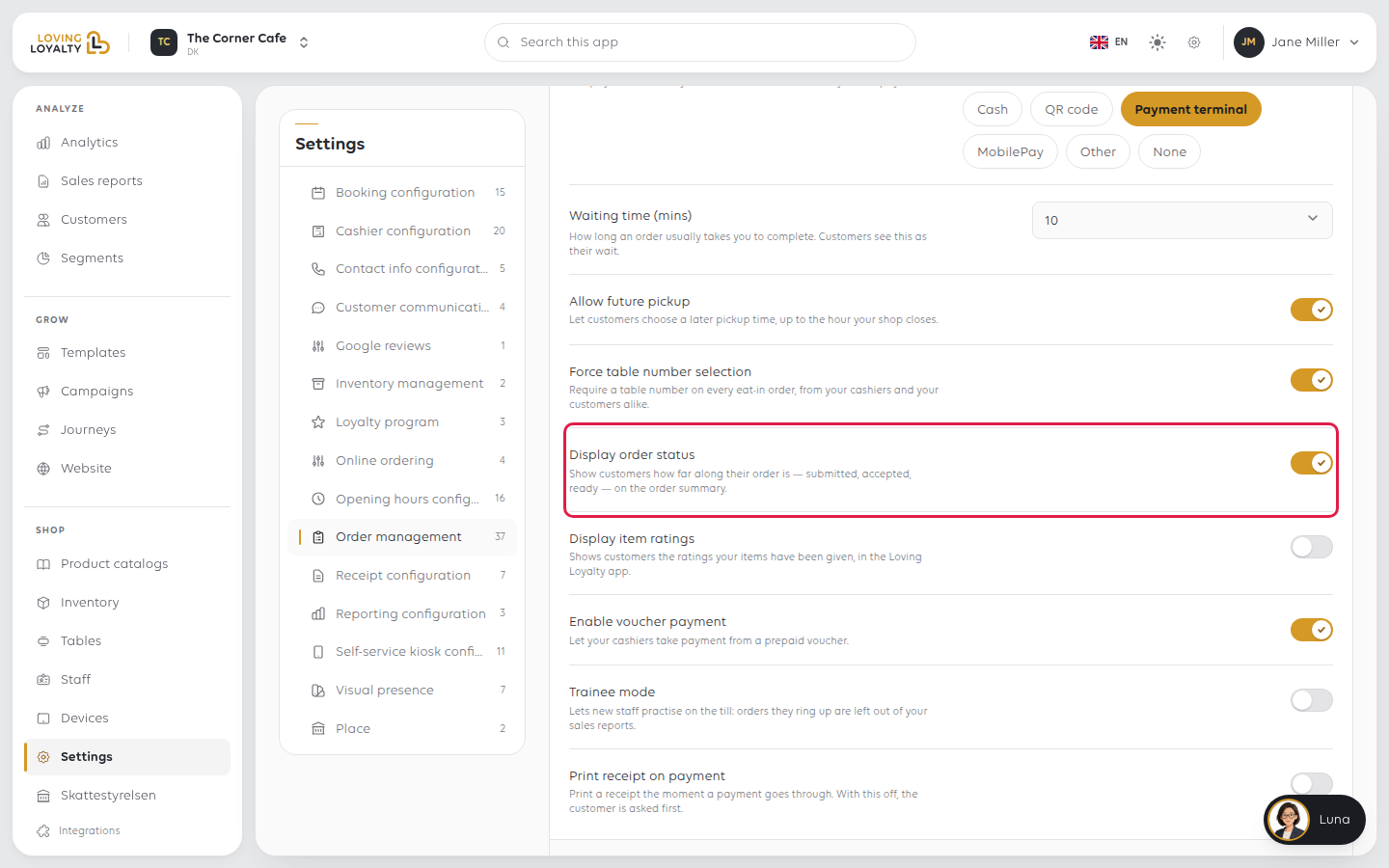
Display order status
Show customers how far along their order is - submitted, accepted, ready - on the order summary.
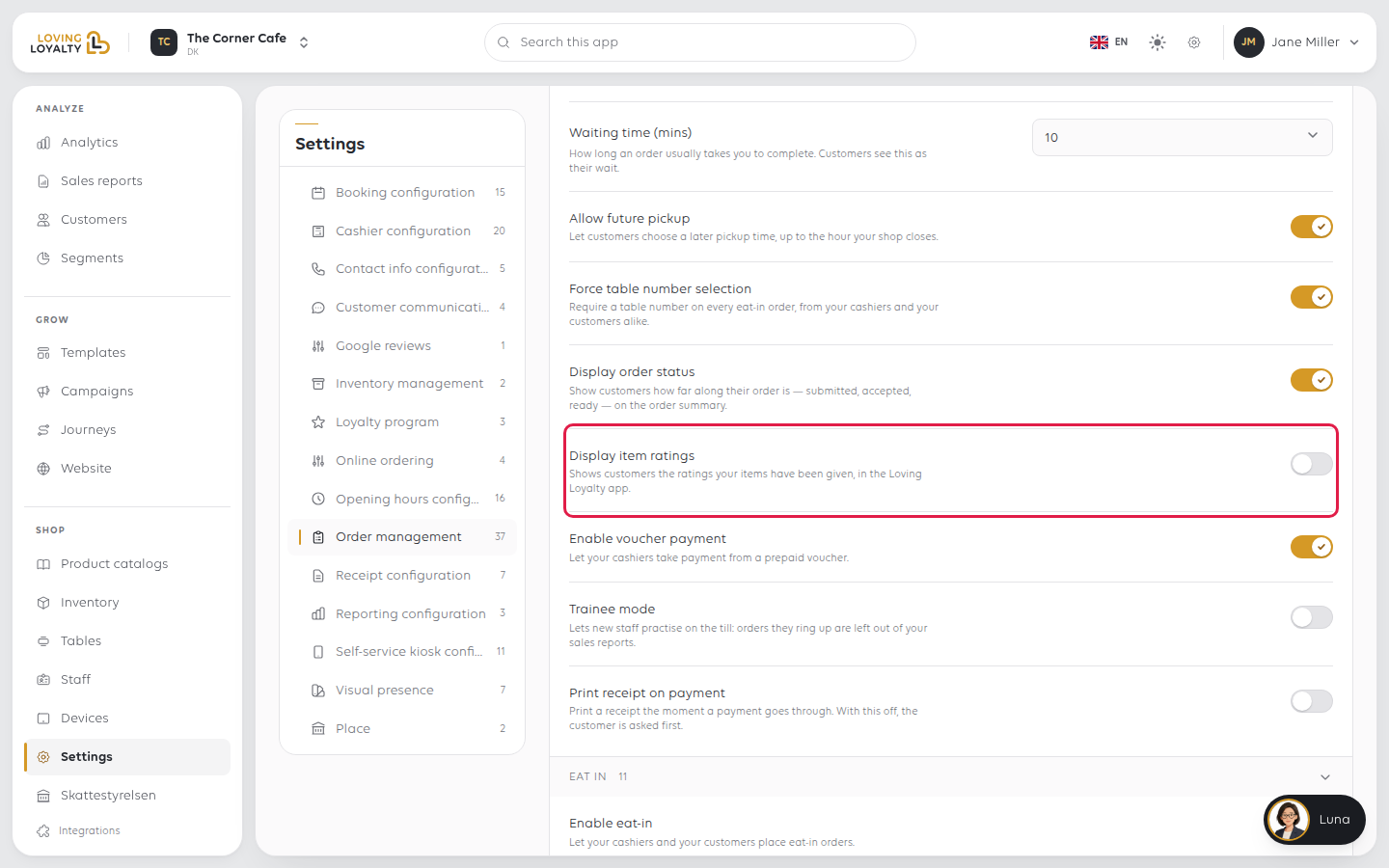
Display item ratings
Shows customers the ratings your items have been given, in the Loving Loyalty app.
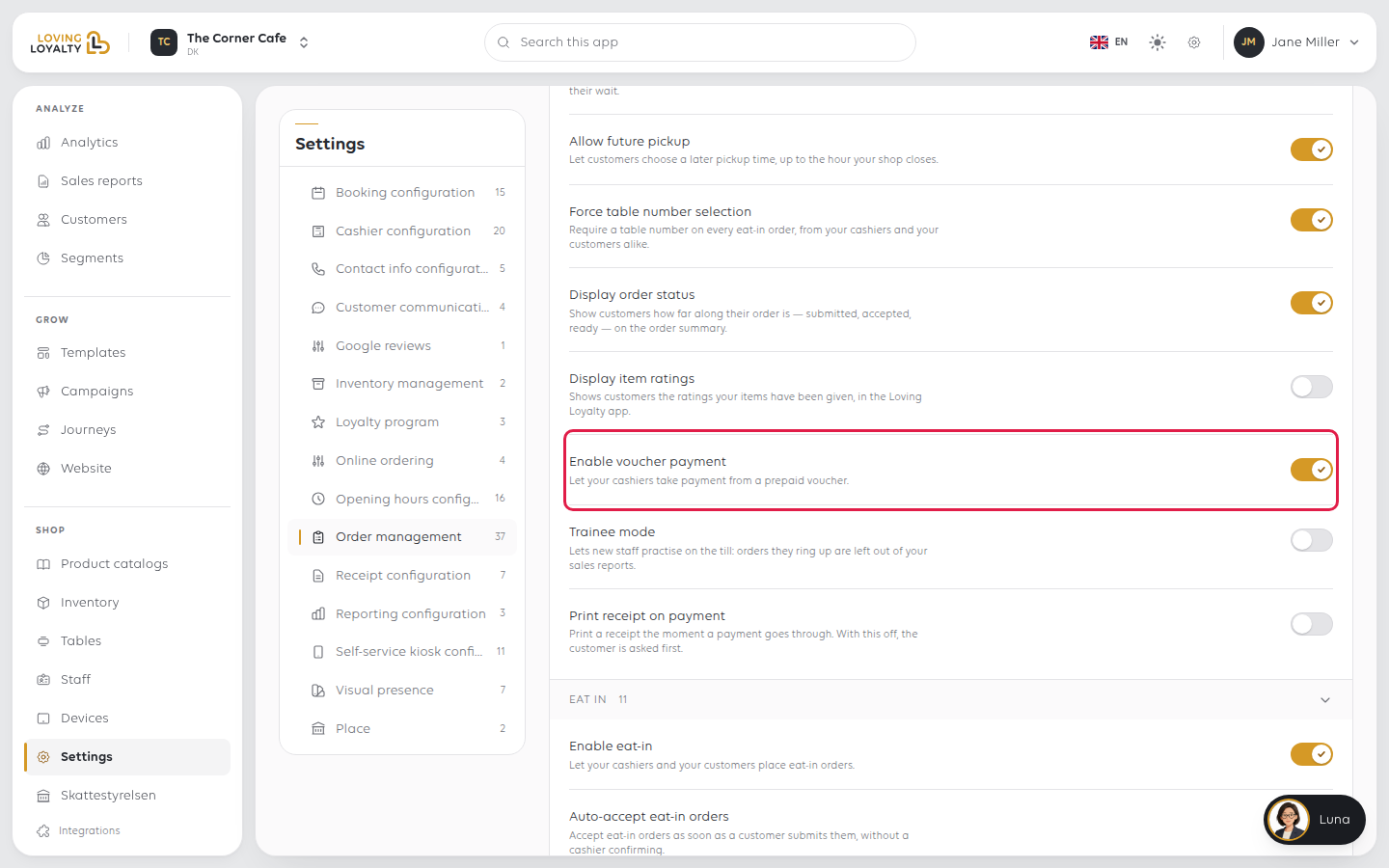
Enable voucher payment
Let your cashiers take payment from a prepaid voucher.
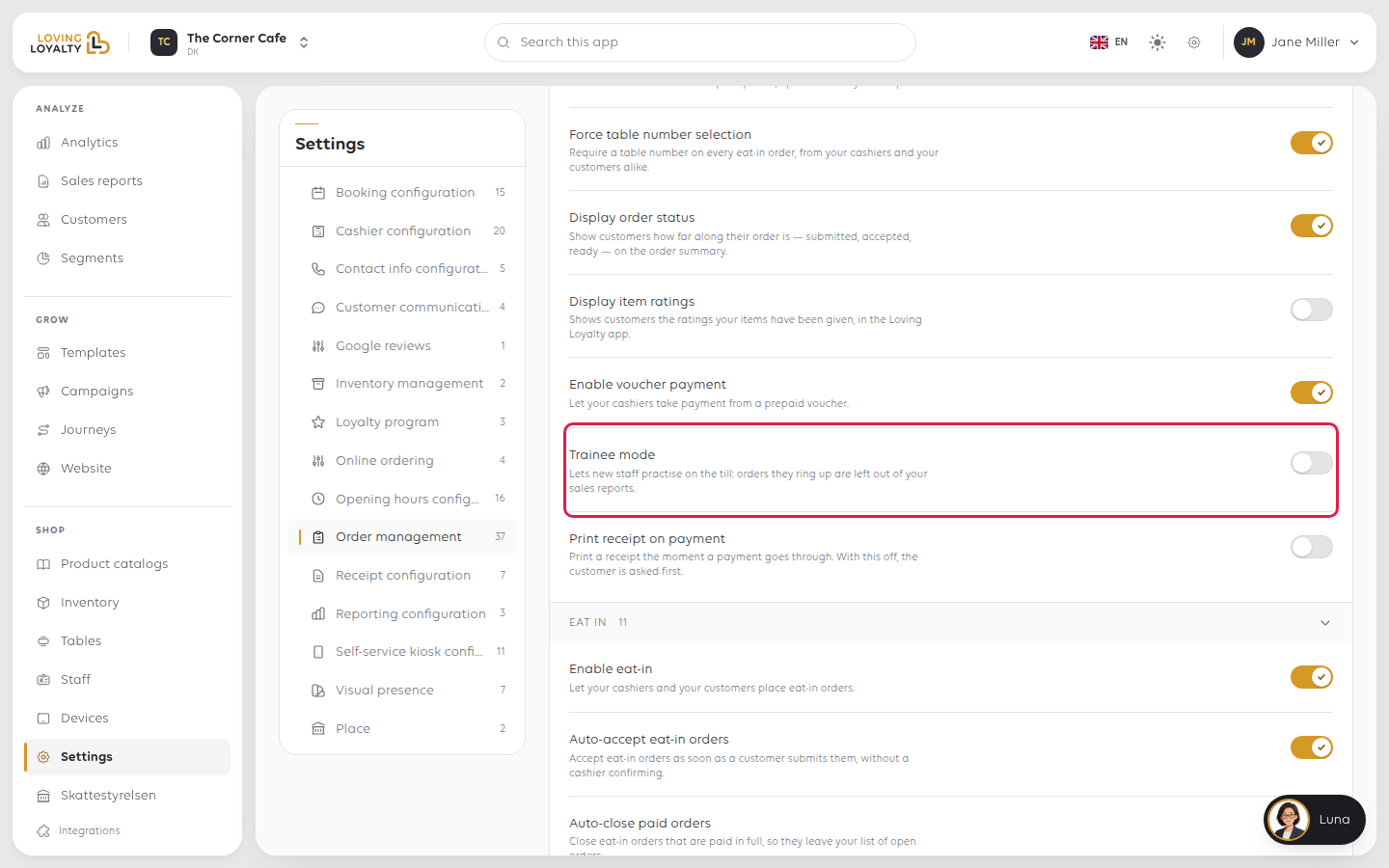
Trainee mode
Lets new staff practise on the till: orders they ring up are left out of your sales reports.
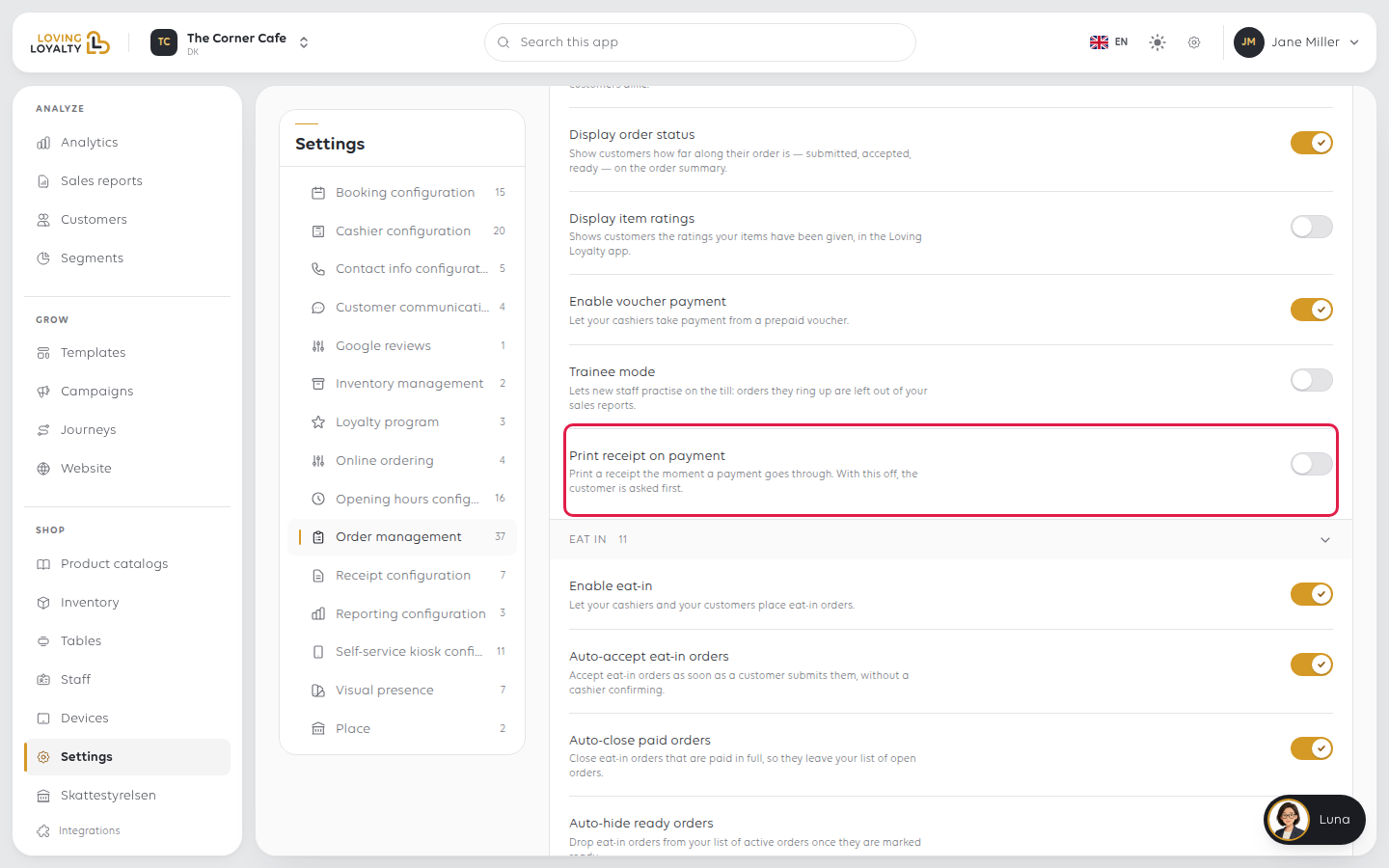
Print receipt on payment
Print a receipt the moment a payment goes through. With this off, the customer is asked first.
Eat In
Turn on Enable eat-in first; the rest of this group only matters once it is on.
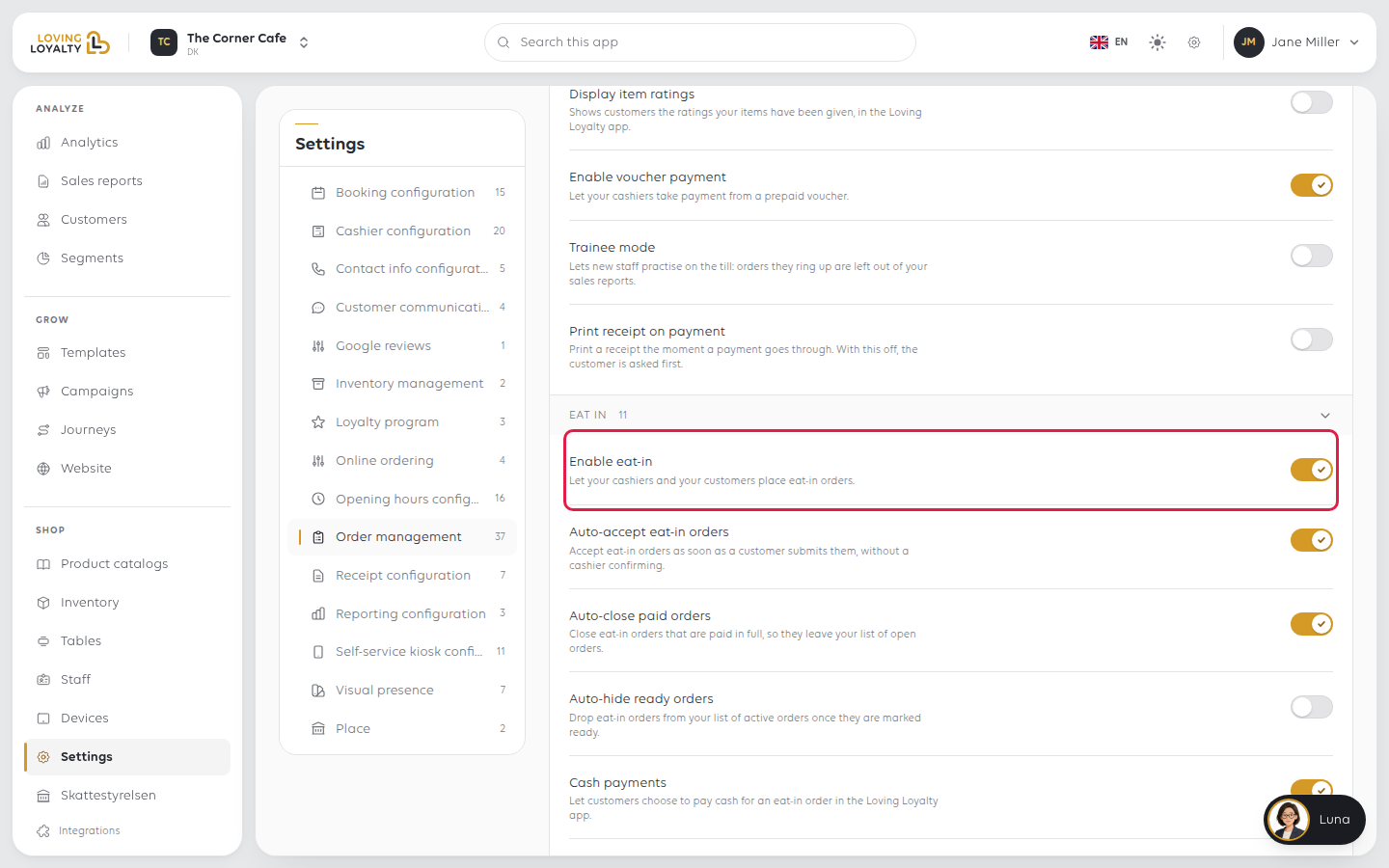
Enable eat-in
Let your cashiers and your customers place eat-in orders.
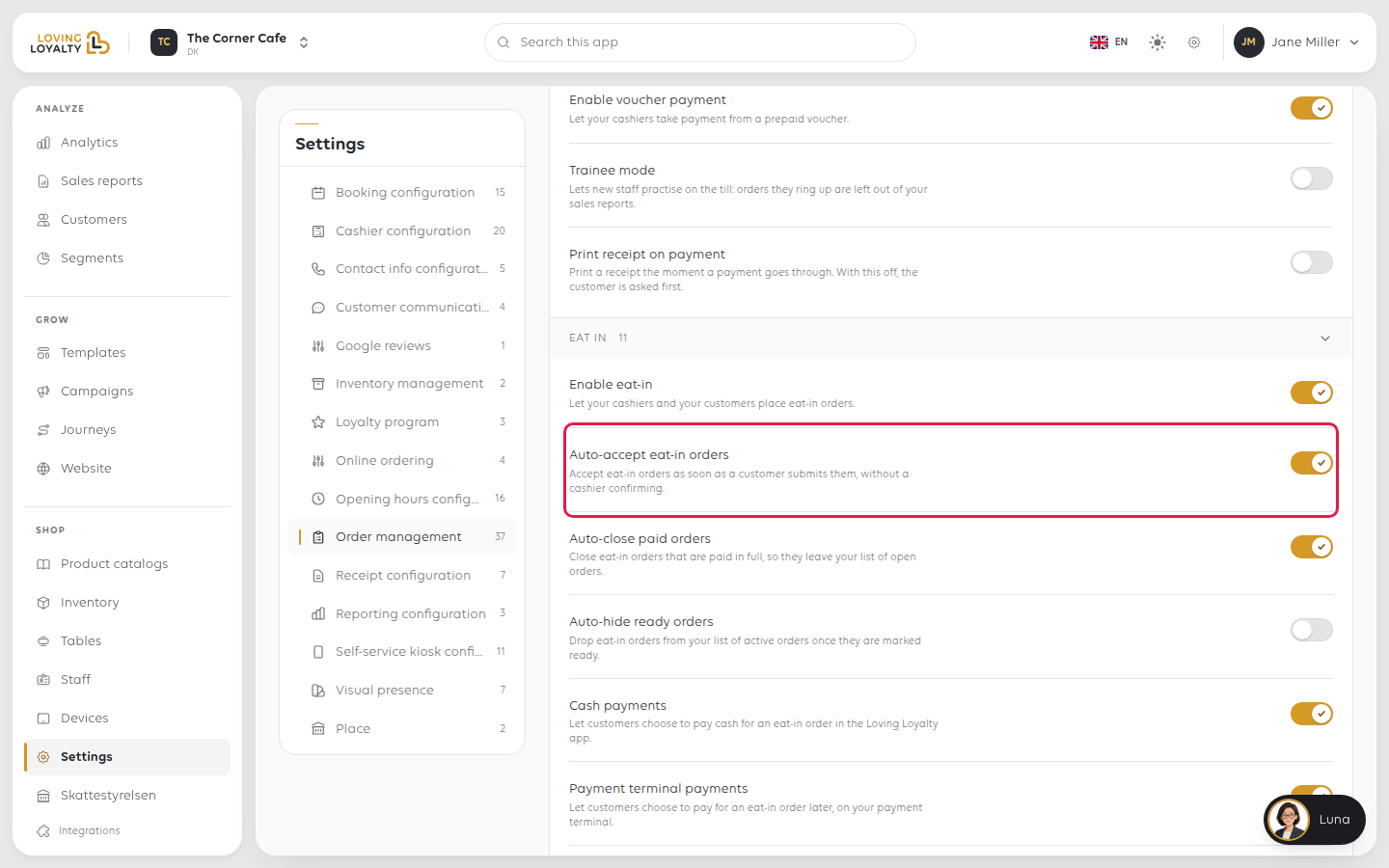
Auto-accept eat-in orders
Accept eat-in orders as soon as a customer submits them, without a cashier confirming.
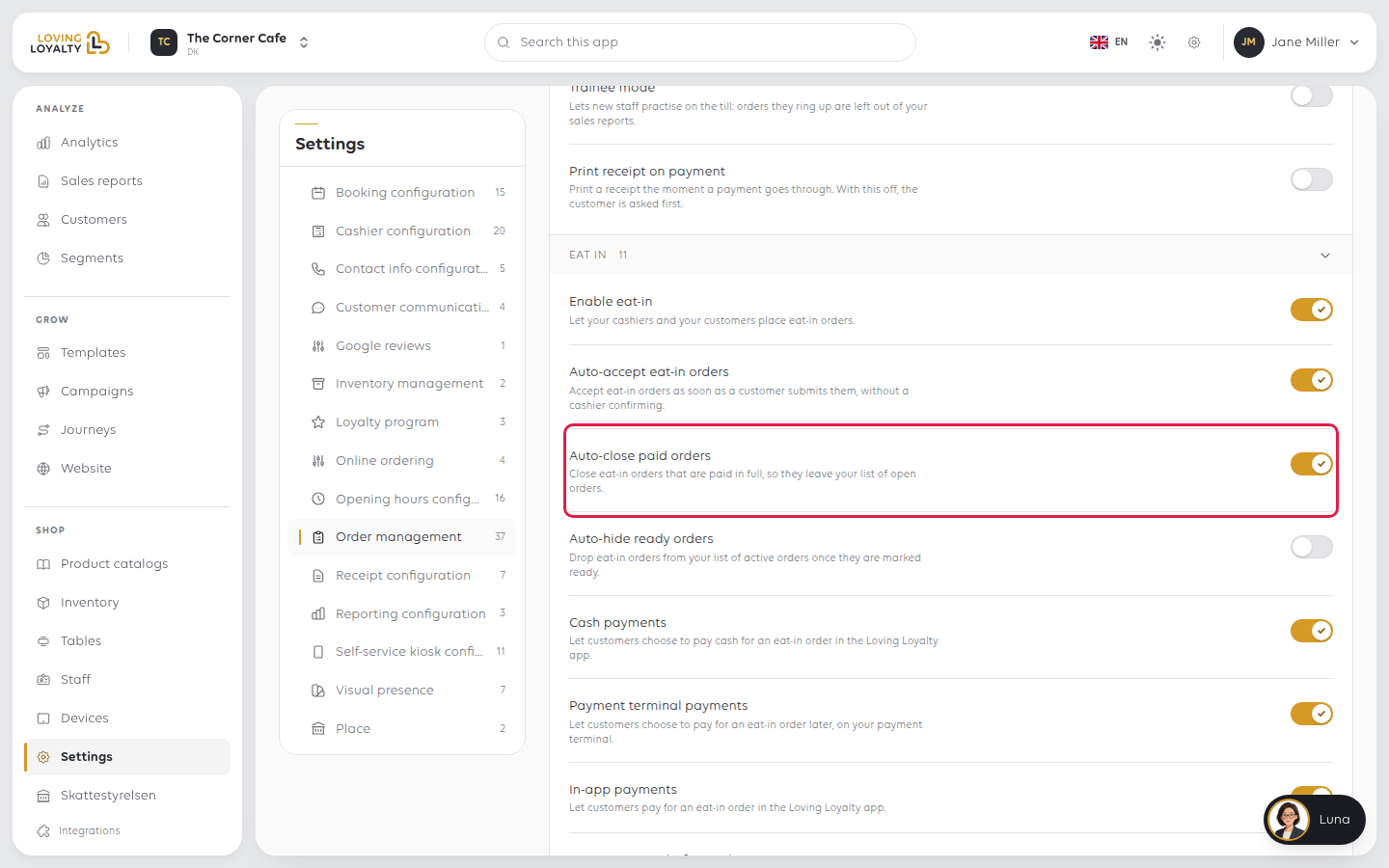
Auto-close paid orders
Close eat-in orders that are paid in full, so they leave your list of open orders.
Auto-hide ready orders
Drop eat-in orders from your list of active orders once they are marked ready.
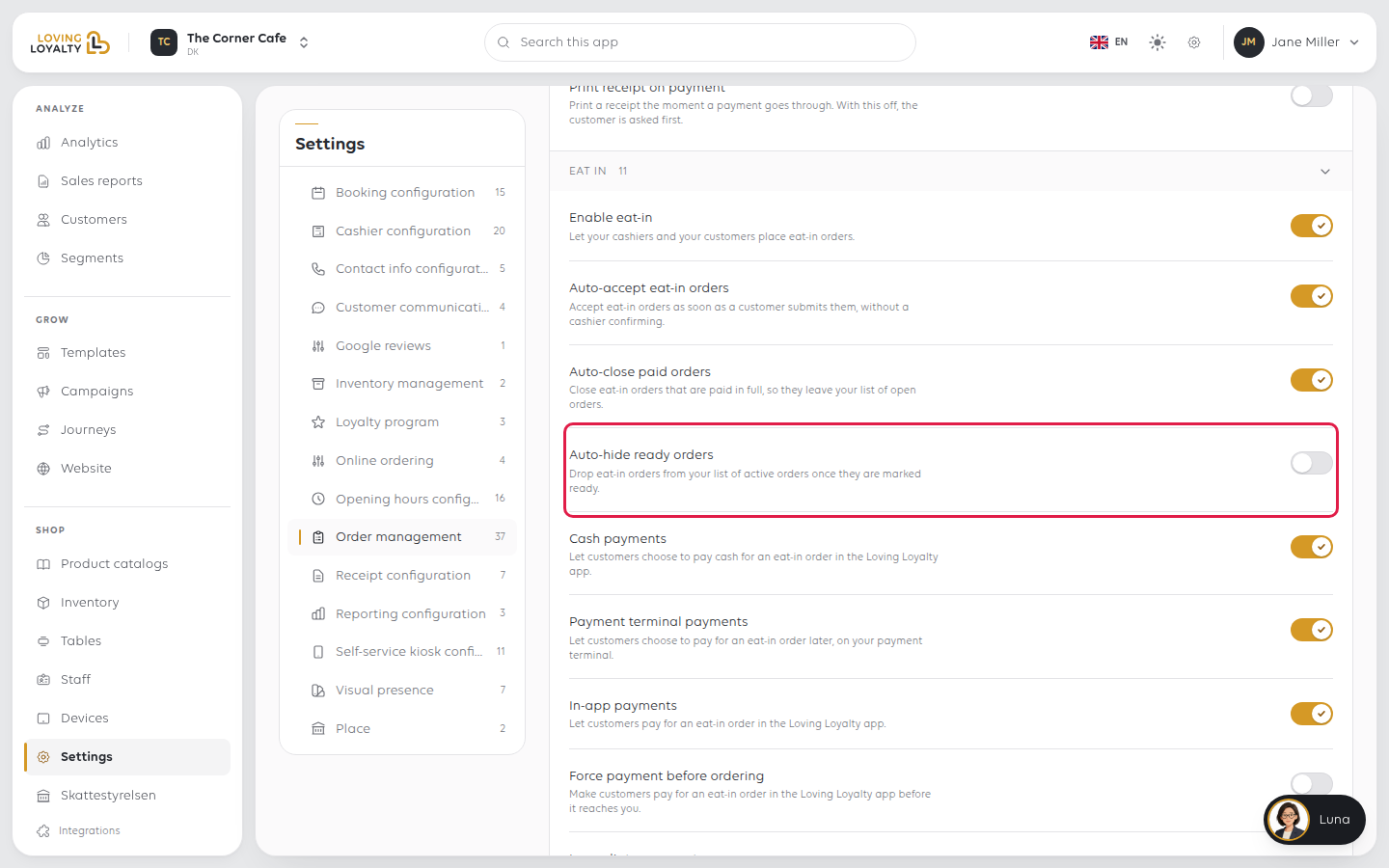
Cash payments
Let customers choose to pay cash for an eat-in order in the Loving Loyalty app.
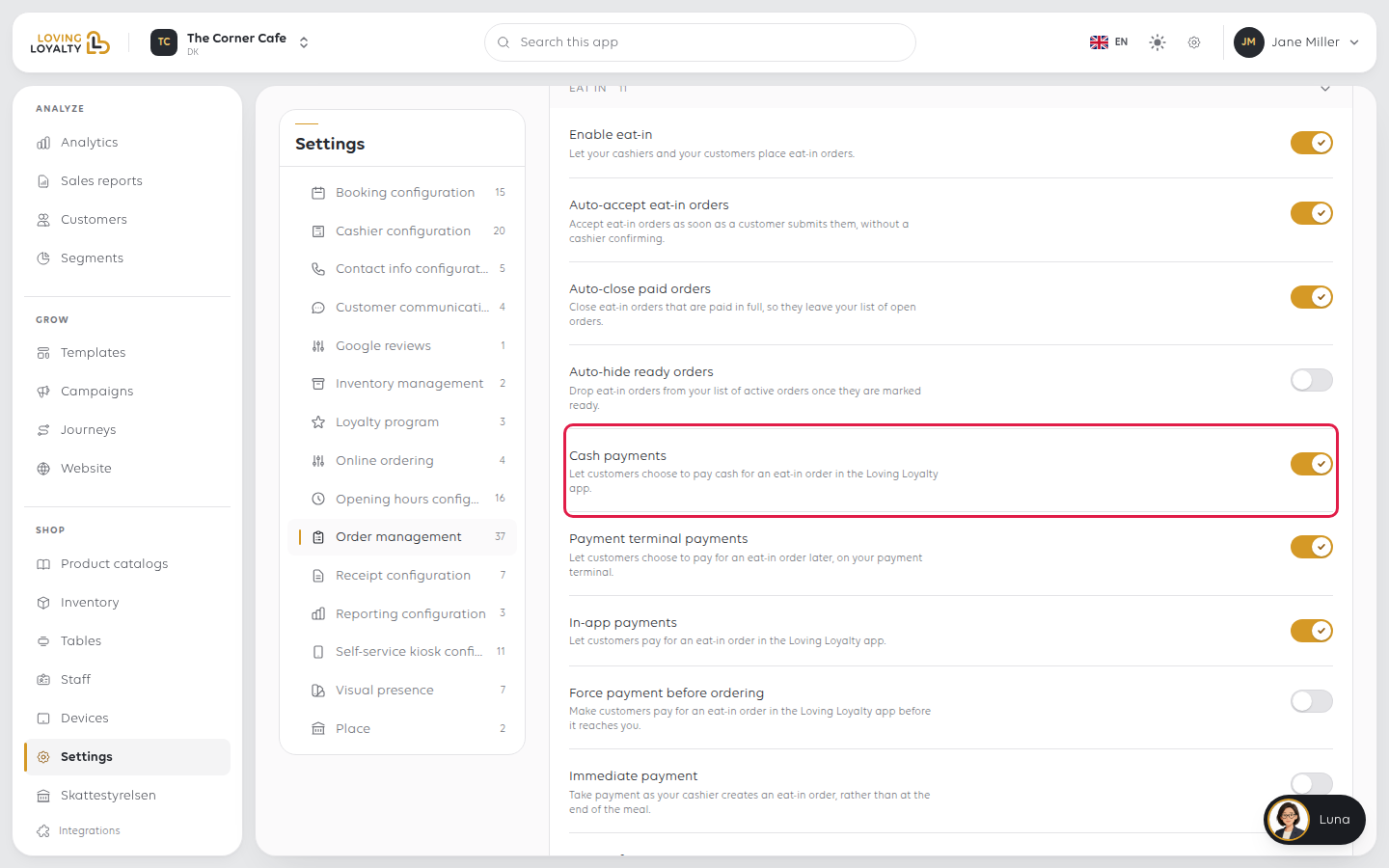
Payment terminal payments
Let customers choose to pay for an eat-in order later, on your payment terminal.
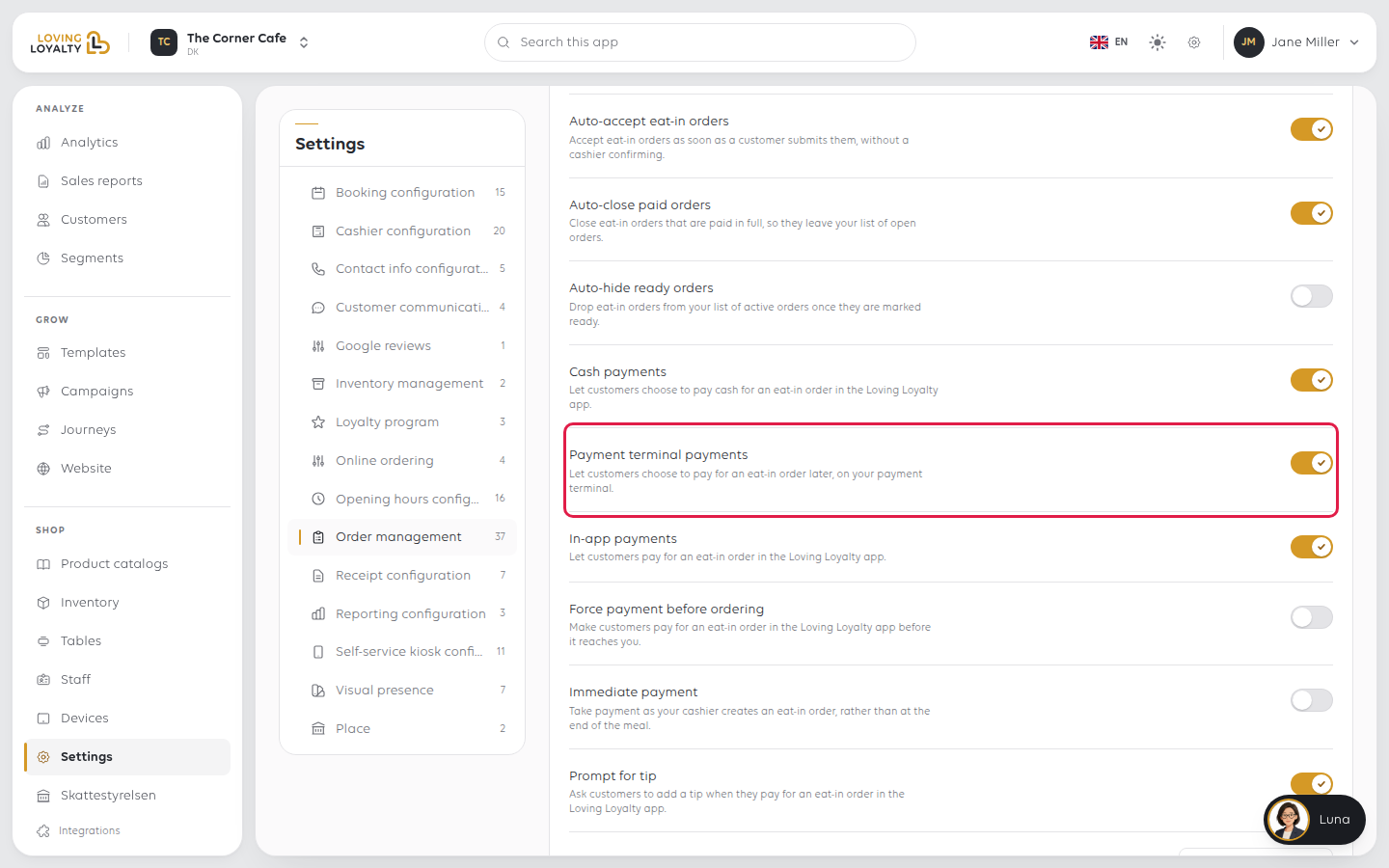
In-app payments
Let customers pay for an eat-in order in the Loving Loyalty app.
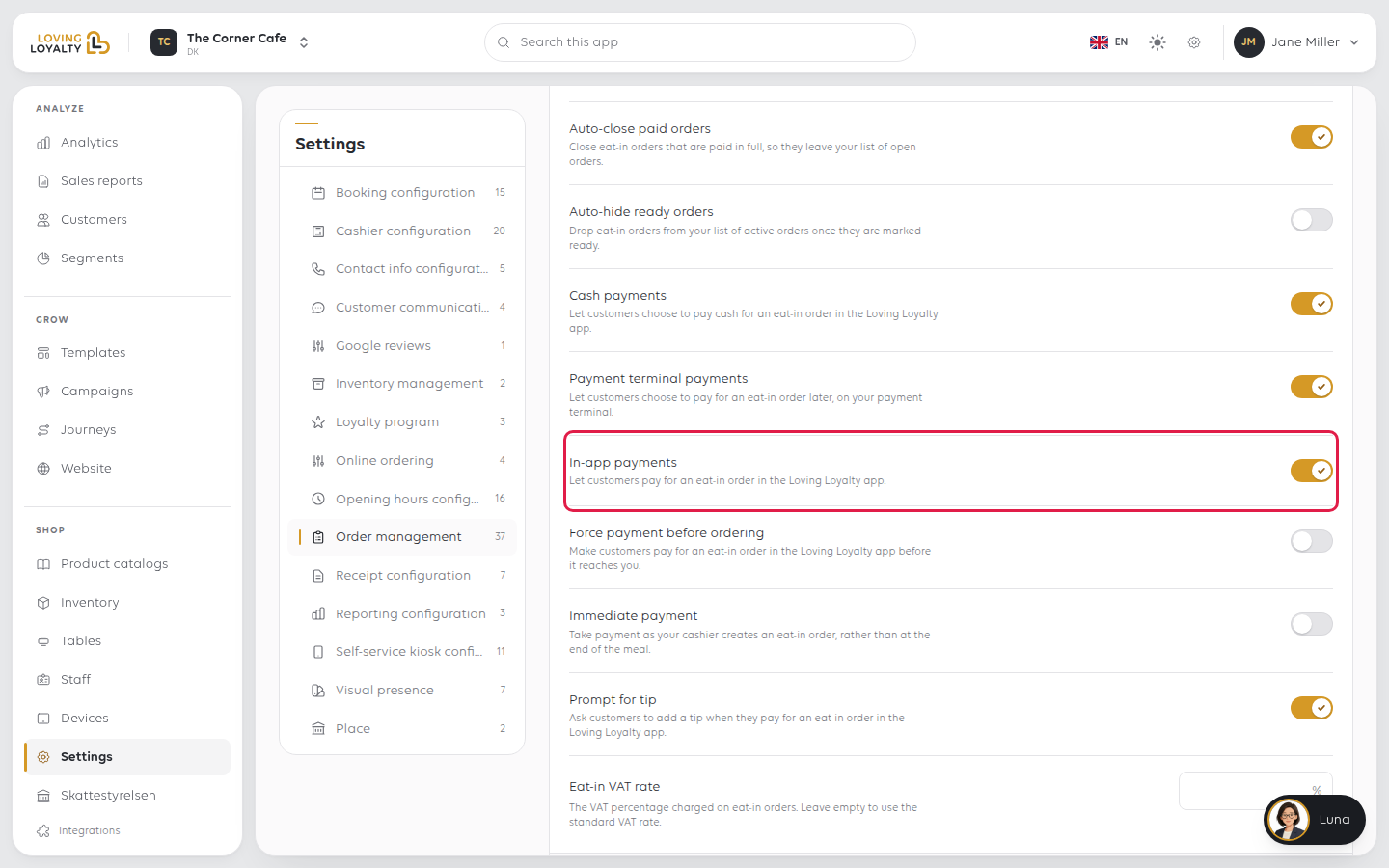
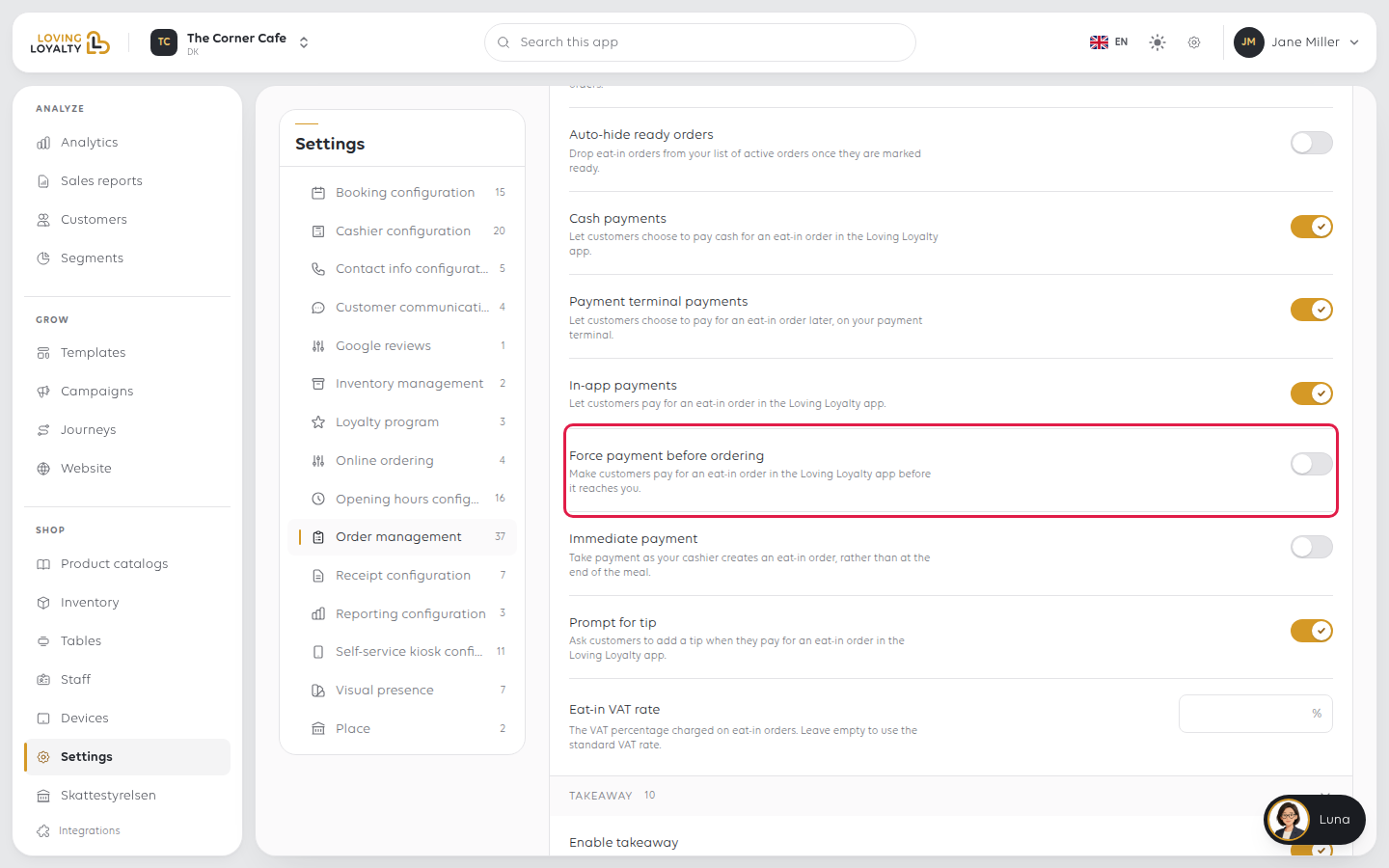
Force payment before ordering
Make customers pay for an eat-in order in the Loving Loyalty app before it reaches you.
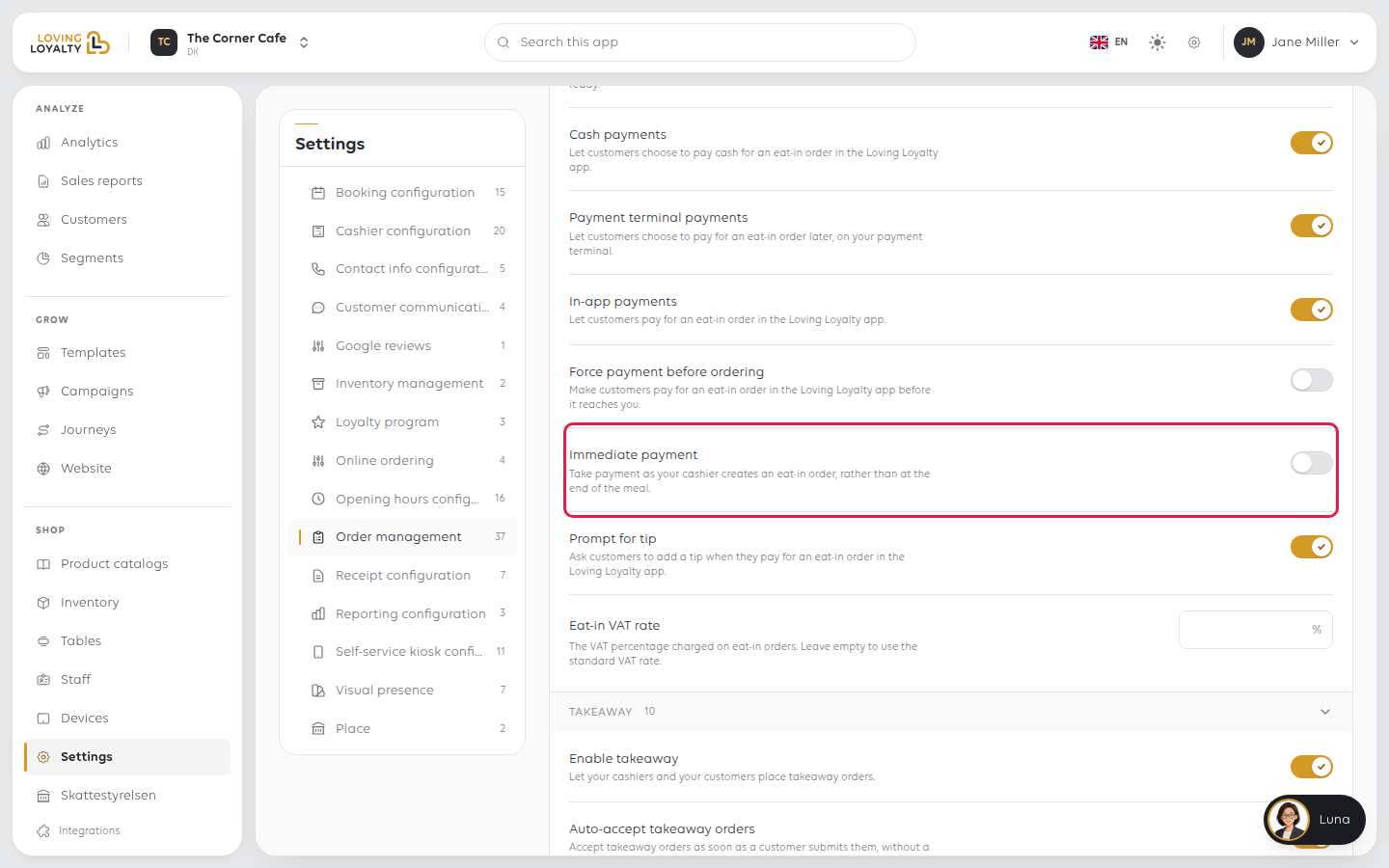
Immediate payment
Take payment as your cashier creates an eat-in order, rather than at the end of the meal.
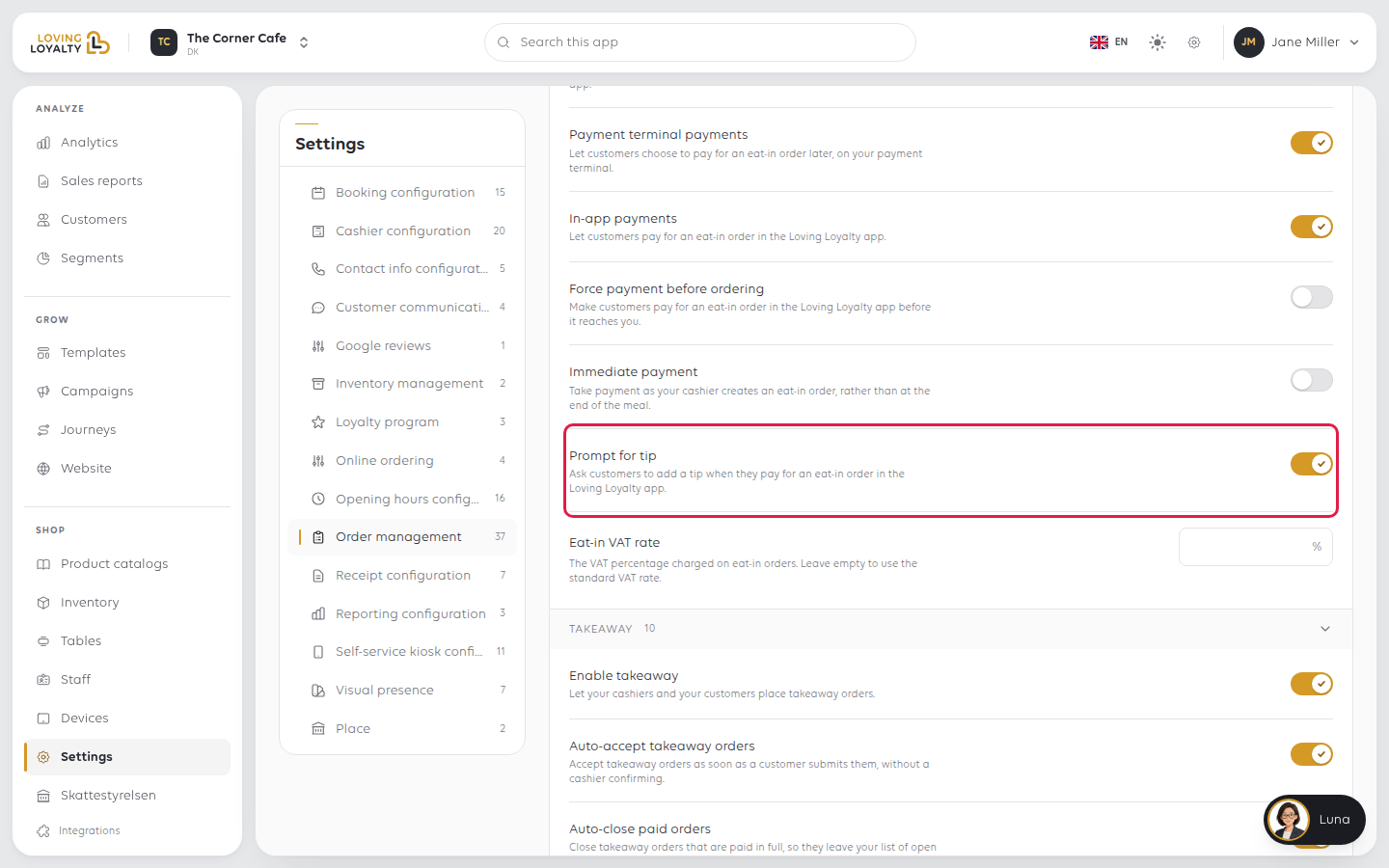
Prompt for tip
Ask customers to add a tip when they pay for an eat-in order in the Loving Loyalty app.
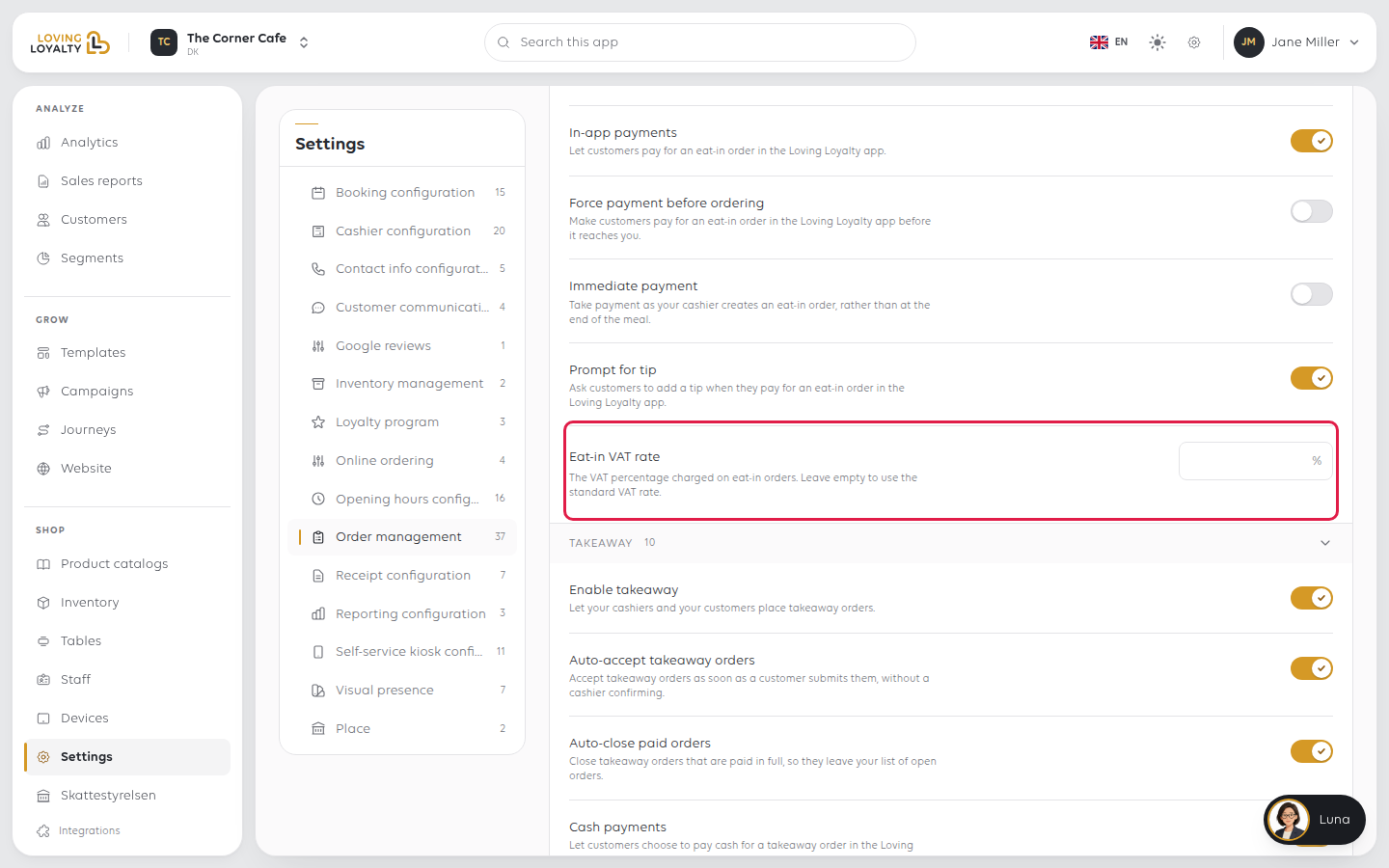
Eat-in VAT rate
The VAT percentage charged on eat-in orders. Leave empty to use the standard VAT rate.
Type the number and select Save.
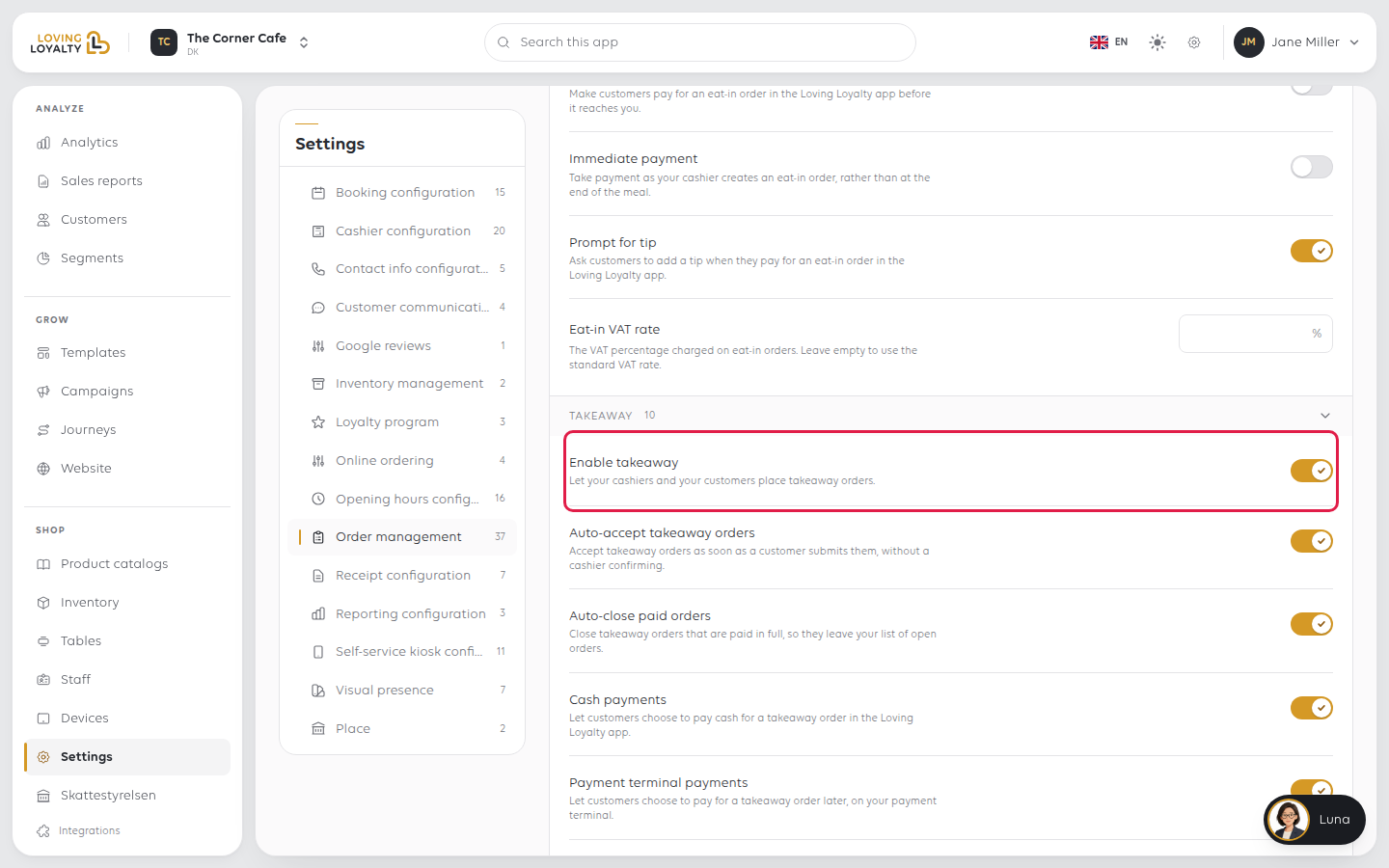
Takeaway
Enable takeaway
Let your cashiers and your customers place takeaway orders.
Auto-accept takeaway orders
Accept takeaway orders as soon as a customer submits them, without a cashier confirming.
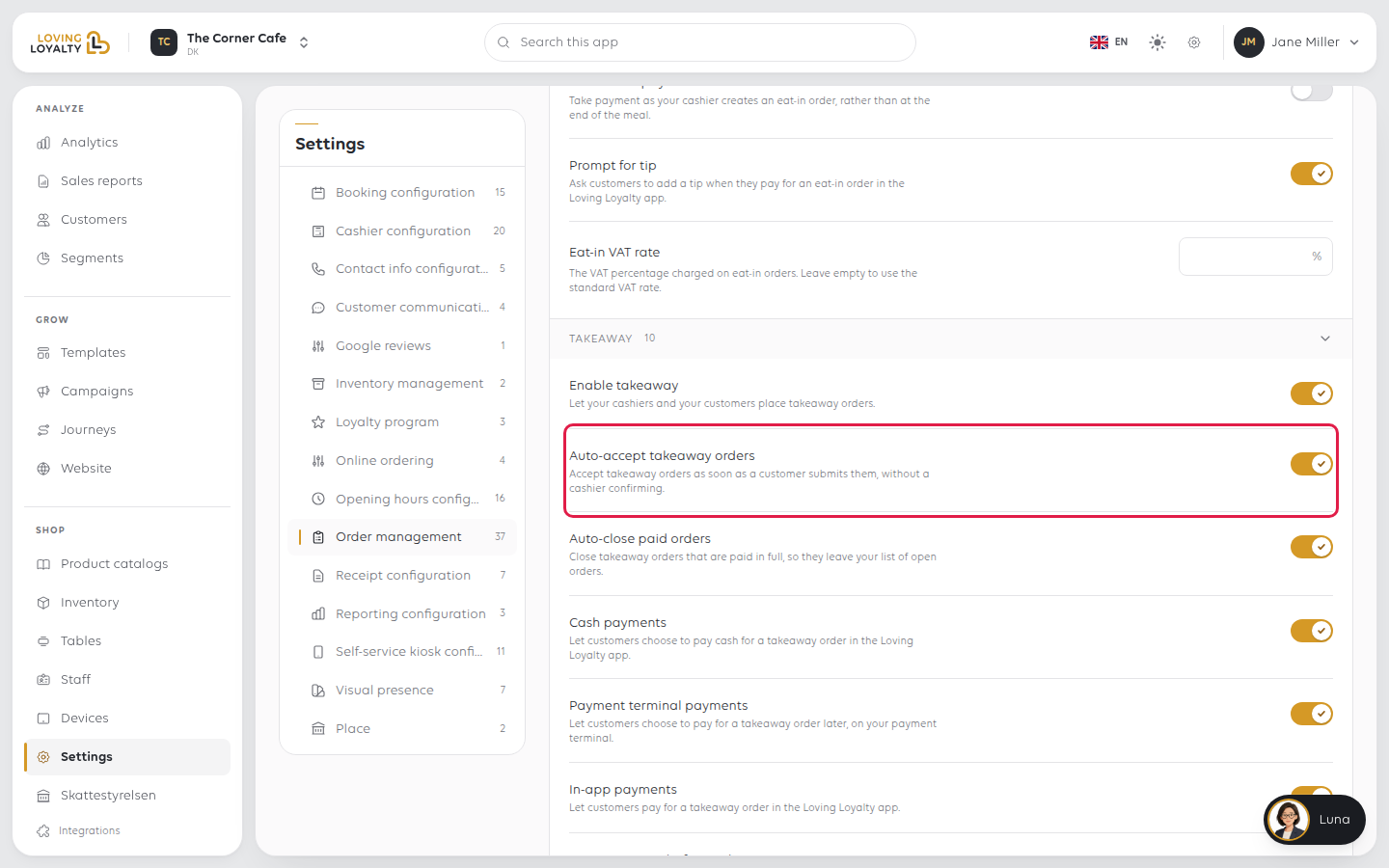
The Takeaway group also has its own copy of these eat-in settings, for takeaway
orders only: Auto-close paid orders, Cash payments, Payment terminal
payments, In-app payments, Force payment before ordering, Immediate
payment and Prompt for tip. Each works the same way as its eat-in version, so
takeaway can behave differently from eat-in.
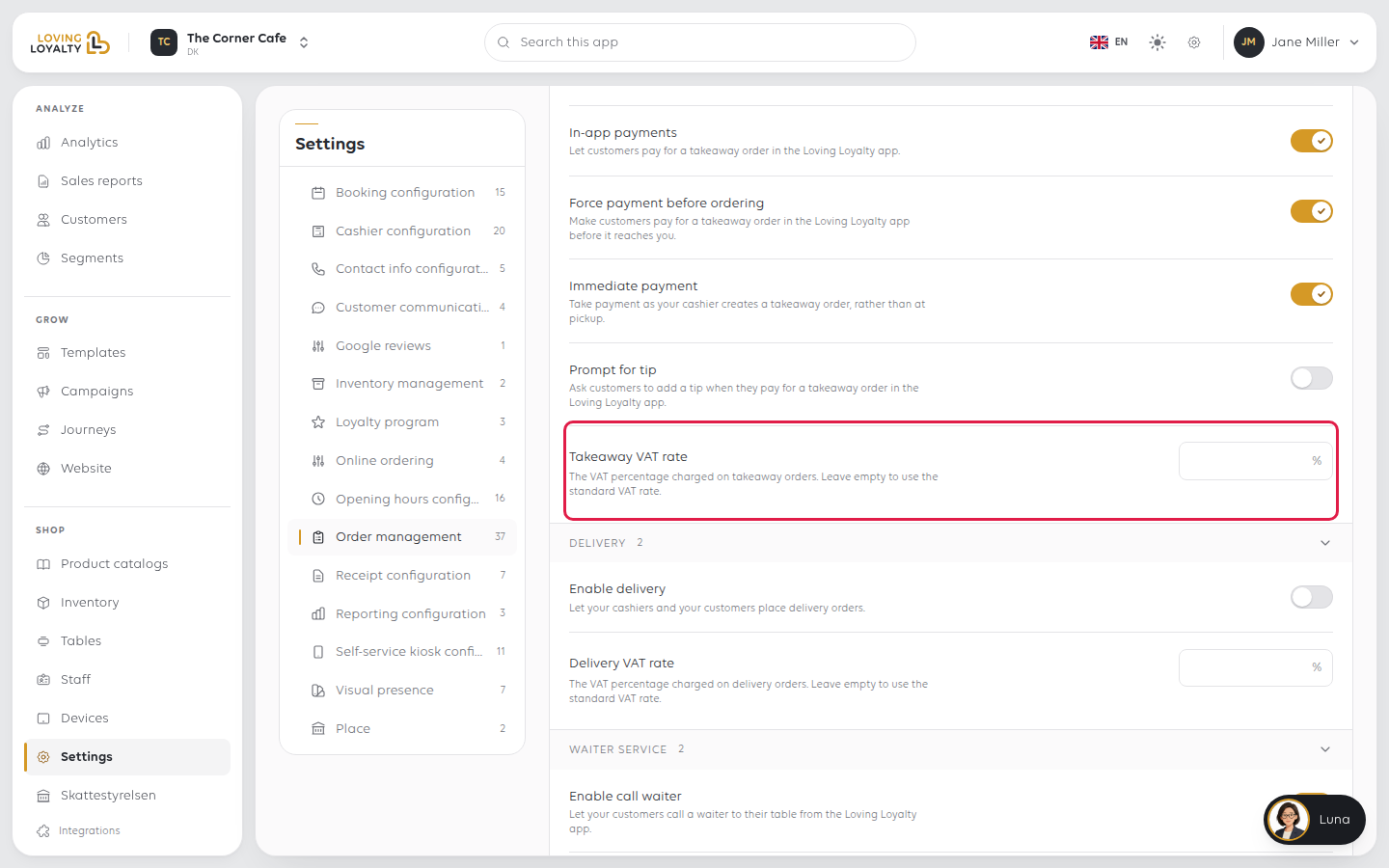
Takeaway VAT rate
The VAT percentage charged on takeaway orders. Leave empty to use the standard VAT rate.
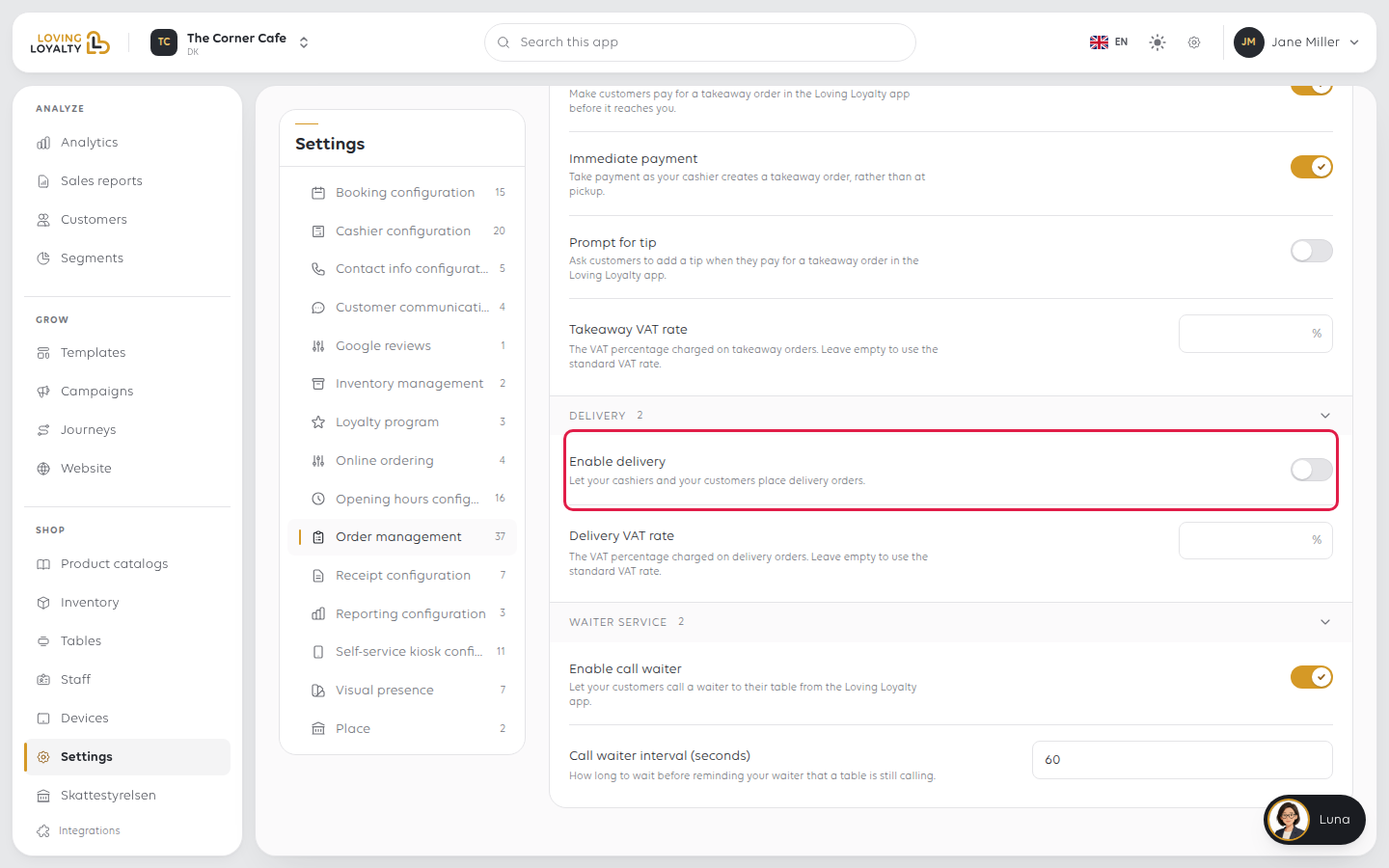
Delivery
Enable delivery
Let your cashiers and your customers place delivery orders.
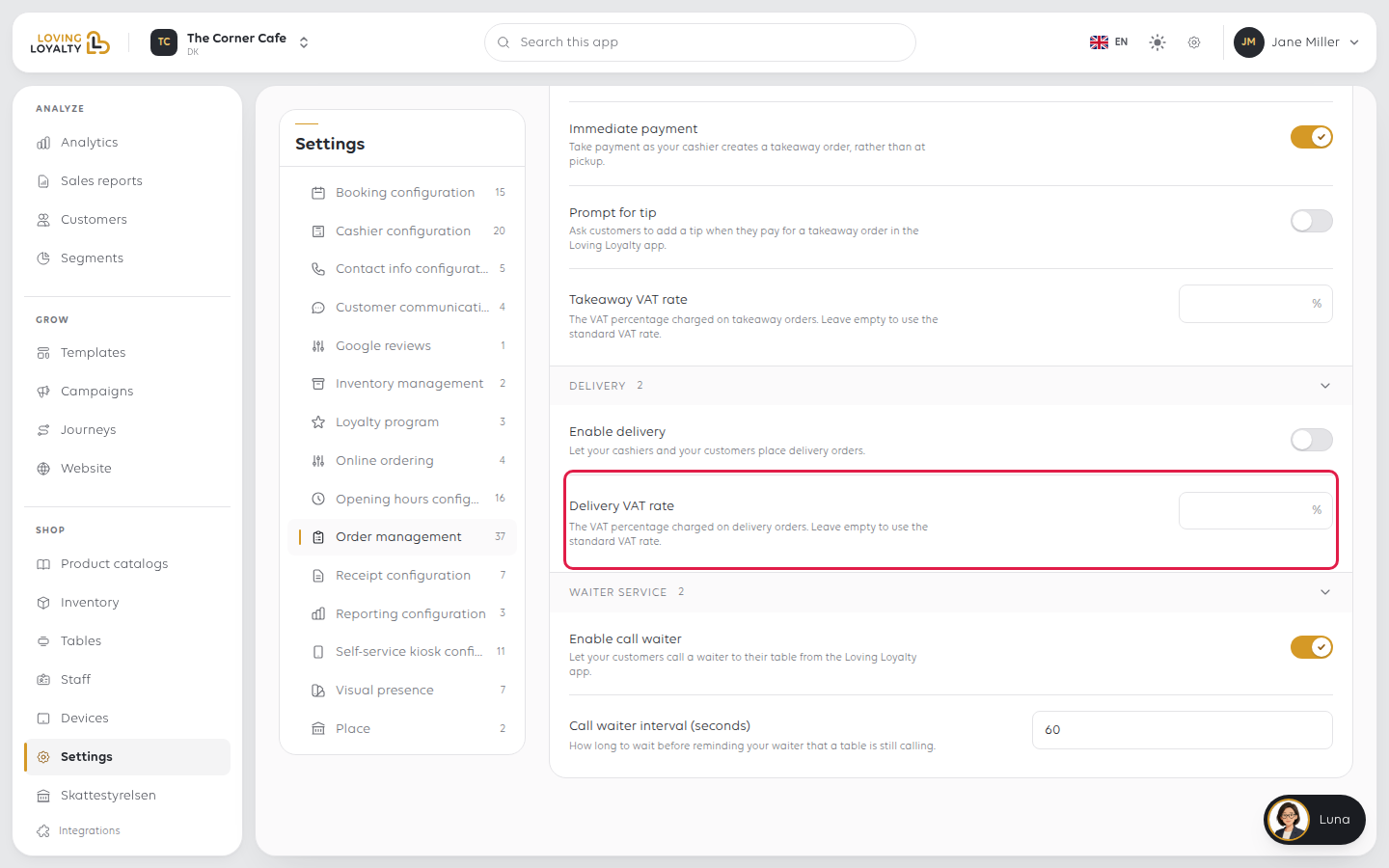
Delivery VAT rate
The VAT percentage charged on delivery orders. Leave empty to use the standard VAT rate.
Waiter service
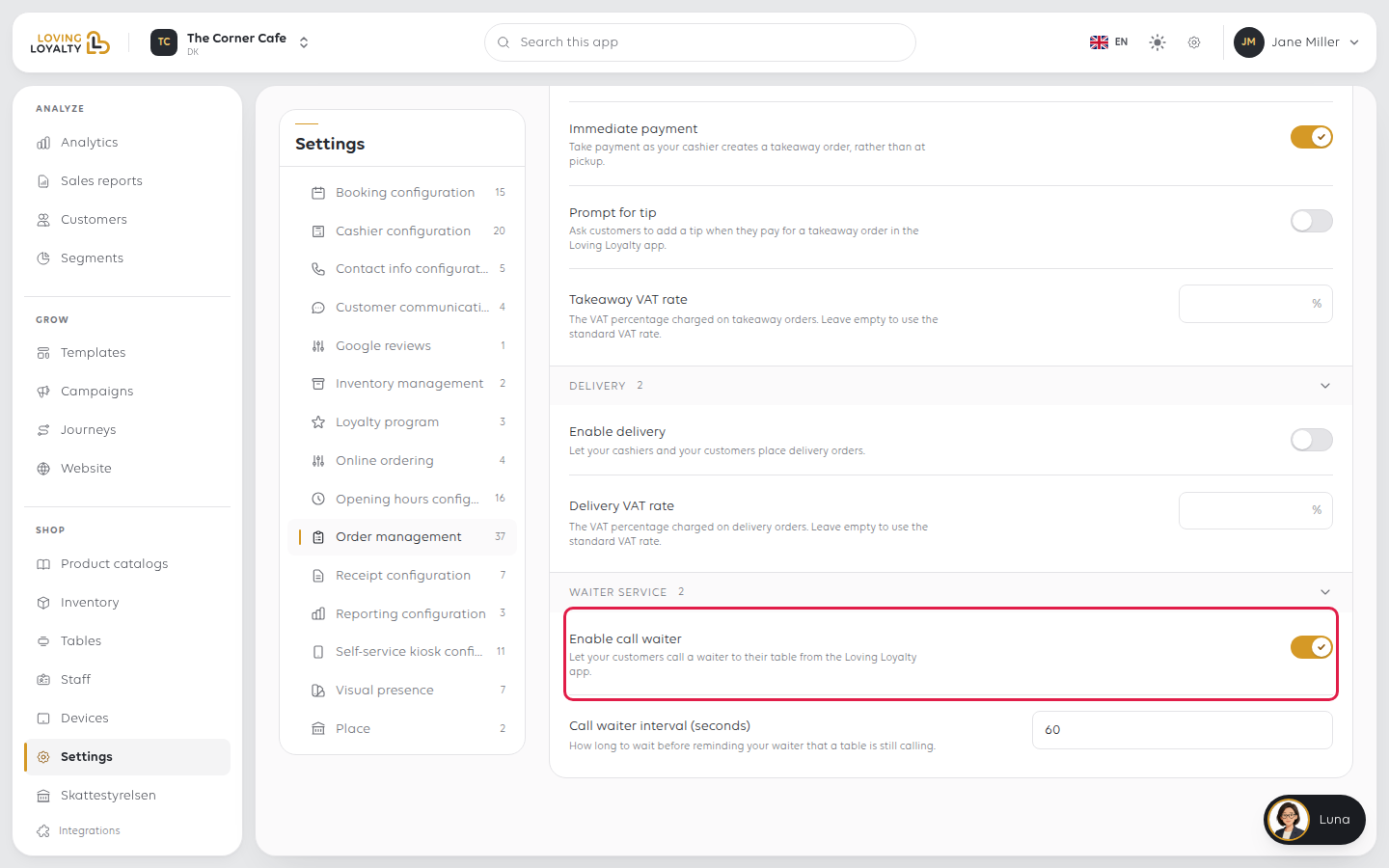
Enable call waiter
Let your customers call a waiter to their table from the Loving Loyalty app.
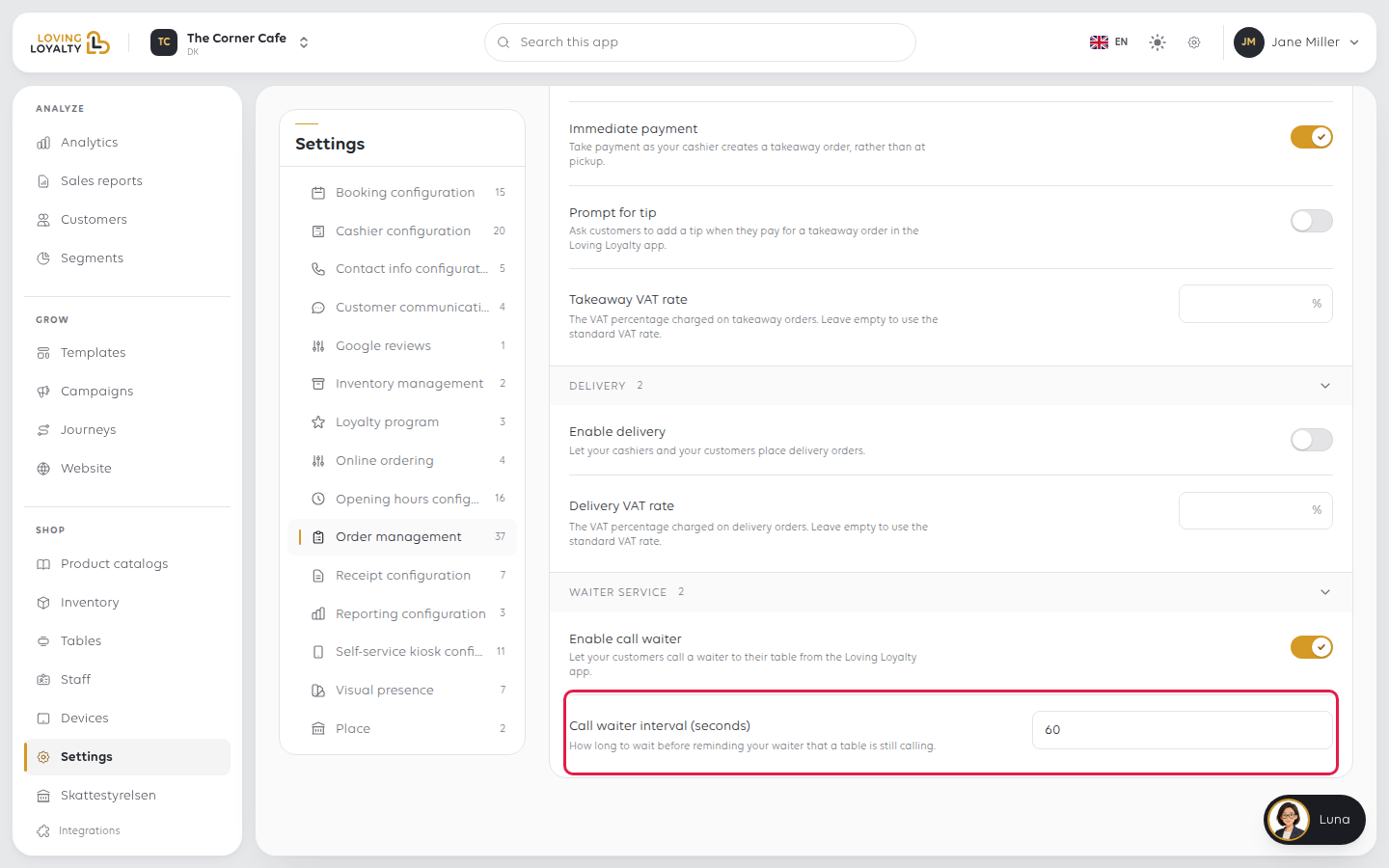
Call waiter interval (seconds)
How long to wait before reminding your waiter that a table is still calling. Type
the number of seconds and select Save. It only matters while Enable call
waiter is on.
If something goes wrong
| What you see | What it means | What to do |
|---|---|---|
| Customers cannot place orders | Accepting orders may be off, or that order type is not enabled | Check Accepting orders first, then Enable eat-in, Enable takeaway or Enable delivery |
| Orders arrive with the wrong type | The default order type is wrong | There are two - check Default order type - customer or - cashier |
| Staff always change the payment method | The default does not match how the shop is paid | Change the default |
Was this article helpful?
Thanks for your feedback!
