

 Dansk
 Svenska
 Deutsch
 Norsk bokmål
Take an order and get paid
The everyday job: add what the customer is buying, choose how they are paying, and
place the order. Everything else at the till is a variation on this.
This article covers the shape of an order from start to finish. It stops short of
the payment itself, because what happens after you place the order depends on how
the customer is paying - each method has its own article.
Before you start
- A cash balance is open if you are taking cash. See Open the shop.
1. Add the products
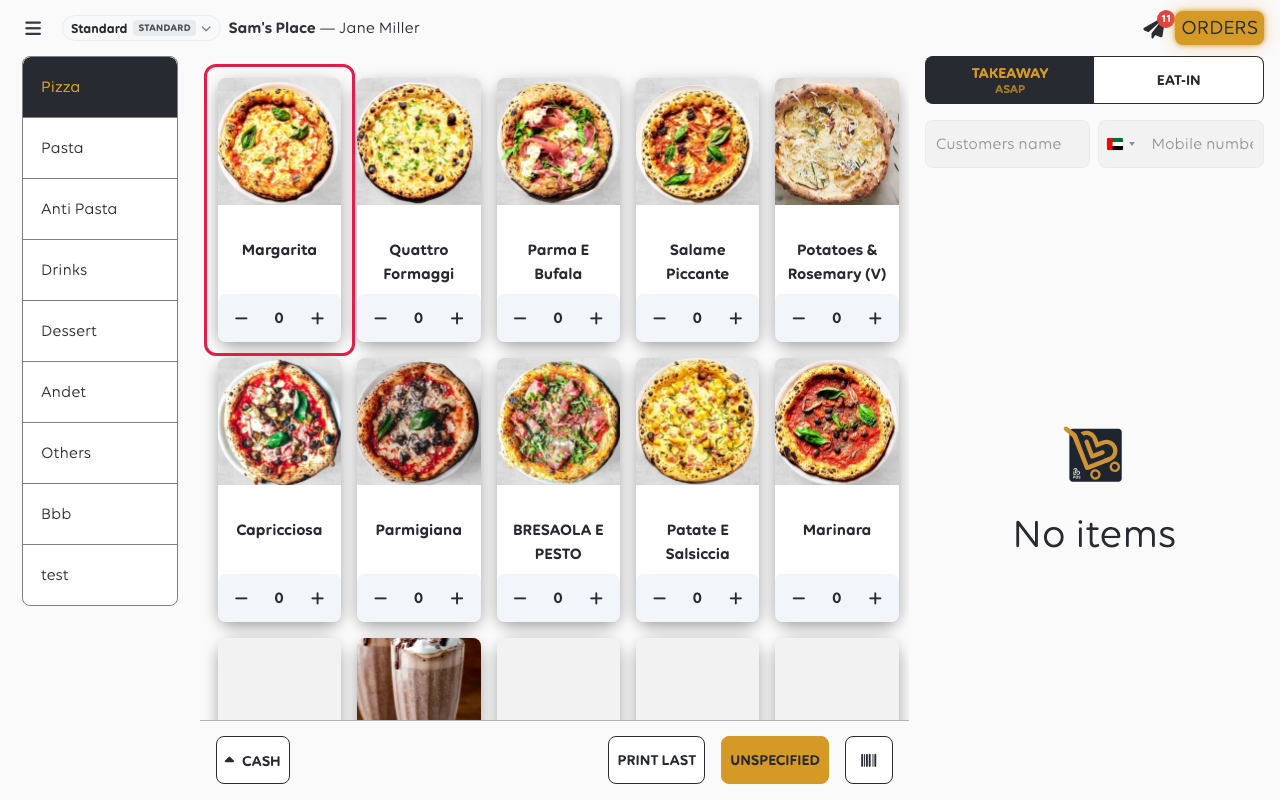
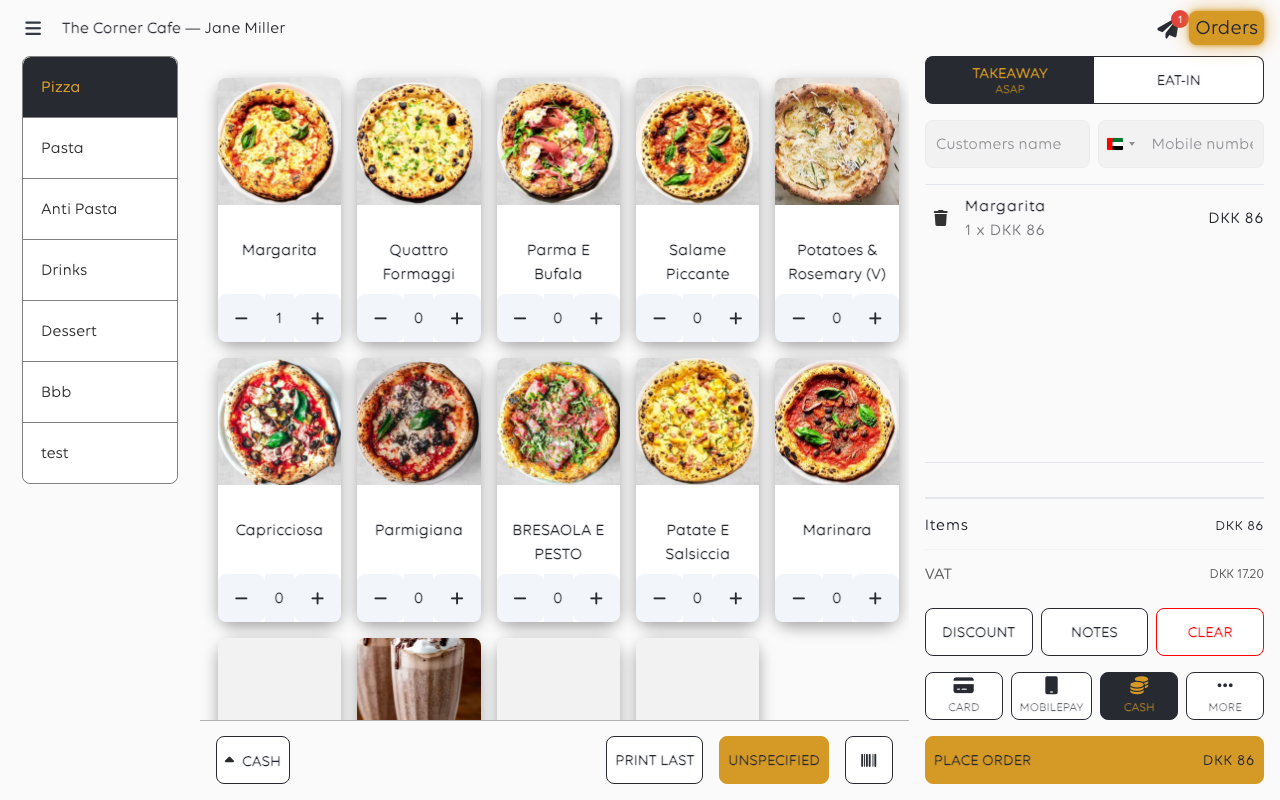
Tap a product to add it. The tile counts up as you tap, and the basket builds on the
right.
Use the – and + on a tile to change the quantity, or the sections down the
left to move between parts of the catalogue.
2. Check the basket
The basket lists what has been added, with the quantity, the line price and the
running total underneath, with VAT shown separately.
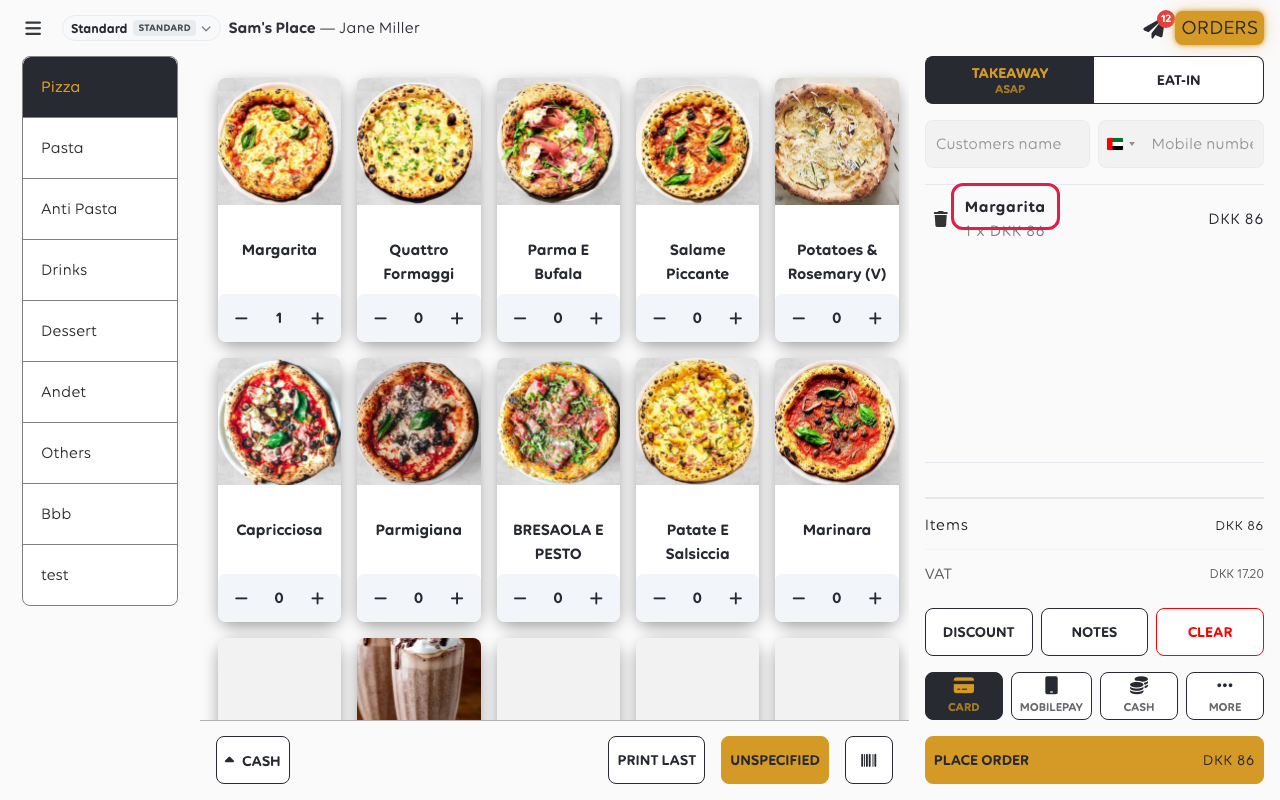
The bin icon next to a line removes it. Clear empties the whole basket -
useful when a customer changes their mind entirely, and easy to hit by accident.
3. Choose the order type
At the top of the basket, choose how the order is being taken. The choice belongs to
the order, so set it before placing rather than after.
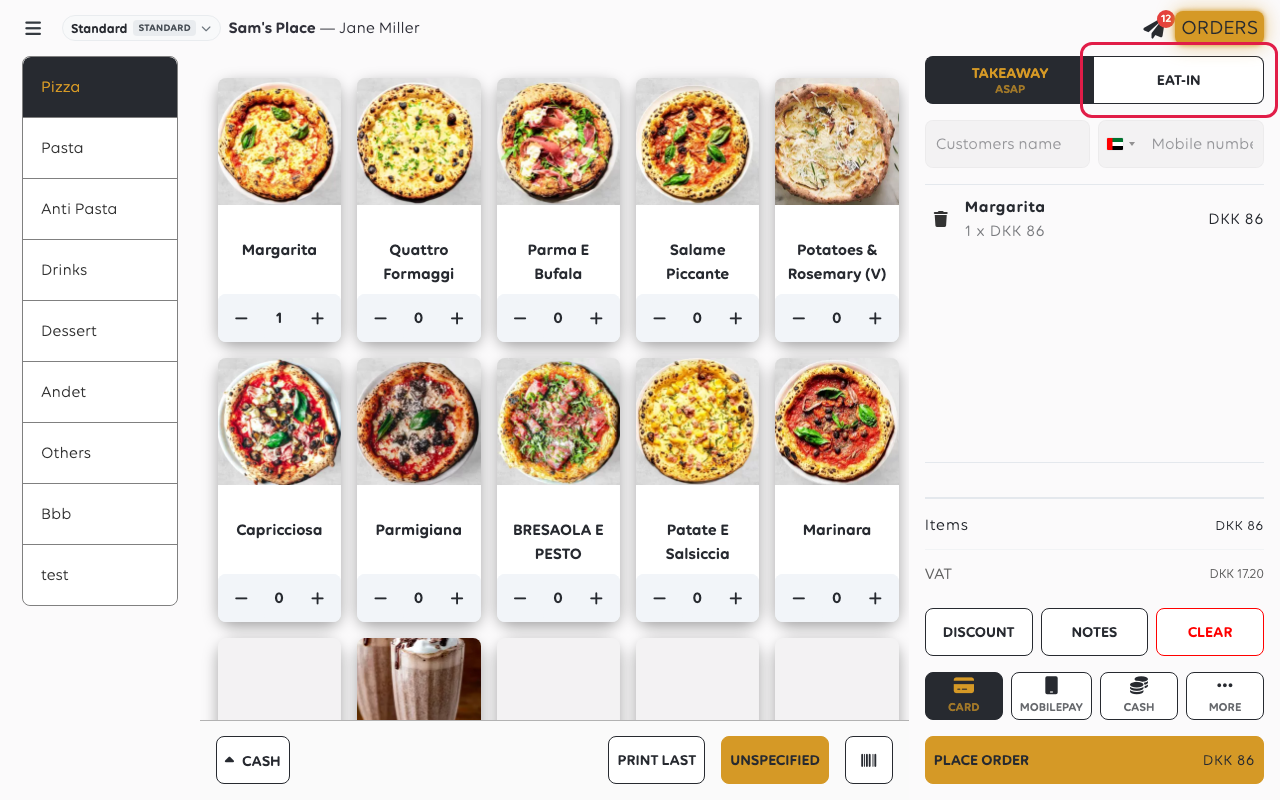
The choice only shows when the shop offers more than one order type. With one, there
is nothing to choose. See Order types: eat-in and takeaway.
4. Choose how the customer is paying
Tap the payment method. Up to three sit on the bar, usually Card, MobilePay and
Cash; the rest, such as Later and Voucher, are under More. Which ones
you see depends on the shop's settings.
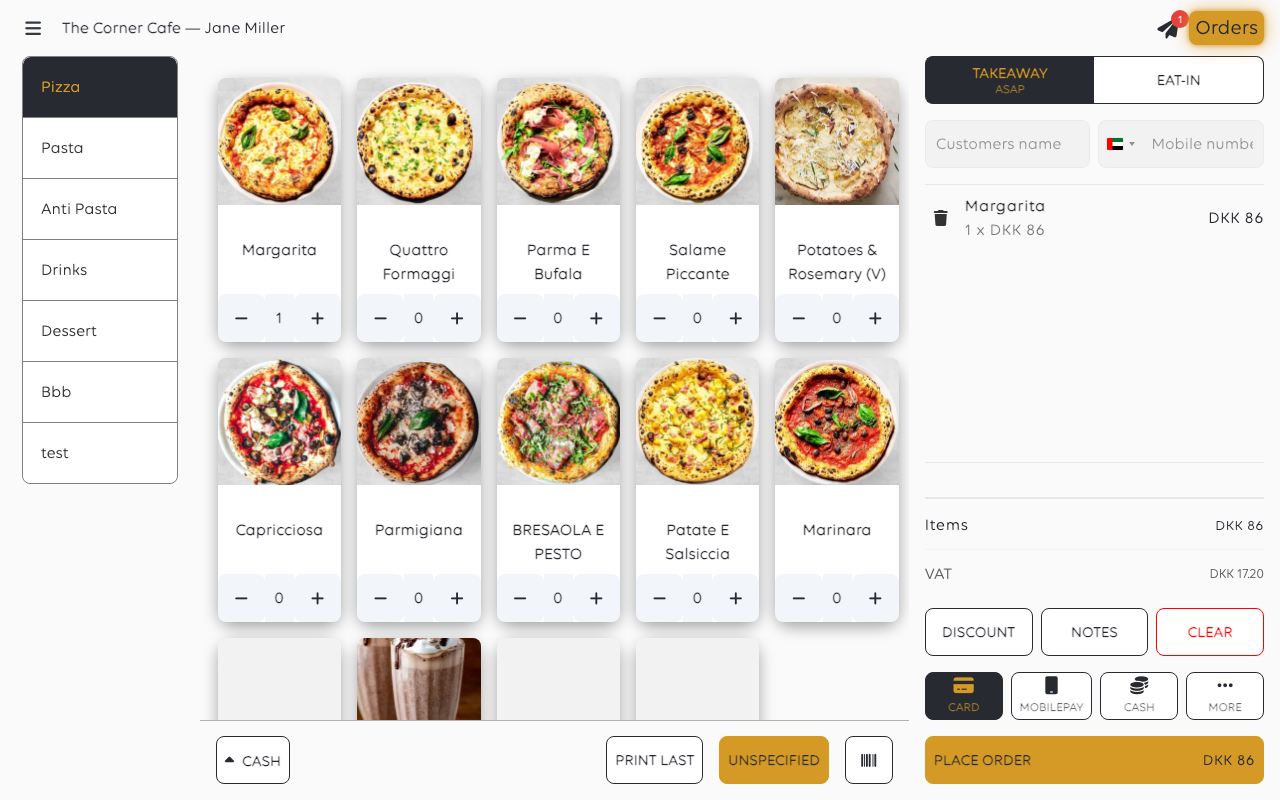
The method you pick darkens, so it is clear which one the order will use.
Choosing a method here does not take any money. Nothing is charged until the order
is placed in the next step.If the bar shows no payment methods at all, the shop does not take payment up front
for this order type. Place the order and take payment later from Orders.
5. Place the order
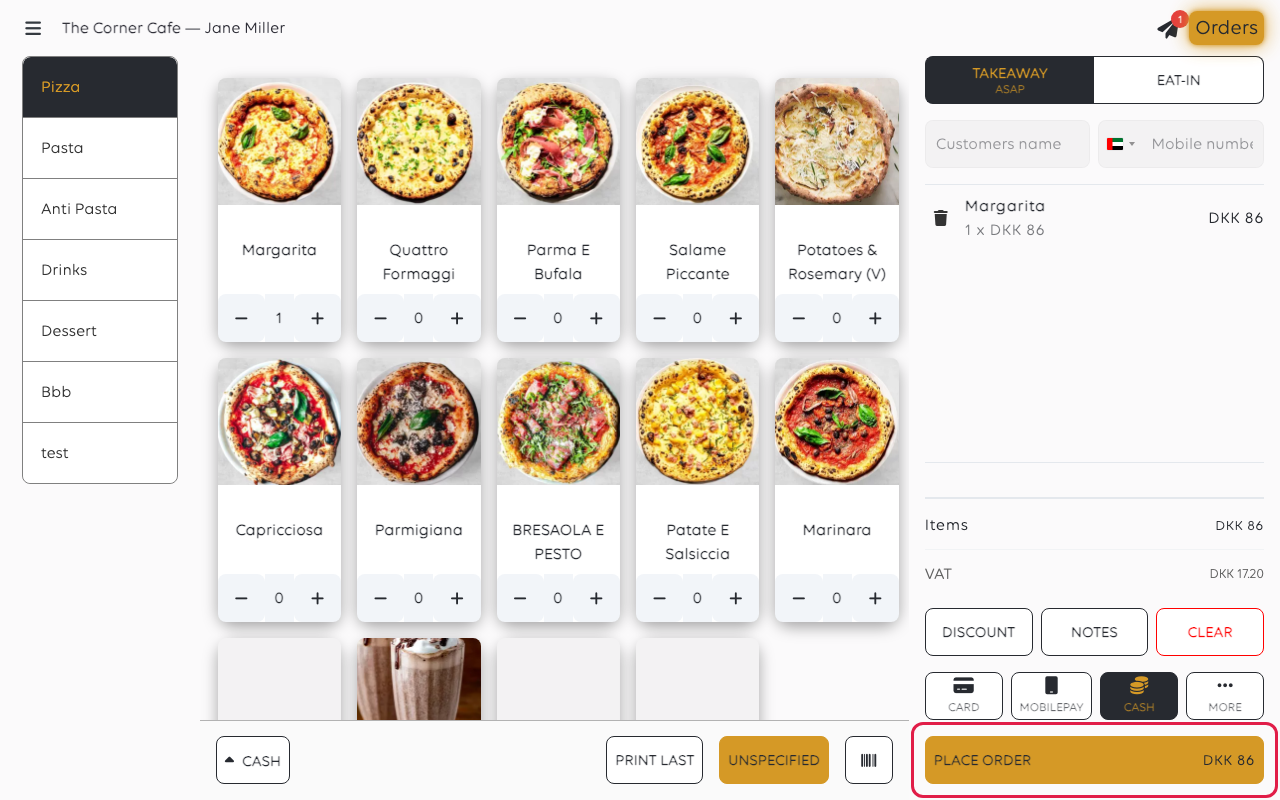
Tap PLACE ORDER, or tap the chosen method a second time. The button carries the amount, so the figure the customer is
paying is visible as it is tapped.
6. Finish the payment
What the till does next depends on the method chosen in step 4:
| Method | What happens next |
|---|---|
| Card | The amount goes to the payment terminal and the customer pays there. See Take a card payment. |
| MobilePay | The customer is shown a code to scan. See Take a MobilePay payment. |
| Cash | The till asks what the customer handed over and works out the change. See Take cash and manage the drawer. |
| Voucher | The balance is checked and drawn down. A gift card is the same thing. See Sell and redeem vouchers. |
7. The order is placed
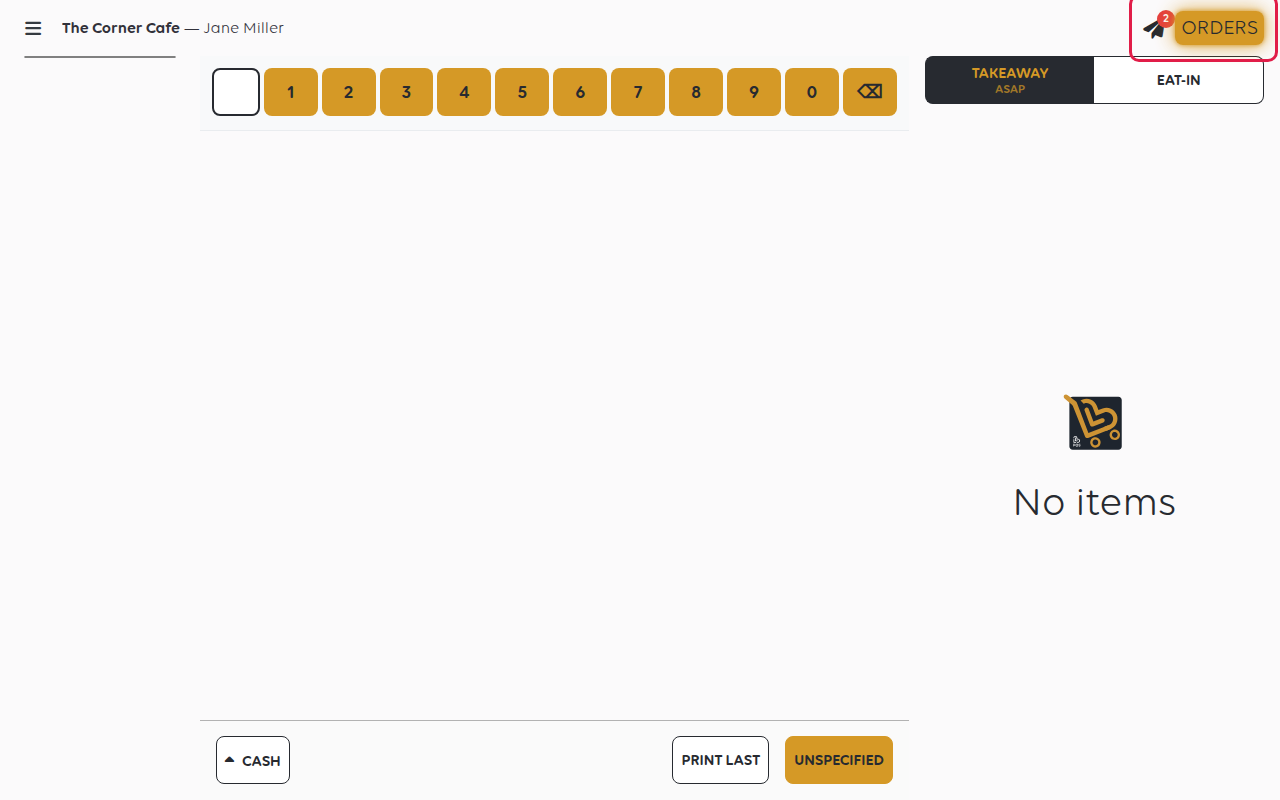
The basket empties and the order joins the count beside Orders at the top of the
screen, where it can be found again, reprinted or refunded.
A payment is only complete when the POS shows it as Settled. If it stops at any
other status, the customer may not have been charged.
If something goes wrong
| What you see | What it means | What to do |
|---|---|---|
| The card payment never reaches the terminal | No terminal is set up for this till, or it is set up as the wrong kind | See Which terminal setup do you need? |
| The order is placed with the wrong order type | The type was not set before placing | Change it on the order in the orders list |
| A price looks wrong | The product's price or VAT rate in the catalogue | Fix the product rather than discounting each sale |
| Cash does not appear in the drawer total | No cash balance is open | Open one - see Open the shop |
Was this article helpful?
Thanks for your feedback!
