

 Dansk
 Svenska
 Deutsch
 Norsk bokmål
Serve a table
With table service, an order belongs to a table rather than to the counter. Starting
from the floorplan keeps it that way - the table shows as occupied, and anything
added later goes onto the same bill.
Before you start
- The shop has tables set up. See Set up tables and sections below if the floorplan is empty.
1. Open the floorplan
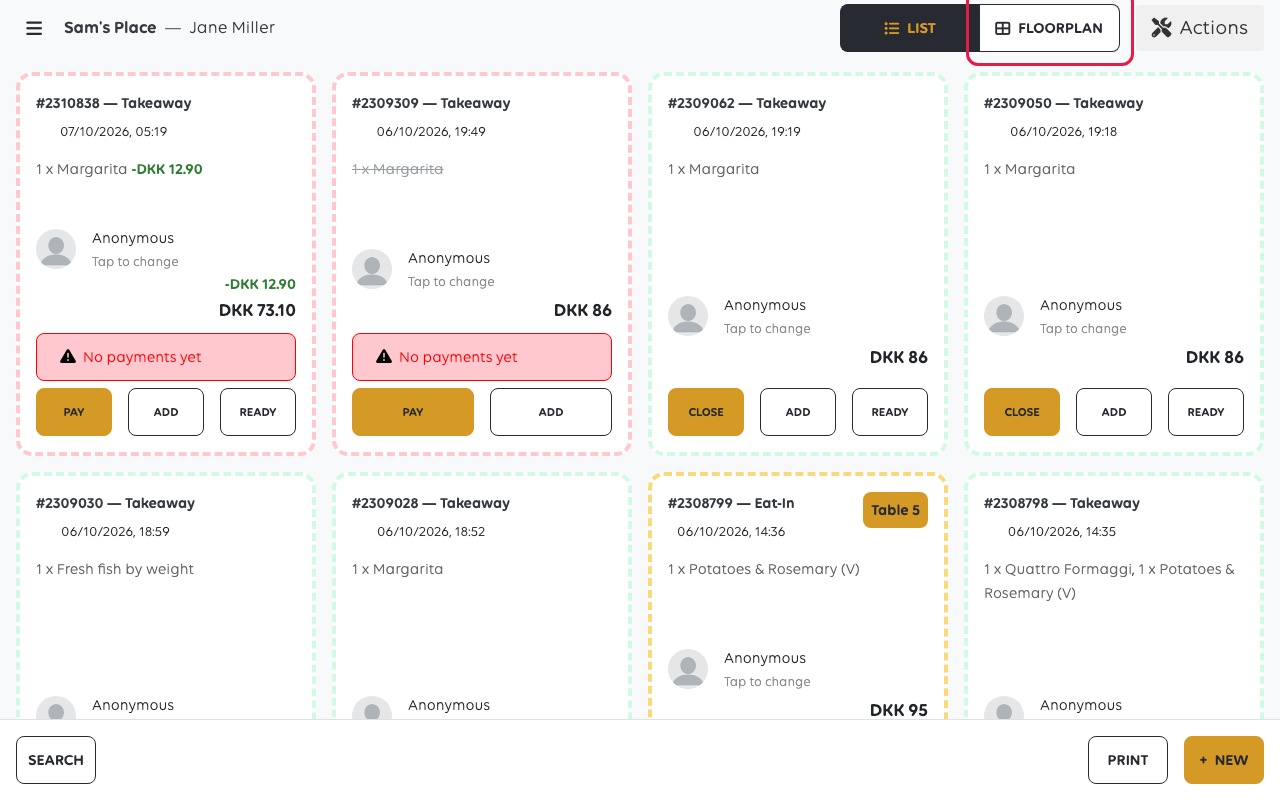
Tap Orders, then switch from List to Floorplan at the top.
2. Read the room
The floorplan shows every table, with a count of how many are Available and how
many are Occupied along the top, and the sections of the shop - indoor, outdoor
- as tabs beside them.
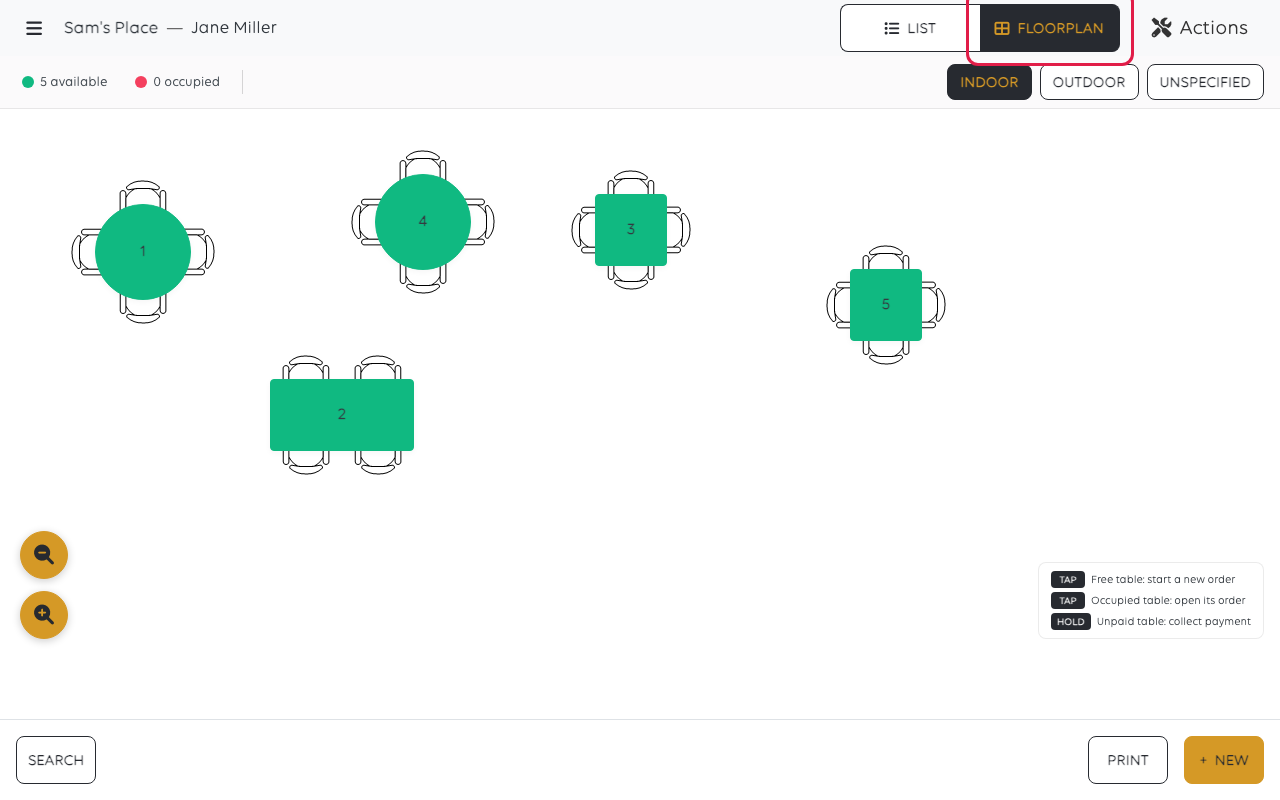
A free table says Free table: start a new order. Tapping an occupied one opens
the order already running on it, so a second round goes onto the same bill. Hold an
unpaid table to go straight to taking payment.
3. Take the order
Tap the table and ring the order up as usual. It stays attached to that table until
it is paid and closed. See Take an order and get paid, and Change an order after
it is placed for adding to it later.
Set up tables and sections
Tables themselves are arranged under Tables in the cashier menu, which has its
own Floorplan and Sections tabs.
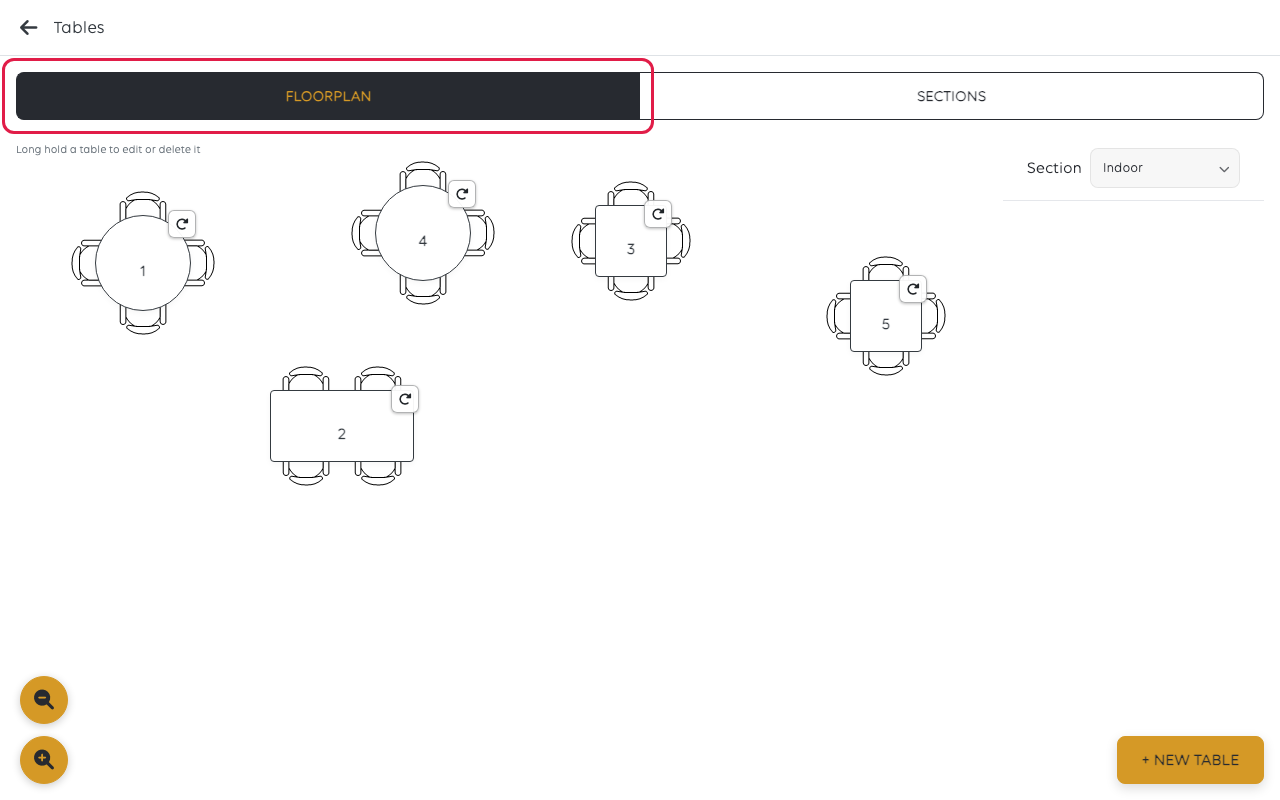
Use the section dropdown to work on one part of the shop at a time.
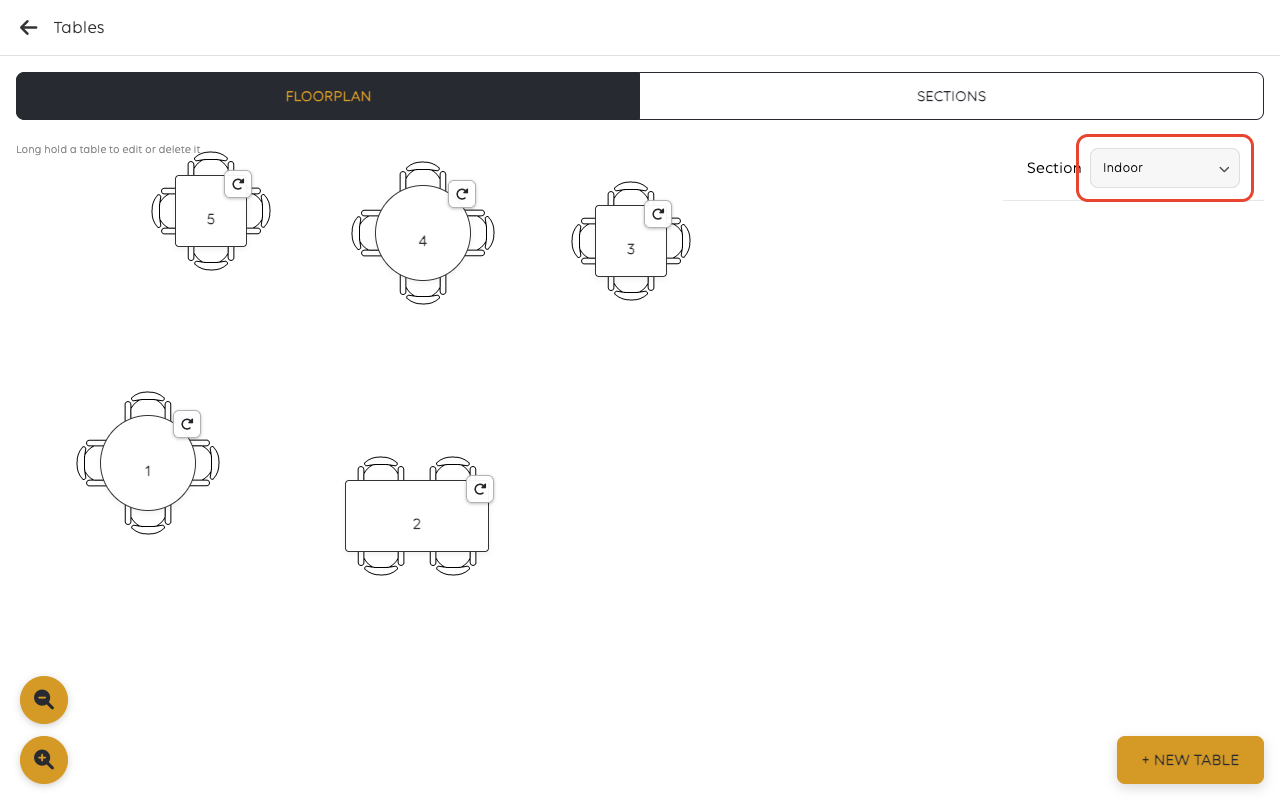
New table adds one. The note on screen explains how to change one that exists:
long-hold a table to edit or delete it.
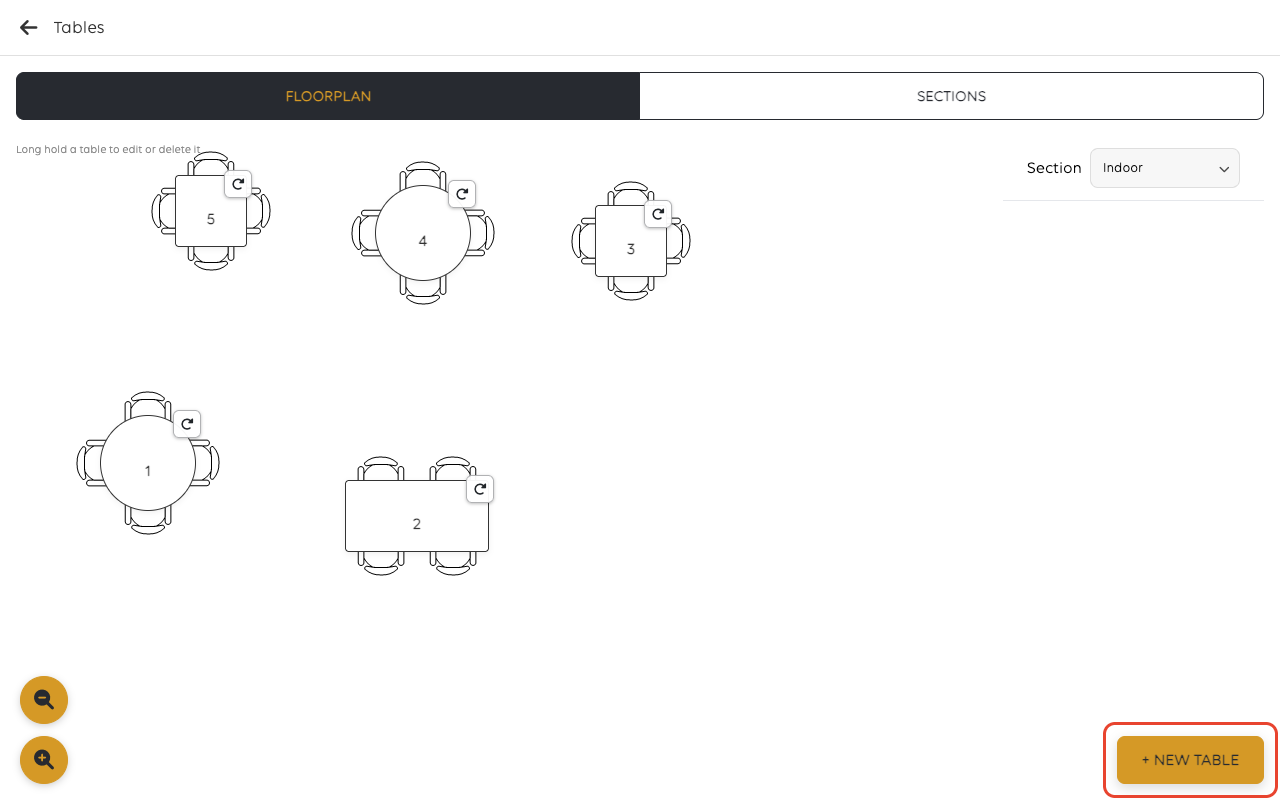
Adding a table
New table on the floorplan opens the table's own form.
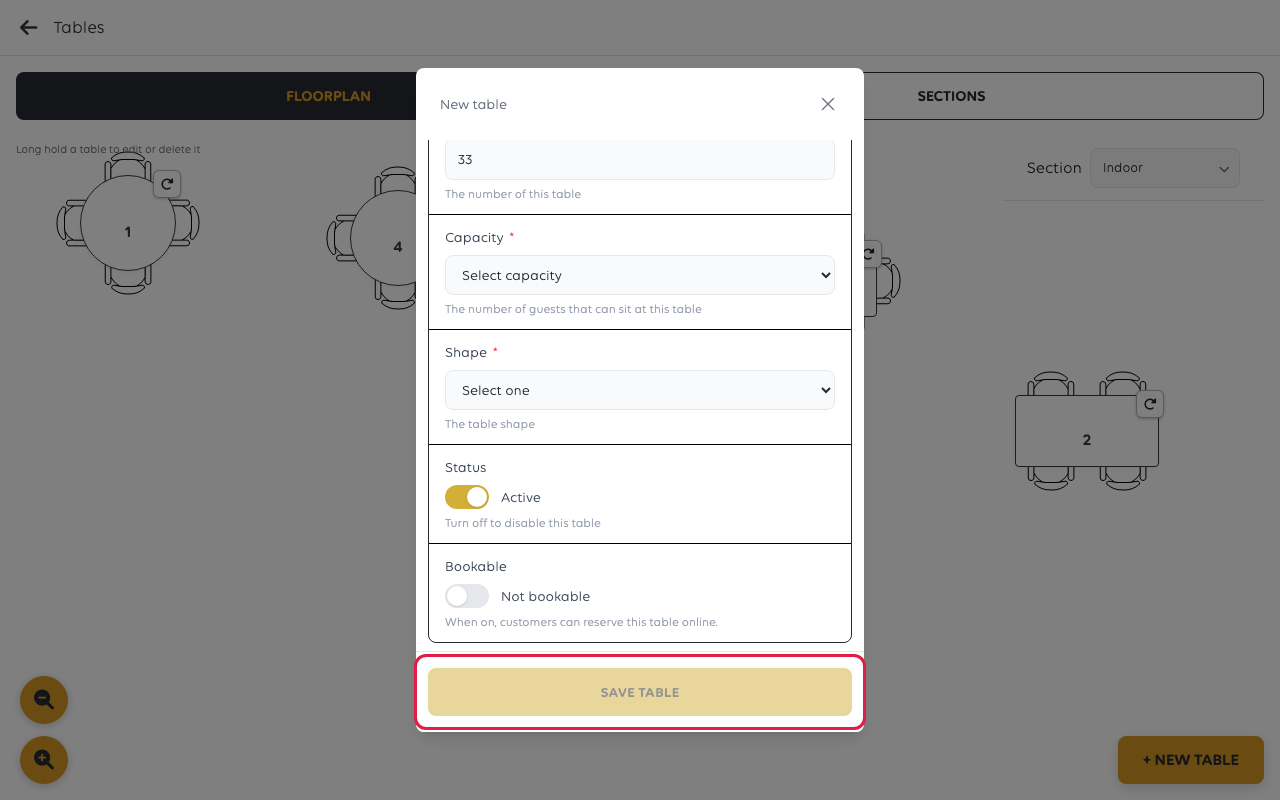
| Field | What it is for |
|---|---|
| Table section | Which part of the shop the table belongs to - Indoor, Outdoor, or whatever the shop has set up |
| Number | What staff call it. This is what shows on the plan |
| Capacity | How many can sit there, which is what online booking checks against a party size |
| Shape | Rectangle, square or circle - how it is drawn on the plan |
| Status | Active, or off to take the table out of use without deleting it |
| Bookable | On lets customers reserve this table online - see Make a table bookable |
Save table puts it on the plan. Drag it where it belongs, and use the rotate
handle on the table to turn it.
Changing a table that already exists
Long-press a table on the plan to open the same form again, with Delete table
alongside Save table. That is also where Table stand and Qr code live,
for the printed code customers scan to order from the table.
If something goes wrong
| What you see | What it means | What to do |
|---|---|---|
| The floorplan is empty | No tables have been set up for this section | Add them under Tables, or check the section dropdown |
| A table shows occupied but nobody is there | An order is still open on it | Open the table and close or pay the order |
| An order is on the wrong table | It was started from the wrong one | Move the order to the right table |
Was this article helpful?
Thanks for your feedback!
