

 Dansk
 Svenska
 Deutsch
 Norsk bokmål
Open the shop
Two things start the trading day on the till: staff clock in, and somebody opens a
cash balance so the drawer can be reconciled at closing time.
Before you start
- You know your cashier PIN. A manager sets this in the manager app.
- The float is in the drawer. The till asks how many of each note and coin there are, not for a single total.
Clock in
1. Take over the till
Tap the cashier name at the top of the home screen. The Switch cashier keypad
opens. Type your PIN. Your name now shows at the top.
The till only clocks in the cashier who is on it, so do this first.
2. Open the time registry
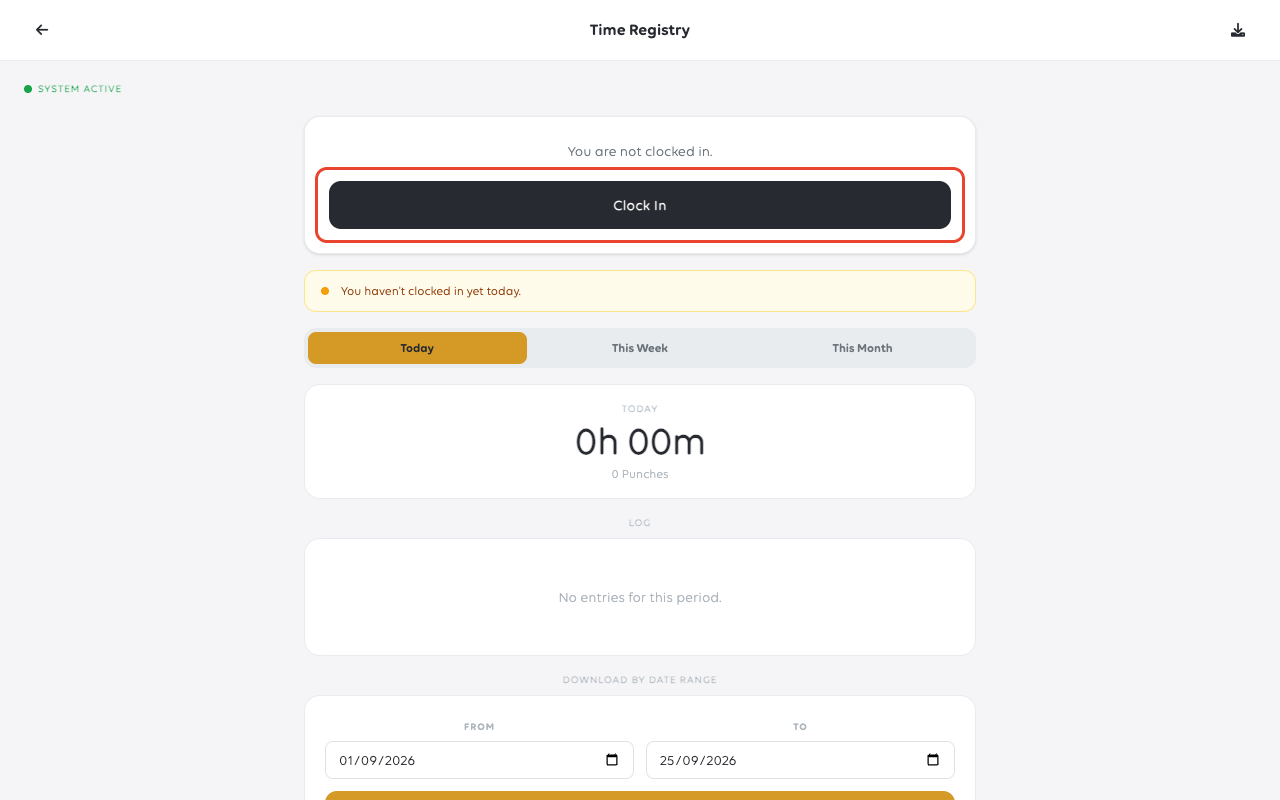
Open Time Registration from the cashier menu. Time Registry opens, showing
whether you are clocked in, the hours recorded today, and the punches behind them.
Tap Clock In.
3. Enter your cashier PIN
The till asks again for your PIN, headed Enter PIN. Type it on the keypad, then
tap Continue.
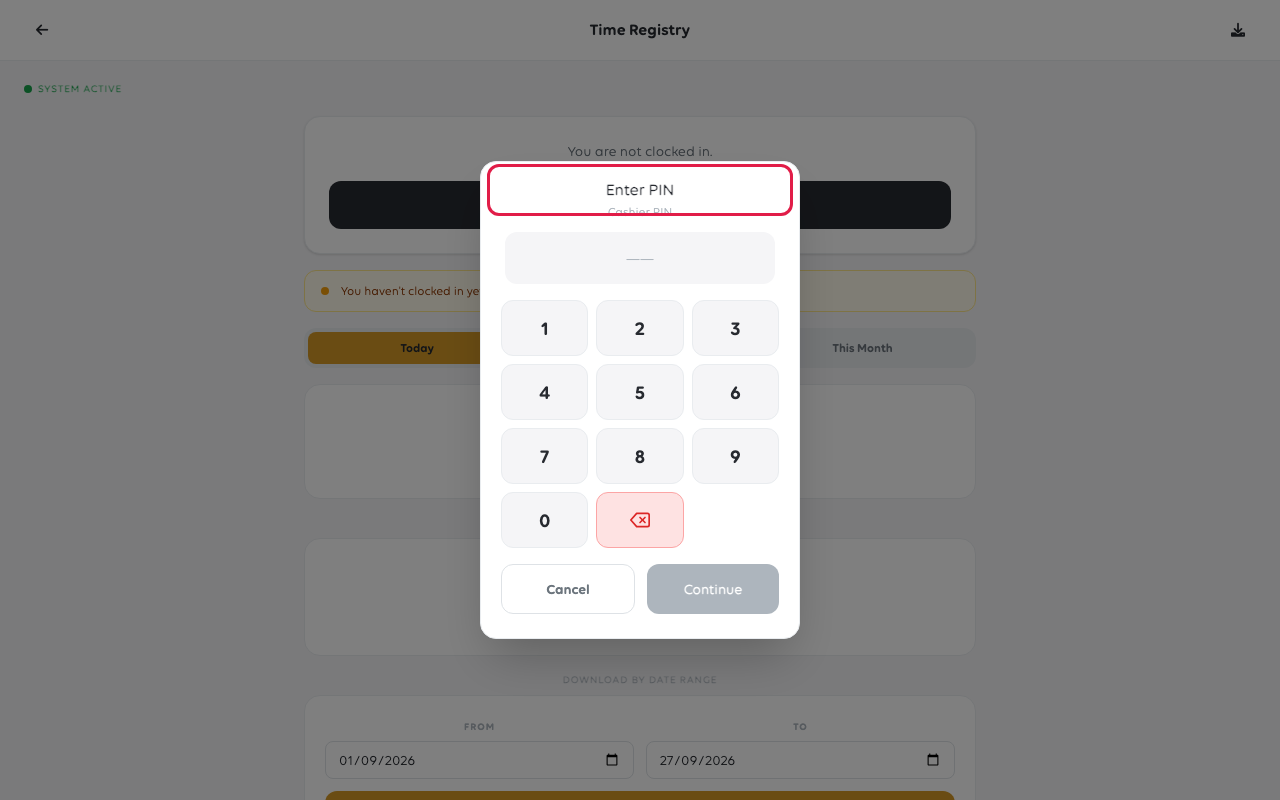
The registry now shows Clocked In. If the till says PIN does not match. Please
enter your own cashier PIN., the till is still on a colleague - go back to step 1.
Open a cash balance
4. Open the cash balances screen
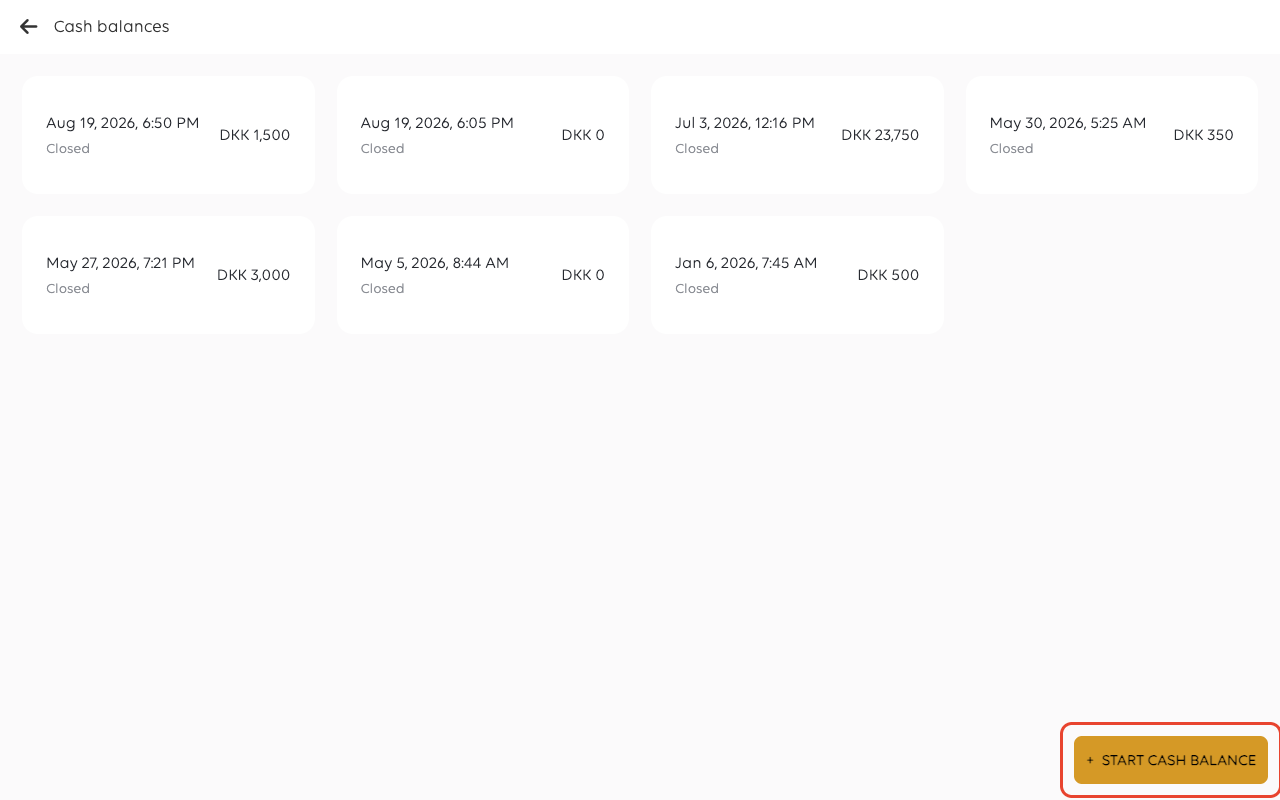
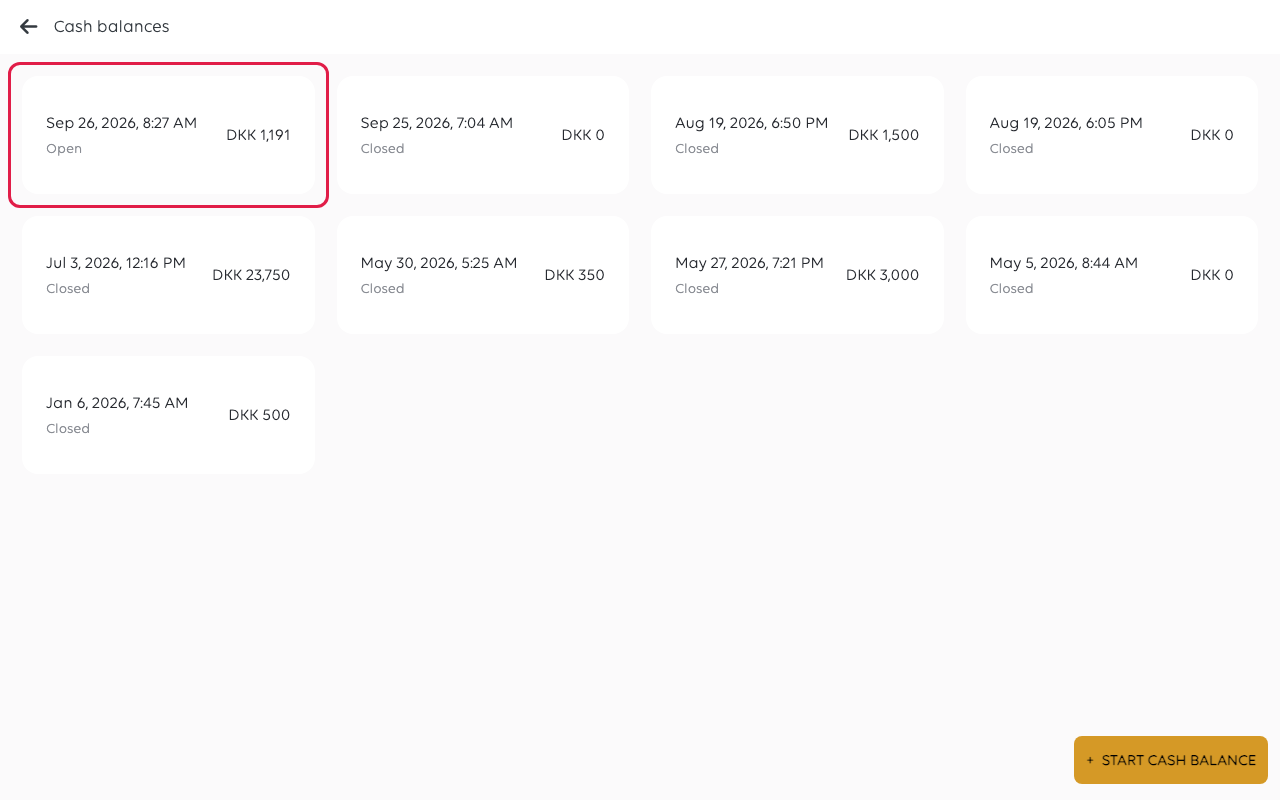
Open Cash Balances from the cashier menu. It lists every balance the shop has
opened, most recent first, each marked Open or Closed with the amount it
held.
Tap Start Cash Balance.
A shop should have one open balance at a time. If the list already shows one as
Open, work through steps 5 to 7 first - the previous shift did not close it.
5. Close the previous balance, if one is still open
If a balance is still open, the till asks to confirm before going any further.
Tapping Yes closes that balance and then walks you through counting it.
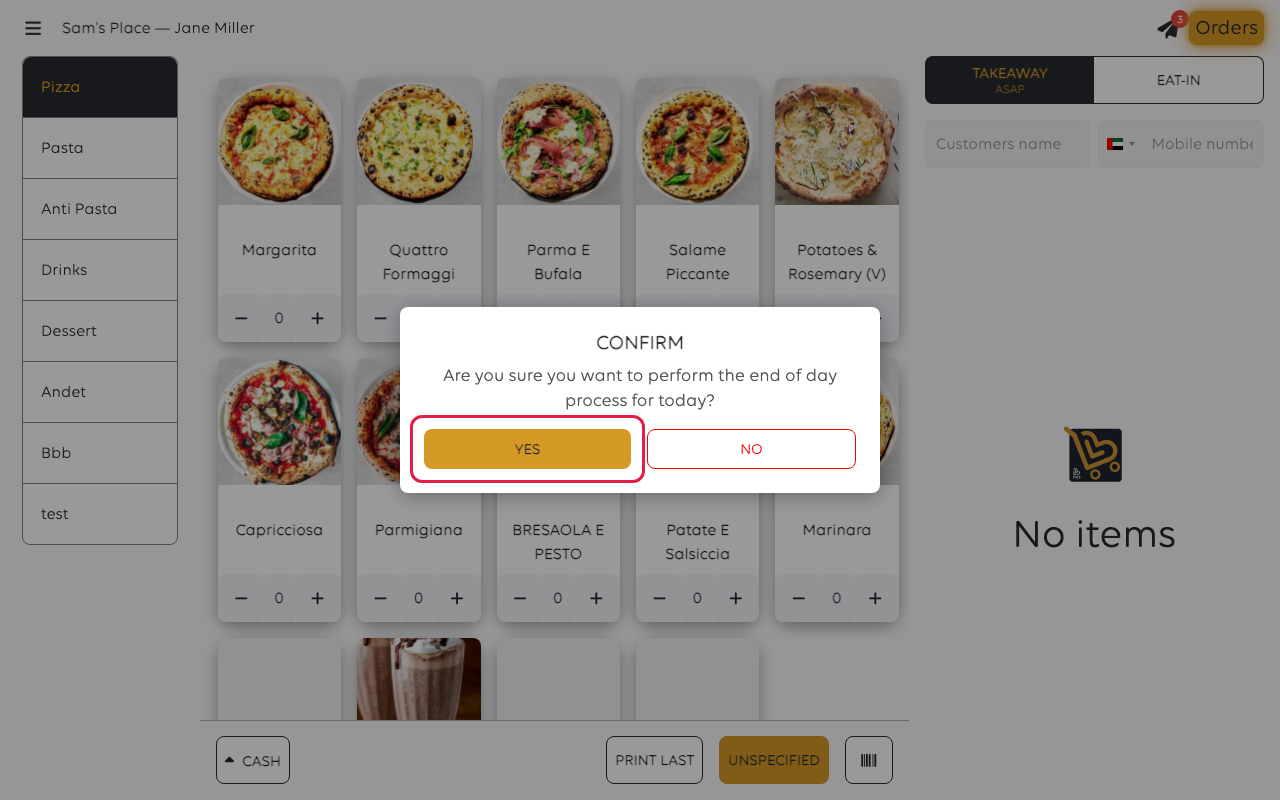
The wording on screen is terse. It is not asking whether to keep both - there is
no way to open a second balance while one is open.
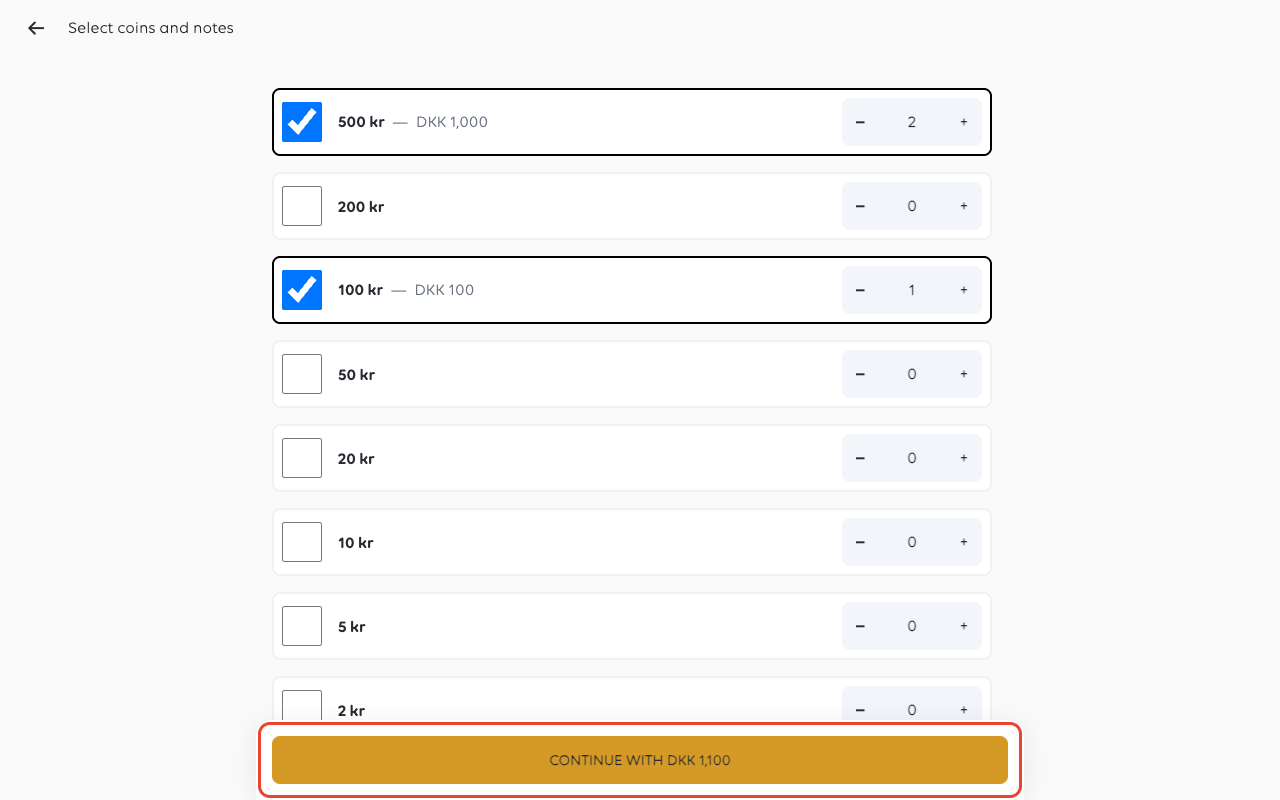
6. Count what is in the drawer
The till lists every note and coin and asks how many of each there are. Use +
and – on each row; the running total appears at the bottom, along with the
variance - the difference between what you counted and what the till expected.
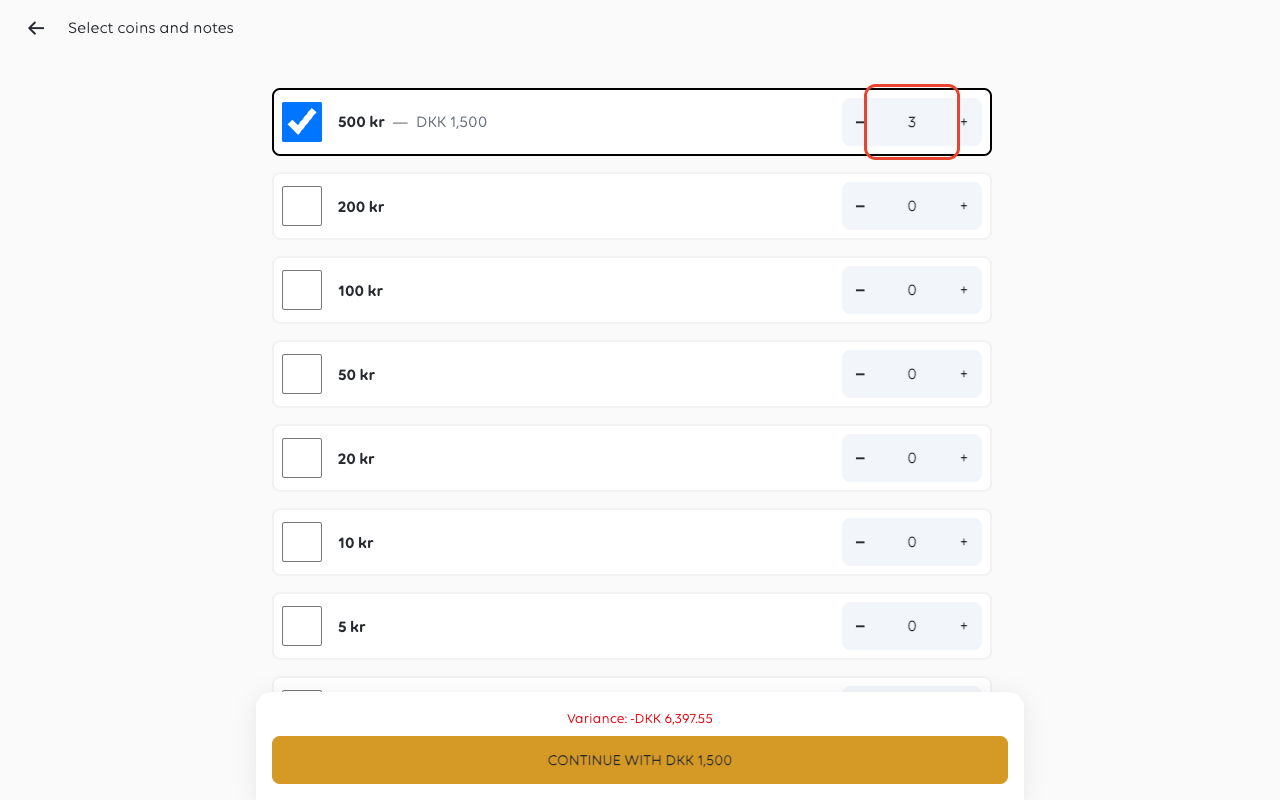
Tap Continue with and the amount when the count is done.
7. Confirm the difference
If the count does not match, the till states both figures and asks whether to
proceed. It names what it expected and what you counted, so the difference can be
checked before it is recorded.
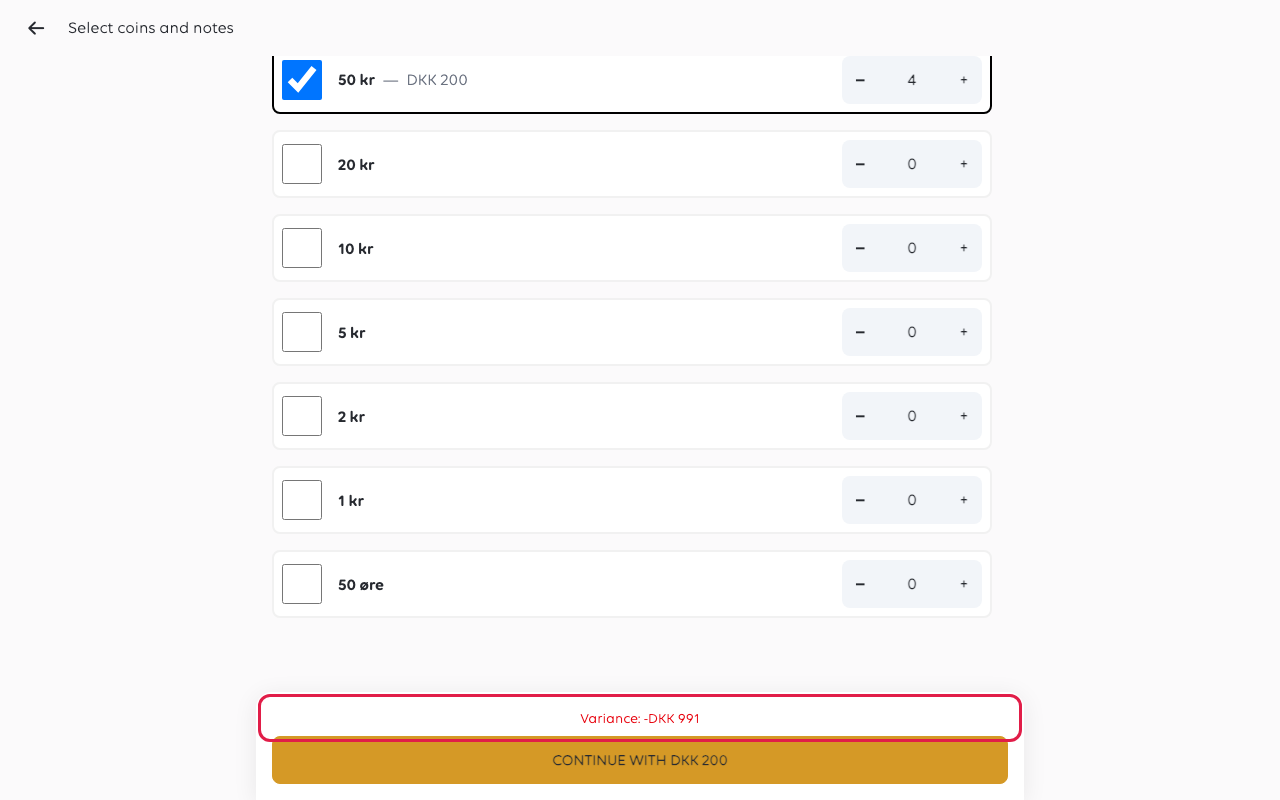
Tapping Yes closes the balance with that difference recorded against it. If
the number looks wrong, tap No and count again - a variance recorded here is
what the shop's reports will show.
8. Count the opening float
With no balance open, tapping Start Cash Balance goes straight to the same
counting screen, this time for the money you are starting with.
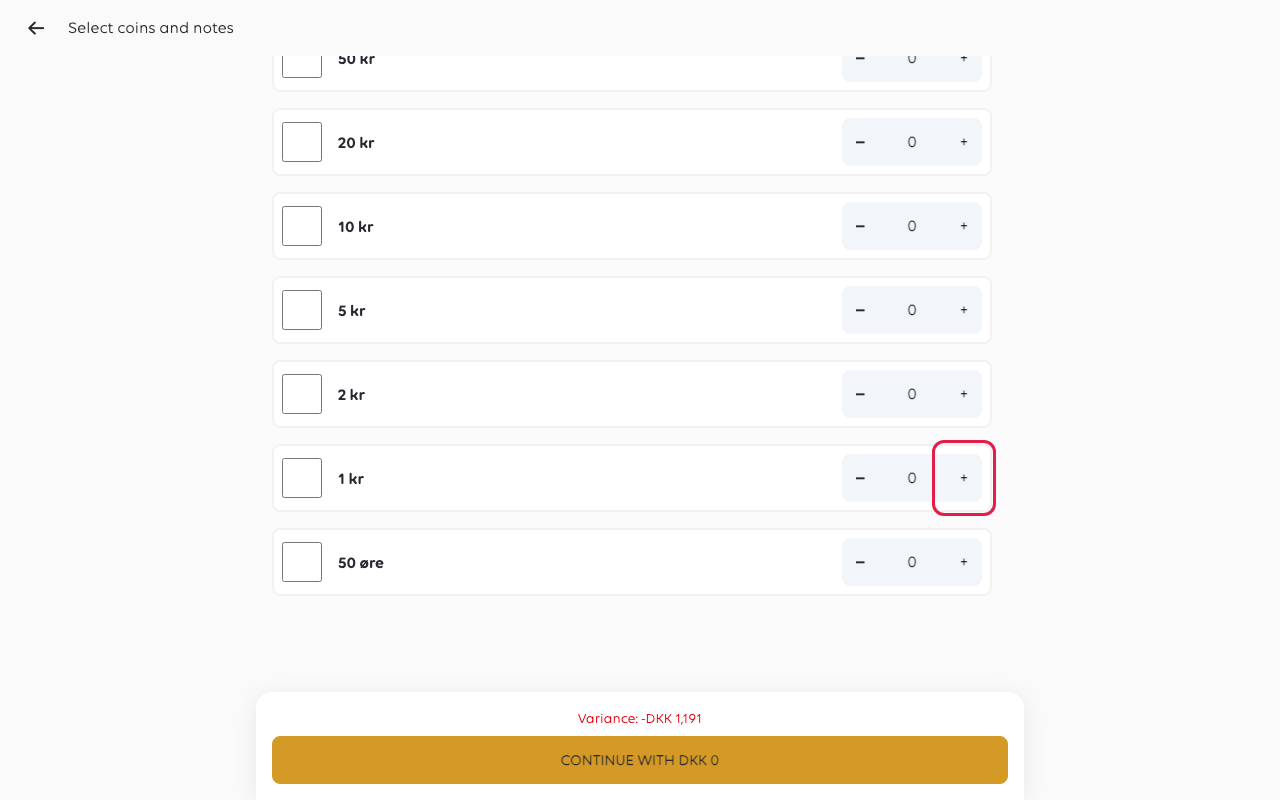
Count the float the same way.
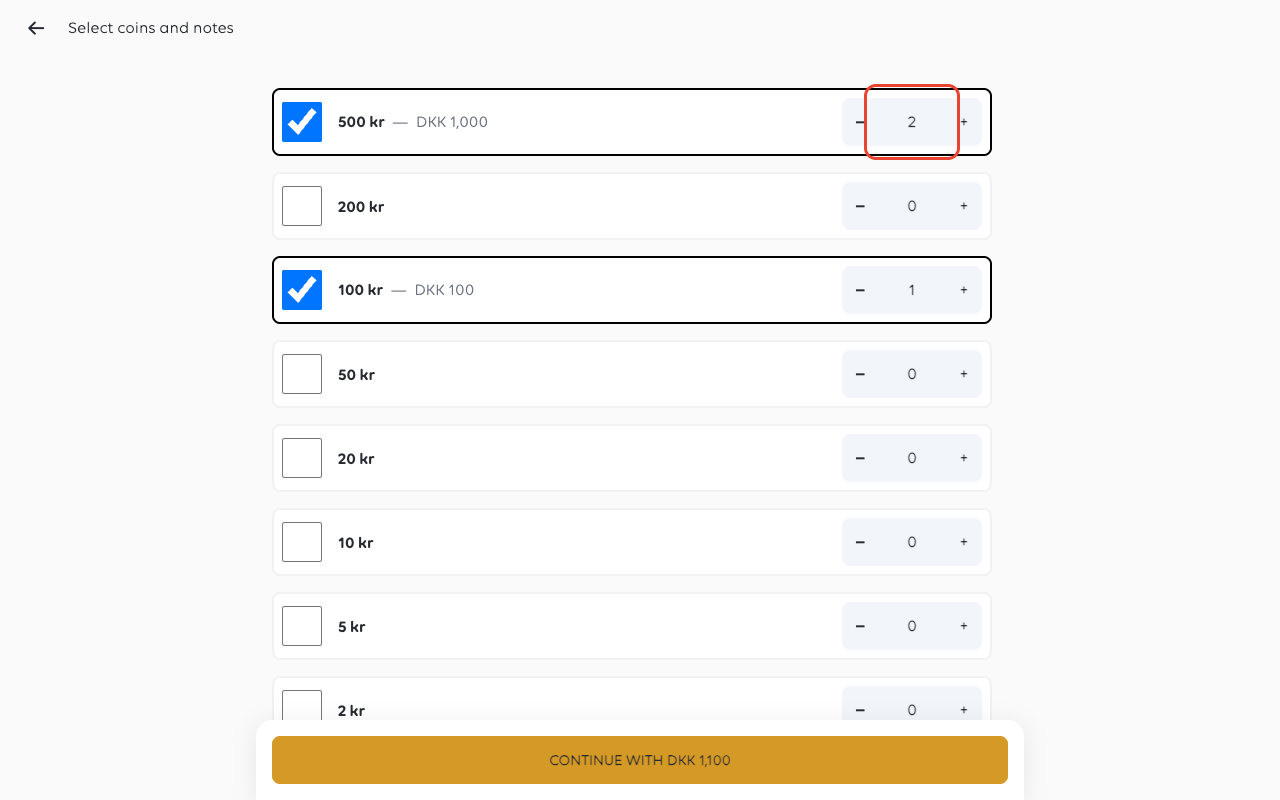
9. Confirm the opening amount
Tap Continue with and the amount. The amount on the button is what the shop is opening
with.
10. Check it is open
The balance now appears at the top of the list marked Open, with the amount you
counted.
If something goes wrong
| What you see | What it means | What to do |
|---|---|---|
| The PIN is refused | Wrong PIN, or the staff member is not set up at this shop | A manager checks the PIN in the manager app |
| PIN does not match when clocking in | The till is on another cashier | Take over the till with your PIN first (step 1) |
| The list shows an old balance still open | A previous shift did not close it | Close it through steps 5 to 7 before opening today's |
| The variance is large | The drawer was miscounted, or takings left without being recorded | Count again before confirming; the figure is recorded against the balance |
| You clocked in on the wrong shop | The till is signed in to another shop | Switch shop, then clock in again |
Was this article helpful?
Thanks for your feedback!
