

 Dansk
 Svenska
 Deutsch
 Norsk bokmål
Take a booking at the till
F&B - this article applies to businesses that take bookings.
Somebody phones or walks in to book a table. The till takes the booking, so you do
not need the manager app to do it.
What
can be booked, and how far ahead, is set in the manager app - see Booking
configuration.
The bookings screen
Open Bookings from the menu. The week is laid out by day and hour, with each
booking showing the name, the number of guests and the time.
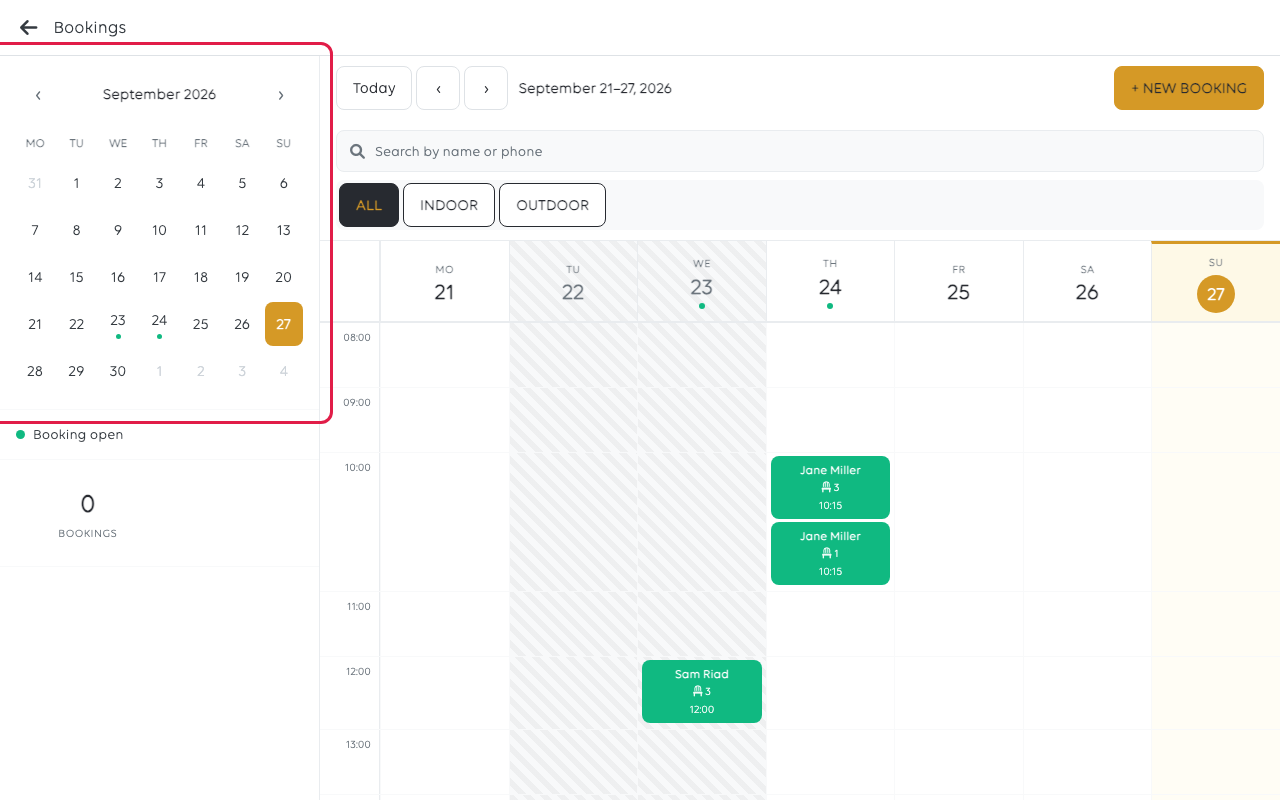
| Control | Does |
|---|---|
| The month calendar | Jumps to a date; a dot marks a day with bookings |
| Today and the arrows | Move a week at a time |
| ALL / INDOOR / OUTDOOR | Filters to a section - see Set up tables and the floor plan |
| Search by name or phone | Finds an existing booking |
| Booking open | Whether customers can book online; bookings taken at the till are not affected |
Take a booking
Tap New booking.
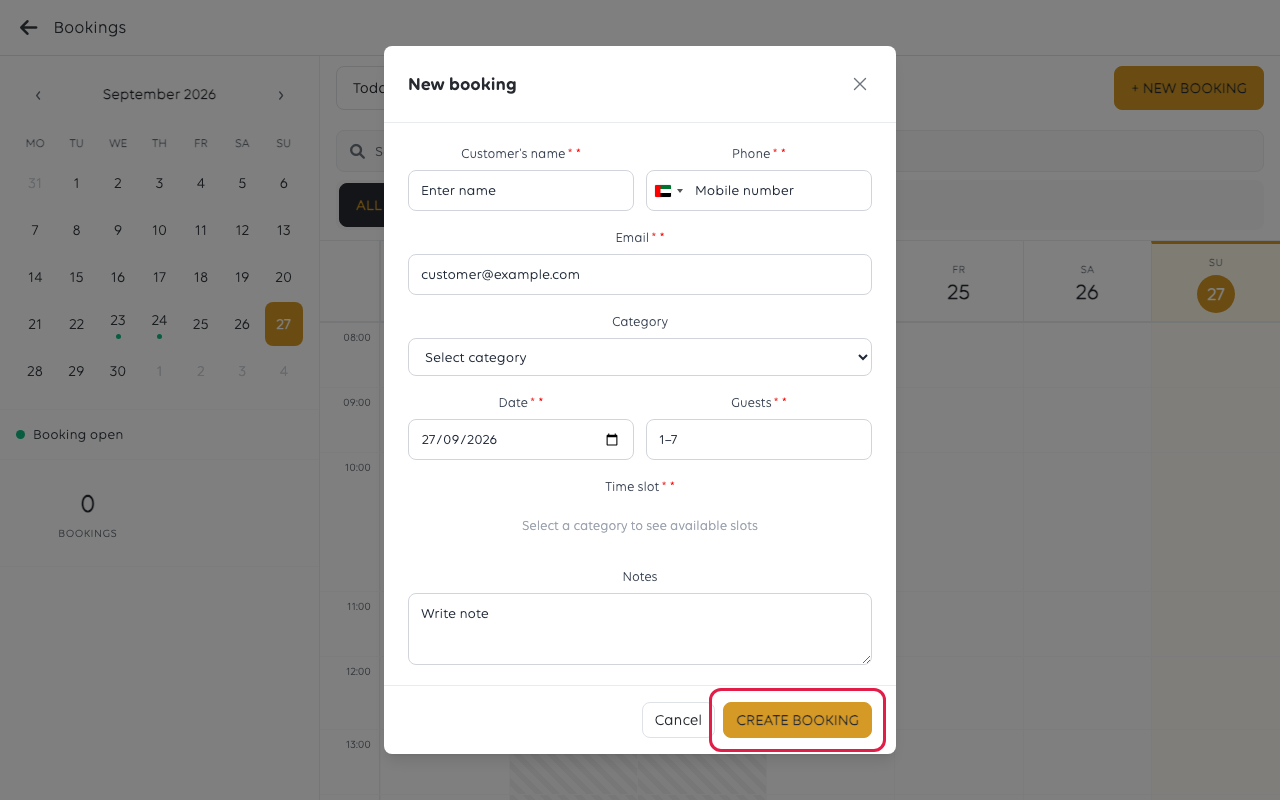
| Field | Notes |
|---|---|
| Customer name | Required |
| Phone | Required - how you reach them if anything changes |
| Required - where the confirmation goes | |
| Category | Indoor, outdoor, or whatever your sections are |
| Date and Guests | Required |
| Time slot | Chosen from what is actually free |
| Notes | Anything the kitchen or the host needs to know |
Then tap Create booking. The till confirms the booking and it appears on the
schedule.
Choose the category before the time. The free slots depend on which area they
are booking, and none show until a category is picked.
Slots come from your settings
You are offered the slots that are free, given how long a booking lasts, how many can
run at once, and how much notice you require. A time that is not offered is not a
fault: something in Booking configuration rules it out.
If a customer wants a time the till will not offer, that is a decision about your
settings, not something to work around at the counter.
Notes are read by people who are busy
Write what changes what someone does: wheelchair access, high chair, birthday -
cake at the end, ALLERGY: nuts. See Add a note to an order for the same
principle applied to orders.
What the customer gets
A confirmation by email, with their booking reference. The wording is yours to edit
- see Edit the booking confirmation email.
If something goes wrong
| What you see | What it means | What to do |
|---|---|---|
| No time slots offered | The category was not chosen, or nothing is free | Choose a category; then check Booking configuration |
| The time they want is missing | Lead time, slot length or parallel bookings rule it out | Change the setting, or offer another time |
| A booking is not in the list | It may be in another section, or another week | Use Search by name or phone |
| The customer got no confirmation | The email address was mistyped | Find the booking and check it |
| Customers cannot book online | Booking open is off | Switch it on, or ask a manager |
Was this article helpful?
Thanks for your feedback!
