

 Dansk
 Svenska
 Deutsch
 Norsk bokmål
Find an order
A customer comes back about something they bought - a refund, a receipt, a question
about what they were charged. All of it starts with finding the order.
Today's orders are already in front of you
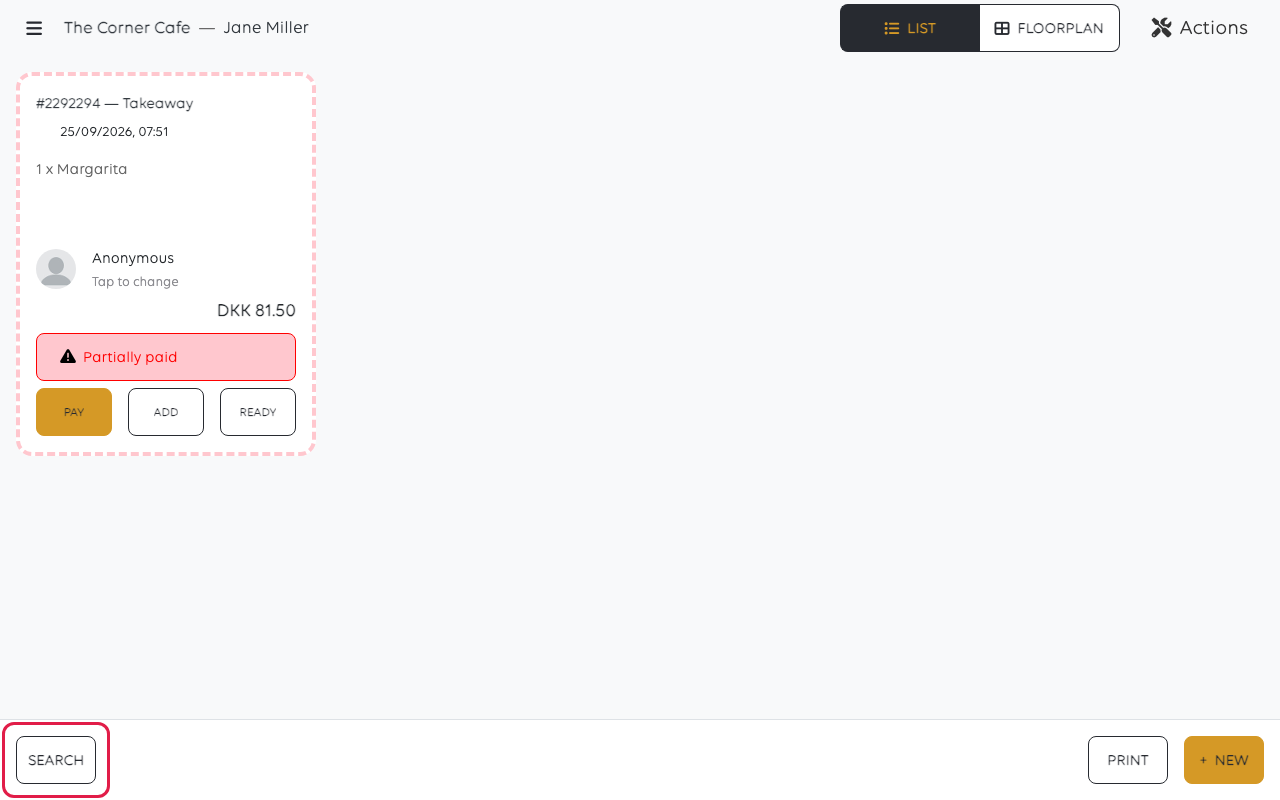
Tap Orders on the home screen. Today's orders are listed, newest first, each
showing its number, its type, what is in it, the total, and whether it is paid.
That list answers most questions on its own. A customer who bought ten minutes ago is
near the top.
Search for anything older
Tap Search for order at the top of the orders list.
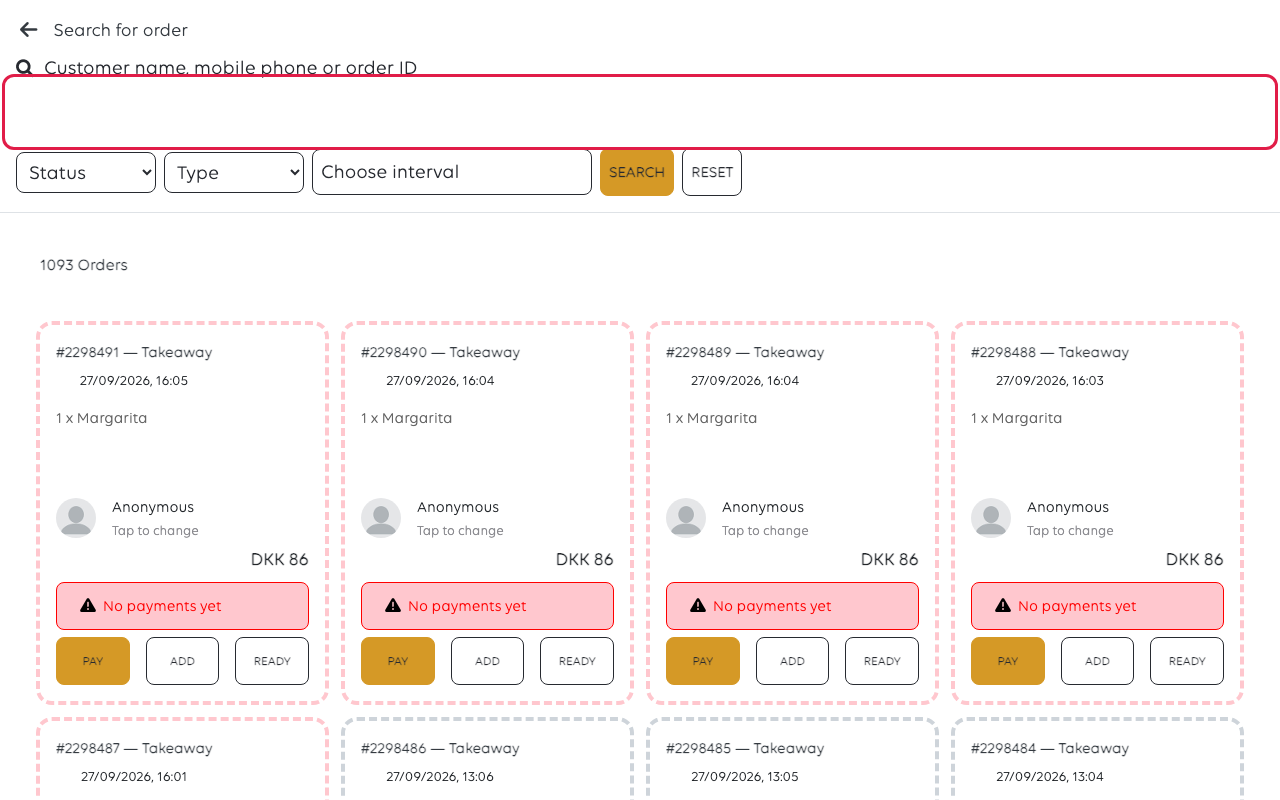
The order number is the surest way in - it is printed on the receipt, so a customer
holding one can read it to you.
When you have it
The card carries the everyday actions: Pay to take money still owed, Add to put
something on it, and Ready to mark it done. Tap the order itself to open it; that is
where Print reprints the receipt.
Refunds are covered in Refund a payment.
If you cannot find it
| What to check | Why |
|---|---|
| Whether it was today | The list shows today; older orders need the search |
| The right shop | Orders belong to the shop this till is signed in to - see Switch role or shop |
| The order number on the receipt | Names and amounts repeat; numbers do not |
| Whether it was ever placed | A basket that was never placed is not an order and was never recorded |
Was this article helpful?
Thanks for your feedback!
