

 Dansk
 Svenska
 Deutsch
 Norsk bokmål
Change an order after it is placed
A placed order is not finished with. Until it is closed you can add to it, take
payment for it, mark it ready, or reopen it - all from the orders list.
Before you start
- The order has been placed. See Take an order and get paid.
1. Open the orders list
Tap Orders at the top of the cashier screen. Each order is a card showing its
number, the order type, when it was taken, what is on it, the total, and what has
been paid.
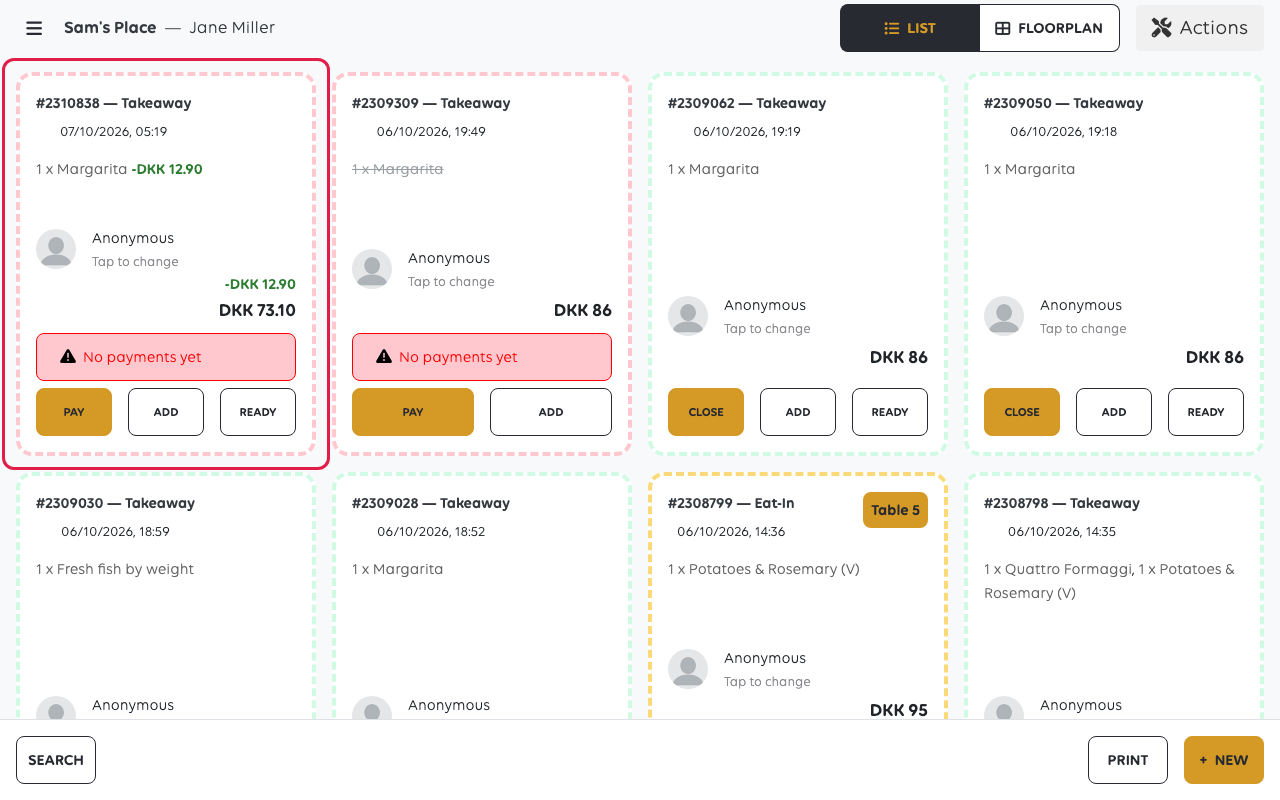
List and Floorplan across the top switch between the plain list and the
table layout. Shops without tables use the list.
2. Add to an order
Tap Add on the card to go back to the catalogue and put more on the same order -
the second round of drinks, a forgotten side.
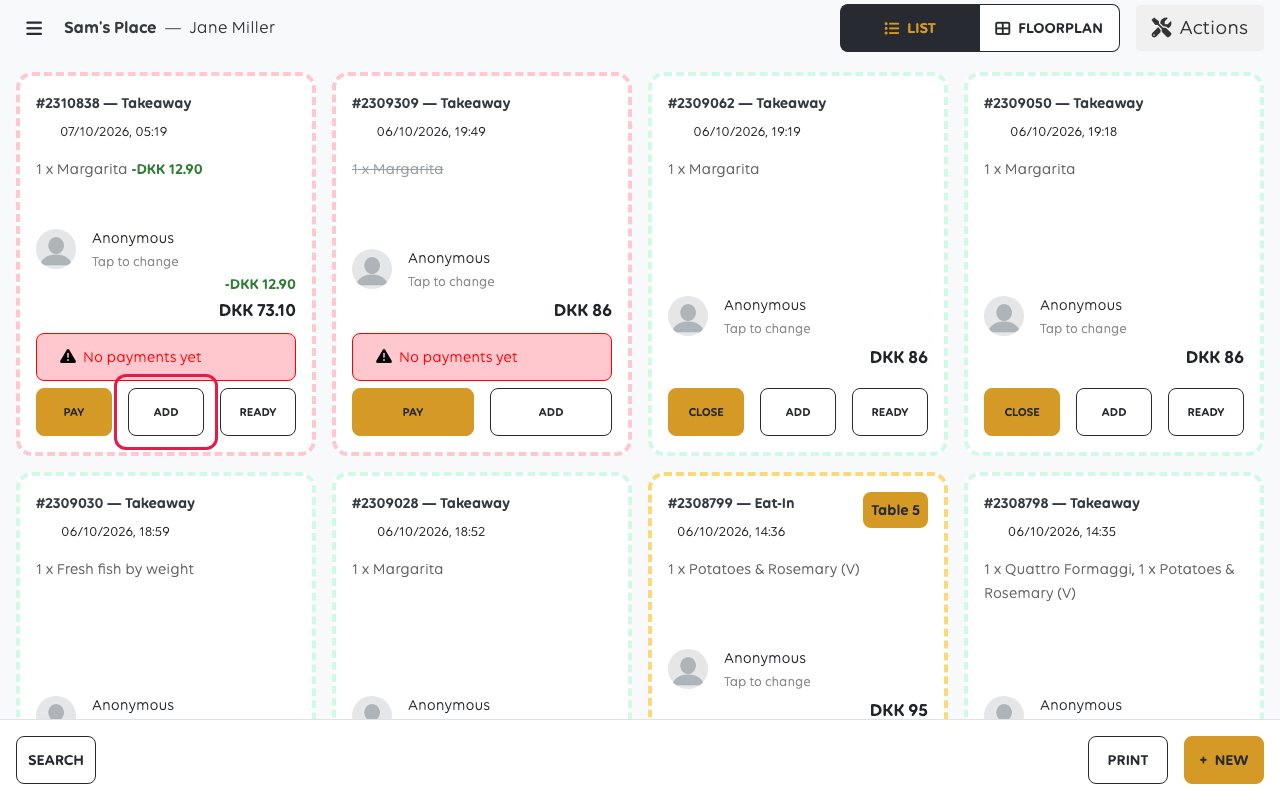
Adding to an order that is already paid leaves the new items unpaid. The card will
then show a balance owing, which is taken like any other payment - see Split a
payment across methods.
3. Take payment
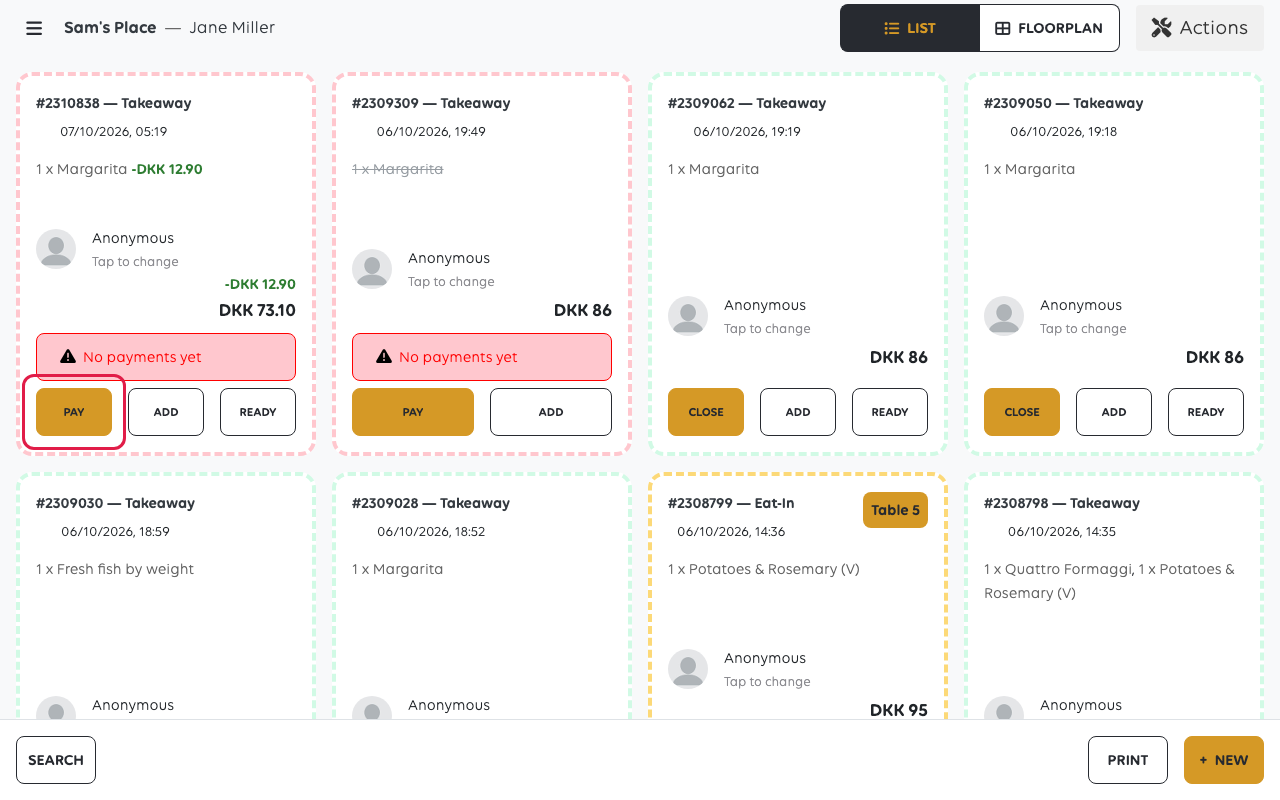
Pay takes payment for whatever is outstanding on the order. An order showing
No payments yet has not been paid at all; one showing a balance has been part
paid.
4. Mark it ready
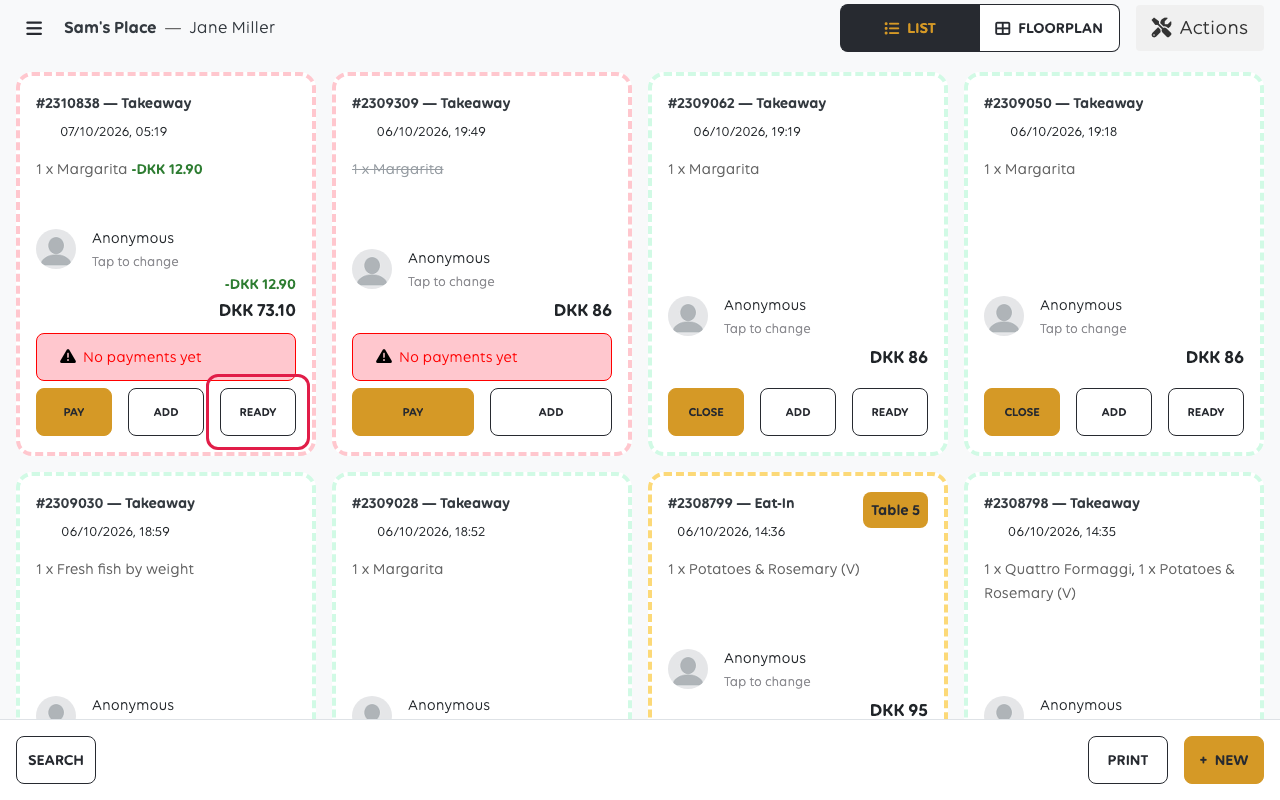
Tap Ready when the order is made and can be handed over. The button only shows on
an order that has been accepted, and it disappears from the card once tapped.
What the customer sees depends on the shop's journeys. A predefined Order ready
journey ships with the shop and is active by default: it fires on this button and
sends the customer a message. An order rung up as Anonymous has nobody to send to,
so nothing goes out. See Build an automated journey for what the message is and how
to change it.
5. Close it
Close appears only once an order is fully paid, and it takes the order out of the
list. Closing is about tidying the screen - the order and its payments stay on the
record and in the reports.
An unpaid order has no Close. Pay it, refund it, or cancel it from the Actions
menu.
The Actions menu
Actions at the top of the list works on many orders at once:
| Action | What it does |
|---|---|
| Close all paid orders | Clears every fully paid order off the list |
| Mark all orders as pay later | Moves what is still unpaid to be settled another time |
| Cancel all unpaid orders | Cancels everything unpaid |
| Show my orders | Narrows the list to the orders this cashier took; Show all orders brings the rest back |
Cancel all unpaid orders asks you to confirm, but not which ones. Check the list before using it on
a busy counter.
If something goes wrong
| What you see | What it means | What to do |
|---|---|---|
| An item cannot be removed | Part of the order is already paid | Refund the payment first, then change the order |
| The order still shows a balance | Items were added after it was paid | Take the remainder with Pay |
| The order is not in the list | It may already be closed | Use the order search rather than the list |
Was this article helpful?
Thanks for your feedback!
