

 Dansk
 Svenska
 Deutsch
 Norsk bokmål
Set up tables and the floor plan
F&B - this article applies to food and drink businesses.
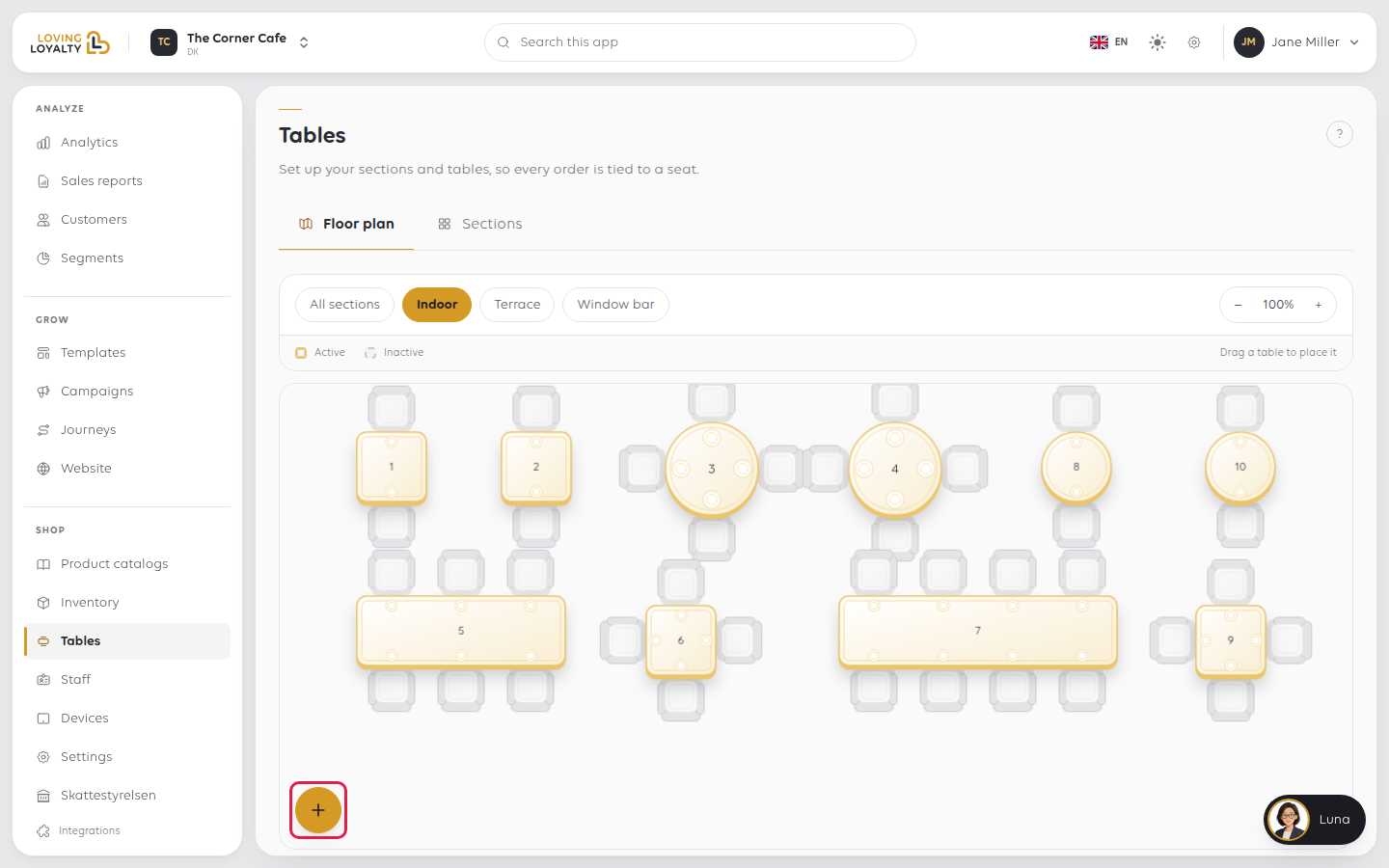
The floor plan is how your room appears on the till. A cashier taps a table rather
than remembering which order belongs to whom, so arrange the plan to match the room.
Before you start
- Your shop takes eat-in orders. Tables is only in the menu for shops that do.
1. Open Tables
Open Shop → Tables. It has two tabs: Floor plan, the arrangement itself, and
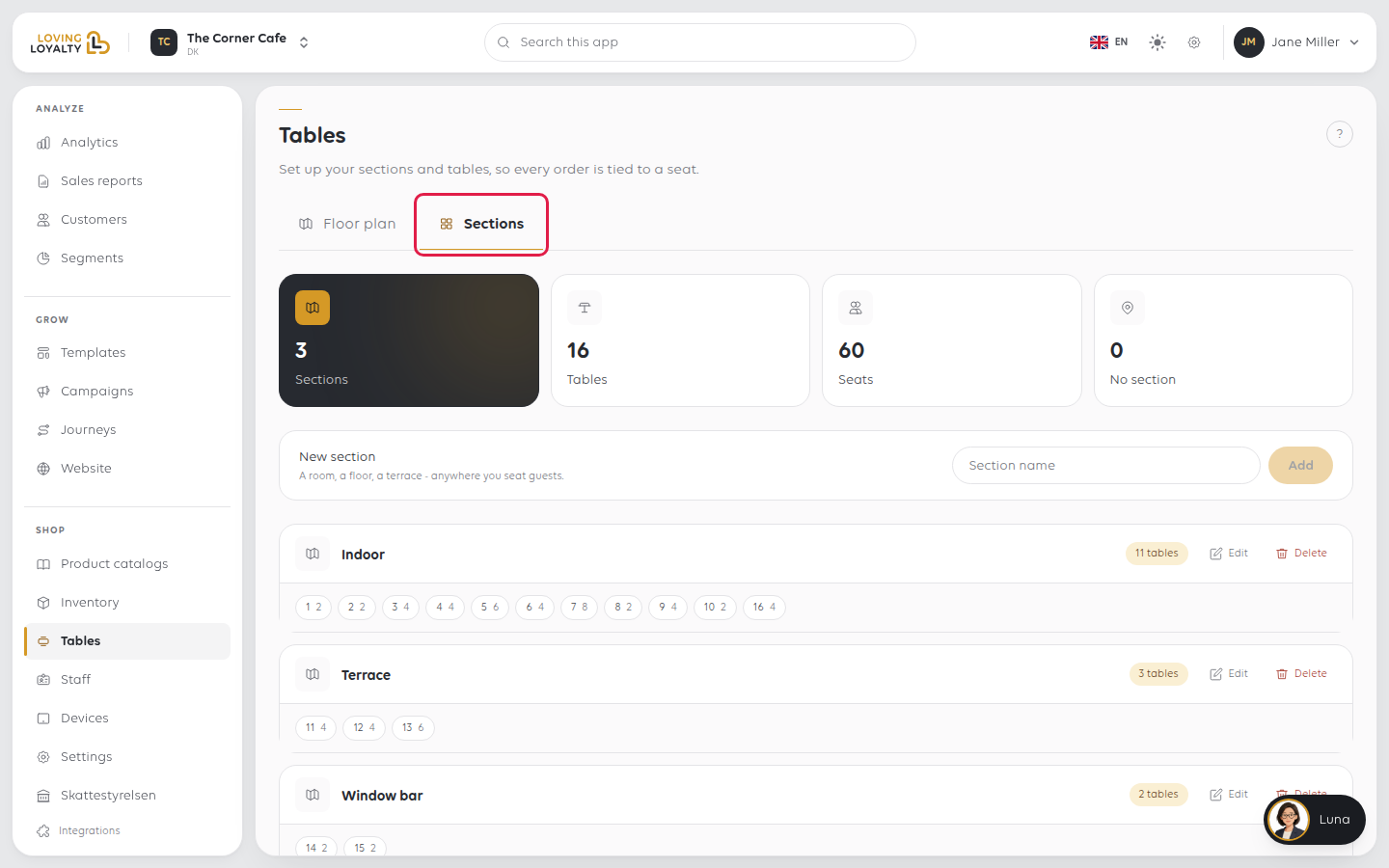
Sections, the areas you group tables into.
2. Add your sections
Sections are the areas of your room: indoors, outdoors, a terrace, a floor. They let a
busy plan be filtered by area. Tables without a section do not appear on the floor
plan, so set up sections first.
On Sections, type a name under New section and select Add. The section is
listed with its number of tables.
3. Add a table
On Floor plan, select the round + button (New table).
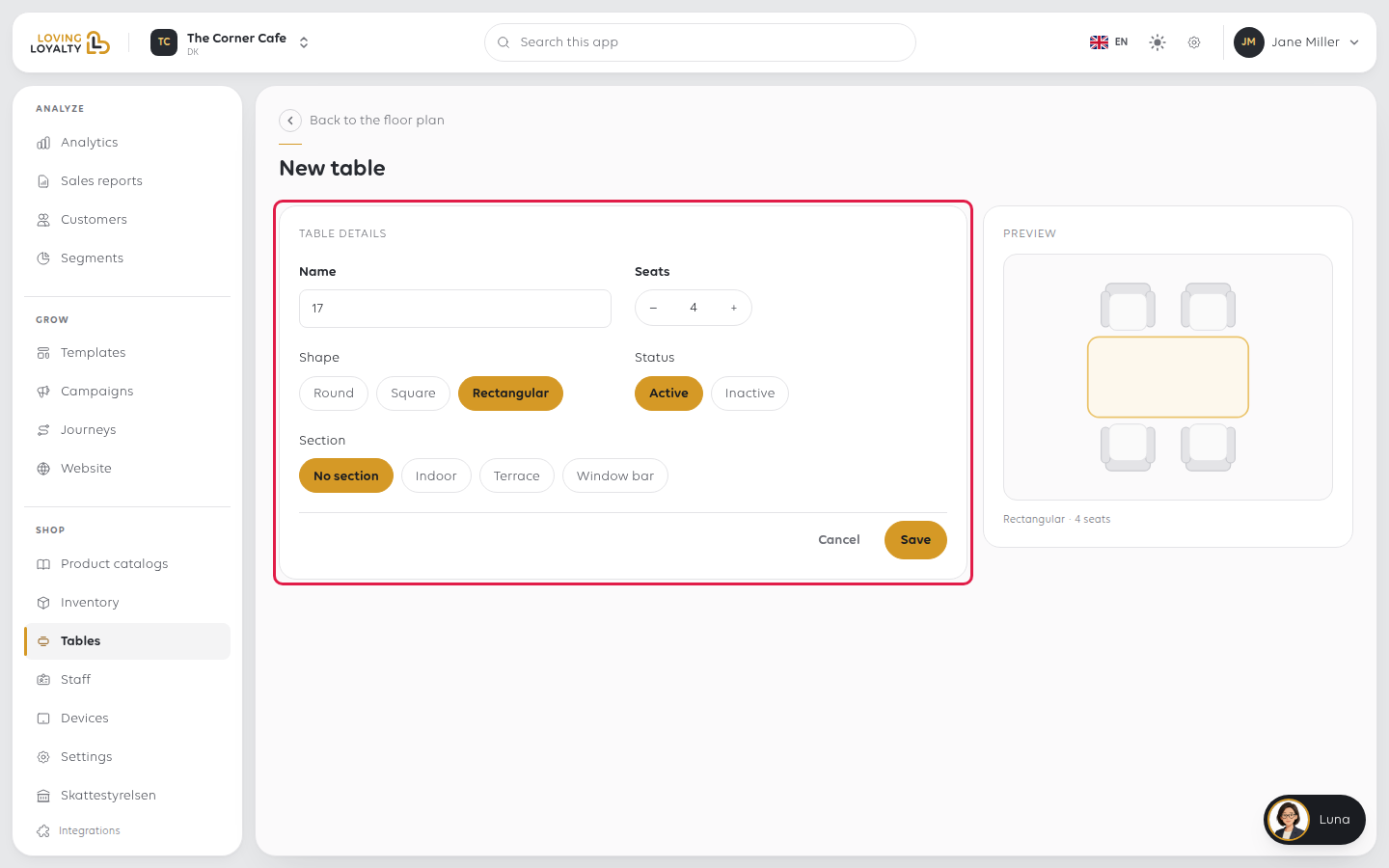
| Field | What it decides |
|---|---|
| Name | What the cashier taps. Digits only, and the next free number is filled in for you |
| Seats | How many it holds |
| Shape | Round, square or rectangular, so the plan resembles the room |
| Status | Active, or Inactive to take it out of use without deleting it |
| Section | Which area it belongs to |
Number tables the way your staff already do. A numbering scheme nobody uses is
slower than none, because the cashier has to translate.
Select Save. You are taken back to the floor plan.
4. Place it on the plan
A new table waits under Not on the plan. Drag it into position. Use Zoom in and
Zoom out for a large room, and All sections to show one area at a time.
To change a table later, double-click it on the plan.
Taking bookings for a table
Open the table and turn on Bookable. See Make a table bookable.
If something goes wrong
| What you see | What it means | What to do |
|---|---|---|
| A table is missing from the plan | It has no section, or it is not placed yet | Give it a section, then drag it in from Not on the plan |
| A table is missing from the till | It is Inactive | Open it and set Status to Active |
| The cashier cannot find a table quickly | Numbers do not match what staff say | Renumber them to match what staff call them |
| A section is empty | No table has been put in it | Set the section on each table |
Was this article helpful?
Thanks for your feedback!
