

 Dansk
 Svenska
 Deutsch
 Norsk bokmål
Sell an item by barcode or product number
In a shop with more than a screen's worth of products, scanning is faster and more
accurate than hunting for a tile. The till takes a scan, it takes the barcode typed
by hand when a label will not read, and in shops that number their products it takes
the product number on the Quick add keypad.
Before you start
- The item has its barcode recorded against it in your catalogue. A scan is a lookup: if nothing holds that number, nothing is found.
Scanning
Scanners are plug-and-play USB. Plug one into the till and scan - there is nothing to
pair and nothing to configure. The item joins the basket as though you had tapped it.
Scan again for each one sold: every scan adds the item once more.
Typing the number instead
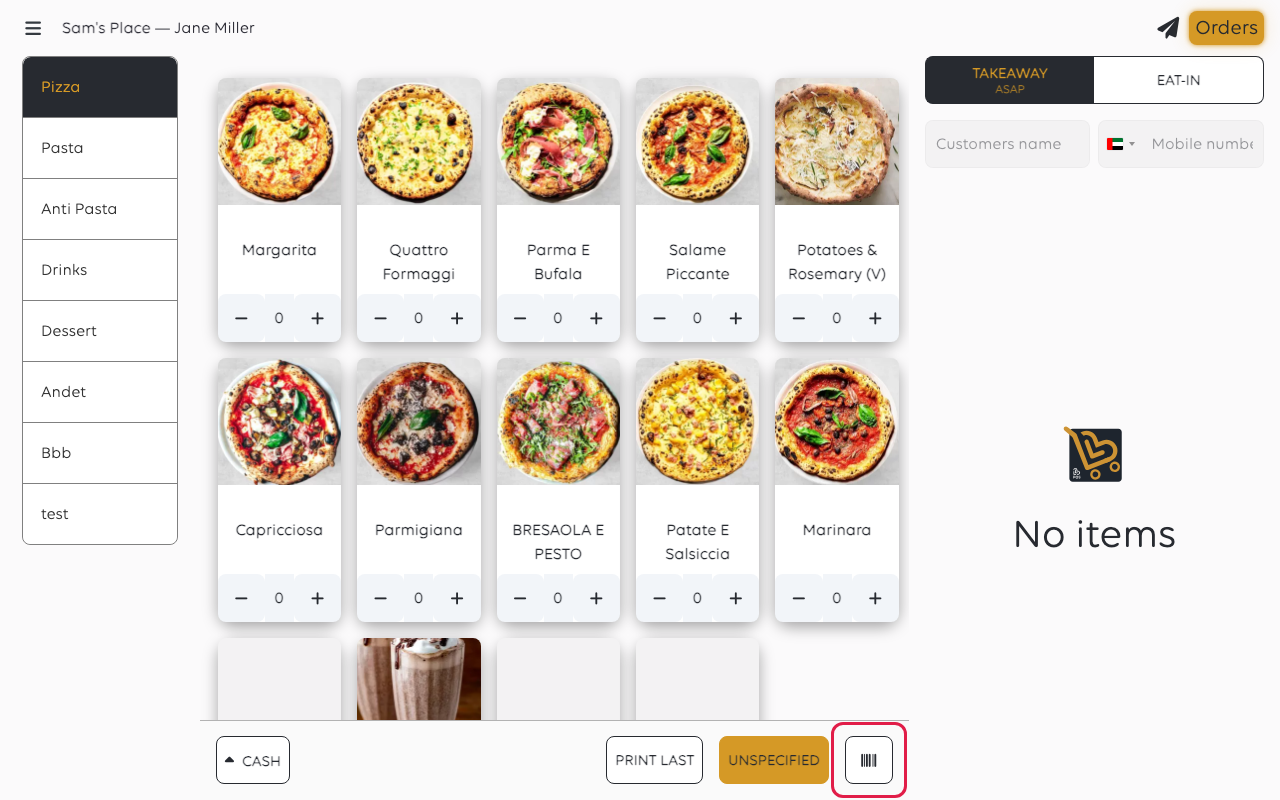
When a barcode is damaged, curved, or simply will not read, tap the barcode button at
the bottom of the home screen. It only shows when barcode scanning is switched on for
the shop.
The Enter barcode keypad opens. Type the number and tap SEARCH. The item joins
the basket.
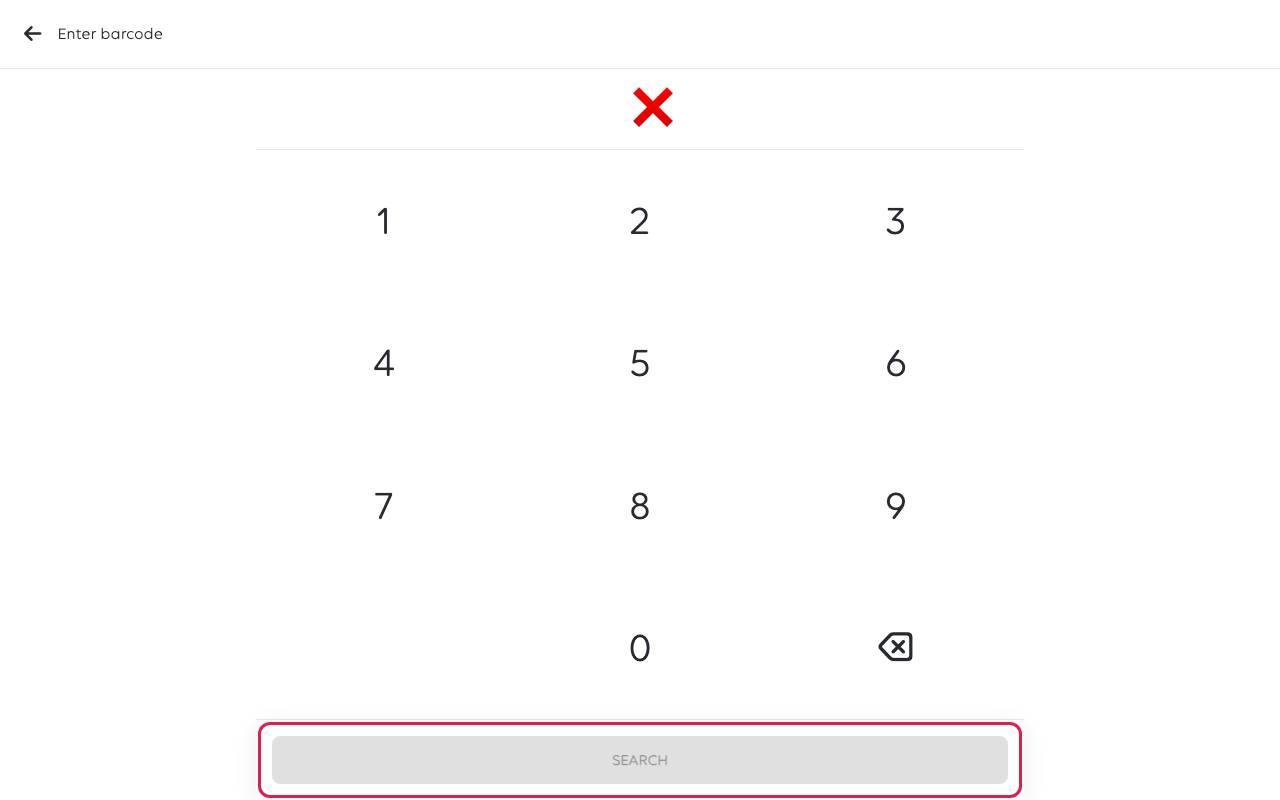
This is the same lookup the scanner performs - the scanner only saves you the typing.
Adding by product number (PLU)
Products can carry a number in the catalogue, often called a PLU, and the tile shows it. If your shop
uses these numbers, a Quick add keypad sits under the basket on a tablet or
desktop till. It is switched on per shop by Loving Loyalty, so ask support if you
want it and do not see it.
- Type the product number.
- To sell more than one, tap × Qty and type how many.
- Tap Add. The item joins the basket.
If two products share the number, the till lists both with their section and price -
pick the right one. A number nobody holds shows Product with #... does not exist;
a product that is switched off shows Product #... is not available.
Scanners the till knows about
Barcode scanners in the cashier menu lists scanners set up for this till, with
Add for another.
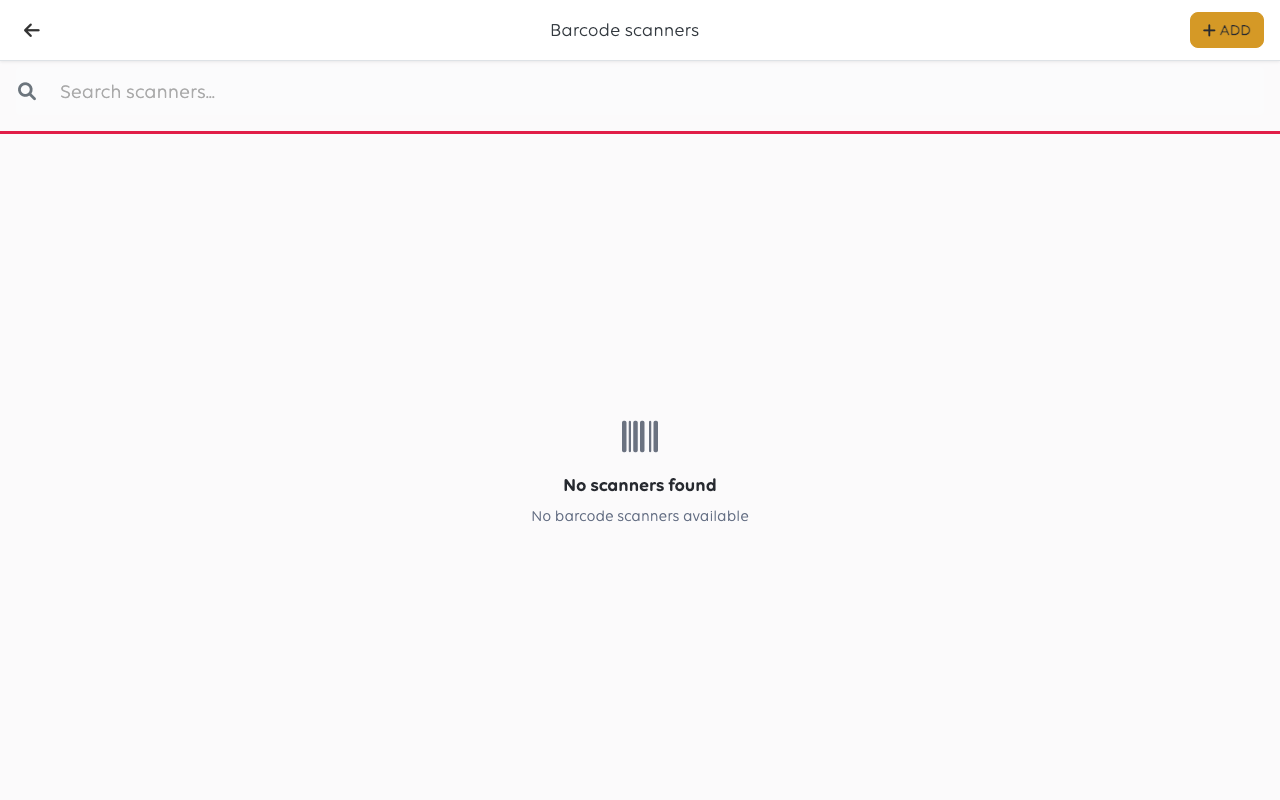
A plug-and-play USB scanner does not need to appear here to work: it behaves as a
keyboard, and the till receives the digits as though they were typed. An empty list
is not a fault.
When a scan finds nothing
The number is not the problem nearly as often as people assume. Work down this list:
| What to check | Why |
|---|---|
| The item exists in your catalogue | A scan cannot sell what is not there |
| The barcode is recorded on that item | The item can exist with no number against it |
| It is in the catalogue this till uses | A shop with more than one catalogue may not offer it here |
| The number read correctly | Type it by hand and compare with the packaging |
If typing the number finds the item and scanning does not, the fault is the scanner or
the label. If neither finds it, the number is not on any item.
Do not fall back on Unspecified for an item that should be in the catalogue. It
takes the money but records no product, so the sale is invisible in your stock and
your bestsellers - see Ring up an item that is not in the catalogue.
If something goes wrong
| What you see | What it means | What to do |
|---|---|---|
| Scanning does nothing at all | The scanner is not powered, or the till is not focused on the order screen | Reconnect it and try on the home screen |
| A scan adds the wrong item | Two items share a number | Correct one of them in the catalogue |
| Digits appear in a text field | The till was on a screen with a field focused | Go back to the order screen and scan again |
| The item is found but at the wrong price | The price is on the item, not the barcode | See Build a product catalogue |
Was this article helpful?
Thanks for your feedback!
