

 Dansk
 Svenska
 Deutsch
 Norsk bokmål
Take a MobilePay payment
Take a MobilePay payment
Before you start - the order is in the basket.
In Norway the app is called Vipps. The steps are the same.
1. Choose MOBILEPAY
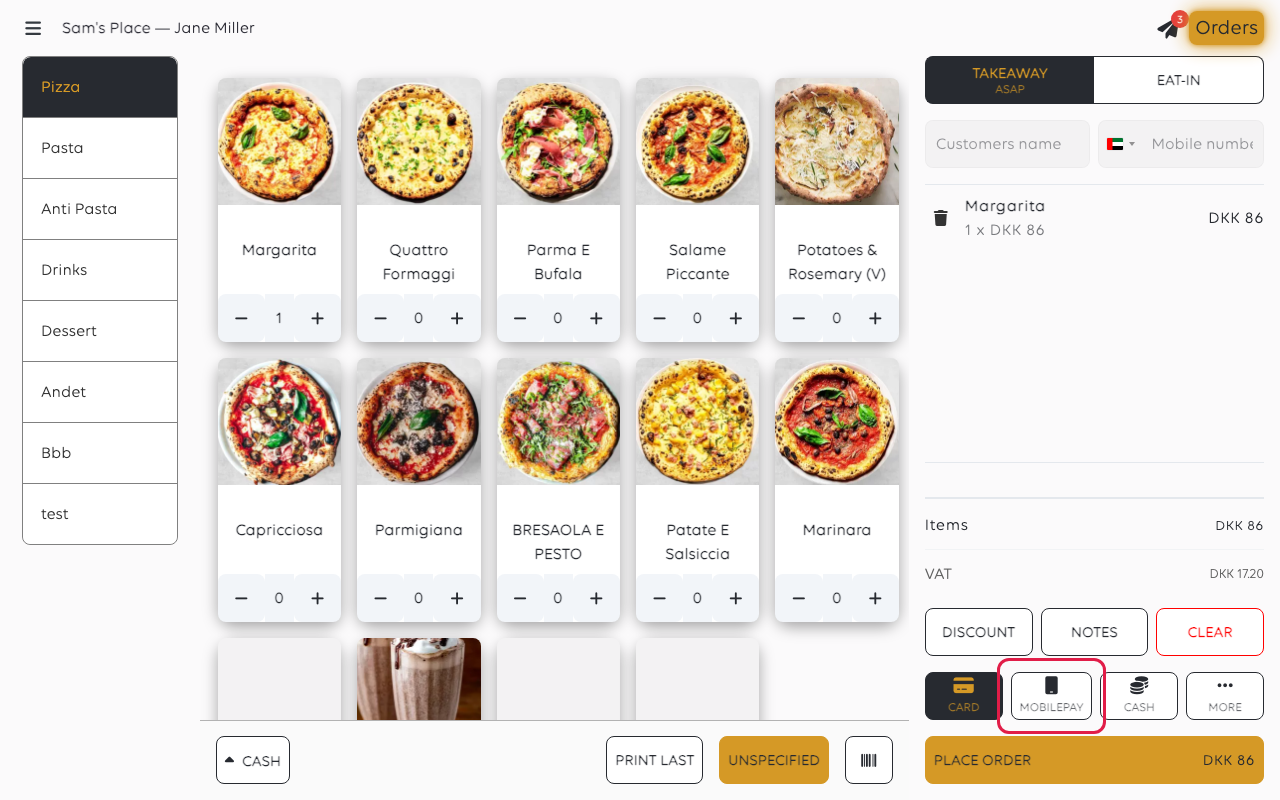
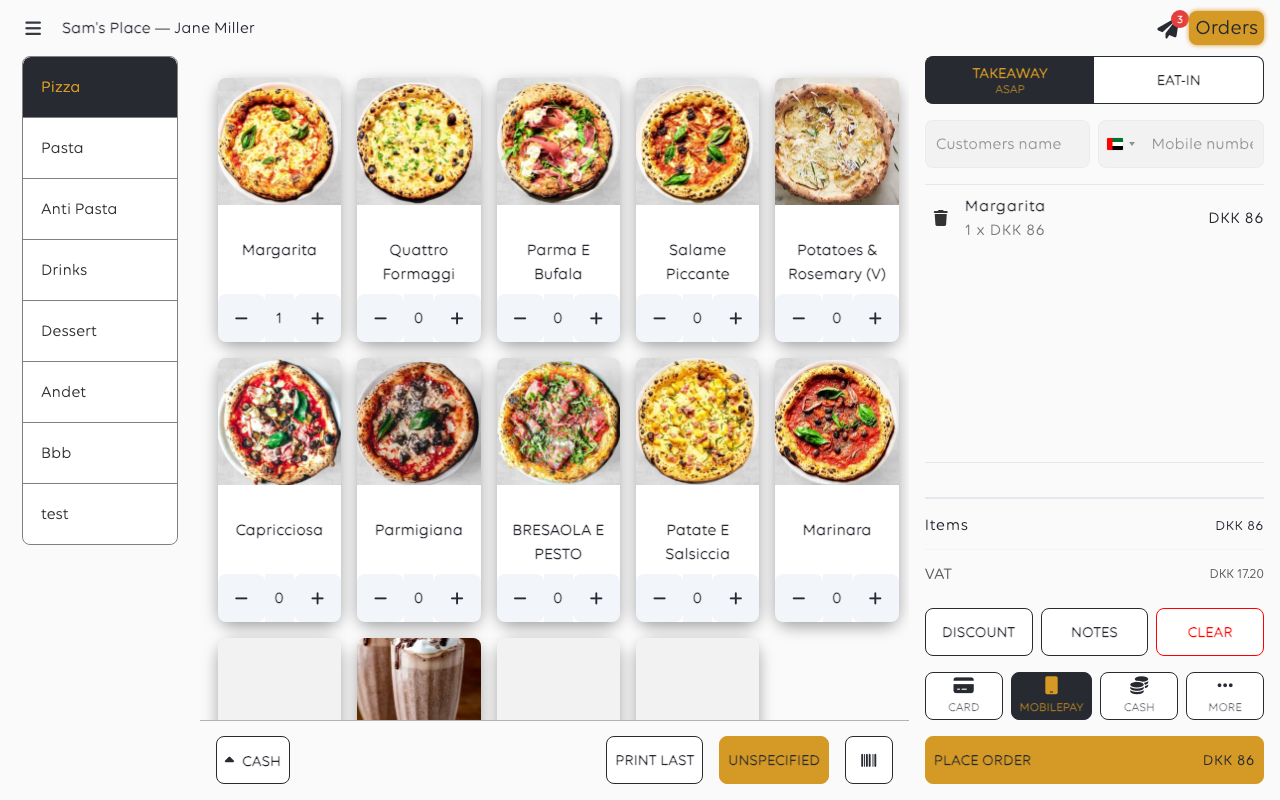
Tap MOBILEPAY, then PLACE ORDER.
2. Ask the customer to scan the code
The QR code appears on the till and on the customer-facing display. The customer
scans it and pays in the MobilePay app.
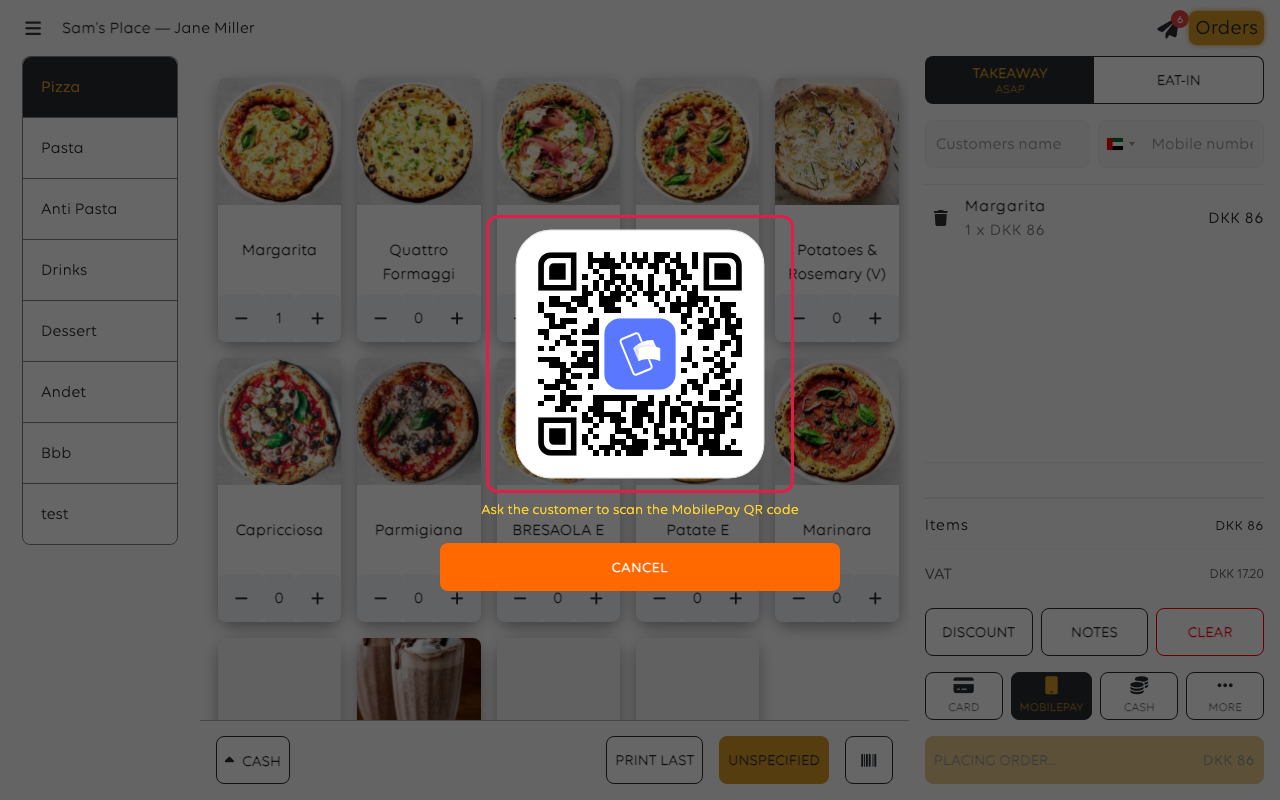
CANCEL stops the payment request.
The code in the picture is a placeholder. A real one is a live payment request -
do not photograph or share one.
3. Wait for Settled
The payment shows as Pending until the customer finishes, then Settled. Only
Settled means paid.
While it waits, the till shows Checking payment with a Dismiss button.
Dismiss only hides the notice; it does not cancel the payment.
If something goes wrong
| What you see | What to do |
|---|---|
| The payment stays Pending | Wait. If the customer cannot pay, tap Dismiss, check the order's payments, then take payment another way |
| The customer says they paid, the till disagrees | Check the order's payments before charging again — see A card payment failed |
| No QR appears | Open the order, tap PAY and choose MOBILEPAY |
| The code will not scan | Offer the customer-facing display; check they are using MobilePay, or Vipps in Norway |
| You need to abandon it | Tap CANCEL on the QR screen, then cancel the order if nothing was taken |
Was this article helpful?
Thanks for your feedback!
