

 Dansk
 Svenska
 Deutsch
 Norsk bokmål
Give a discount
A discount can come off the whole bill, off particular items, or from a code the
customer has. All three start the same way, from the basket.
Before you start
- The basket has what the customer is buying in it. See Take an order and get paid.
- The order is not paid yet. A discount can still go on after the order is placed - open it from the orders list and use ADD DISCOUNT - but once it is paid, changing the price means refunding it.
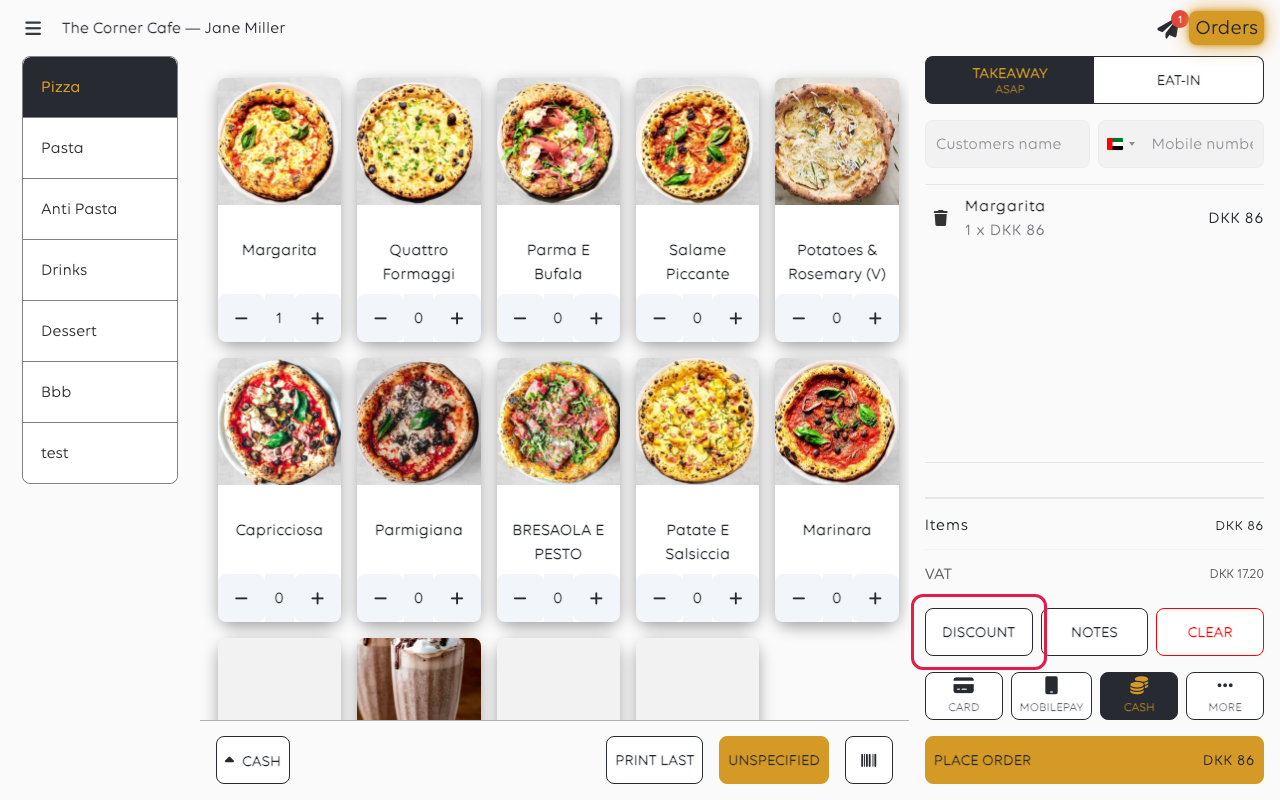
1. Tap DISCOUNT
With the basket built, tap DISCOUNT underneath the totals.
2. Choose the kind of discount
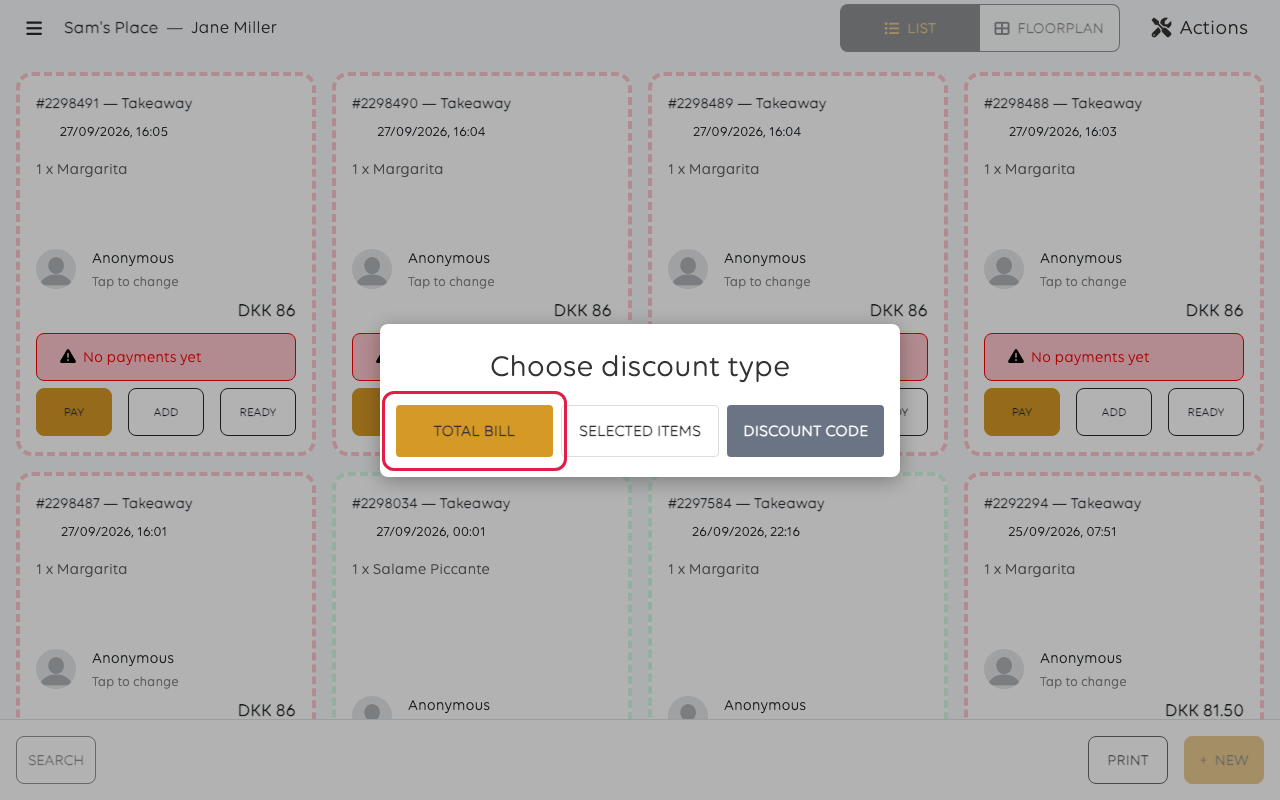
Choose discount type opens. Tap one:
- TOTAL BILL - comes off everything in the basket.
- SELECTED ITEMS - comes off the lines you choose, leaving the rest at full
price. - DISCOUNT CODE - one of the shop's cashier discount codes, set up at the till or
in the manager app. A customer's own campaign code will not work here: those are
redeemed by the customer, not at the counter.
3. Take it off the whole bill
Select discount shows a grid of percentages, from 5% to 100% in steps of five.
Each one shows the money it takes off this order. Tap the one you want.
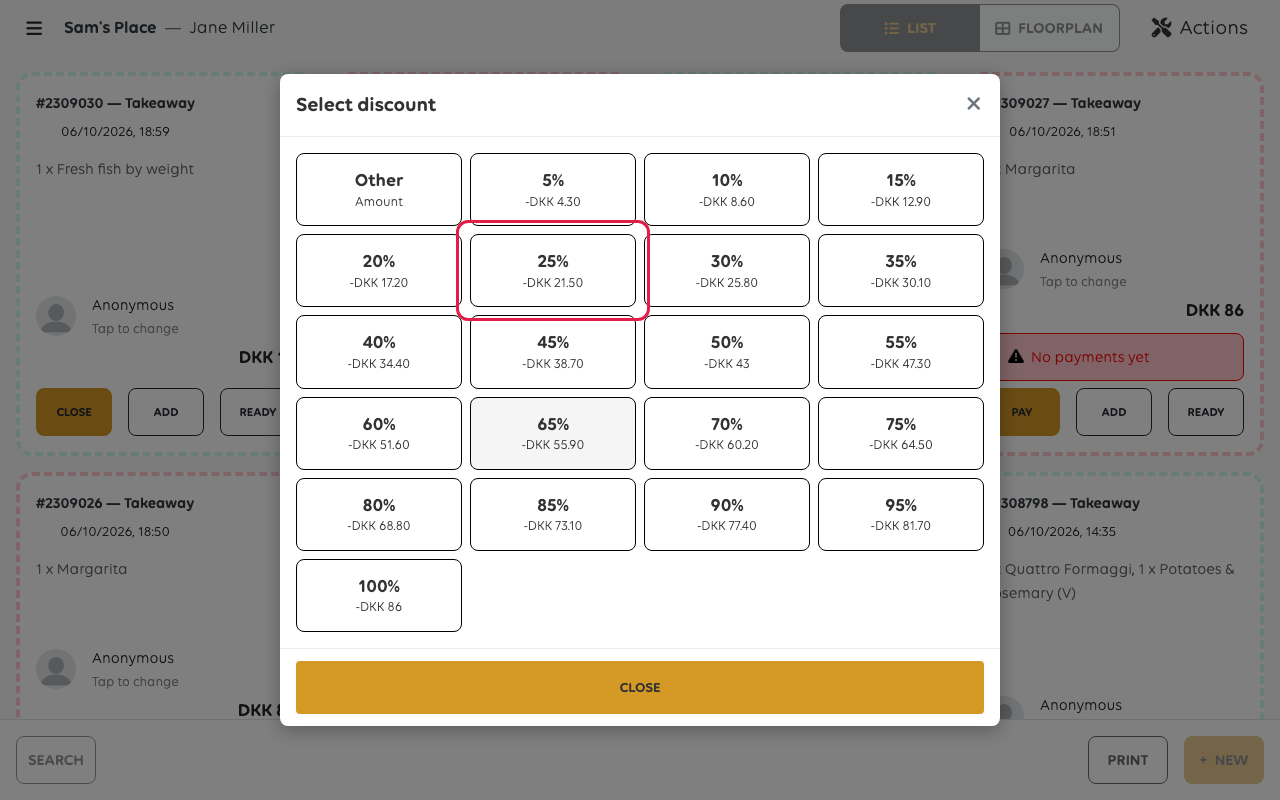
For a set amount instead, tap Other, type the amount and tap ADD DISCOUNT.
3a. Or take it off particular items
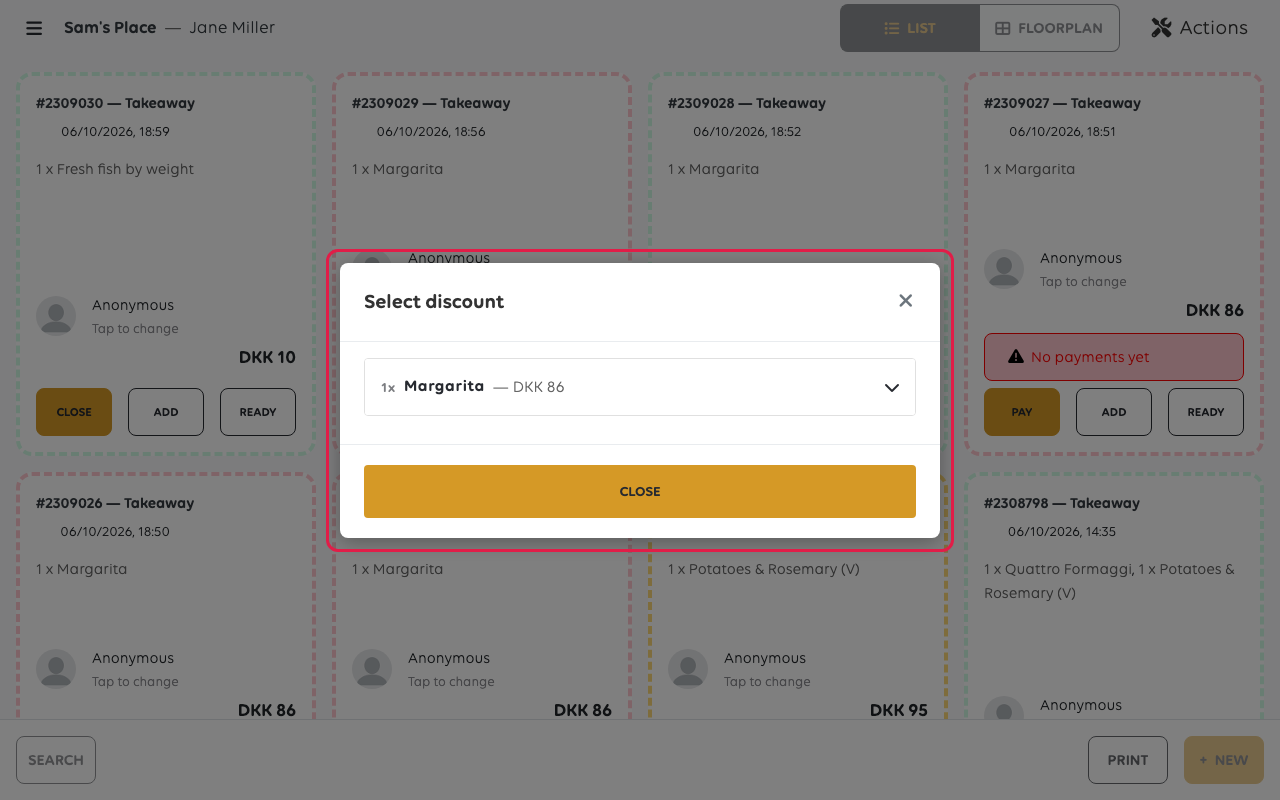
SELECTED ITEMS lists the order's lines. Tap a line to open it, then tap a
percentage, or Other amount to type an amount. Do the same for each line you want
to discount. Lines you leave alone stay at full price.
3b. Or use a discount code
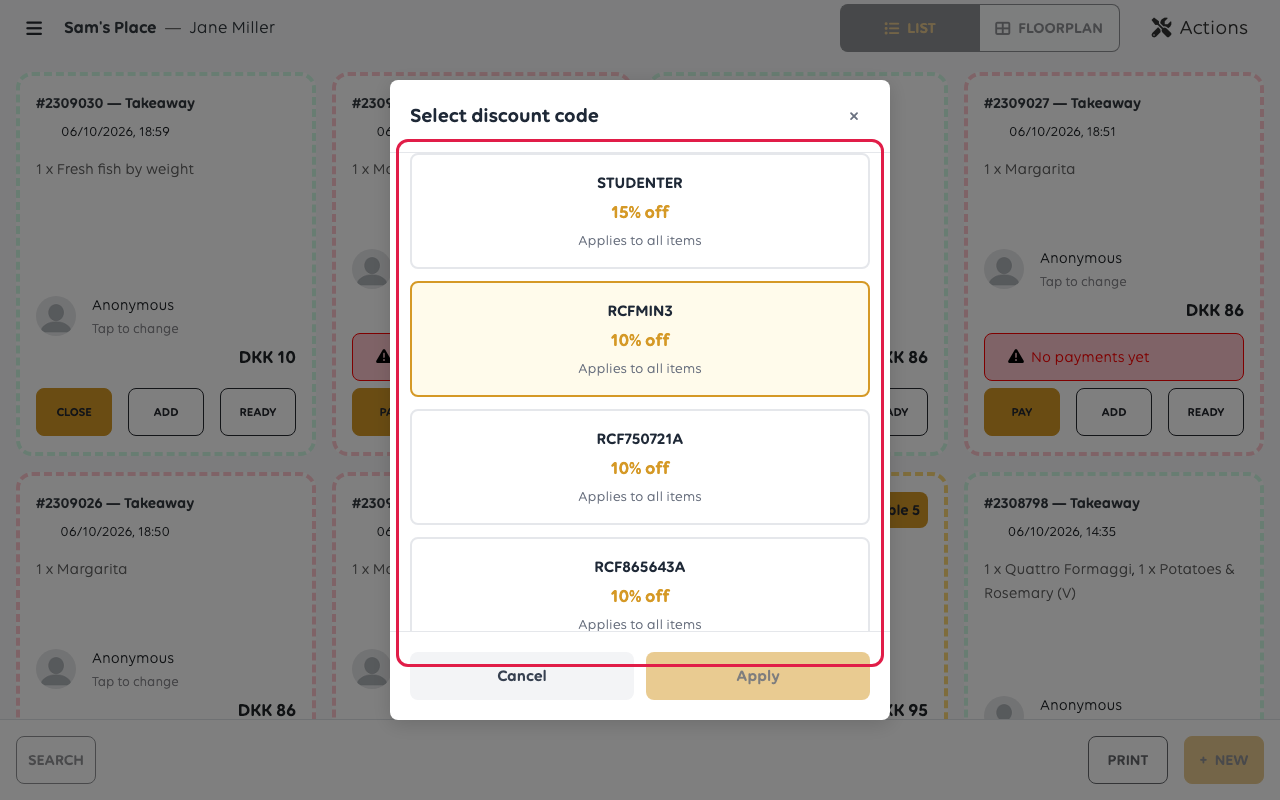
Select discount code lists the shop's cashier discount codes, each with its name,
what it takes off and what it applies to. Search by name if the list is long, tap the
code, then tap Apply.
If a customer's code is not in this list it cannot be applied at the till - see
Why a campaign did not apply.
4. Check it landed
The discount shows twice: on the item line, and under TOTALS as Discount
with the percentage beside it. A 25% discount on a DKK 86 order reads
-DKK 21.50 (25%) and leaves DKK 64.50 to pay.
To take it back off, tap REMOVE DISCOUNT beside it and confirm with YES.
If something goes wrong
| What you see | What it means | What to do |
|---|---|---|
| The discount cannot be applied | The order is already paid | Refund it and ring it up again - see Refund a payment |
| Discount code not applicable | The code does not fit this order, or it is finished or out of date | See Why a campaign did not apply |
| Every sale needs the same discount | The price in the catalogue is wrong | Fix the product's price rather than discounting each sale |
Was this article helpful?
Thanks for your feedback!
