

 Dansk
 Svenska
 Deutsch
 Norsk bokmål
Split a bill between customers
A table wants to pay separately. The till can divide the bill into equal parts, or by
who had what, and then take each share as its own payment.
Before you start - the order has been placed.
1. Open the order and choose Split bill
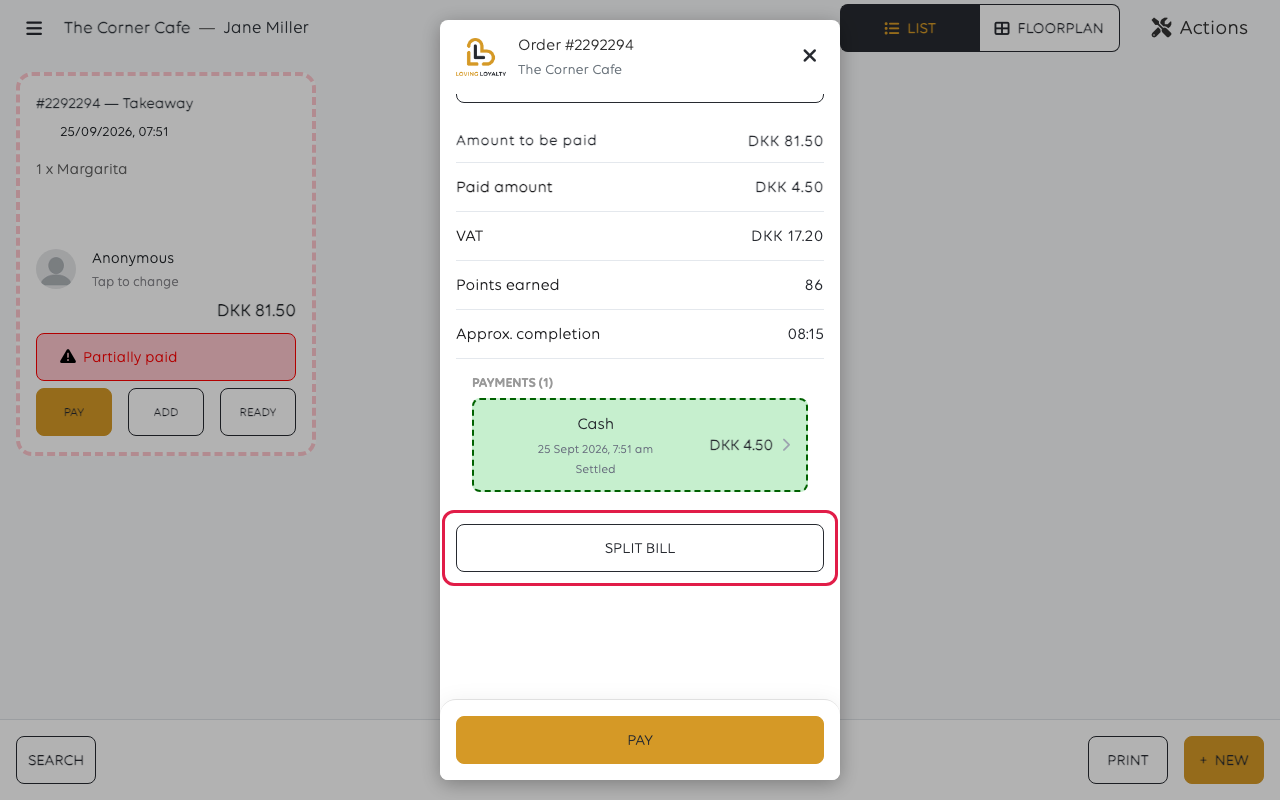
Open Orders and tap the order. Its detail shows the items, the totals, and any
payments already taken. SPLIT BILL is at the bottom.
2. Choose how to split it
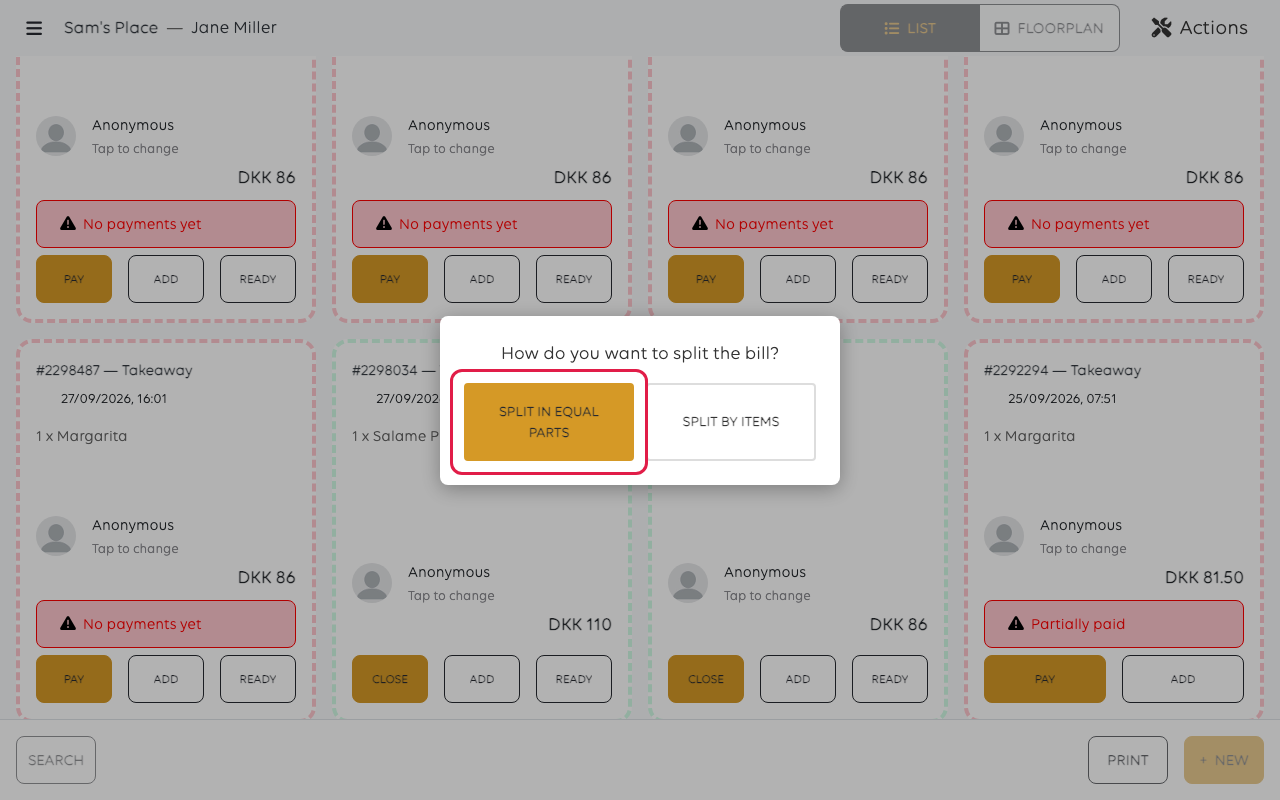
How do you want to split the bill? shows. Tap one:
| Choice | Use when |
|---|---|
| Split in equal parts | Everyone pays the same, whatever they ate |
| Split by items | People pay for what they had |
3a. Equal parts
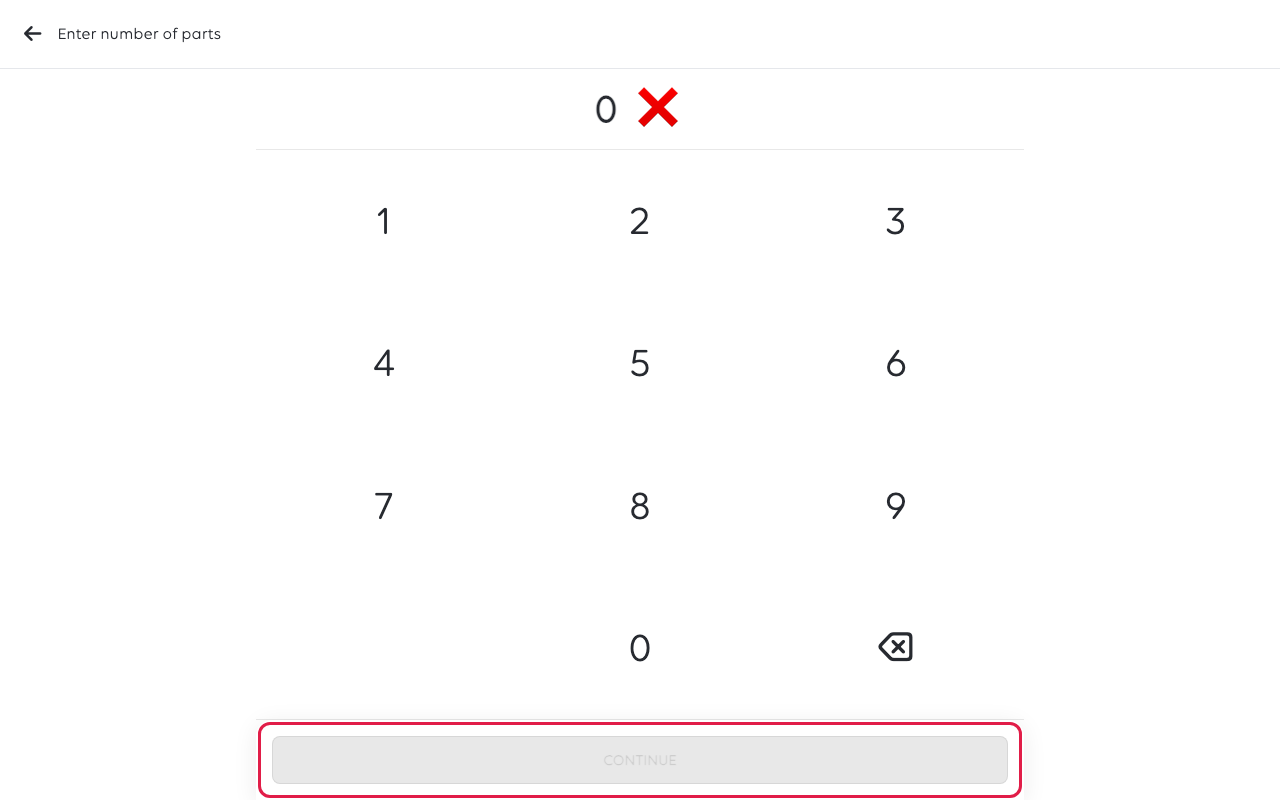
Enter number of parts opens. Type how many people are paying and tap
CONTINUE. The till divides the bill and lists the parts under Splits.
Count the people paying, not the people at the table - a couple paying together is
one part.
3b. By items
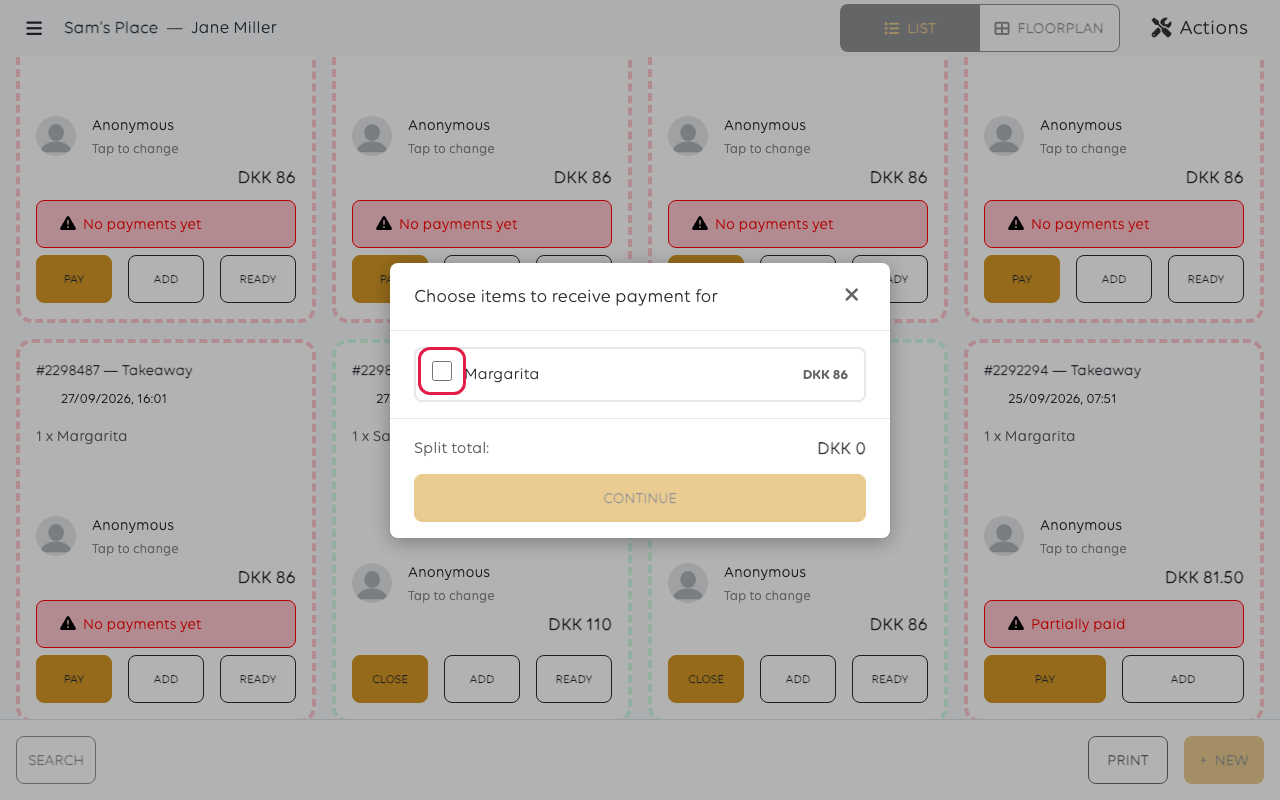
Choose items to receive payment for opens. Pick the items the first person had,
using + and - for quantities, and check the Split total. Tap CONTINUE to make
that share. Then do the same for the next person.
4. Take each share
Under Splits, tap a share, then tap PAY and take it like an ordinary payment.
Each share can use a different method: one card, one cash, one voucher. As each is
taken, the order shows Paid amount rising and
Amount to be paid falling, with every payment listed underneath.
The order stays Partially paid until the last share is in. That is not an error -
it means money is still owed.
If one person leaves without paying their share, the order simply stays part paid.
Take the rest whenever it arrives; nothing has to be cancelled and redone.
A different thing from splitting the payment
Split a bill divides one bill between people. Split a payment across methods is
one person paying one bill with two methods — half card, half cash. The till does
both, and the difference is only who is paying.
If something goes wrong
| What you see | What it means | What to do |
|---|---|---|
| The parts do not add up to the total | Rounding, where a total does not divide evenly | Take the odd penny on one of the parts |
| An item is on the wrong share | It was picked in step 3b | Before that share is paid, open it, tap Remove split and pick the items again |
| Someone paid too much | The amount was typed rather than taken from the share | Refund the difference — see Refund a payment |
| The order is still Partially paid | A share has not been taken | Open the order and check Amount to be paid |
Was this article helpful?
Thanks for your feedback!
