

 Dansk
 Svenska
 Deutsch
 Norsk bokmål
Sell and redeem vouchers
A voucher is prepaid value a customer can spend with you later. A gift card is the
same thing - one feature, one word for it in the app.
Sell one
1. Start a new voucher
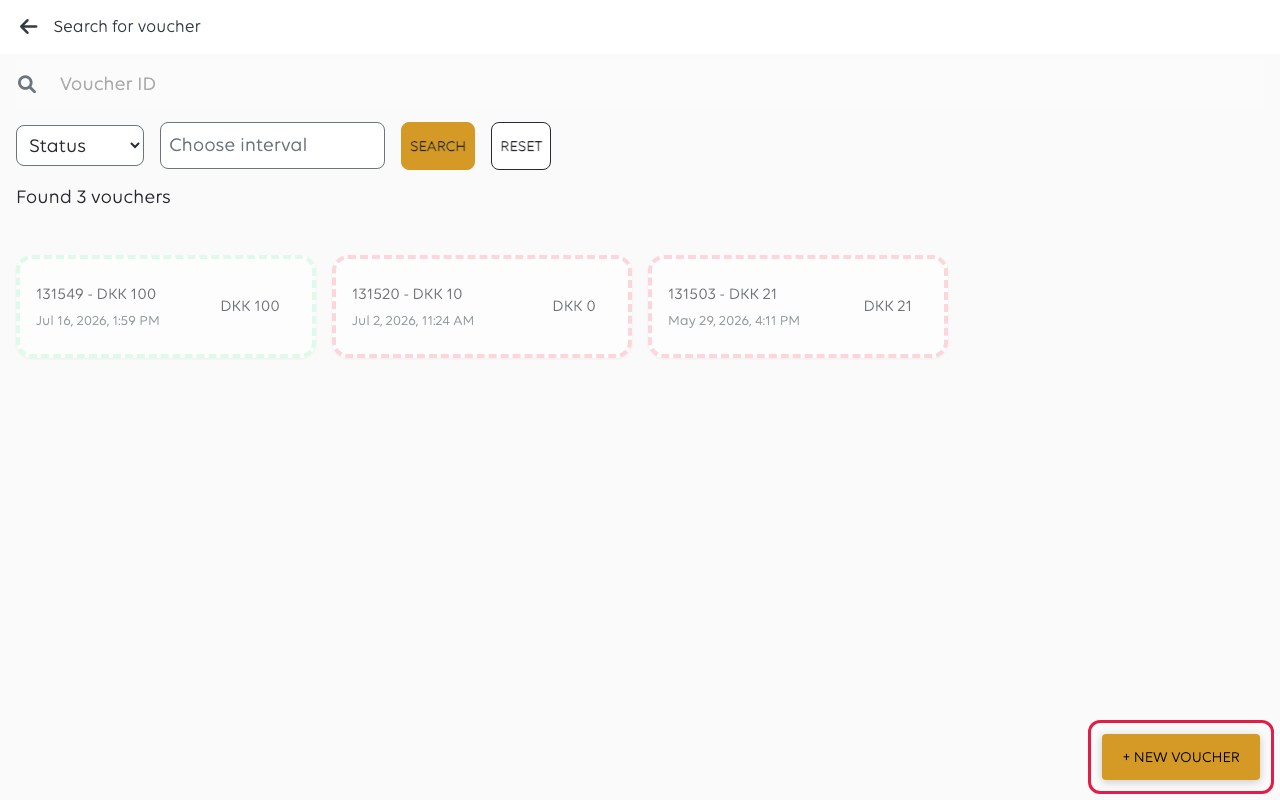
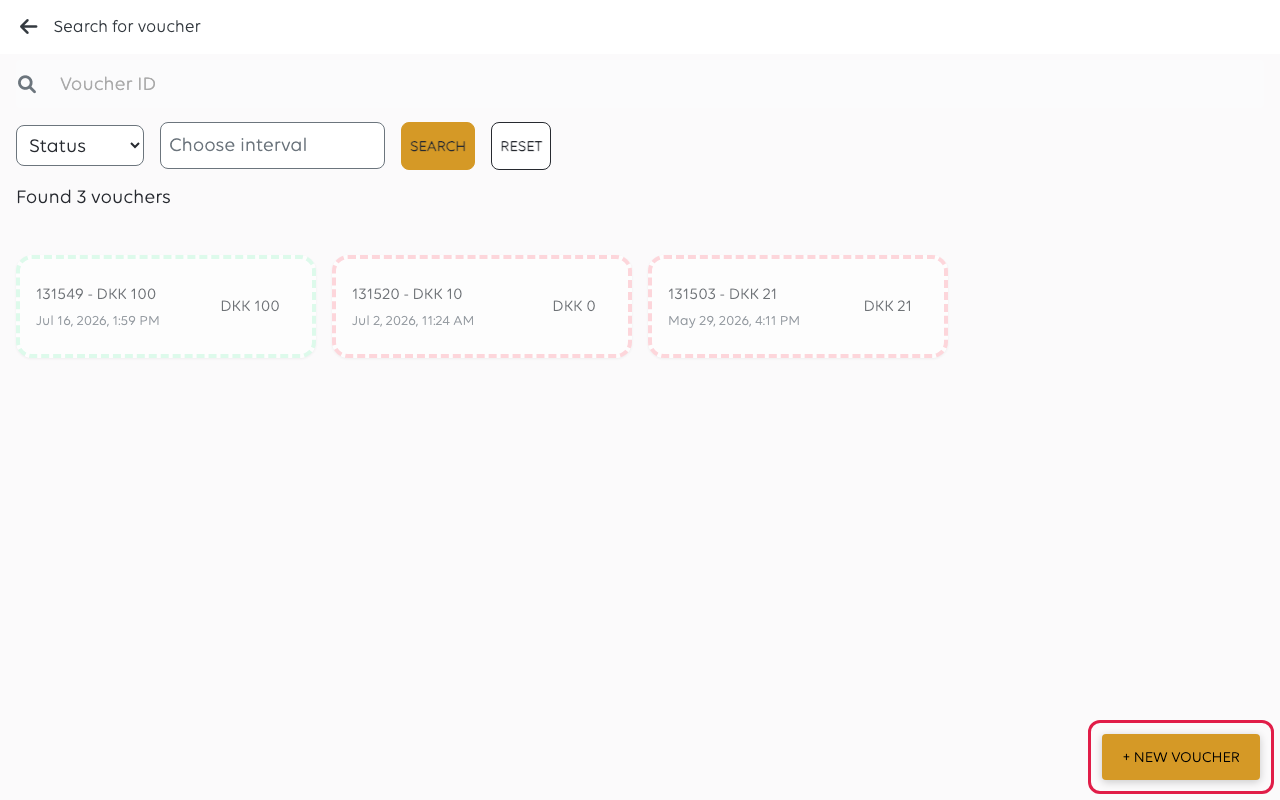
Open Vouchers from the menu and tap New voucher.
2. Enter the value
A keypad titled Enter value opens. Type the value and tap CONTINUE.
The keypad fills from the right, in the smallest unit of the currency: 1, 5, 0 is
DKK 1.50, not DKK 150. A voucher issued for the wrong amount is prepaid value
you have given away.
3. Set the expiry date and save
Check the Value (tap Change to fix it), pick an Expiry date, and tap
Save voucher. The till asks Create a gift card for DKK ...? - tap YES.
The voucher is created and shows in the list as Active. If your shop prints
receipts, the till offers to print one for the customer.
This screen does not take payment for the voucher. Take the money from the customer
as your shop does for voucher sales.
Redeem one
At checkout, tap MORE, then VOUCHER. See Pay with a voucher.
A voucher can cover part of a bill. The till tells you the shortfall, and you take
the rest by another method - see Split a payment across methods.
Vouchers keep a balance
The list shows each voucher's value and what is left on it, so a voucher used for
less than its value keeps the remainder for next time.
| Status | Means |
|---|---|
| Active | Has value left and can be spent |
| Used | Nothing left on it |
| Cancelled | Withdrawn - it cannot be spent |
Search for voucher finds one by its Voucher ID, the number on the customer's
voucher.
If something goes wrong
| What you see | What it means | What to do |
|---|---|---|
| The voucher is refused | It is Used or Cancelled, or the number is mistyped | Search for it and read its status |
| Less was deducted than expected | It did not hold enough | Take the rest by another method |
| The customer says value is missing | It was partly spent before | The list shows the remaining balance and when it was issued |
| A voucher was issued for the wrong amount | The keypad fills from the right | Open it, tap Cancel voucher, then issue a new one. Do not leave both active |
| VOUCHER is not offered at checkout | Voucher payments are off for the shop | A manager can enable them — see Cashier configuration |
Was this article helpful?
Thanks for your feedback!
