

 Dansk
 Svenska
 Deutsch
 Norsk bokmål
Set up add-ons and options
Add-ons are the choices a customer makes about an item: extra toppings, a dip, how
something is cooked. You build a set of choices once and attach it to every item it
applies to, rather than creating a product for each combination.
1. Build the set of choices
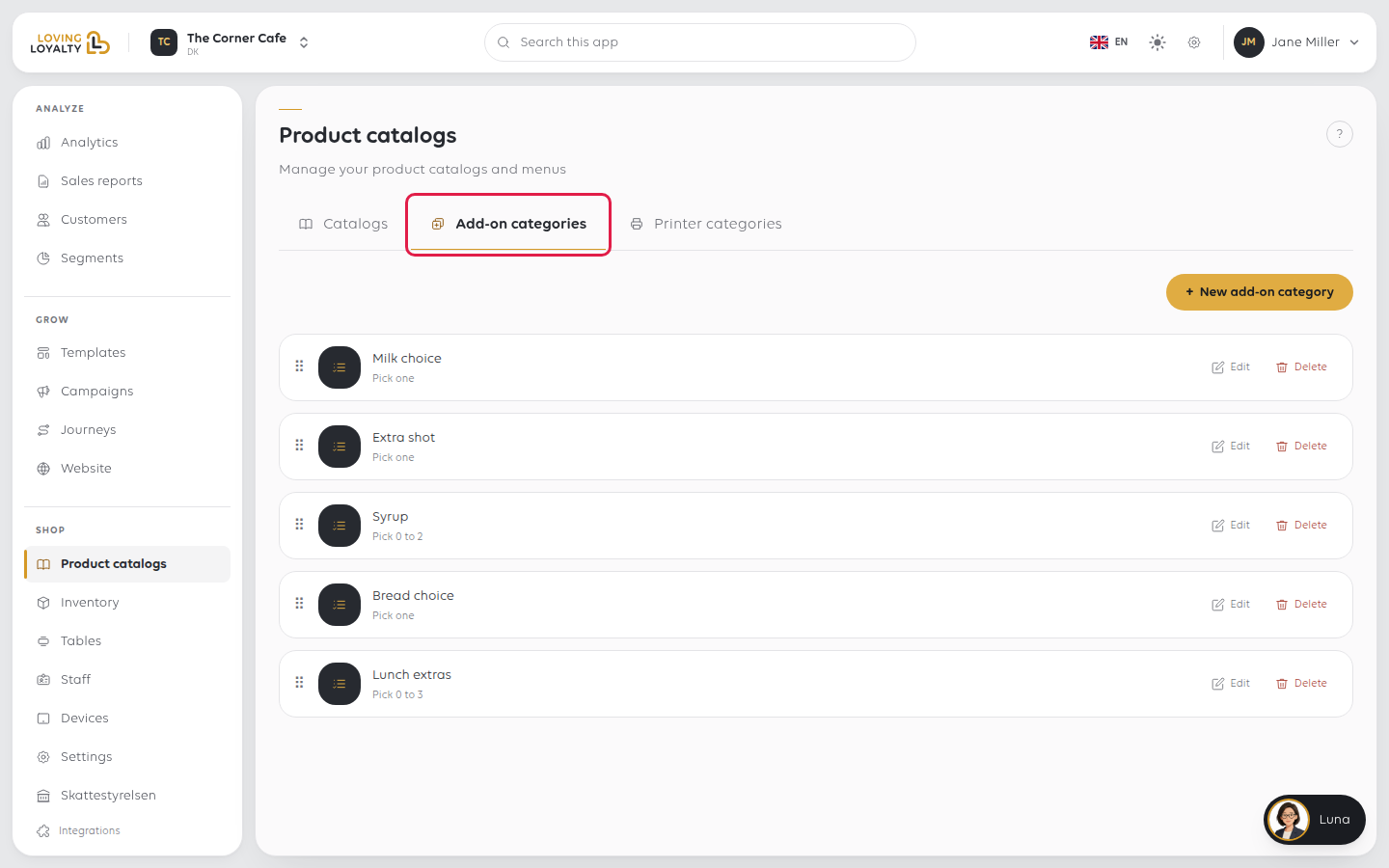
Open Shop → Product catalogs → Add-on categories. Each category is one question
the customer answers, with the choices under it.
-
Click + New add-on category and type its name at the top, such as Choice of
dip. -
Set the rules:
Rule What it decides Allow multiple selections Off: the customer picks one choice. On: they can pick several Min selections How many they must pick. 0 makes the category optional Max selections How many they may pick. No limit removes the cap -
Click Save. The category stays open, and the Add-ons list appears.
-
For each choice, enter the Add-on name and Price, then click
+ New add-on. -
Put the choices in the order the cashier should see them: drag each one by its
handle (the dotted grip at the left). The order saves as soon as you let go.
The categories themselves can be ordered the same way on the Add-on categories
list.
The rules turn a list into a question. Choice of dip, min 0, max 1, is an optional
extra; the same list with min 1 becomes a question the cashier cannot skip.
2. Attach it to the items it applies to
Open the item from Items Library and go to its Add-ons tab. The categories you
have built are listed under AVAILABLE, each showing its rules. Click + to
attach one; it moves to ASSIGNED. Then click Save on the item.
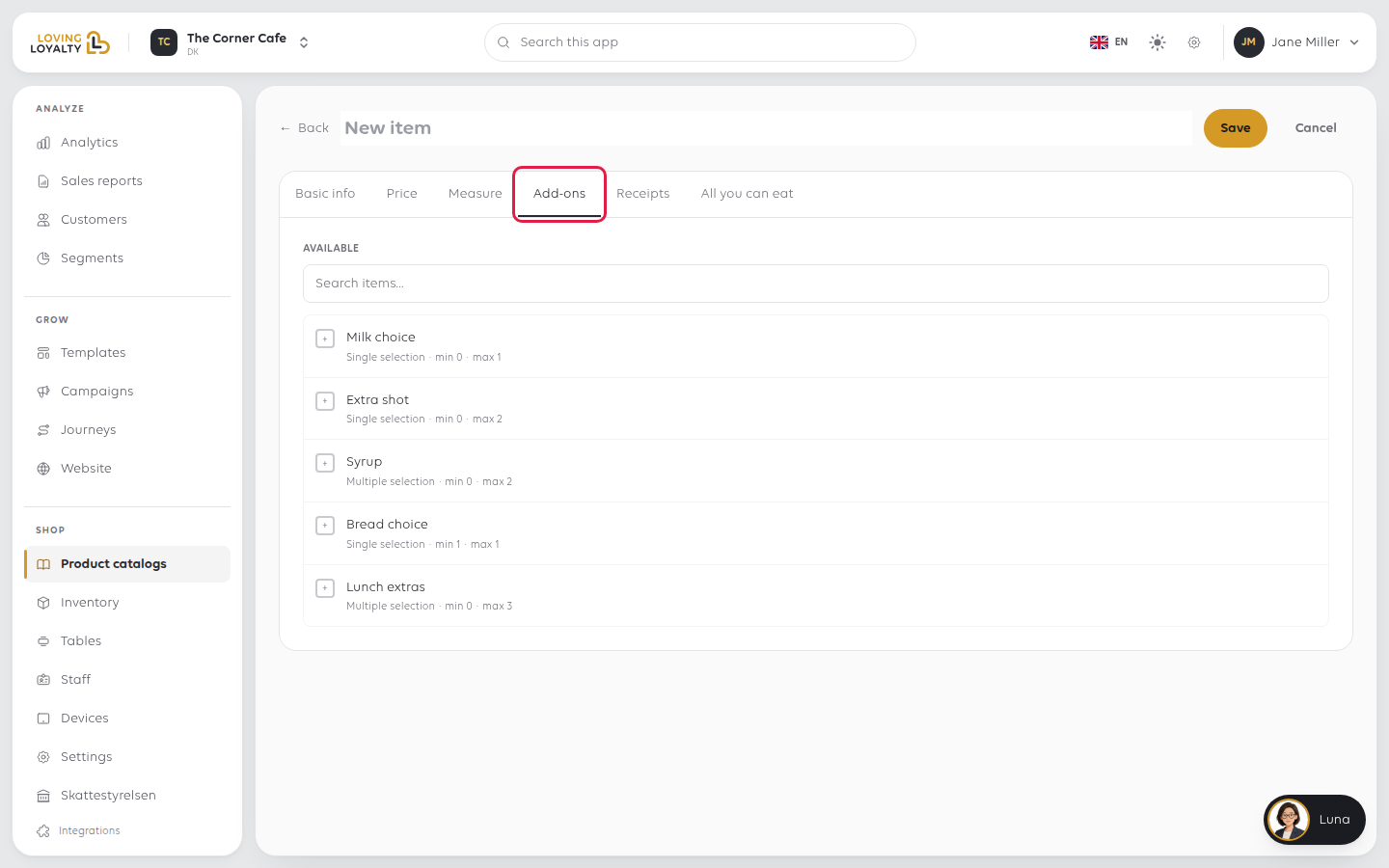
One category can be attached to as many items as it fits. Change Choice of dip once
and every item offering it changes.
If something goes wrong
| What you see | What it means | What to do |
|---|---|---|
| The add-on does not appear at the till | It is not attached to that item | Attach it on the item's Add-ons tab |
| The cashier cannot skip a question | Min selections is 1 or more | Set it to 0 if it should be optional |
| Only one choice can be picked | Allow multiple selections is off | Turn it on in the category |
| A choice is missing from the kitchen ticket | Long names are truncated | Shorten the choice name |
| Couldn't save the new order. It is back the way it was. | The new order was not saved | Check your connection and drag it again |
Was this article helpful?
Thanks for your feedback!
