

 Dansk
 Svenska
 Deutsch
 Norsk bokmål
Create and order catalogue sections
Sections are the groups the till shows down the side: Pizza, Drinks, Dessert.
1. Open the catalogue's sections
Open Shop → Product catalogs and choose the catalogue from the tabs. Each
catalogue has its own name, and the standard one is tagged Standard.
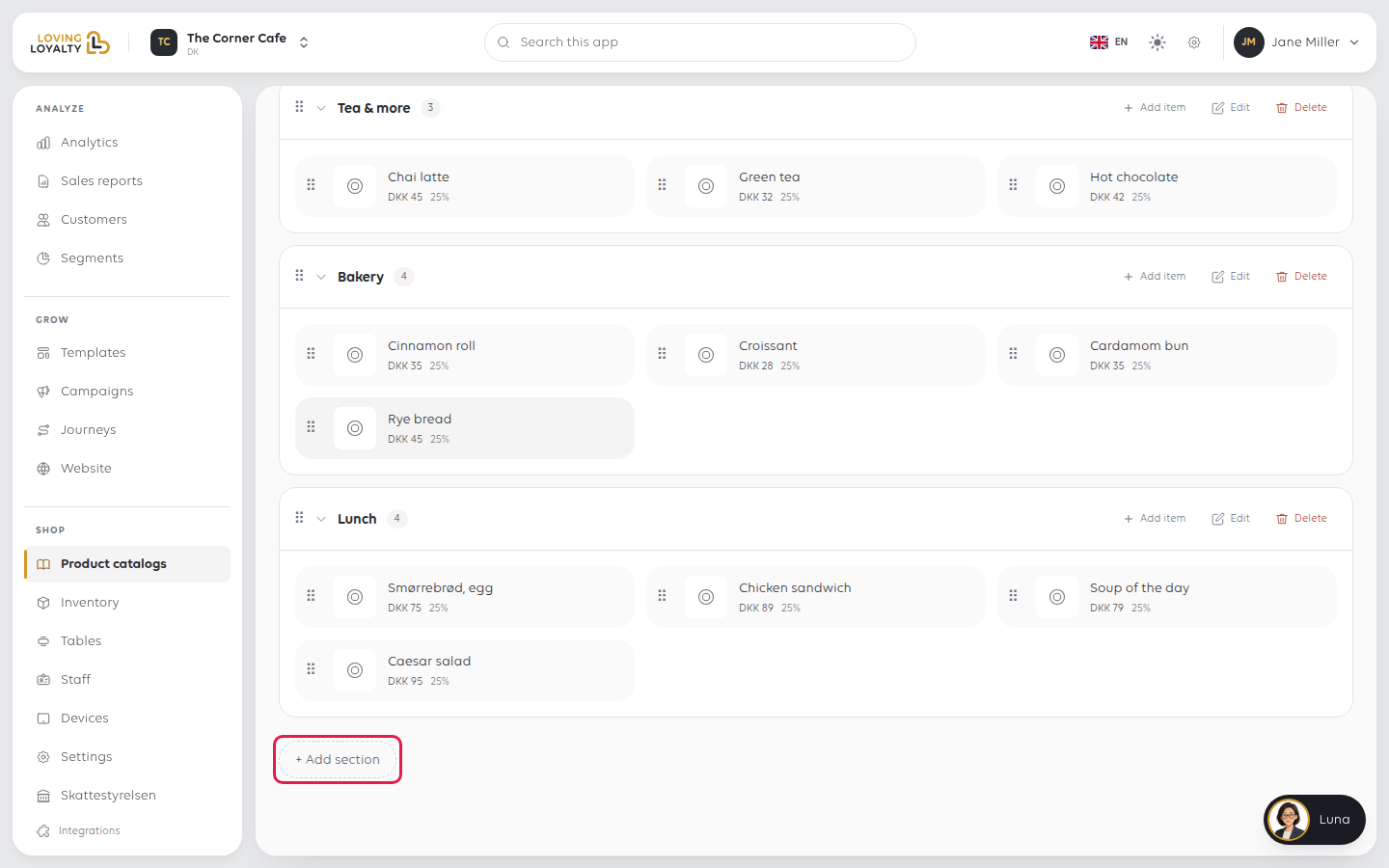
Each section lists the items in it, with + Add item, Edit and Delete.
2. Add a section
- Click + Add section at the foot of the list.
- Type the section name at the top, where it says New section. A Description
is optional. - Click Save.
You go back to the catalogue and the new section is in the list. An image can be
added once the section is saved: open it with Edit and click Upload image.
3. Put items in the section
Click + Add item on the section. The Assign items dialog lists the items On
this section and Everything else. Search, switch on each item you want (it is
added straight away), then click Done. An item can be in more than one section.
The item has to exist first. To create one, see Add a product. You can also set the
sections from the item itself, under Section assignments.
4. Put sections and items in order
The till shows sections, and the items in each section, in the order you set here.
- Hold the drag handle (the dotted grip at the left of a section or item) and drag it
to its new place. Sections move among sections; items move within their section. - Let go. The new order shows straight away and is saved; there is no Save to
click.
On a keyboard, tab to the handle, press space, move with the arrow keys, then press
space again to drop it.
Sections belong to one catalogue
Sections belong to a catalogue, so the same item can sit in different sections in
each. Check which catalogue tab you are on before adding.
If something goes wrong
| What you see | What to do |
|---|---|
| A section is empty on the till | Add items to it, or check they are Active |
| An item is missing | Add it to the section, or tick the section on the item |
| A section is on the wrong catalogue | Check which catalogue tab you are on |
| Couldn't save the new order. It is back the way it was. | The order was not saved and the list went back |
| The till still shows the old order | The till has not reloaded the catalogue |
Was this article helpful?
Thanks for your feedback!
