

 Dansk
 Svenska
 Deutsch
 Norsk bokmål
Build a product catalogue
The catalogue is what the till and your website sell from. A shop can have more than
one — a standard catalogue and an online catalogue with different prices, for
instance.
1. Open Product catalogs
Open Shop → Product catalogs. The page has three tabs: Catalogs, Add-on
categories and Printer categories. Your catalogues sit in a row, each under its
own name, the standard one tagged Standard.
2. Fill it with sections and items
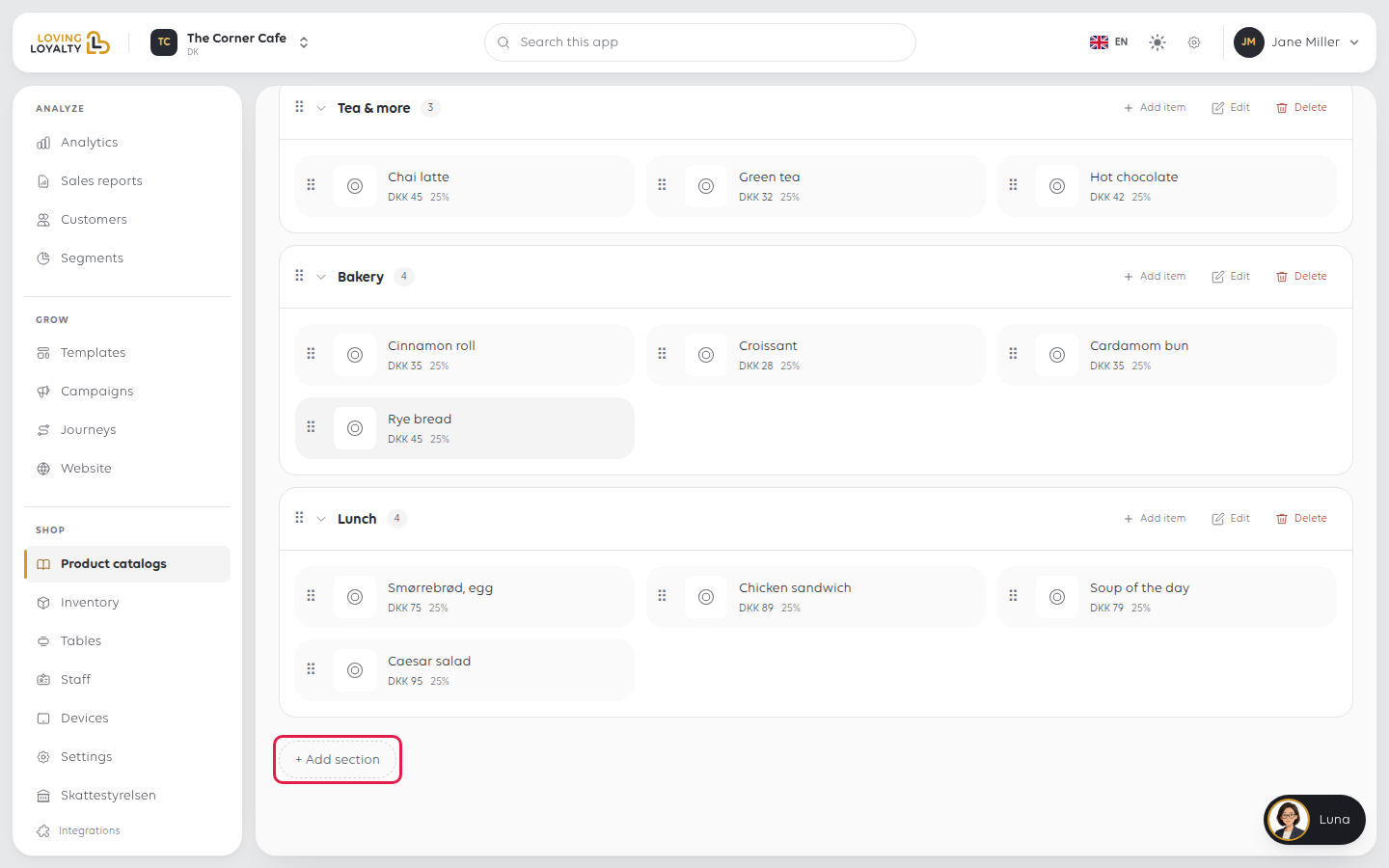
A catalogue is organised into sections (Pizza, Drinks) with items inside them. The
Items Library holds every item, whether or not it is in a section yet.
- Create the sections. See Create and order sections.
- Create the items in Items Library. See Add a product.
- Put items in sections with + Add item on each section.
An item that is in no section is not on the till.
3. Add another catalogue, if you need one
Click + New catalog, enter a Catalog name, tick the Order types it serves
(Eat in, Takeaway, Delivery) and click Save. It appears as a new tab.
A second catalogue is how a shop sells the same products in another channel, with
its own sections and prices, without keeping two copies of each product.
Or import the whole catalogue from a spreadsheet
For a big menu it is faster to fill in a spreadsheet than to add items one at a time.
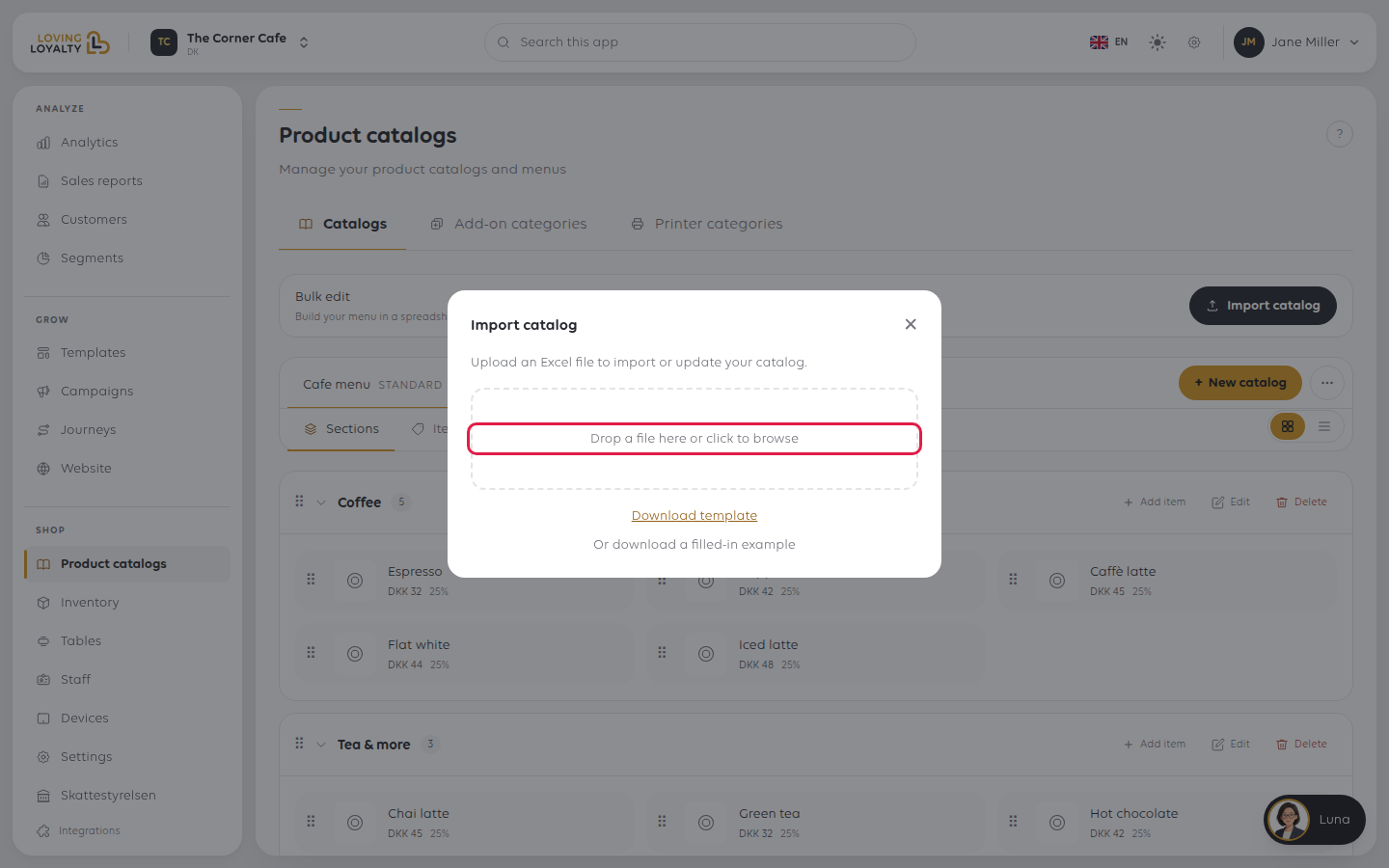
Click Import catalog at the top of the page. The dialog that opens has the files
you need:
- Download template: an Excel file of everything you already have, ready to edit.
- Or download a filled-in example: an example file to copy from.
- Upload your edited file in the same dialog.
The usual way to make a bulk change is: download the template, edit it, upload it
back. When the import finishes it shows Import successful! with how many items,
sections and add-ons were created or updated. If it fails, it lists each error by row;
fix them and click Try again.
What the file contains
One sheet per kind of thing:
| Sheet | What it holds |
|---|---|
| Catalogs | The catalogues this shop offers, and which order types each serves |
| Sections | The sections within each catalogue |
| Add-on Categories | Groups of add-ons an item can offer |
| Add-ons | The individual add-ons in each group |
| Items | The items themselves, one row each |
| Section Assignments | Which sections each item appears in |
The rules that decide whether an import works
- Never edit or clear an Id. The first column identifies an existing record.
Clearing one creates a duplicate instead of updating what you meant to change. - A blank cell keeps what is there. On an existing record, leaving a cell empty
does not empty the value — it leaves it alone. Blank only means "use the default"
on a brand new row. - Yes/No columns take only the words Yes or No.
- Item names must be unique. Section Assignments identifies an item by name alone,
so two items with the same name cannot be told apart and the file is rejected with
an error on the Items sheet. - Section Assignments only adds. Deleting a row does not take an item out of a
section — do that in the manager. - Add-on Categories and Printer Categories replace the whole set. These are
comma-separated lists, and anything you leave out is removed from the item. Blank
changes nothing.
The Instructions sheet in the workbook says the same, and is ignored on import.
If something goes wrong
| What you see | What it means | What to do |
|---|---|---|
| A product is missing at the till | It may be in the library but not placed in a section | Add it to a section |
| Prices differ between channels | The channel uses another catalogue | Check which catalogue that channel is assigned |
| Import failed with a list of rows | Those rows break the rules above | Fix each row it names, then Try again |
| Saved, but it does not show here yet. | The save went through but the list has not caught up | Reload the page in a moment before saving again, so it is not saved twice |
Was this article helpful?
Thanks for your feedback!
