

 Dansk
 Svenska
 Deutsch
 Norsk bokmål
Sell an item by weight or measure
Sell an item by weight or measure
Some things are not sold one at a time: cheese by the hundred grams, sweets by the
kilo, anything metered. An item can be set up so its price comes from a measured
quantity rather than from a count.
1. Turn it on
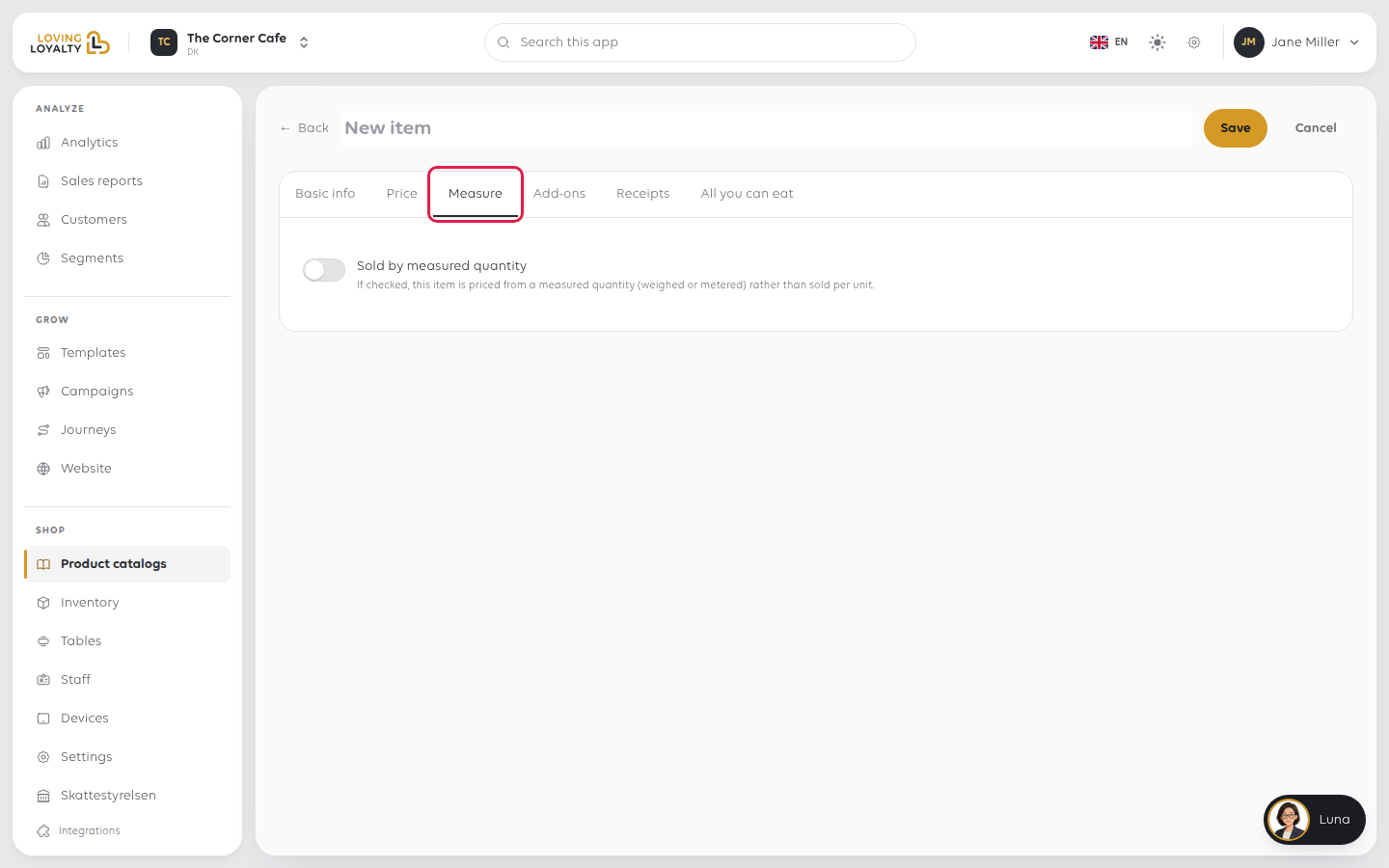
Open Shop → Product catalogs → Items Library, select the item, and go to its
Measure tab. Switch on Sold by measured quantity.
2. Say what is measured and what it costs
- Measured quantity type: Weight (recorded in grams) or Volume (recorded
in millilitres). - Price per unit of measure: the rate as you price it, for example 89,00. Enter
the number only. - Price is per: the unit that rate is for, such as kg (kilogram), 100 g
or l (litre). Use a weight unit for weighed items and a volume unit for
metered ones.
A measured item needs this rate instead of a normal Price. Without it, saving
shows Enter a price per unit of measure for an item sold by measured quantity.
3. Set the optional limits
| Setting | What it does |
|---|---|
| Tare allowance | Weight of the tub or bag (or its volume), taken off before pricing. Leave at 0 if not used |
| Minimum quantity | Below this the sale is refused. Leave empty for no minimum |
| Maximum quantity | Anything above this is treated as a misread. Leave empty for no maximum |
| Different rate by order type | A different rate for eat-in or takeaway. Leave one empty to use the main rate |
4. Save
Click Save. The till now prices the item from the measured quantity.
If something goes wrong
| What you see | What it means | What to do |
|---|---|---|
| The amount charged looks wrong | The rate does not match the unit in Price is per | Check the rate is for that unit, such as per kg or per 100 g |
| The cashier is asked for a price | The item is set to variable price, not measured | Turn off variable price on the Price tab |
| VAT looks wrong on it | Measured items follow the same VAT rules as any other | See Sell items at a different VAT rate |
Was this article helpful?
Thanks for your feedback!
