

 Dansk
 Svenska
 Deutsch
 Norsk bokmål
Build your product catalogue at the till
The catalogue can be edited from the till as well as from the manager app - useful
when you are standing in the shop and something needs adding now.
1. Open the catalogue
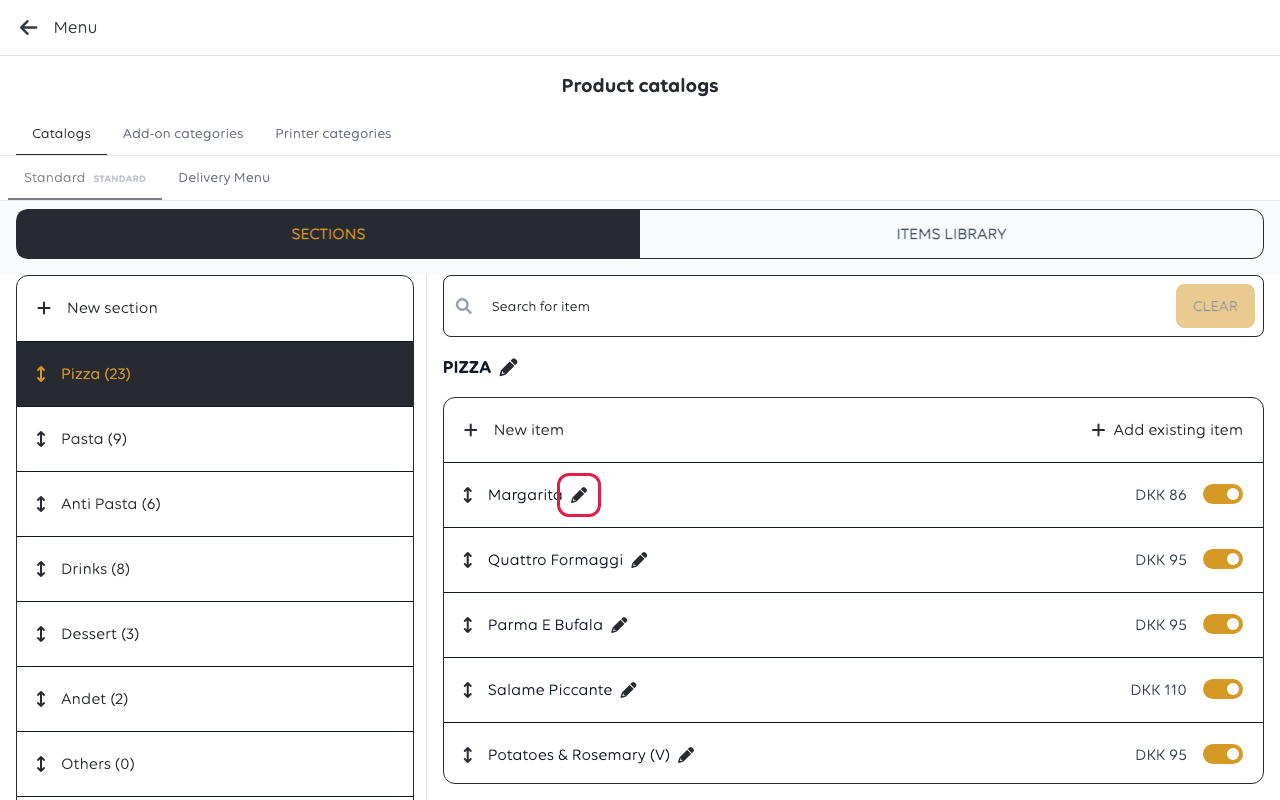
Open Menu from the cashier menu (Products in shops that sell services). The
same three tabs as the manager app sit across the top - Catalogs, Add on
categories, Printer Categories - and your catalogues beneath, one marked
Standard.
2. Sections and the items library
Two views:
- Sections is the catalogue as customers meet it - Pizza, Pasta, Drinks - with
the number of items in each beside its name. - Items library is everything the shop has, whether or not it is placed in a
section.
An item in the library but not in a section will not appear at the till. That is
the usual reason a product "is missing" when it plainly exists.
3. Add a section
New section creates one. Sections can be reordered, which decides the order
staff and customers see them in.
4. Add items
Inside a section:
- Create new item creates a product and places it here.
- Add existing item places something already in the library - the right choice
when a product belongs in two sections, because it stays one product.
Use Add existing item rather than creating a second copy. Two copies means two
prices to change and two products in your reports.
What the till's item form holds
The pencil beside an item opens it, in eight tabs: Basic info, Price,
Image, Add ons, Receipts, Accounting, All you can eat and
Inventory.
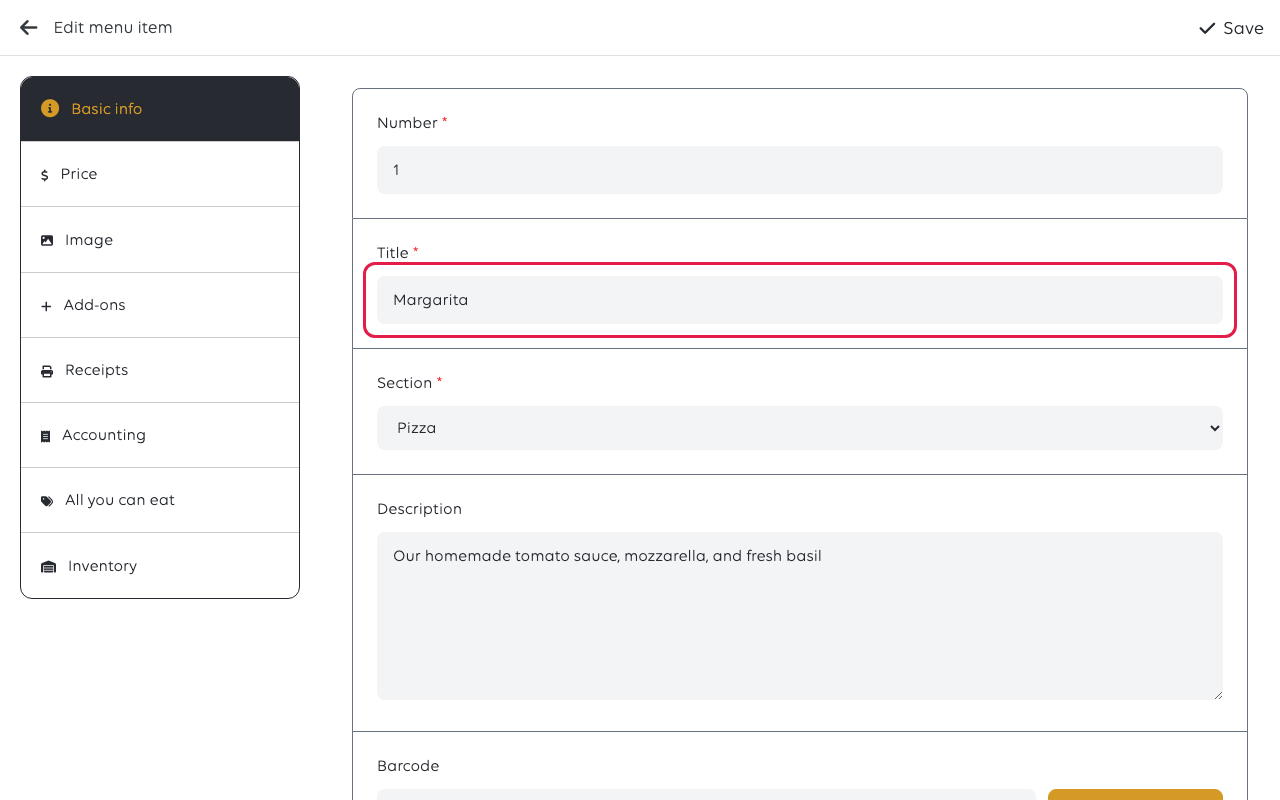
Basic info carries the item number, its name, the section it sits in, a
description, a barcode, and a tile colour that makes it stand out on the
grid. The barcode can be typed or generated for a saved product - and it is only
kept when you select Save.
Marking something sold out
Status at the bottom of Basic info has three values, and the middle one is the
one a busy counter needs:
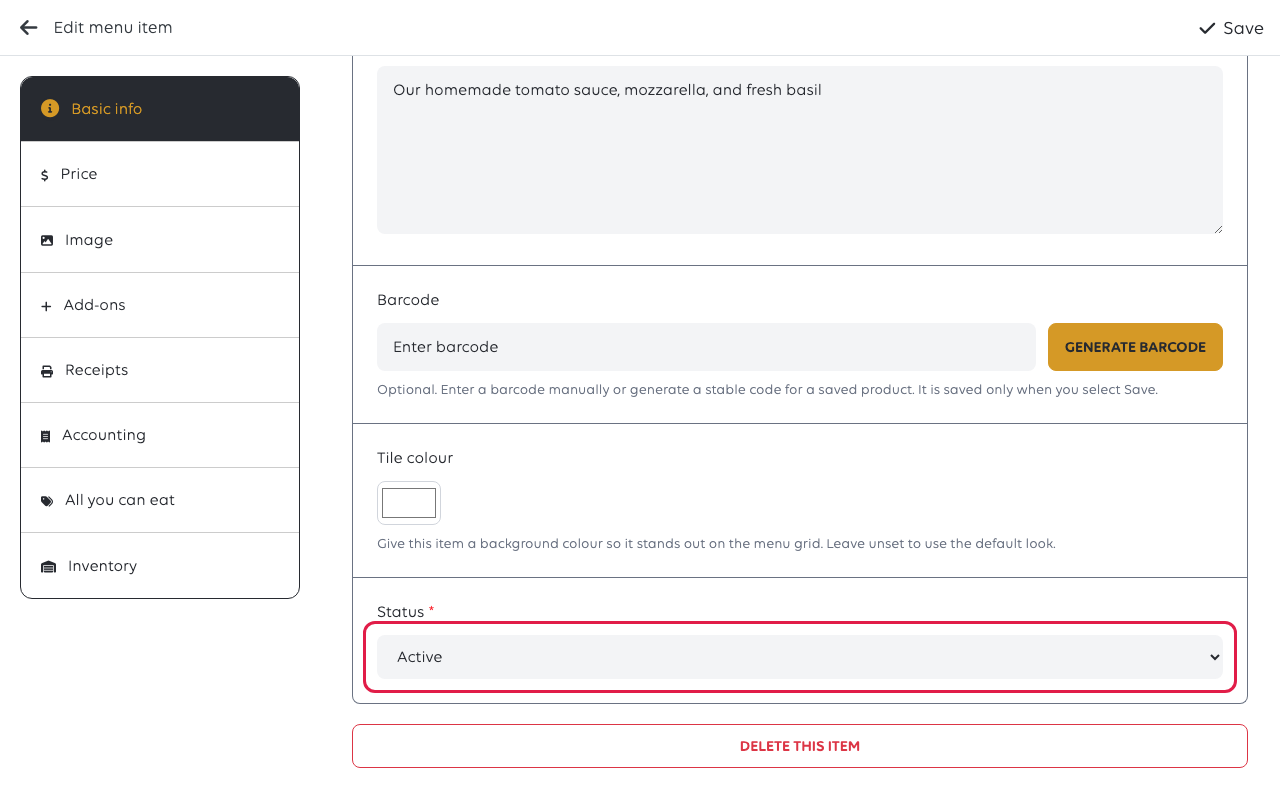
| Status | What it does |
|---|---|
| Active | Normal - on sale |
| Sold out | Stays on the menu but cannot be sold, which is what you want when the kitchen runs out mid-service |
| Inactive | Off the menu altogether |
Delete this item at the bottom removes it for good; marking it Inactive is
almost always the better move.
If something goes wrong
| What you see | What it means | What to do |
|---|---|---|
| A product does not appear at the till | It is in the library but not in a section | Add it to a section |
| The same product appears twice | It was created twice rather than placed twice | Delete one; use Add existing item |
| A section is empty | Its items were never added | Check the count beside the section name |
Was this article helpful?
Thanks for your feedback!
