

 Dansk
 Svenska
 Deutsch
 Norsk bokmål
Stop using a printer or payment terminal
A printer goes back to the supplier, a terminal moves to another counter, or a device
was set up twice by mistake. In each case you want the till to stop offering it -
without losing what it has already done.
How the till thinks about this
Both lists work the same way. Each device sits in one of two groups, and a switch
moves it between them:
| Receipt printers | Payment terminals |
|---|---|
| Printers you're using | Devices you accept payment from |
| Available printers that you're not using | Available devices that you do not accept payments from |
Turning a device off does not erase it. It stays in the lower group, with its name
and settings, ready to be switched back on. That is what you want in almost every
case: a printer away for repair should come back as itself, not as a new device to
configure from scratch.
Stop using a printer
Open the menu and tap Receipt printers. Find the printer under Printers you're
using and turn its switch off.
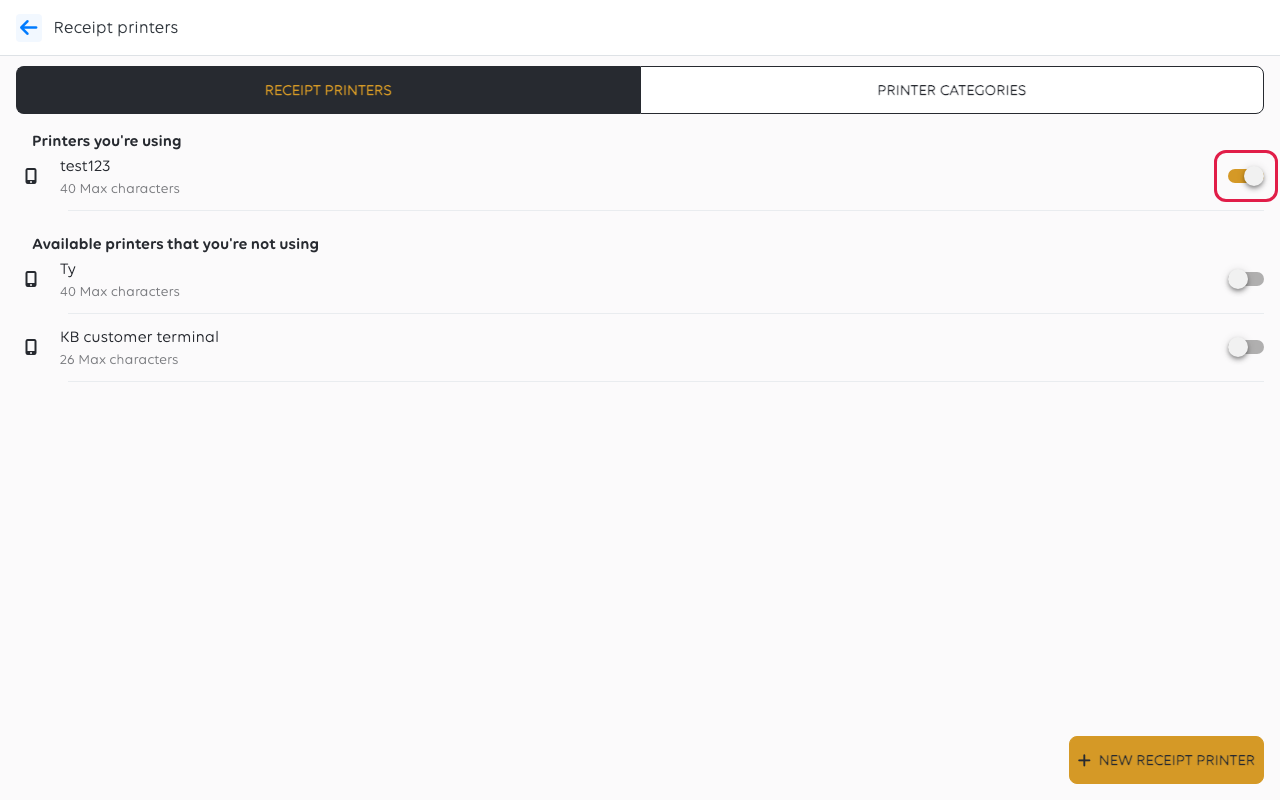
It moves down to Available printers that you're not using. Receipts stop going
to it immediately.
If that printer was your only kitchen printer, kitchen tickets now come out at the
receipt printer instead. Set up another kitchen printer first if the kitchen needs
them - the till will not warn you.
Stop accepting payments from a terminal
Open the menu and tap Payment terminals. Find the terminal under Devices you
accept payment from and turn its switch off.
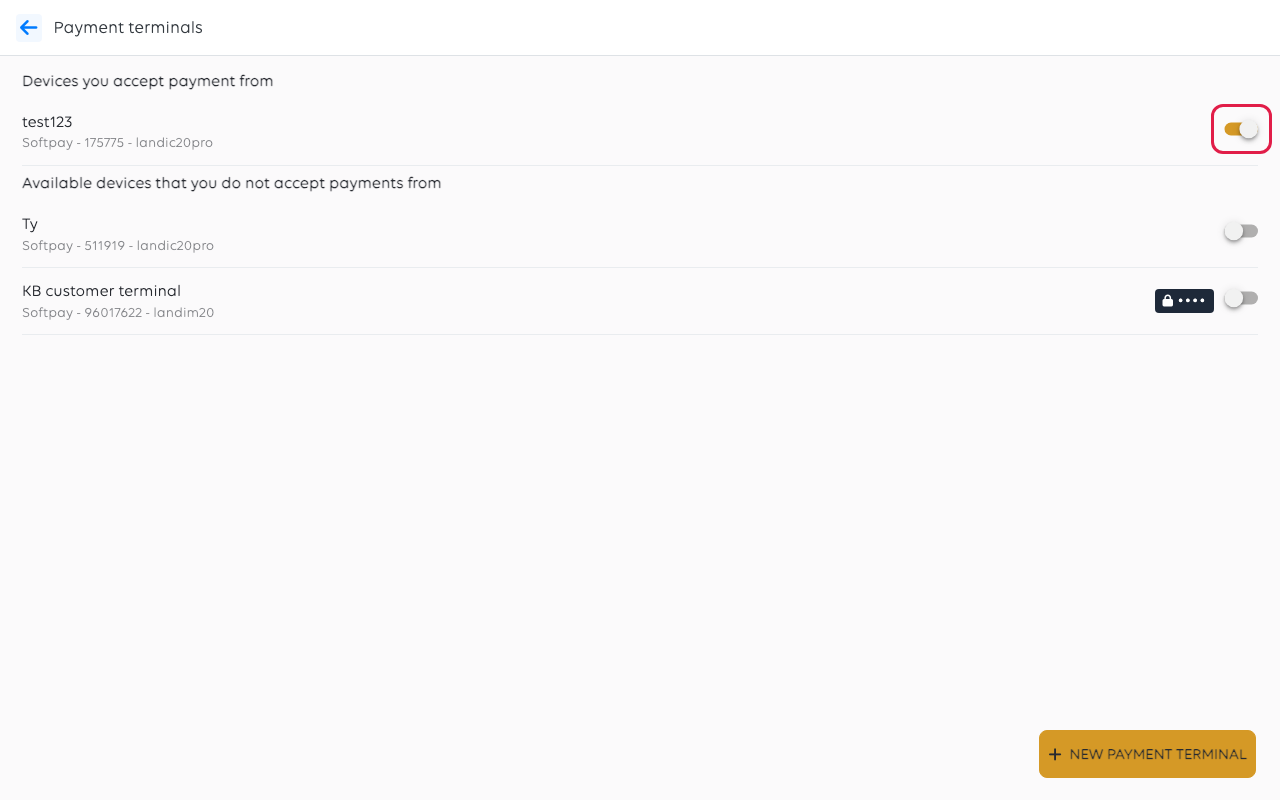
Each row shows the payment app, the terminal's number and its model underneath the
name, which is how you tell two similar terminals apart.
The terminal stops being offered at checkout. Payments it has already taken are
unaffected - they belong to the orders, not to the device.
Do not switch off the terminal a cashier is midway through a payment on. Finish or
cancel the payment first, or the till and the terminal will disagree about what
happened.
If something goes wrong
| What you see | What it means | What to do |
|---|---|---|
| The device is still offered at checkout | The switch did not save, or another till holds its own copy of the setting | Reopen the list and check which group it is in |
| Kitchen tickets come out at the counter | The printer you turned off was the kitchen printer | Turn on another printer and set Kitchen printer on it |
| A printer is in the lower group but you want it gone entirely | Switching off keeps it for later | Tap it and use Remove Receipt Printer, or leave it switched off - it costs nothing |
Was this article helpful?
Thanks for your feedback!
