

 Dansk
 Svenska
 Deutsch
 Norsk bokmål
Reprint a kitchen ticket
Reprint a kitchen ticket
A kitchen ticket prints when the order is placed. If it never arrived, jammed, or was
thrown away, you can print it again from the order.
Before you start
- A printer is set up. Kitchen tickets go to the kitchen printers, or to the receipt printer if there is no kitchen printer. See Send items to the right printer.
1. Open the order
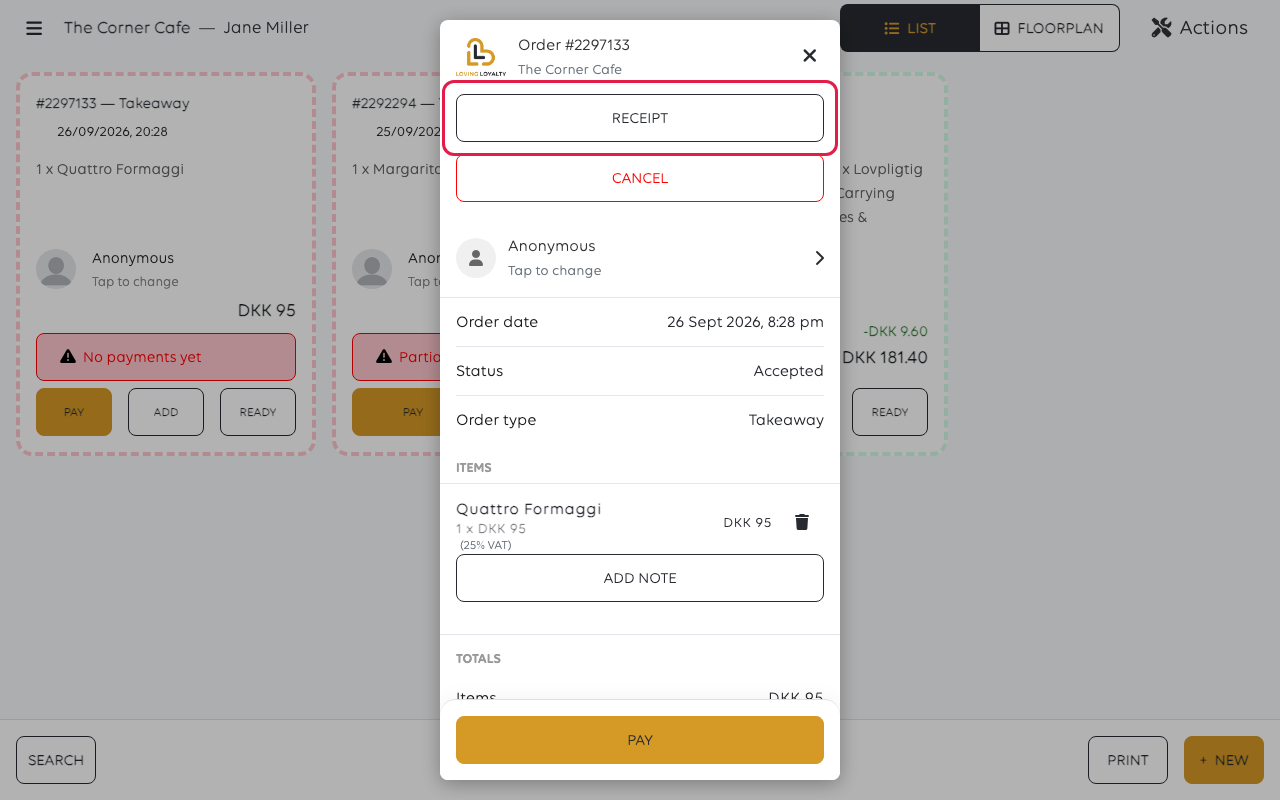
Open Orders and tap the order. Its detail opens, with RECEIPT at the top.
2. Choose what to print
Tap RECEIPT and the till asks What do you want to print?
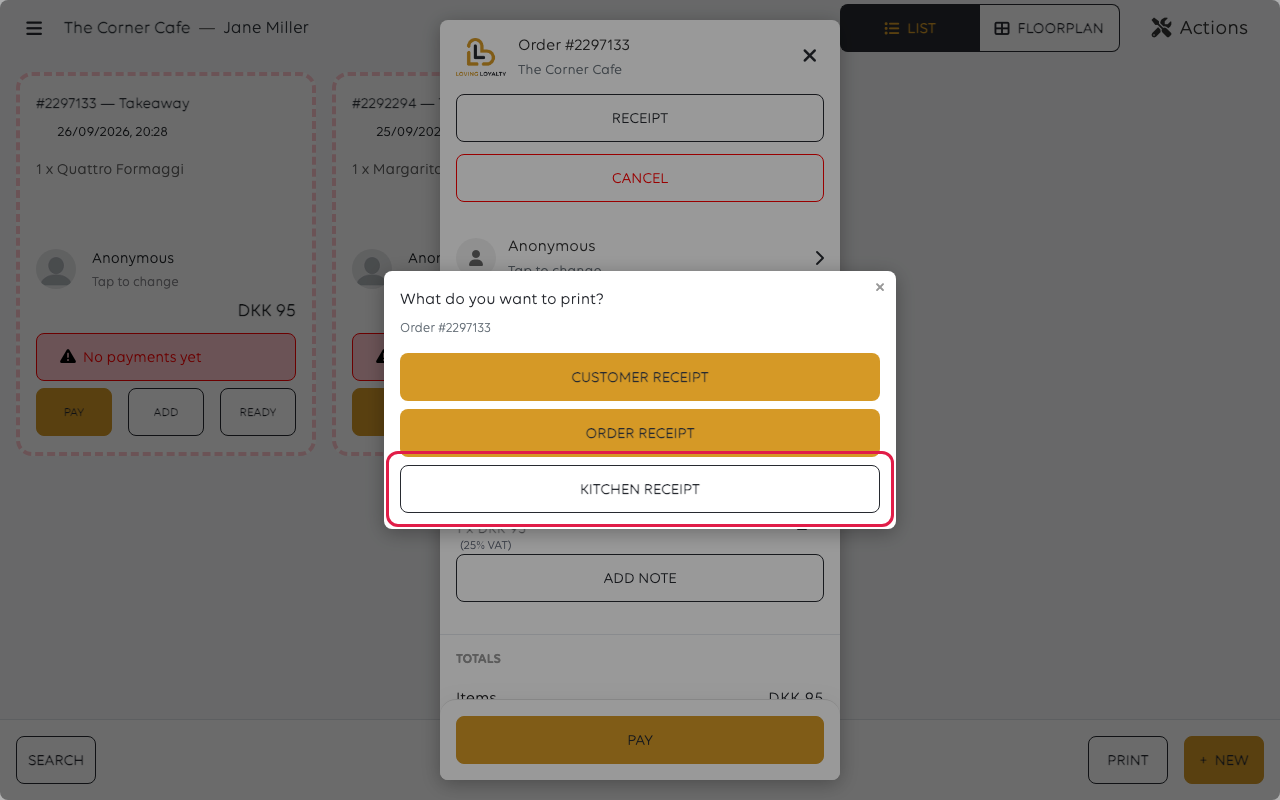
Tap KITCHEN RECEIPT.
| Choice | What comes out, and where |
|---|---|
| CUSTOMER RECEIPT | The customer's receipt, at the counter |
| ORDER RECEIPT | What was ordered, without the payments |
| KITCHEN RECEIPT | The ticket for whoever is making it, at the kitchen printer |
3. Choose which items
If items were added to the order in more than one round, the till asks Which items
to print. Tap Latest items for the last round only, or All items for the
whole order. Otherwise the ticket prints straight away.
Nothing shows on screen when it works - check the kitchen printer for the ticket.
If nothing comes out
| What to check | Why |
|---|---|
| Which printer is the kitchen printer | Tickets go to printers with Kitchen printer on or a Printer Category set. The receipt printer only gets them when there is no kitchen printer |
| The printer has power and paper | The till is not told when a printer cannot print |
| The items match the printer's category | A printer with a Printer Category only prints items in that category |
| You chose KITCHEN RECEIPT | The other two go to the receipt printer |
Was this article helpful?
Thanks for your feedback!
