

 Dansk
 Svenska
 Deutsch
 Norsk bokmål
Set up a Bluetooth kitchen printer
A kitchen printer prints the order for the kitchen the moment it is placed. A
Bluetooth one needs no cable: you pair it with the till once, then add it in the POS
as a kitchen printer.
Before you start
- The till is an Android device. Bluetooth printers are offered on Android tills only.
- The printer is switched on, has paper and is close to the till.
1. Pair the printer with the till
Pairing happens in the till's own Android settings, not in the POS.
- Open the device's Settings and go to Bluetooth (on some tills Connected
devices). - Turn Bluetooth on and tap Pair new device.
- Tap the printer in the list. Its name is printed on a label on the printer or on
its self-test slip. - If the printer asks for a PIN, it is in the printer's manual.
The printer now shows under paired devices. Go back to the POS.
2. Add it in the POS
-
Open the menu at the top left and choose Receipt printers.
-
Tap New receipt printer.
-
Under Printer type, choose Bluetooth and tap Continue.
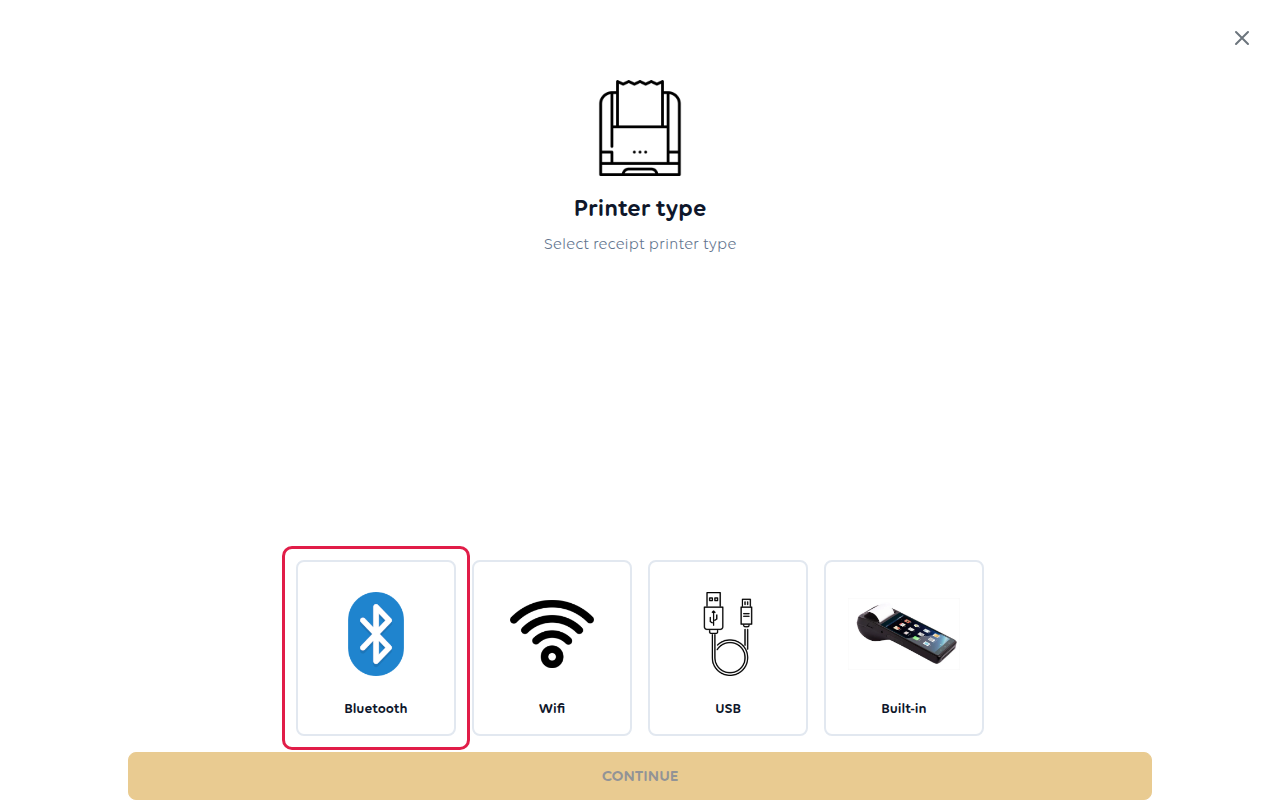
-
The POS lists the Bluetooth printers paired with this till. Tap yours. If it is
not there, tap Scan again.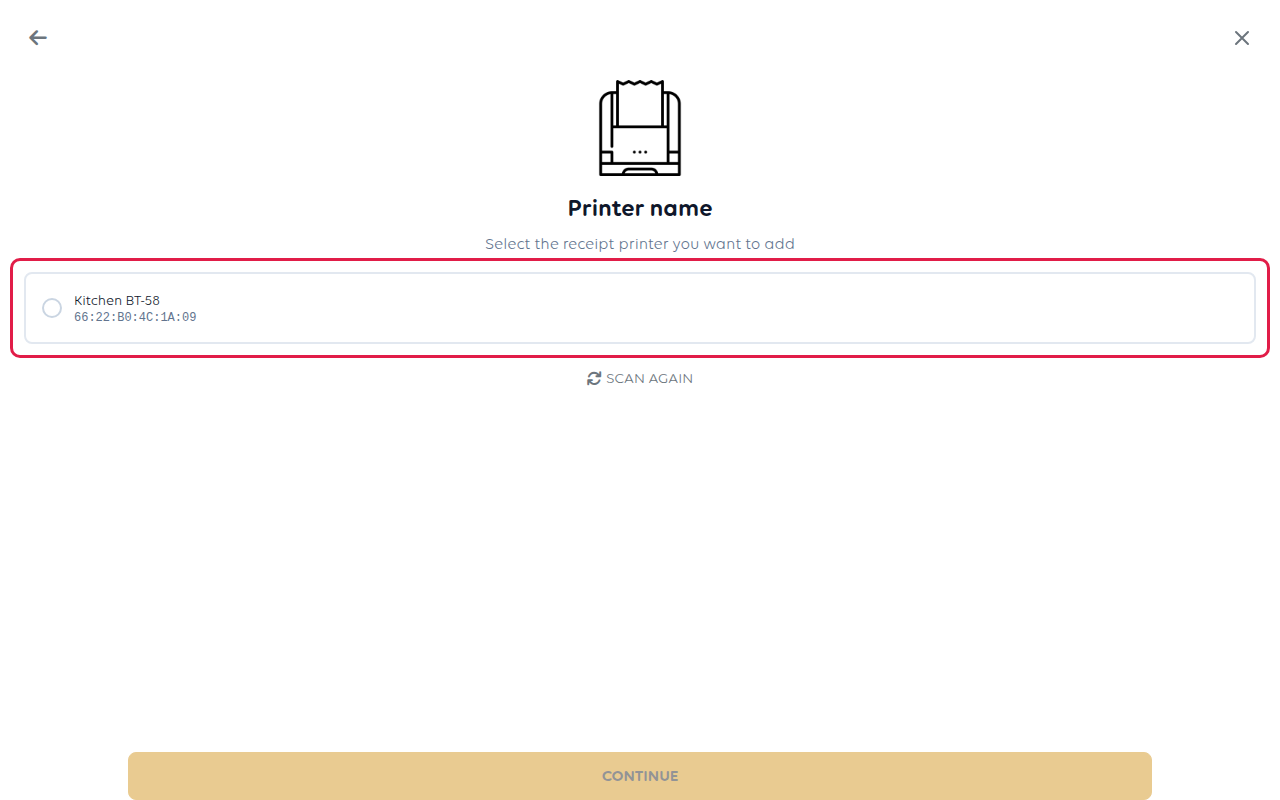
-
Under Printer category, choose Kitchen receipts only.
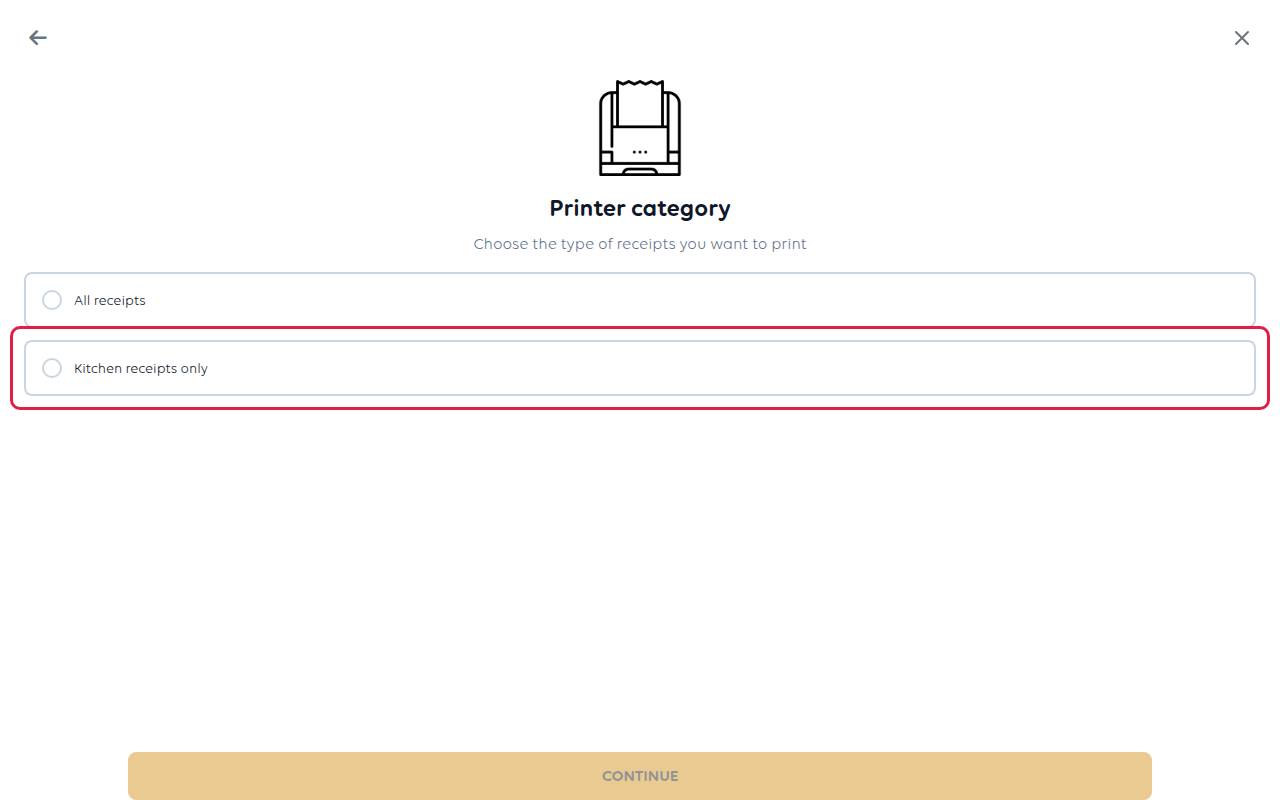
-
Answer the remaining steps: the Max number of characters per line (it starts
at 32; use the number in the printer's manual if it differs) and a Printer
name, for example Kitchen. -
Tap Continue to create the printer.
3. Check it prints
Open Receipt printers, tap the new printer and tap PRINT TEST RECEIPT. A slip
should come out of the kitchen printer. Then place a test order and check the kitchen
ticket arrives there.
To send only some items to the kitchen, for example food but not drinks, see Send
items to the right printer.
If something goes wrong
| What you see | What it means | What to do |
|---|---|---|
| Bluetooth is not enabled | Bluetooth is off on the till | Turn it on in the device's settings, then Scan again |
| No Bluetooth devices | The printer is not paired with this till | Pair it in the device's Bluetooth settings first |
| The test slip prints but lines wrap oddly | The character count is wrong | Edit the printer and change Max number of characters |
| Kitchen tickets come out of the receipt printer | No printer is set to kitchen receipts | Edit the printer and choose Kitchen receipts only |
| It worked, then stopped | The printer is off, out of range or unpaired | Switch it on, move it closer, check it is still paired |
Was this article helpful?
Thanks for your feedback!
