

 Dansk
 Svenska
 Deutsch
 Norsk bokmål
Update your profile
Your profile is your own account, not the shop's: your name, the language the manager
app speaks to you in, and the email address and phone number you sign in with.
1. Open your profile
Select your name at the top right, then Edit Profile. My Profile opens.
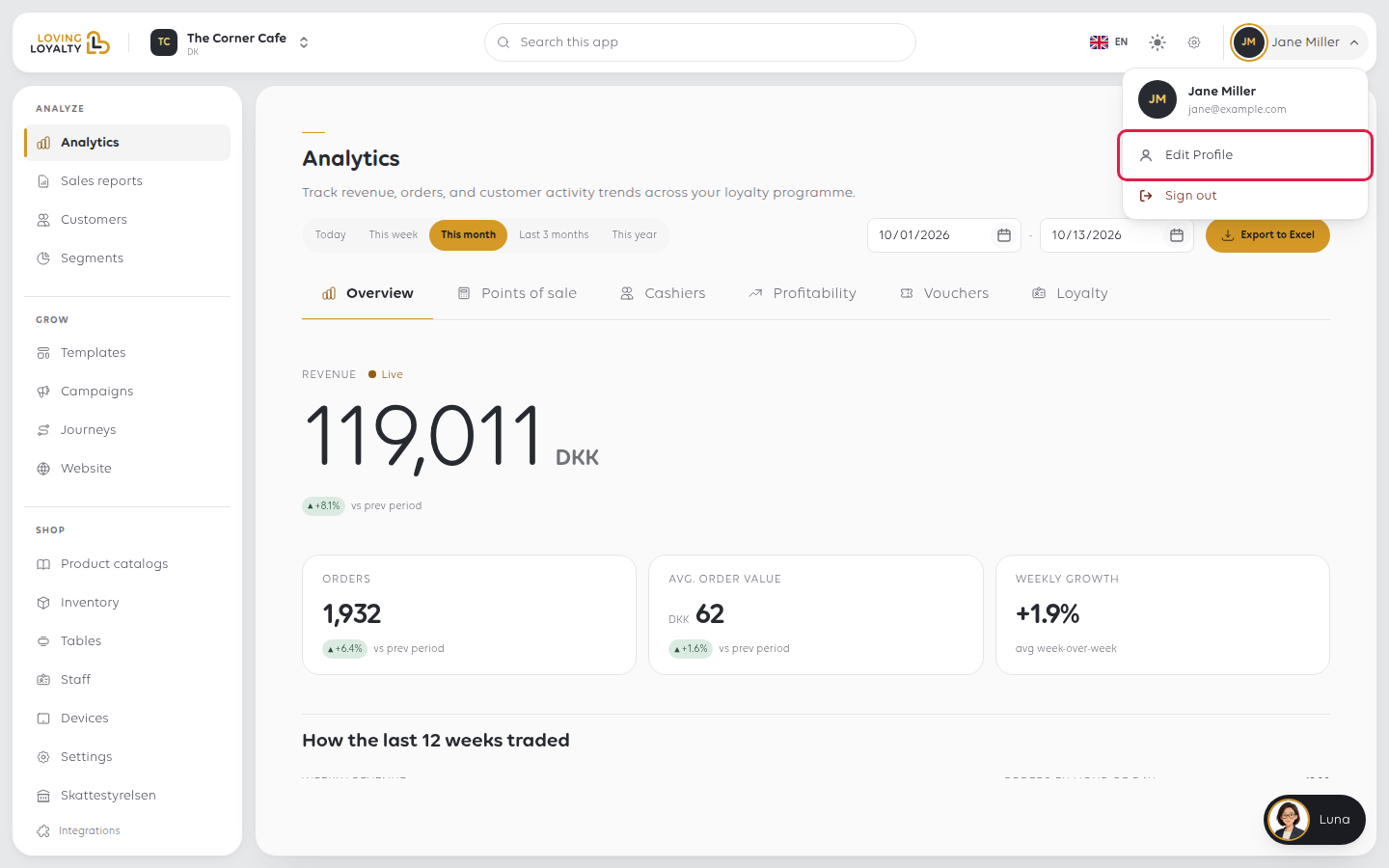
2. Change your name or language
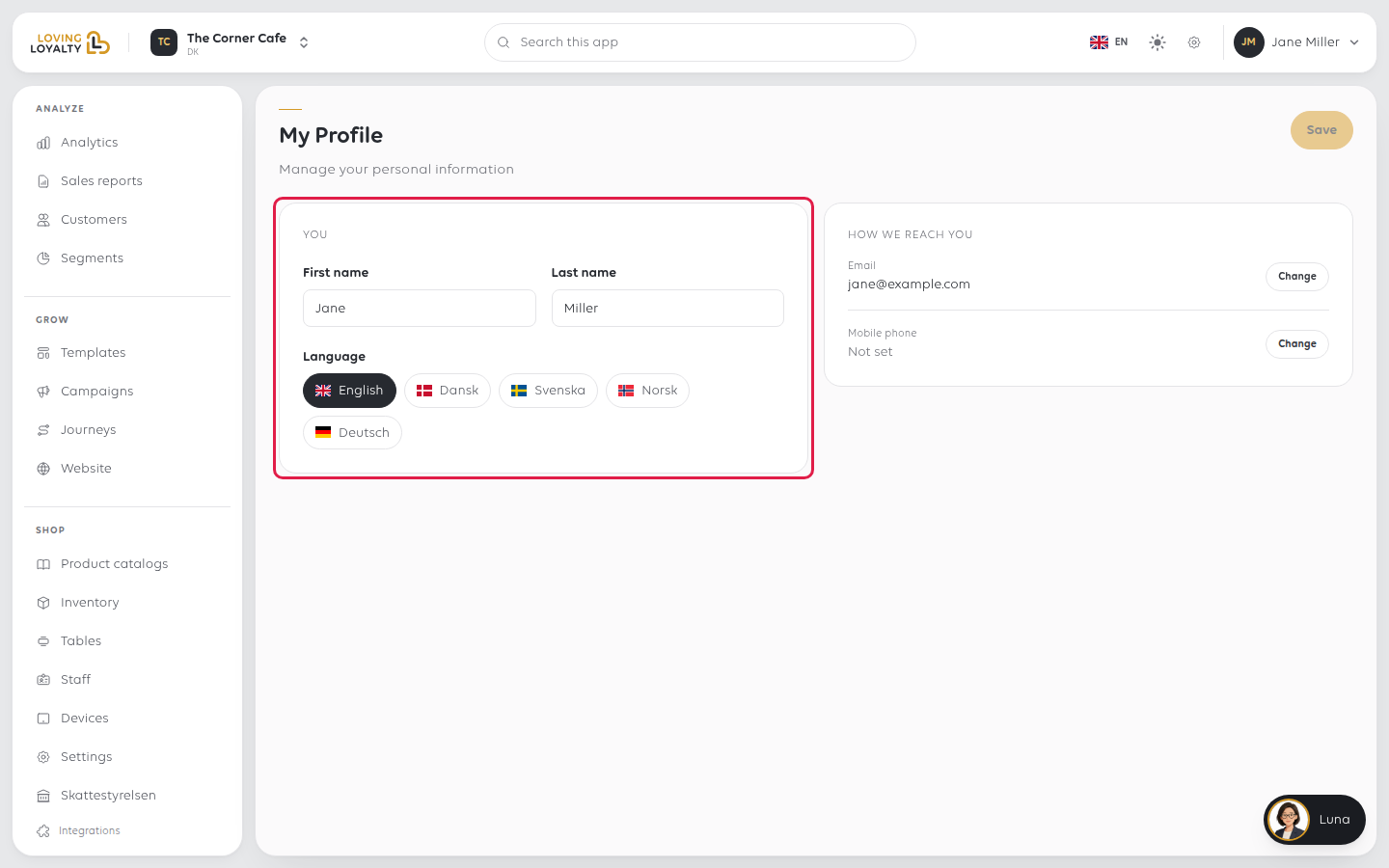
First name and Last name are what other people see beside your actions in the
shop, so keep them recognisable to your colleagues.
Language changes the Manager for you alone: English, Dansk, Svenska, Norsk or
Deutsch. It does not change what your customers see, or the till.
Select Save at the top right. You see Profile saved.
3. Change your email or mobile phone
Both are ways of signing in, so they are changed with a code rather than typed over.
- Under How we reach you, select Change next to Email or Mobile phone.
- Type the new address or number and select Send code.
- Type the code sent to it and select Verify.
Once you change the email address, the new one is what you sign in with. Make sure
it is an address you can open, or you can lock yourself out.
If something goes wrong
| What you see | What it means | What to do |
|---|---|---|
| Save is greyed out | Nothing has been changed yet | Edit a field first |
| Invalid verification code | The code was mistyped or is old | Select Send code again and use the newest code |
| The app is still in the old language | The change applies to your account | Reload the page; if it persists, check you saved |
| Your name is wrong on staff records | Your profile name and your staff record are different things | See Change what a staff member can do |
| You cannot sign in after changing your email | The old address no longer works | Use Forgot password? with the new address. See Reset a forgotten manager password |
Was this article helpful?
Thanks for your feedback!
