
Automated journeys
Automated journeys
Before you begin: Make sure you are logged in to the Loving Loyalty Manager. If you have not logged in yet, see How to log in and reset your password.
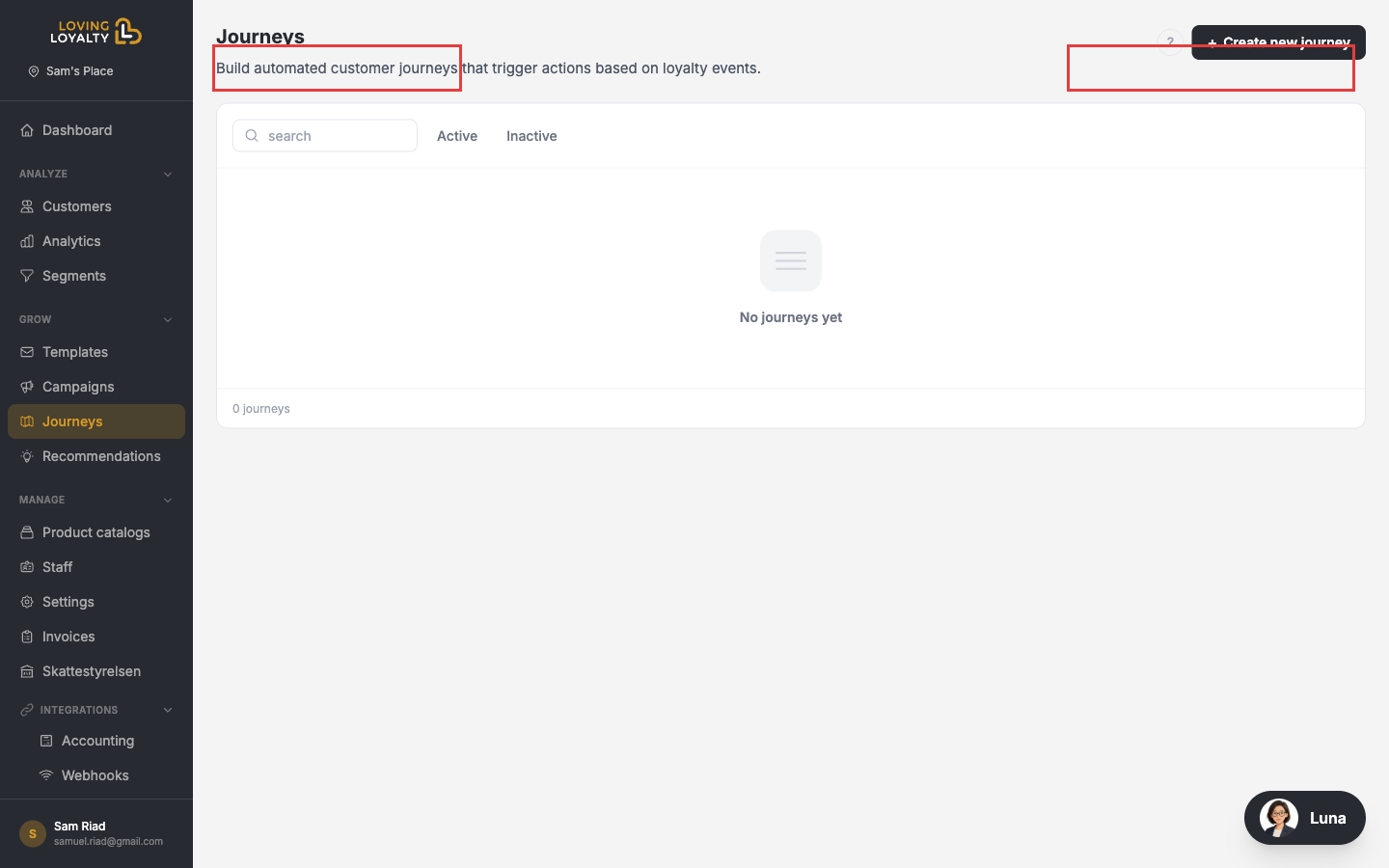
Go to Journeys in the left sidebar to manage automated customer workflows.
How journeys work
- A trigger starts the journey — for example, a customer joins the programme, reaches VIP status, or has a birthday.
- The journey runs actions — send a message using a Template, apply a discount, or wait a number of days before the next step.
- The journey repeats automatically for every customer who matches the trigger.
Creating a journey
- Click + Create new journey.
- Choose a trigger (the event that starts the journey).
- Add steps — send a Template message, give a reward, or add a delay.
- Optionally restrict to a specific Segment.
- Activate the journey.
Tip: Create your communication template before building the journey so it is ready to select in the message step.
Managing journeys
The Active tab shows running journeys; the Inactive tab shows paused or draft journeys. You can edit, pause, or delete a journey at any time.