
Creating and managing campaigns
Creating and managing campaigns
Before you begin: Make sure you are logged in to the Loving Loyalty Manager. If you have not logged in yet, see How to log in and reset your password.
Go to Campaigns in the left sidebar to manage discount codes and promotions.
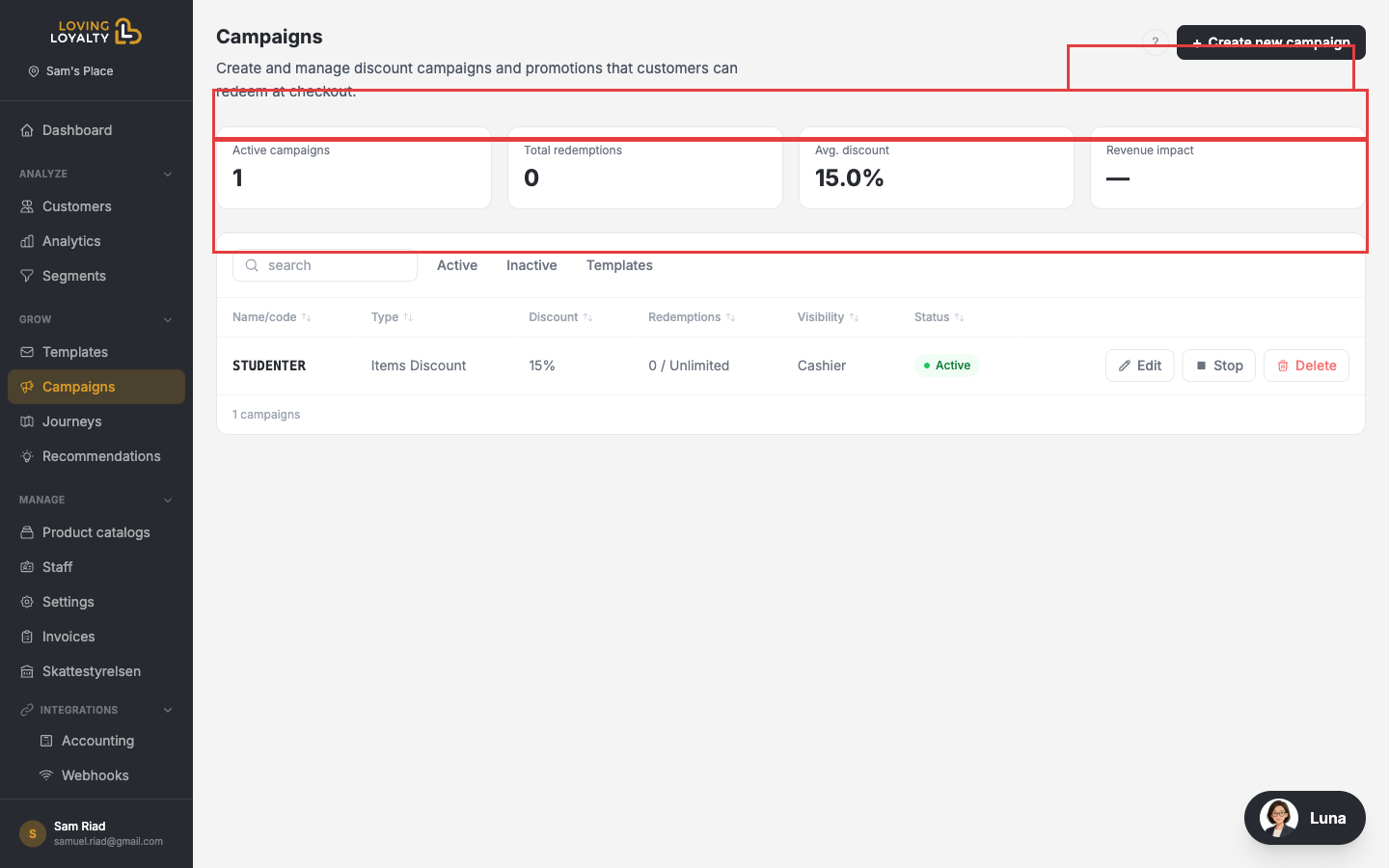
Campaign overview stats
- Active campaigns — How many campaigns are currently running.
- Total redemptions — Total number of times campaigns have been used.
- Avg redemptions — Average redemptions per campaign.
- Revenue impact — Total revenue from campaign-associated orders.
Creating a campaign
- Click + Create new campaign.
- Enter a unique Name / code that customers or cashiers will enter.
- Choose the Type (e.g. Items Discount, Order Discount).
- Set the Discount percentage or fixed amount.
- Set a Redemptions limit or leave it unlimited.
- Set Visibility to Cashier (only cashiers see it) or Customer (visible in the customer app).
Managing campaigns
Use the Active, Inactive, and Templates tabs to filter campaigns by status. From the list you can Edit, Stop, or Delete a campaign.