

 Dansk
 Svenska
 Deutsch
 Norsk bokmål
Find your sales reports
A sales report covers a period (a day, a month, or dates you choose) and gives you
the figures as a PDF to read or a spreadsheet to work with.
Where they are
Open Analyze → Sales reports.
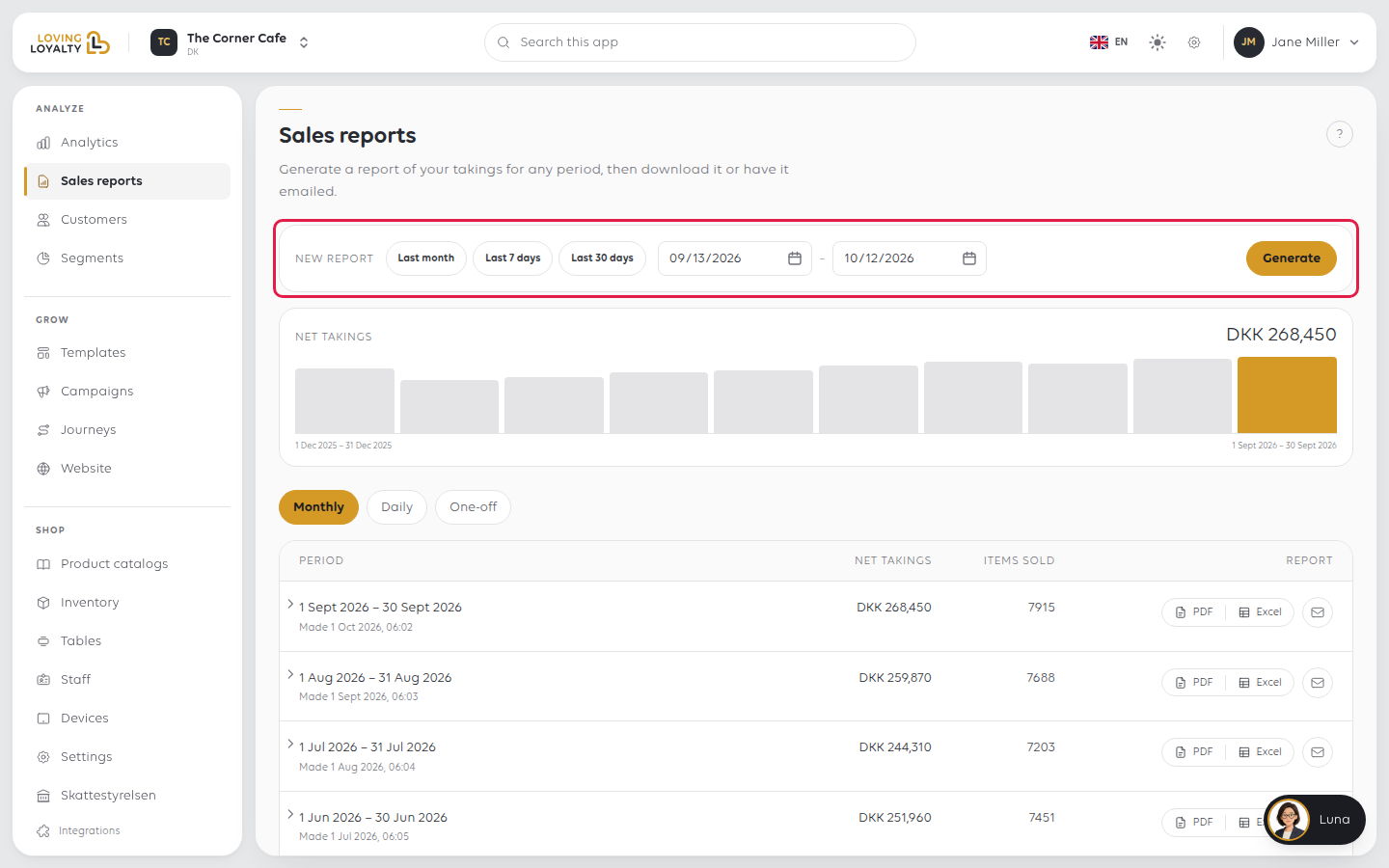
Every report you have made is listed newest first, with the period it covers, when it
was made, and its Net takings and Items sold. Those two figures are the
quickest way to find the right one without opening anything.
Make a new report
Under New report at the top, pick Last month, Last 7 days or Last 30
days, or set From and To yourself. Select Generate. One report covers at
most 31 days.
The list can be filtered by kind. Reports you generate yourself are under One-off.
| Kind | Covers |
|---|---|
| Monthly | A calendar month |
| Daily | A single day |
| One-off | A period you choose |
A new report does not appear finished straight away. It shows Files still being
prepared while the PDF and spreadsheet are built. The figures are already fixed;
only the files are not ready yet. Reload the page in a moment.
Read it or take it away
Each finished report offers three things:
- PDF, to read and file.
- Excel, to work with. This is what your accountant will usually ask for.
- Email, to send the report straight to someone. Type the address and select Send. You see Sent. when it has gone.
If something goes wrong
| What you see | What it means | What to do |
|---|---|---|
| Files still being prepared | The figures are ready, the files are not | Give it a minute and reload |
| A report has no PDF or Excel | It never finished being prepared | Generate it again for the same period |
| A report can cover at most 31 days. Pick a shorter period. | The dates span too long | Make one report per month |
| The figures do not match the till | A sales report covers a period; a Z report covers a cash balance | See Close the shop with an X or Z report |
| The period you want is not listed | Reports are made on request, not automatically | Use New report and choose the dates |
Was this article helpful?
Thanks for your feedback!
