

 Dansk
 Svenska
 Deutsch
 Norsk bokmål
Check accounting sync history
When your shop is connected to an accounting system, each day's takings are posted
across as an entry. Sync history shows whether that actually happened.
You need an accounting system connected first - see Connect Dinero,
Connect e-conomic or Connect Uniconta.
Open the history
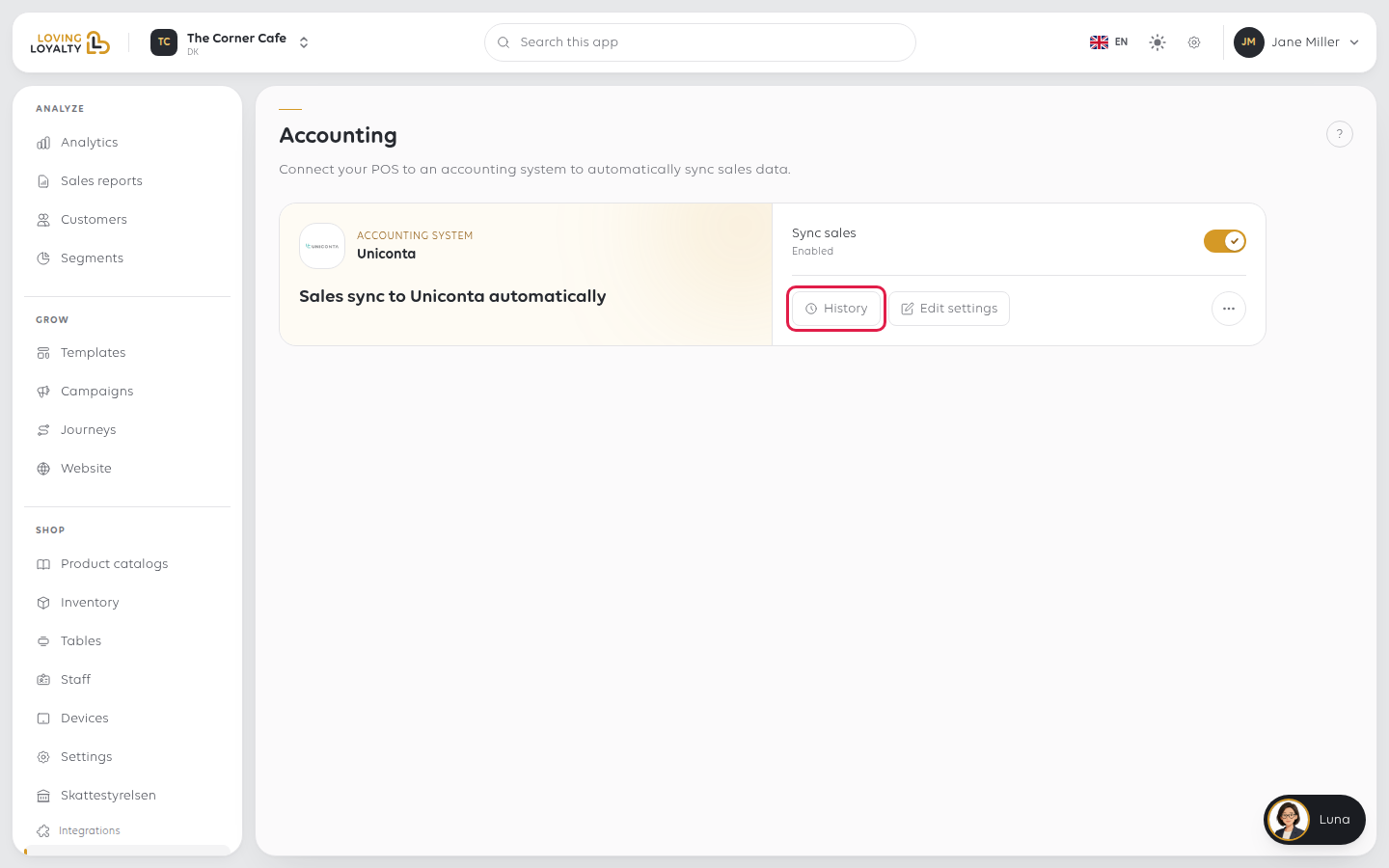
Open Shop → Integrations → Accounting and select History on your system's card.
Set From and To to the period you want to check.
What the history shows
At the top, a calendar marks Every day in this period as Posted, Failed or
Nothing posted, with Days posted and Net posted for the period.
Waiting to be synced lists days the till recorded that have not been posted yet,
with their Orders, Payments and Refunds. Select Sync this period to
send them now instead of waiting for the next automatic sync.
Below that, every posted entry is listed. Select a day to see what was sent.
| Column | Means |
|---|---|
| Day | The business day the entry covers |
| Posted | When it was sent |
| Triggered | Manual if someone selected Sync this period, otherwise Automatic |
| Entry in accounting system | The reference your accounting system gave it |
| Status | Posted, Failed or Cleared |
| Orders / Payments / Refunds / Total | What the day contained |
Where available, Daily report downloads the report for that day.
Cleared means someone reset the day with Clear sync status. The entry may
still be in your accounting system, so void it there or it will be posted twice.
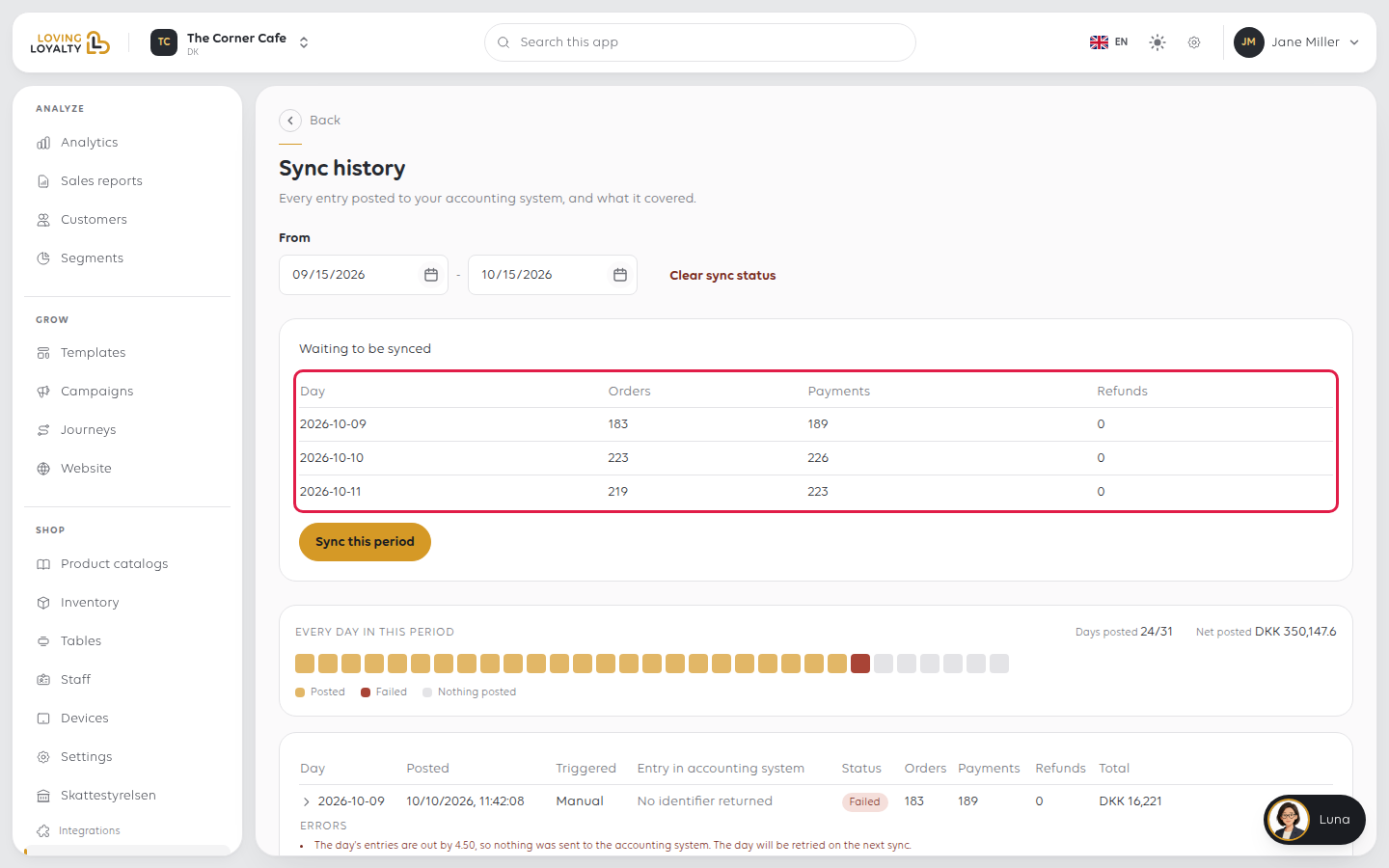
Read the errors, they are specific
A failed day says why. A real example:
The day's entries are out by 4.50, so nothing was sent to the accounting system.
The day will be retried on the next sync.
Nothing was sent. The day is held back whole, so your accounts never contain
half a day.
It will be retried without you doing anything. But fix the cause first, or the
retry fails the same way.
Days that will not balance
"Out by" means the day's payments do not add up to its orders. Usual causes:
| Cause | What to look for |
|---|---|
| An order left part paid | A share never collected - see Split a bill between customers |
| Cash movements not recorded | Money taken with the drawer simply opened - see Pay money out of the drawer |
| A refund that did not complete | A refund that shows as started but not settled |
| The cash balance left open | The day never closed - see Close the shop with an X or Z report |
Fix the day at the source, then use Sync this period rather than waiting.
Entry in accounting system: No identifier returned means the other side never
confirmed an entry. Treat the day as not posted, whatever else the row says, and
check the accounting system before re-sending so you do not create it twice.
If something goes wrong
| What you see | What it means | What to do |
|---|---|---|
| A day is missing entirely | It has not been sent yet | Check Waiting to be synced and select Sync this period |
| The same day fails repeatedly | The underlying day does not balance | Fix the cause; retries alone will not clear it |
| The figures differ from your reports | The sync sends the day's entries, not a report | Compare with the Z report for that day |
| Everything stopped syncing | Syncing is paused or the connection has expired | On the accounting page, check Sync sales is Enabled. If the card says Expired, select Reconnect |
Was this article helpful?
Thanks for your feedback!
