Connecting Dinero accounting
Connecting Dinero accounting
Before you begin: Make sure you are logged in to the Loving Loyalty Manager. If you have not logged in yet, see How to log in and reset your password.
Dinero is a Danish cloud accounting system. Connecting it to Loving Loyalty automatically syncs your POS sales into Dinero — no manual bookkeeping required.
Note: Dinero is available for Danish shops only.
Connecting Dinero
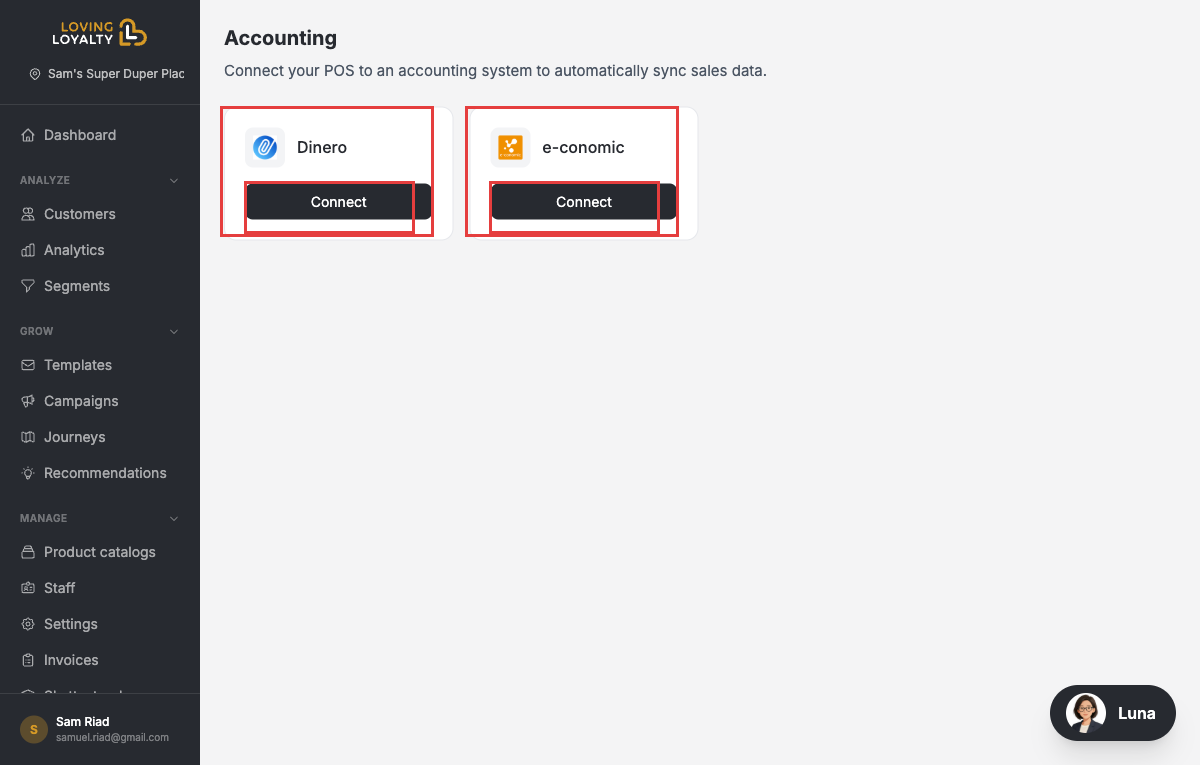
- Go to Accounting under Integrations in the left sidebar.
- Find Dinero and click Connect.
- You will be redirected to Dinero to authorise the connection. Log in to your Dinero account and approve.
- Once authorised, Dinero shows as Enabled on the Accounting page.
Editing settings
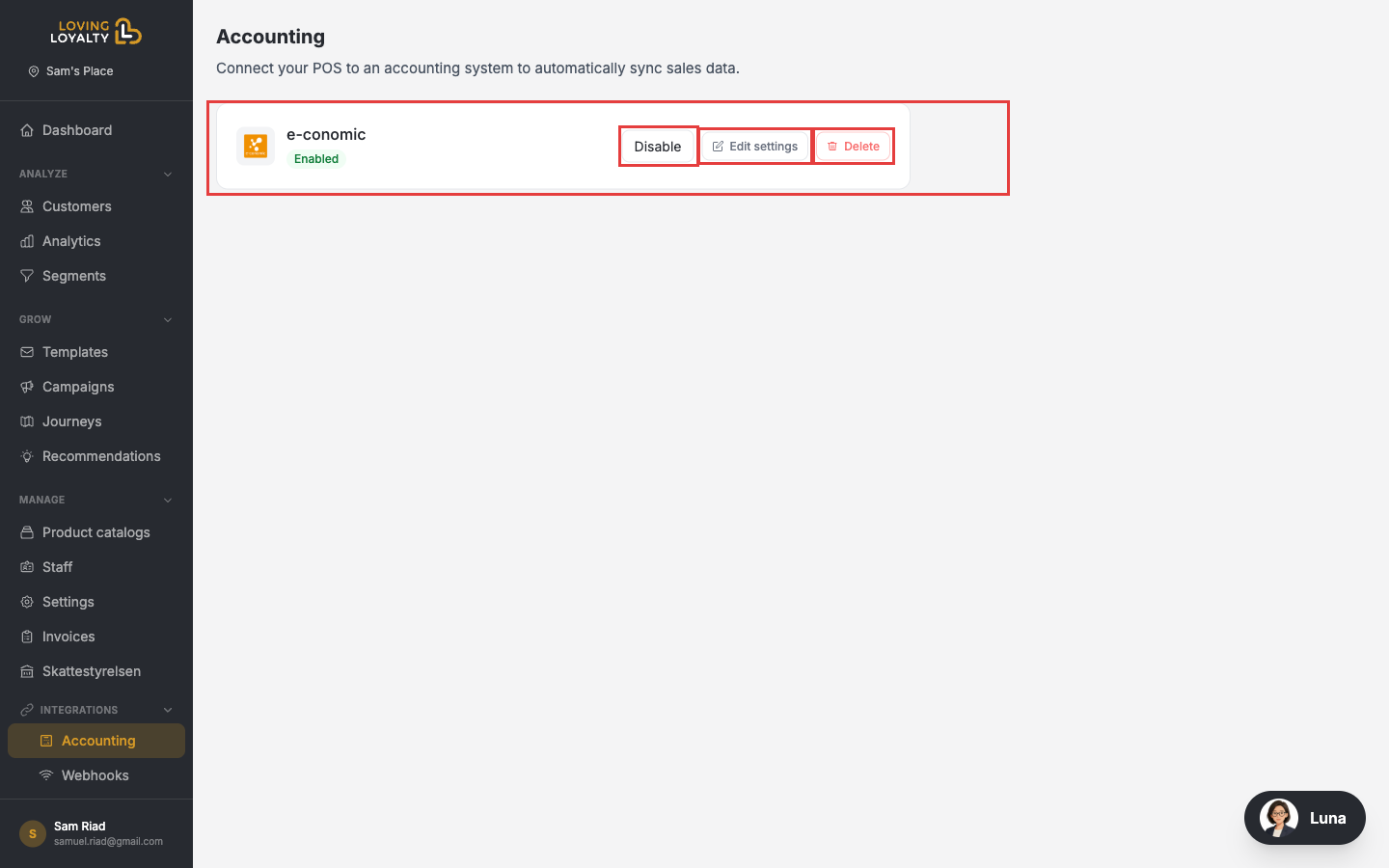
After connecting, click Edit settings next to Dinero to configure the integration.
In the settings page you can configure:
- Start date and time — When to begin syncing transactions.
- Accounting year — The Dinero accounting year to post entries to.
- Journal — Which Dinero journal to use for entries.
- VAT account — The account used for VAT amounts.
Click Save when done.
Disconnecting
On the Accounting page, click Disable to pause the sync, or Delete to remove the integration entirely.