

 Dansk
 Svenska
 Deutsch
 Norsk bokmål
Set up a Newland N950 as a customer-facing screen (Poynt)
The Newland N950 runs the Poynt payment app. Set up this way it is a
customer-facing screen: it shows the customer their basket, the discounts
applied and any QR code they need to scan, as well as taking the payment.
The N950 can also be set up to take payments only, without the customer-facing
features. That is a different setup with a different guide — see Set up a Newland
N950 for payments only.
Before you start
- The N950 is switched on, connected to Wi-Fi, and the Poynt app is installed and activated on it.
1. Open the payment terminals list
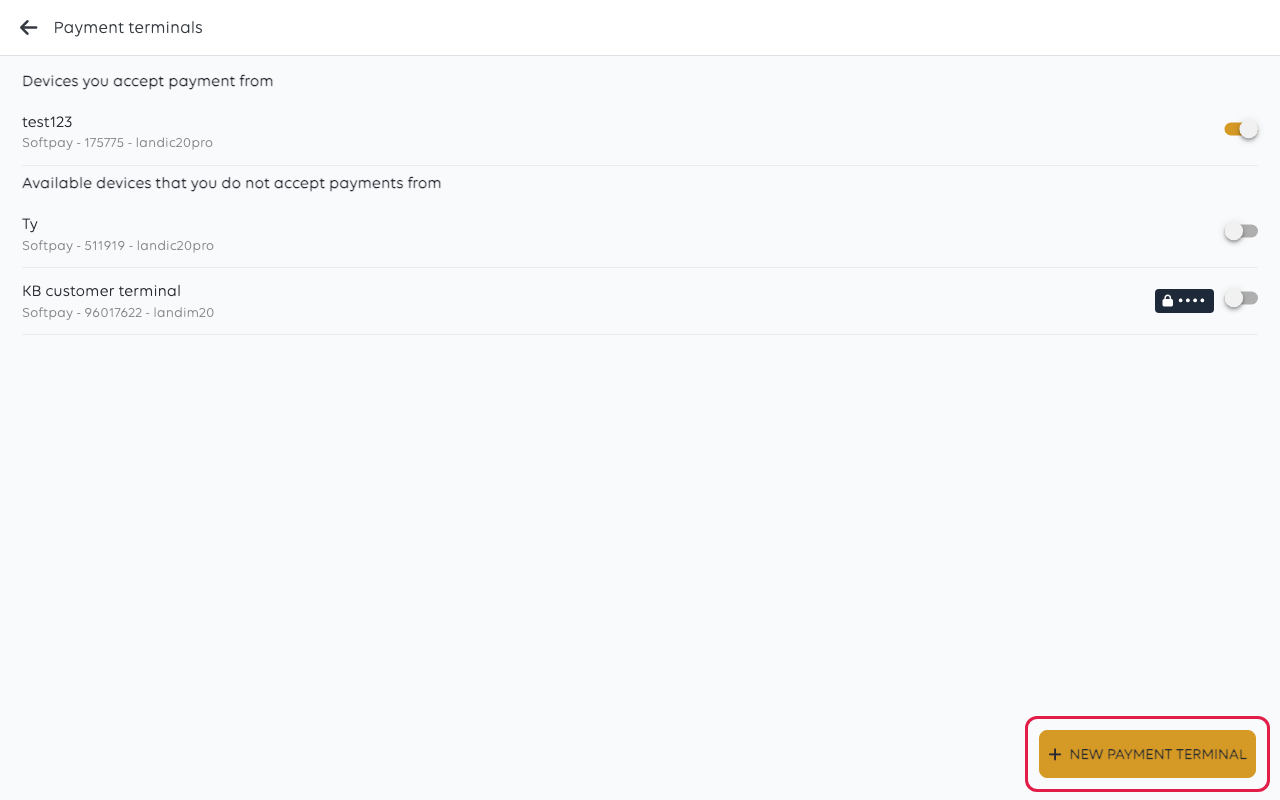
Open the menu at the top left and choose Payment terminals. The list shows every terminal already known
to this shop, with its provider, ID and model under the name.
Tap New payment terminal. If the POS first shows Choose provider, tap
Poynt, then tap Continue. If it then shows Payment terminal model, tap
the N950, then tap Continue.
2. Say where the payment app is
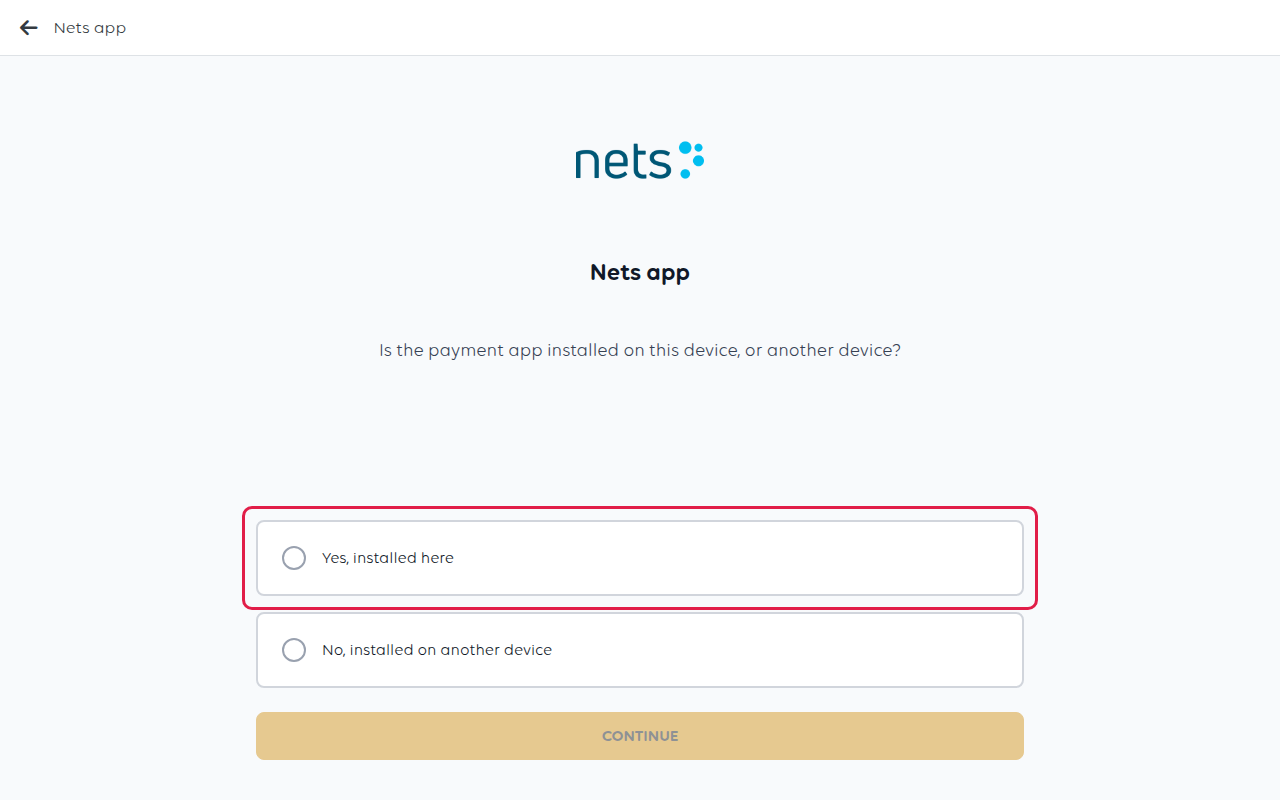
The screen is headed Nets app. It asks whether the payment app is installed on
this device or on another one.
- Yes, installed here - the N950 both takes the order and takes the payment.
- No, installed on another device - orders are rung up on a separate till and the
N950 faces the customer.
Tap your answer, then tap Continue.
3. Decide whether to print on the terminal
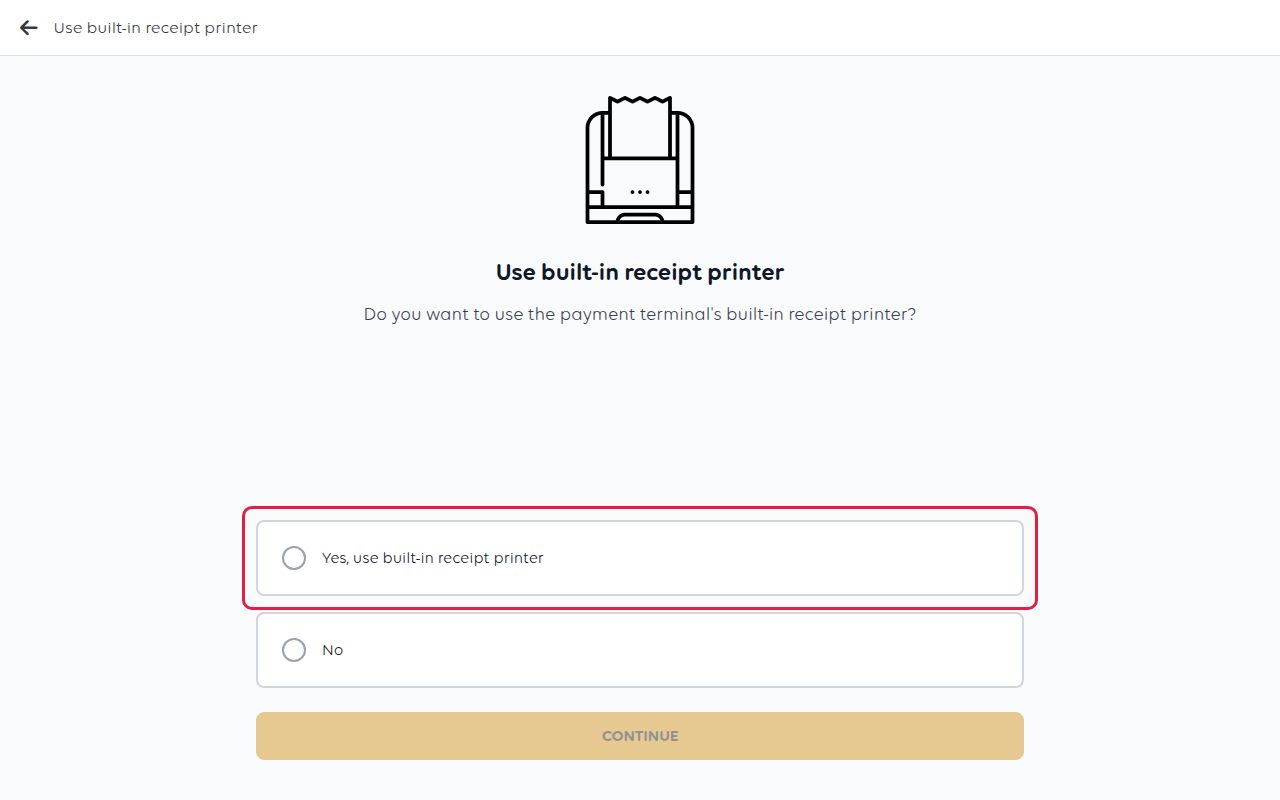
The N950 has a built-in receipt printer. To have customer receipts come out of the
terminal, tap Yes, use built-in receipt printer. For receipts from a separate
printer, tap No.
Tap Continue.
4. Name the terminal
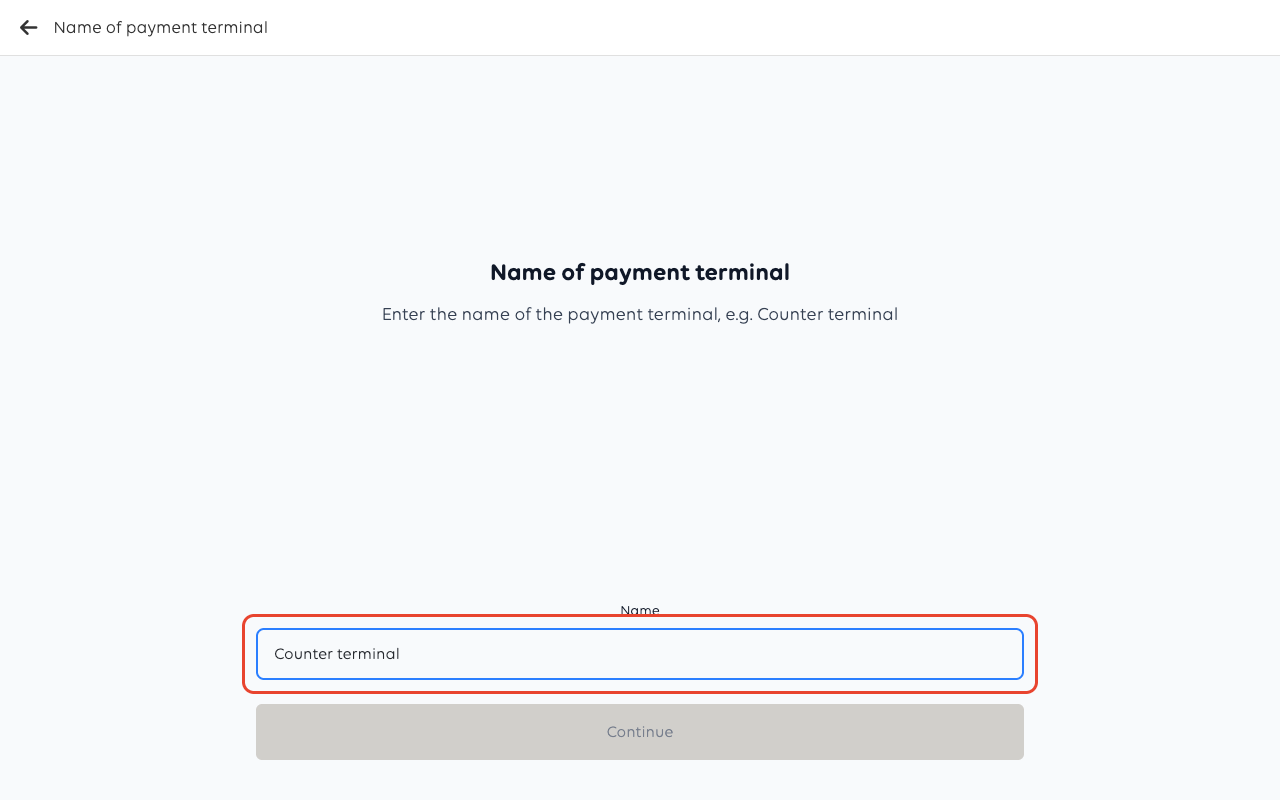
Give the terminal a name your staff will recognise, such as Counter terminal or
Bar. With more than one terminal, the name is how the cashier picks the right one
when taking a payment.
Tap Continue. When it worked, the POS shows Payment terminal created
successfully! and takes you back to the terminal list.
5. Finish setup on the terminal
6. Check it works
- Ring up a test item and watch the N950 — the basket should appear for the
customer. - Choose Card and complete the payment with a real card, then refund it from the
order. - Check the receipt printed where you expect it to.
A payment is only complete when the POS shows it as Settled. If it stops at any
other status, the customer may not have been charged.
Check the printer prints
You do not need a sale to test the printer. Open the menu at the top left and choose Receipt
printers, tap the printer, then tap PRINT TEST RECEIPT.
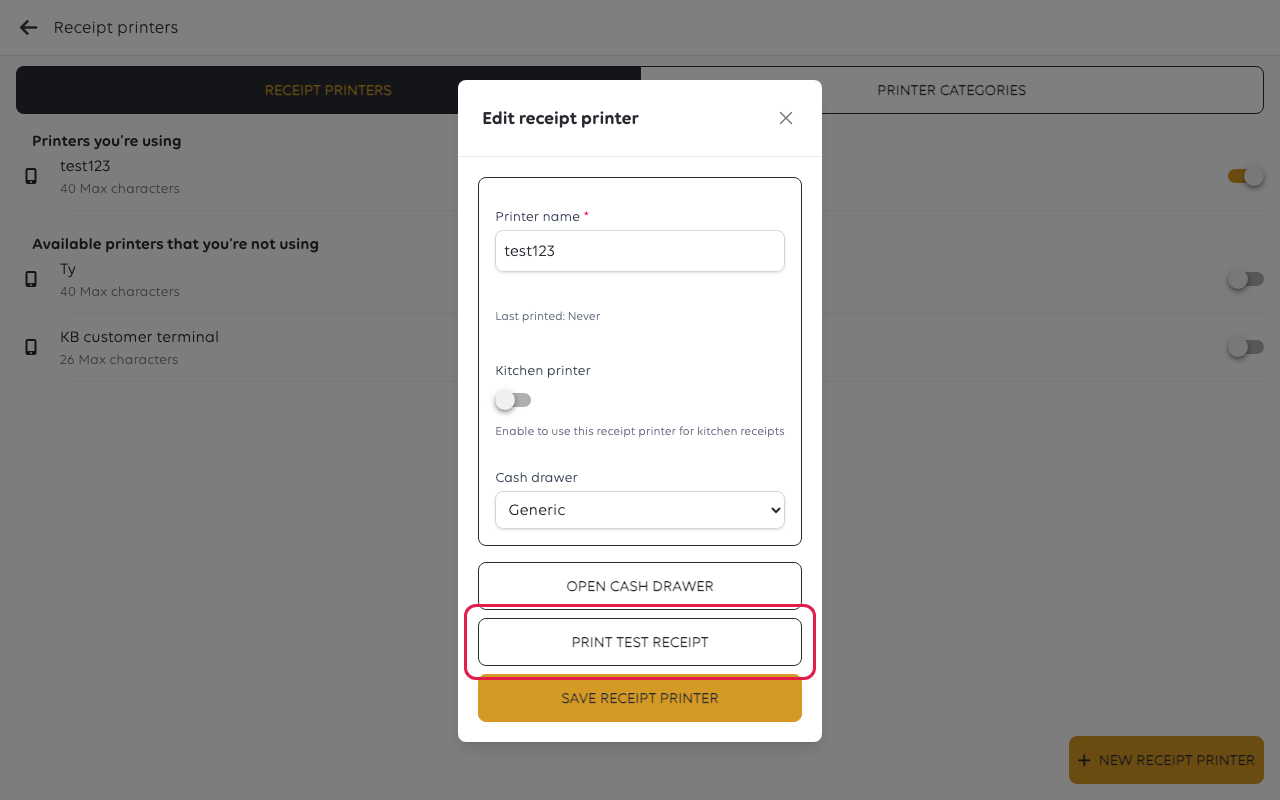
The same screen tells you two more things worth knowing before the first busy
service. Last printed says whether this printer has ever produced anything — a
printer reading Never after a test print has not received it. The Kitchen
printer switch, when on, makes this printer print kitchen orders only.
If something goes wrong
| What you see | What it means | What to do |
|---|---|---|
| The customer sees nothing on the N950 | The terminal is set up for payments only, not as a customer-facing screen | Contact support — the setup is decided for your shop, not on the device |
| The checkout waits for a terminal that never responds | The answer in step 2 does not match where the Poynt app runs | Remove the terminal and redo step 2 with the other answer |
| Receipts do not print | The printer answer in step 3 | Remove and re-add the terminal, answering differently in step 3 |
Was this article helpful?
Thanks for your feedback!
