

 Dansk
 Svenska
 Deutsch
 Norsk bokmål
Set up a Landi C20 Pro (Softpay)
The Landi C20 Pro runs both the POS and the Softpay payment app on one device, so
orders are placed and paid on the same screen. This guide sets one up.
That makes it a standalone terminal. The C20 Pro can also be used as an
external, customer-facing terminal alongside a separate till — if that is what you
are building, read Which terminal setup do you need? first, because the answer in
step 2 changes.
Before you start
- The C20 Pro is switched on, connected to Wi-Fi, and the Softpay app is installed and activated on it.
- Do this on the C20 Pro itself — this is the device that will take the orders.
- If you are connecting a cash drawer, plug it into the terminal before you start, and know its make: Star, Oscar, or another brand.
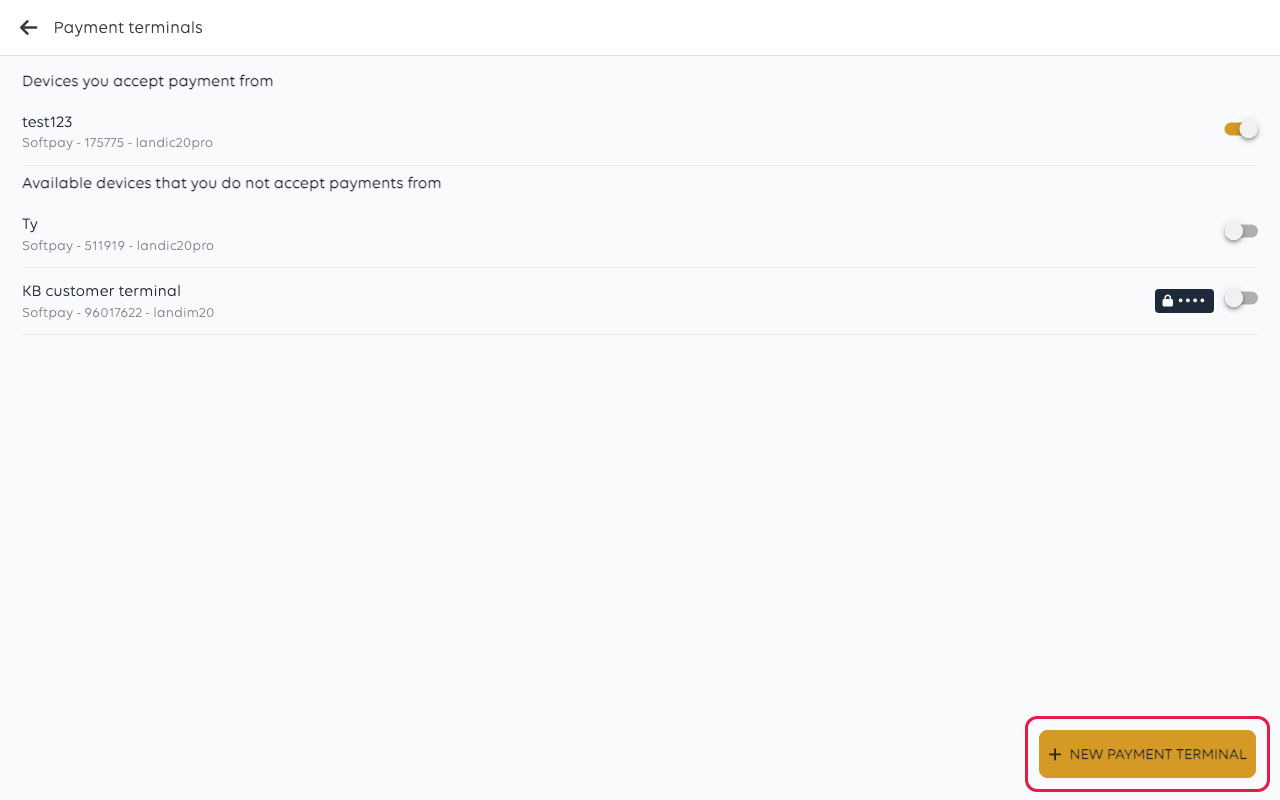
1. Open the payment terminals list
On the C20 Pro, open the menu at the top left and choose Payment terminals. The list shows every terminal
already known to this shop, with its provider, ID and model under the name.
Tap New payment terminal. If the POS first shows Choose provider, tap
Softpay, then tap Continue.
2. Choose the setup
The POS asks where the Softpay app is installed. On a C20 Pro it is installed on
this device — the same one you are tapping on.
Tap Yes, installed here, then tap Continue.
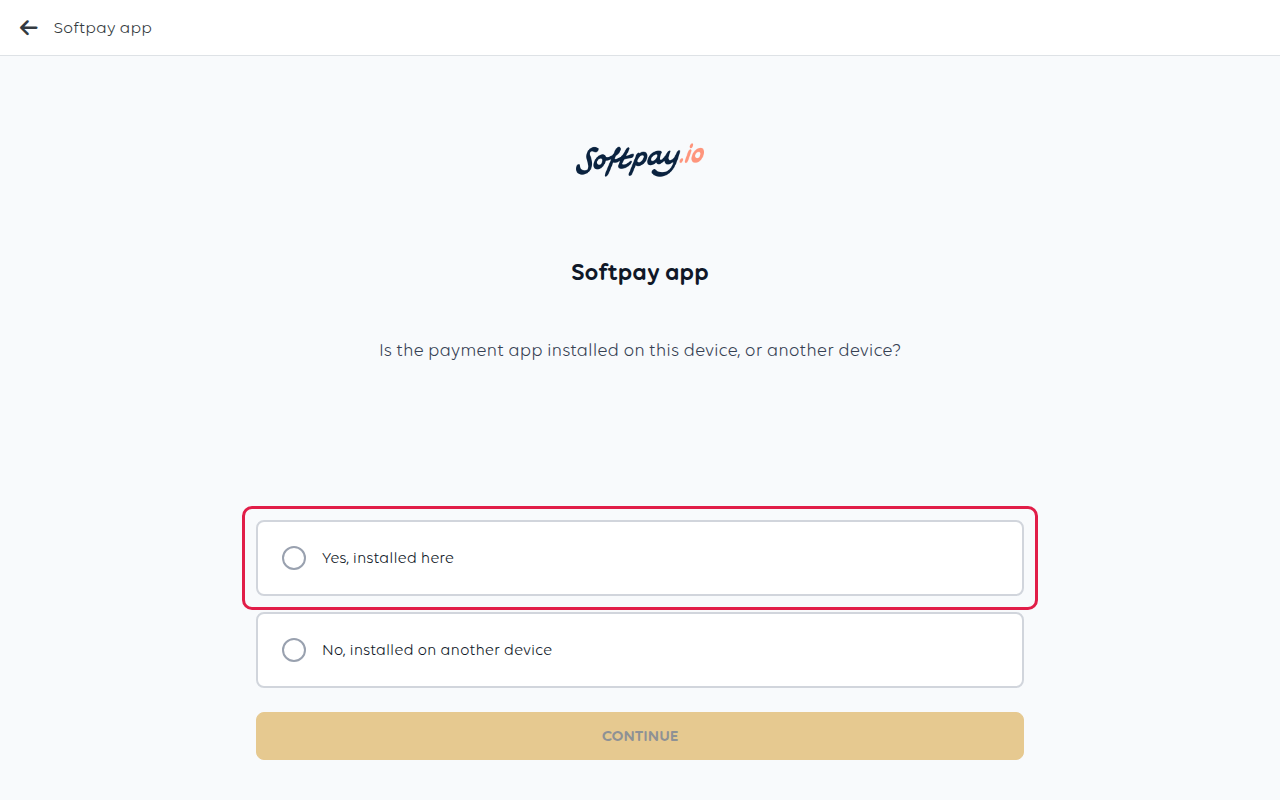
This is the step that separates the C20 Pro from a separate card terminal like the
Landi M20. Answering No, installed on another device tells the POS to send
payments somewhere else, and the checkout will then wait for a terminal that does
not exist.
3. Choose the Landi C20 Pro
Tap Landi C20 Pro, then tap Continue.
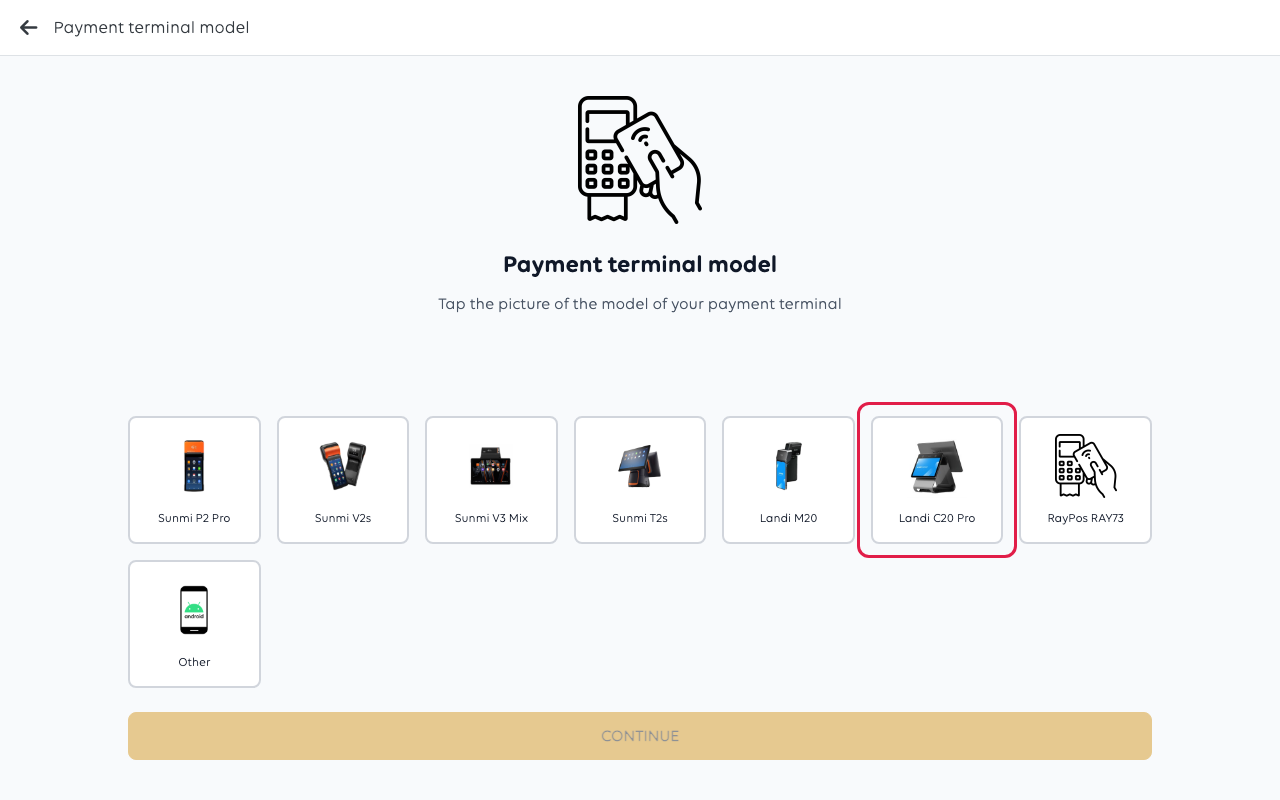
Pick the model you actually have. It decides which steps follow — the C20 Pro is
asked about its built-in printer and its cash drawer, which a device without them
never sees.
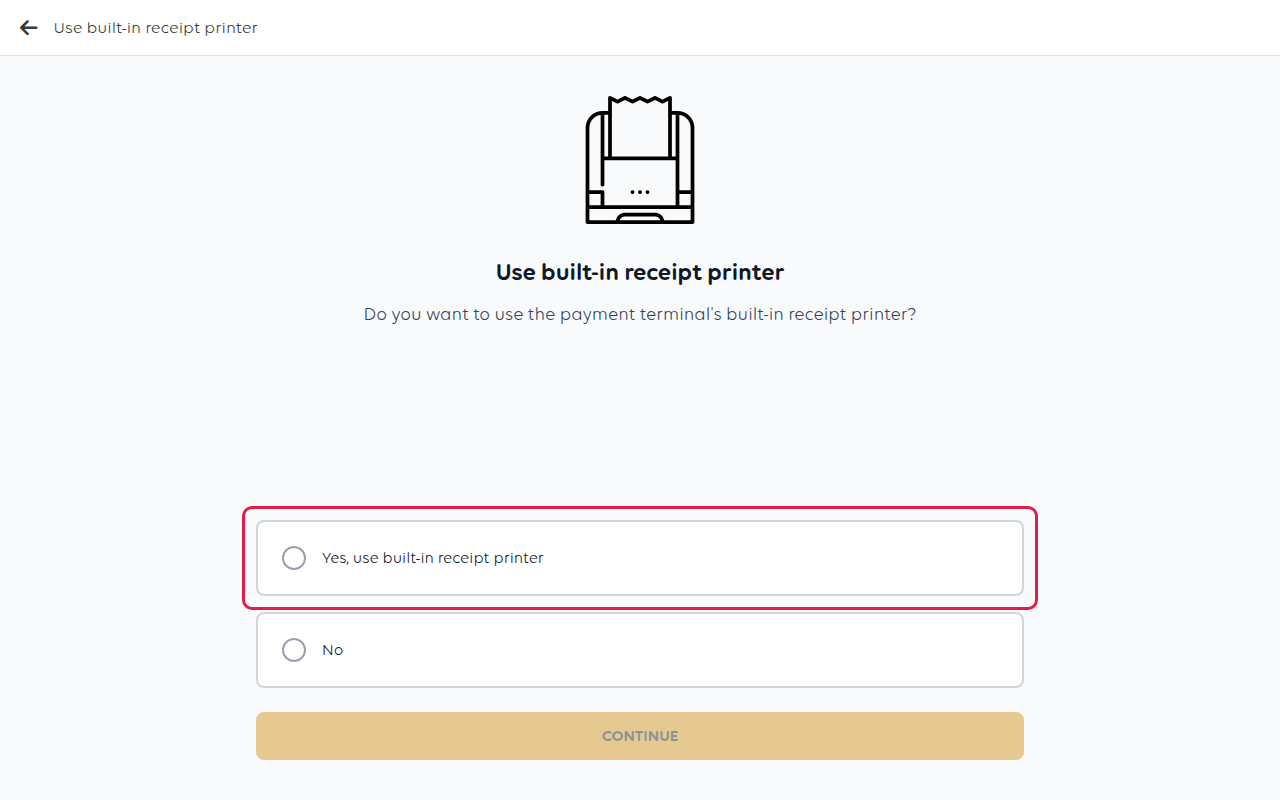
4. Decide whether to print on the terminal
The C20 Pro has a built-in receipt printer. To print customer receipts on the device
itself, tap Yes, use built-in receipt printer. To print them on a separate
receipt printer, tap No.
Tap Continue.
5. Connect a cash drawer
If you chose the built-in printer in step 4, the POS asks whether a cash drawer is
connected to it. Choose the make of drawer you have attached:
- Not connected to cash drawer — no drawer, or the drawer is attached to a
different device. - Star or Oscar — pick the brand printed on the drawer.
- Generic — any other make. Try this if your drawer is not a Star or an Oscar.
Tap your choice, then tap Continue.
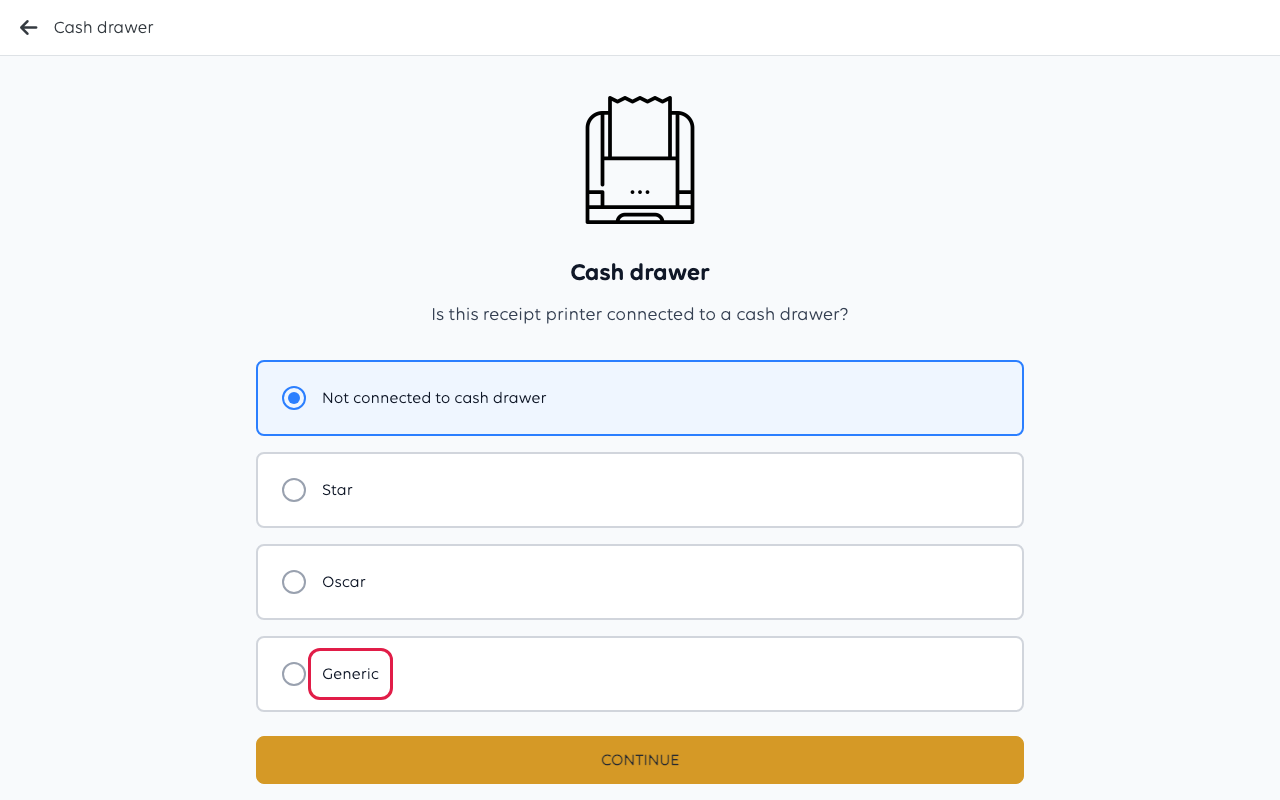
If the drawer does not open on the first cash sale, come back and try a different
make here before assuming the drawer is faulty — the brands use different opening
signals.
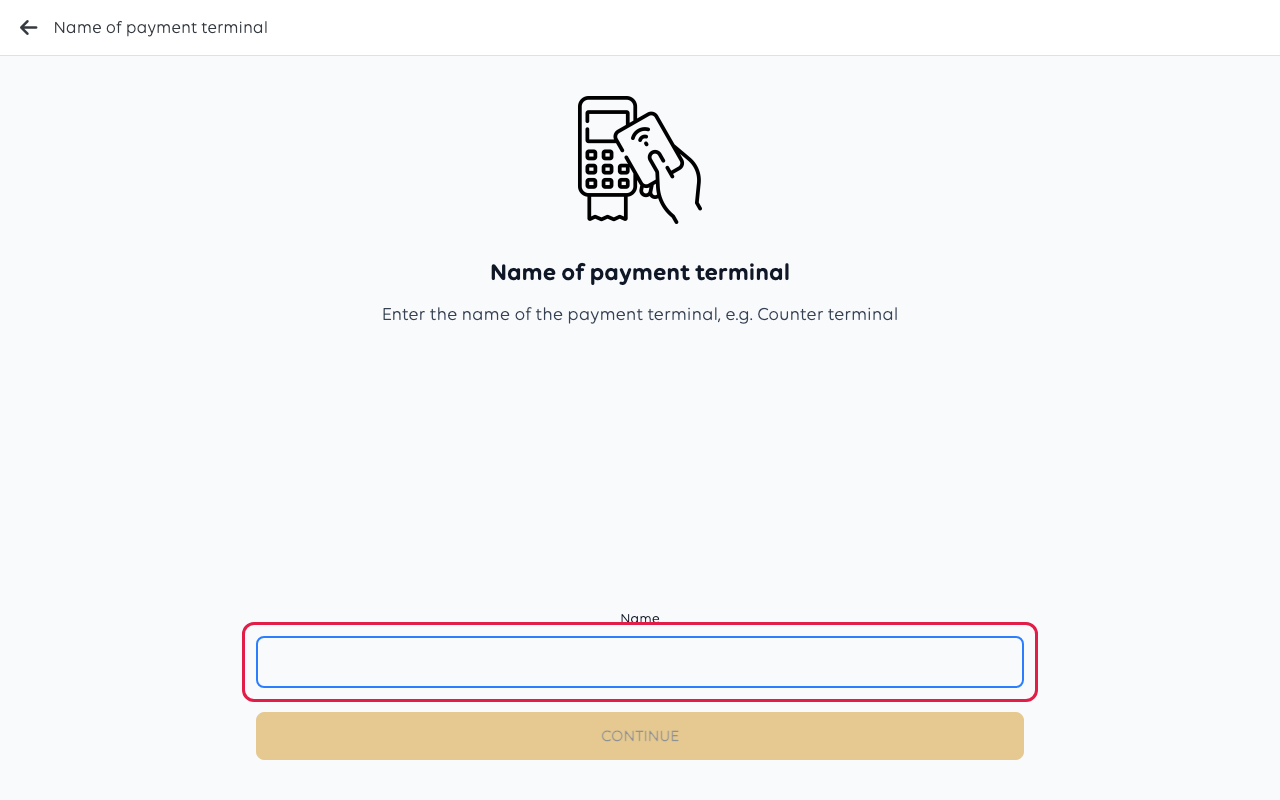
6. Name the terminal
Give the device a name your staff will recognise, such as Front counter or Bar.
With more than one till, the name is how they are told apart in reports and in the
terminal list.
Tap Continue. When it worked, the POS shows Payment terminal created
successfully! and takes you back to the terminal list.
7. Finish setup on the device
8. Check it works
- Ring up a test item and choose Card.
- Complete the payment with a real card, then refund it from the order.
- Check the receipt printed where you expect it to.
- If you connected a drawer, confirm it opened during the cash sale.
A payment is only complete when the POS shows it as Settled. If it stops at any
other status, the customer may not have been charged — see A card payment failed.
Check the printer prints
You do not need a sale to test the printer. Open the menu at the top left and choose Receipt
printers, tap the printer, then tap PRINT TEST RECEIPT.
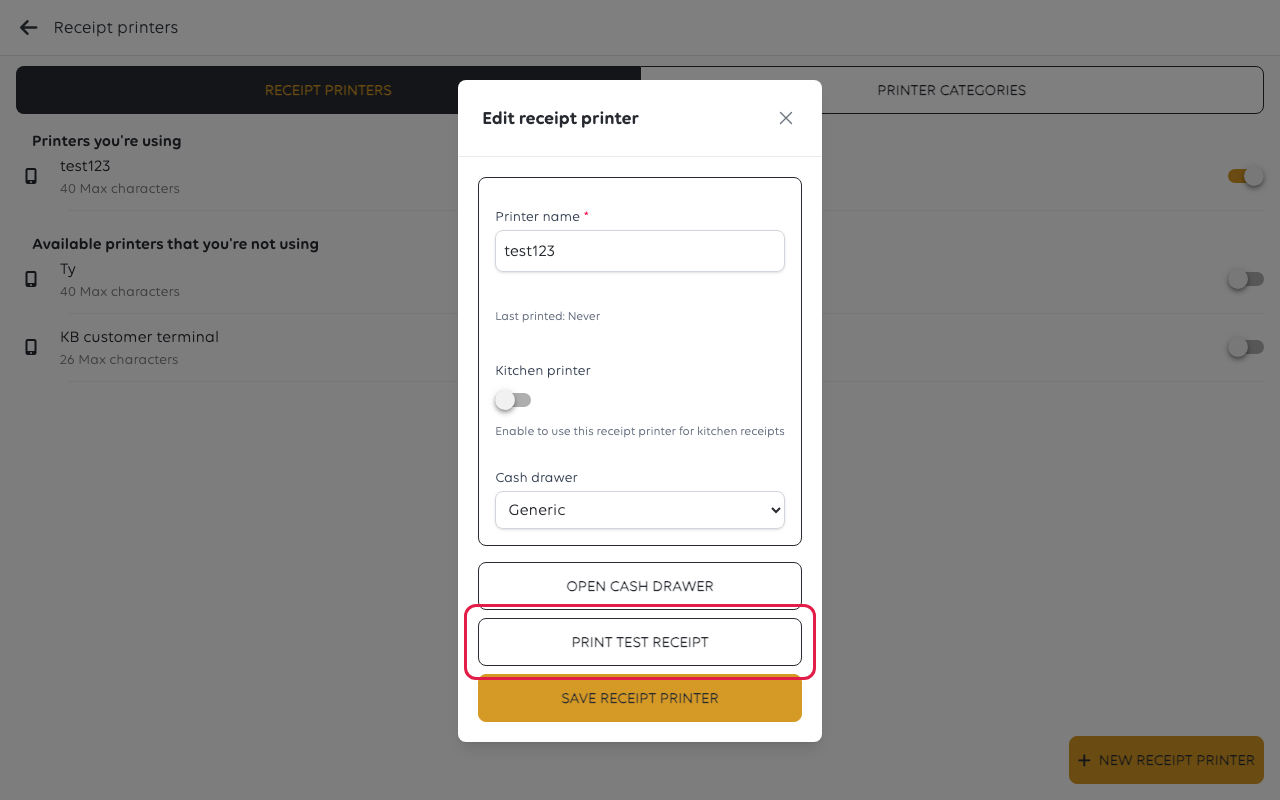
The same screen tells you two more things worth knowing before the first busy
service. Last printed says whether this printer has ever produced anything — a
printer reading Never after a test print has not received it. The Kitchen
printer switch, when on, makes this printer print kitchen orders only.
If something goes wrong
| What you see | What it means | What to do |
|---|---|---|
| The checkout waits for a terminal that never responds | The POS was told the payment app is on another device | Remove the terminal and redo step 2, answering Yes, installed here |
| The cash drawer does not open | The wrong drawer make, or the drawer is on another device | Redo step 5 with a different make; try Generic |
| Receipts do not print | The printer answer in step 4 | Redo step 4, or see The printer is not printing |
| Softpay shows an activation or quarantine error | The device is not activated with the payment provider | Do not set it up again. See The terminal will not connect or respond |
Was this article helpful?
Thanks for your feedback!
