

 Dansk
 Svenska
 Deutsch
 Norsk bokmål
Manage stock from the manager app
Stock tracking counts what you have, and tells you when you are running out. Sales at
the till take stock off automatically; the manager app is where you read the numbers
and correct them.
Inventory is part of the inventory management plan. Without it, the page shows Add
inventory management and a See subscriptions button instead.
1. Open Inventory
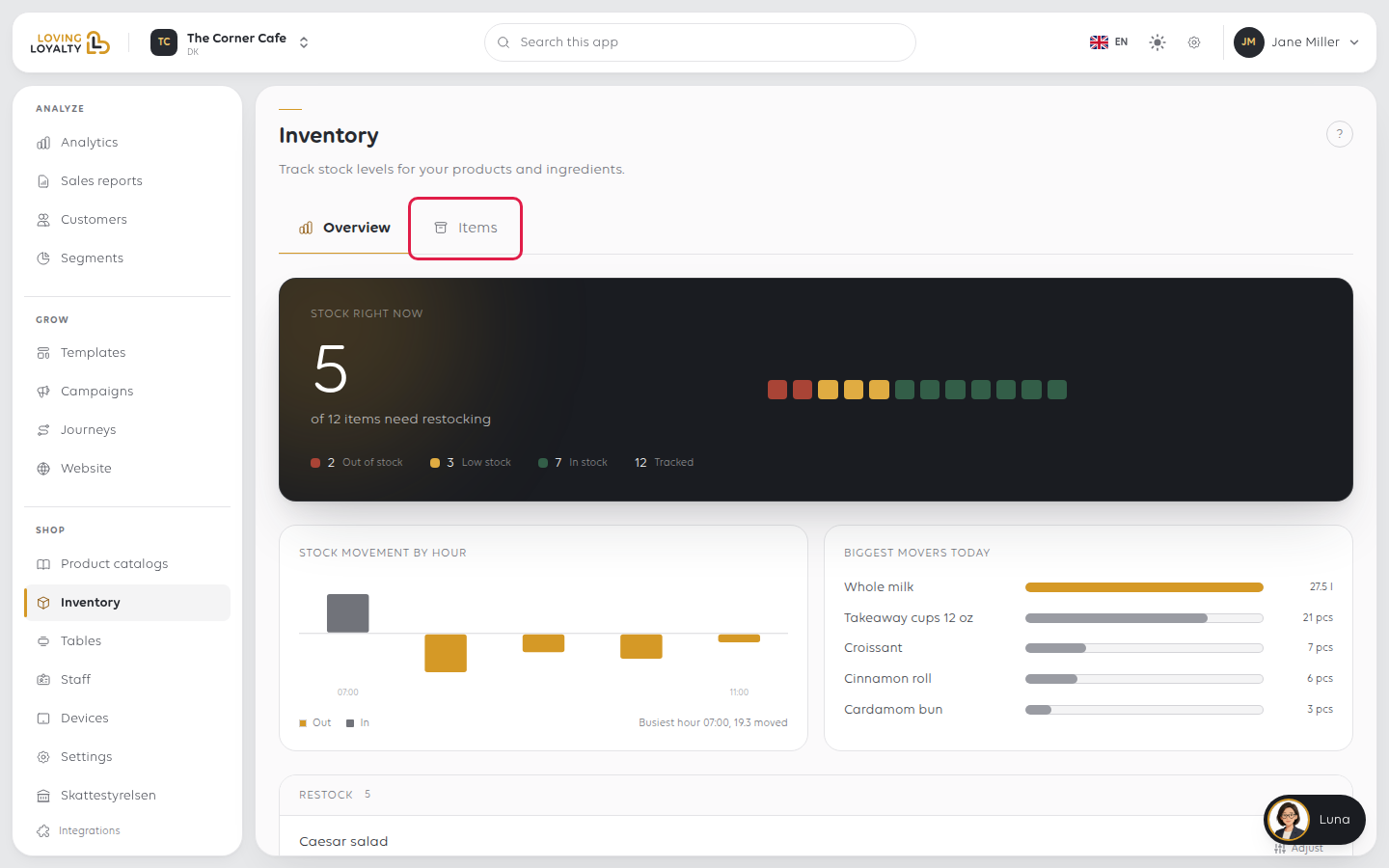
Open Shop → Inventory. The Overview tab opens on Stock right now: how many
of your tracked items need restocking (or, when none do, that all are in stock), split
into Out of stock, Low stock and In stock. Below it,
Stock movement by hour and Biggest movers today chart what moved today.
2. Read the restock list
Restock lists what needs stock in one place: items that are out first, then the
low ones. Each row says it in words - 7 left, restock at 10, None left, or
Oversold by 2 - with Adjust right there. With nothing to restock it reads
Nothing to restock. Every tracked item is above its level.
The threshold is what decides whether something counts as low; it is set per item, so a staple and a garnish can warn at different points.
Out-of-stock items sit at the top. A long run of them on a shop that is
clearly selling usually means stock was never counted in, rather than that the
shelves are empty.
3. Export it
PDF and Excel, in the Stock movements header, export the list.
Useful for a stock take or an order to a supplier.
See each change, one by one under it opens every movement, grouped by hour. Show
filters them by reason: Sale, Delivery, Waste or Adjustment.
The Items tab
The Items tab lists everything being tracked, grouped by stock category, with
each item's quantity beside it: a number, or Out of stock. To start tracking more
products, click Track products, tick them, enter a Starting quantity and click
Track selected. You need at
least one stock category first; Add category creates one.
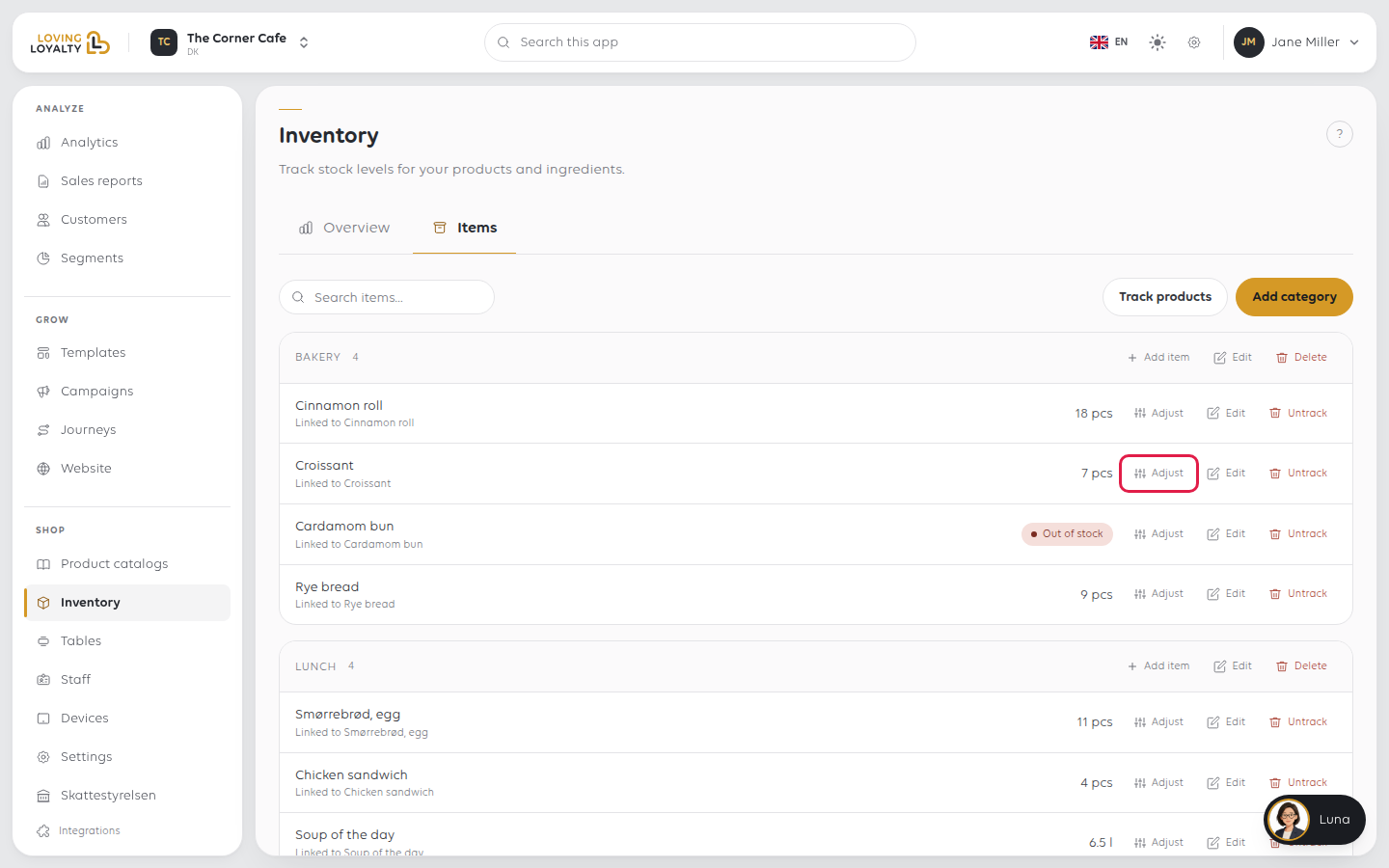
Each row offers Adjust, Edit and Untrack. Untrack stops counting that
product and deletes its stock record. The product itself stays in your catalogue.
Correcting a quantity
Click Adjust on the row. The dialog shows what the item holds now (Currently)
and takes the Change, not the new total.
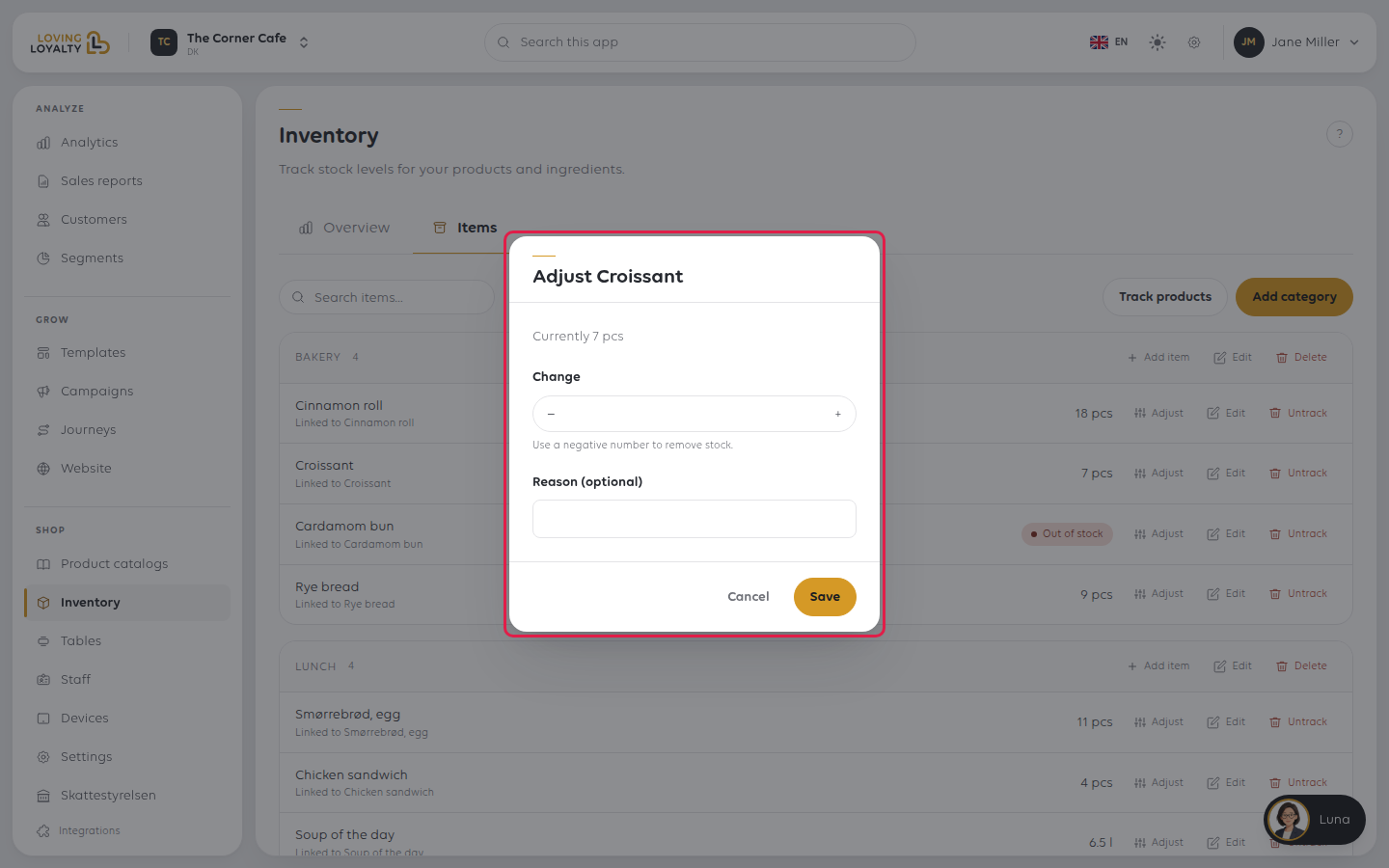
Type a positive number to add stock and a negative one to remove it. A delivery of
twelve is 12; four written off is -4. The dialog shows the New total before you
save. Add a Reason (optional), then click Save.
The low-stock threshold
Edit on a row opens the item: its Name, Stock category, Type
(Stocked item or Recipe), its Unit (Pieces, Kilograms or
Litres) and its Low-stock threshold. Change the threshold and click Save.
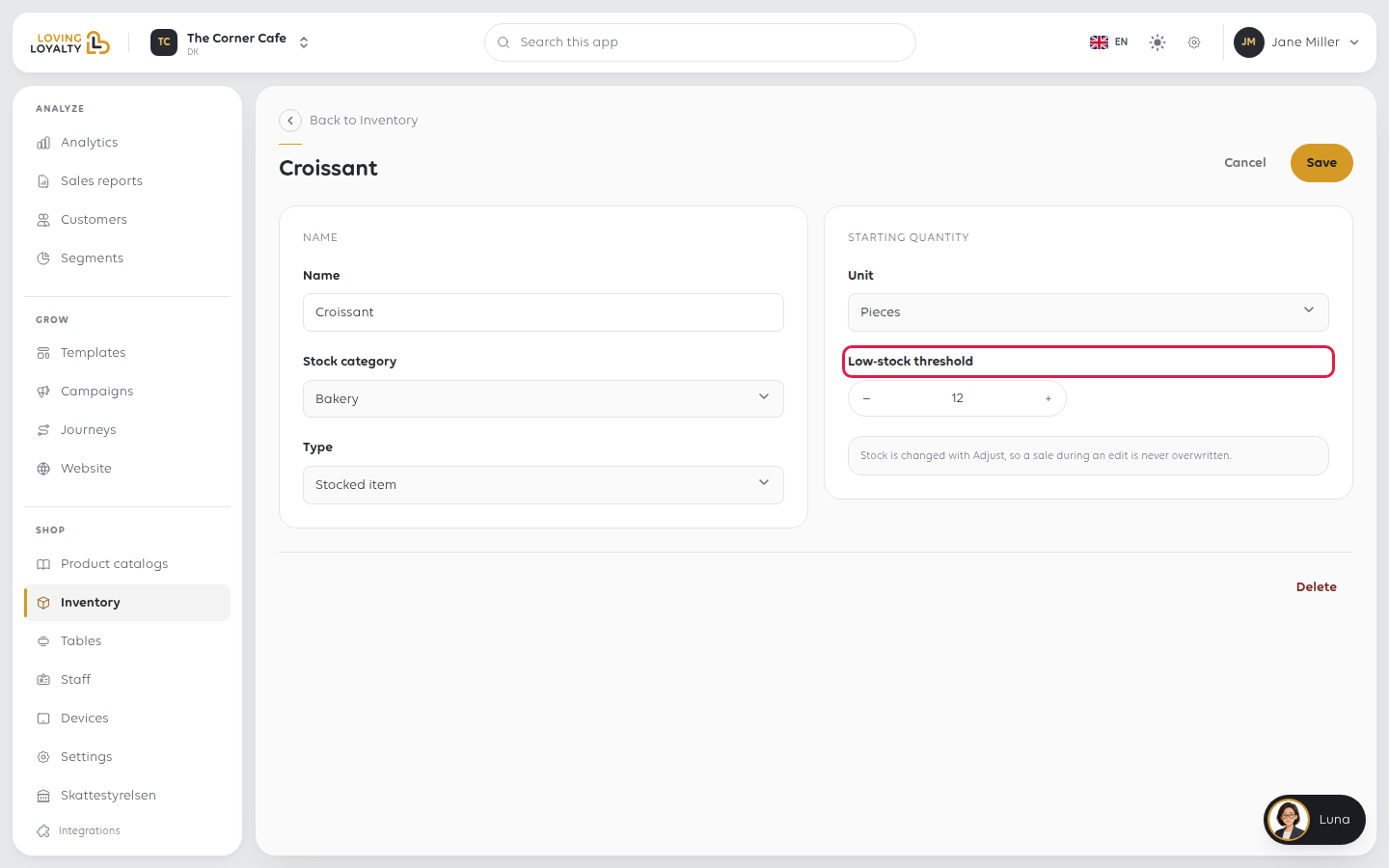
The threshold is what decides when an item appears under Restock on the Overview tab.
Quantities are not edited here on purpose. Stock is changed with Adjust, so a
sale going through while you are editing is never overwritten.
If something goes wrong
| What you see | What it means | What to do |
|---|---|---|
| Everything shows out of stock | Stock was never counted in | Add the stock with Adjust, or do a stock count at the till. See Do a stock count and correct a level |
| An item never warns | It has no threshold, or the threshold is zero | Set a threshold on the item |
| The count is wrong | Sales move it automatically; corrections are manual | Count it, then correct it with Adjust |
Was this article helpful?
Thanks for your feedback!
