

 Dansk
 Svenska
 Deutsch
 Norsk bokmål
Check stock at the till
The till shows what you have, what is running low, and every movement behind those
numbers.
Before you start
- Stock tracking is switched on for the location. See Inventory management settings.
1. Open Inventory
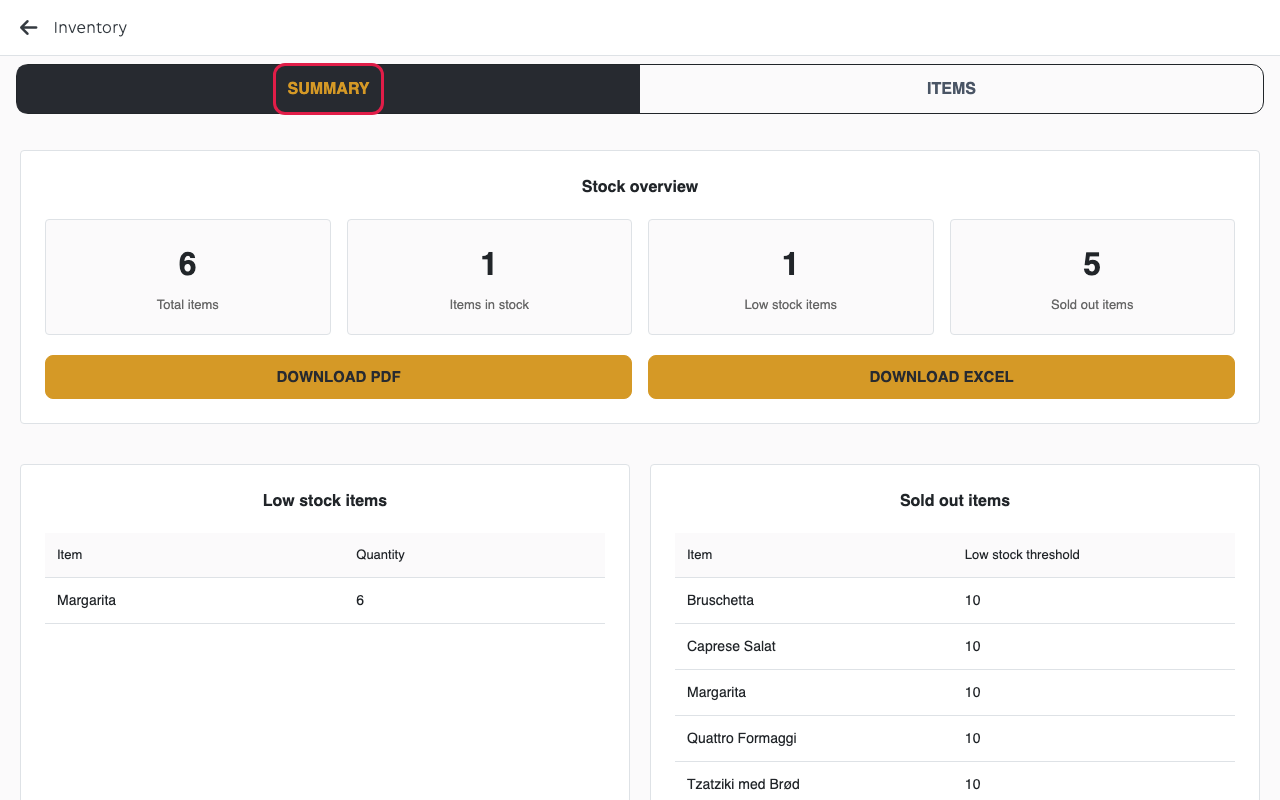
Open the menu and tap Inventory. It opens on SUMMARY, which counts everything at once: total items, items in stock, low stock items,
sold out items.
2. Read the two lists
Low stock items shows each item with its quantity. Sold out items lists what
has reached zero, with each item's Low stock threshold - the quantity at which it
starts to warn.
A shop that has just switched stock tracking on sees almost everything as sold out.
Nothing is wrong - quantities start at zero until they are counted in.
3. Check the movements
Stock movements is the ledger behind the counts: date and time, item, type and
change. When a number looks wrong, this is what tells you what moved it - a sale, a
cancellation, or a correction someone made.
4. Export
DOWNLOAD PDF and DOWNLOAD EXCEL take the lists with you, for a stock take or
an order to a supplier.
5. The ITEMS tab
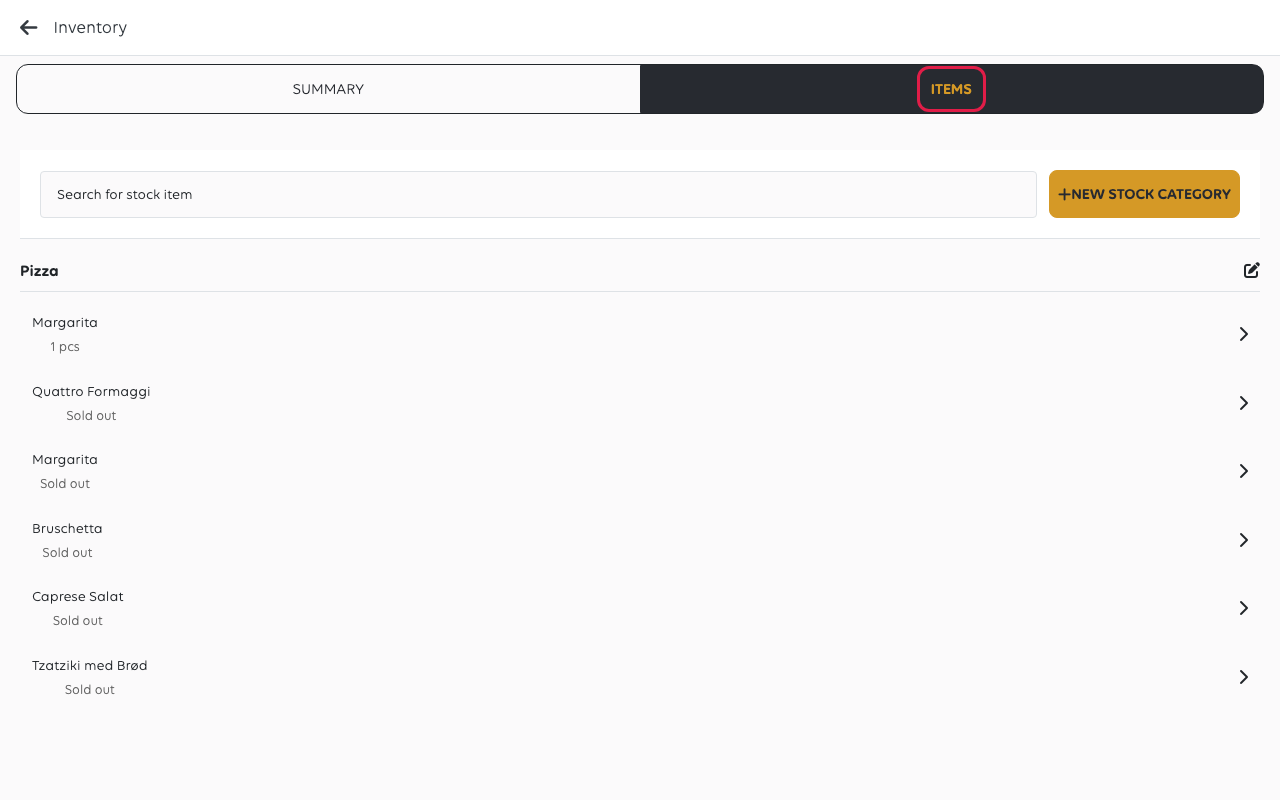
ITEMS lists everything tracked, grouped by stock category, with each item's
quantity beside it - a number, or Sold out.
6. Correct a count
On ITEMS, tap the item. Change its Quantity to what you counted, and its
Low stock threshold if needed, then tap Save.
New stock item under a category adds an item, and New stock category adds a
grouping.
If something goes wrong
| What you see | What it means | What to do |
|---|---|---|
| Everything is sold out | Stock was never counted in | Set each item's Quantity on ITEMS |
| A count looks wrong | Something moved it | Check Stock movements for what |
| An item never warns | Its low stock threshold may be zero | Tap it on ITEMS and set a Low stock threshold |
Was this article helpful?
Thanks for your feedback!
