

 Dansk
 Svenska
 Deutsch
 Norsk bokmål
Build your website
Your Loving Loyalty website is built from a handful of text blocks, each shown in a
particular place on the page. There is no page builder to learn: you fill in the
blocks and the page assembles itself.
1. Open Website
In the sidebar, open Grow and then Website. If you have no website yet, the
page says No website yet. Click Create website. This adds a website
subscription to your plan, and the confirmation, Create your website?, shows the monthly price before
you continue.
2. Work through the five steps
The editor is on the Design tab, in five steps: Tell us about your shop,
Make it look like you, Add your photos, Choose what goes on the page and
Your web address. Next moves to the following step.
The first step lists each text block with a note saying where it appears:
| Block | Where it shows |
|---|---|
| Shop intro | A short introduction at the top of the page |
| Shop description | Longer text describing the shop |
| Menu intro | Above your product catalogue |
| Video description | Beside the video section |
| Additional markup | Extra content at the bottom |
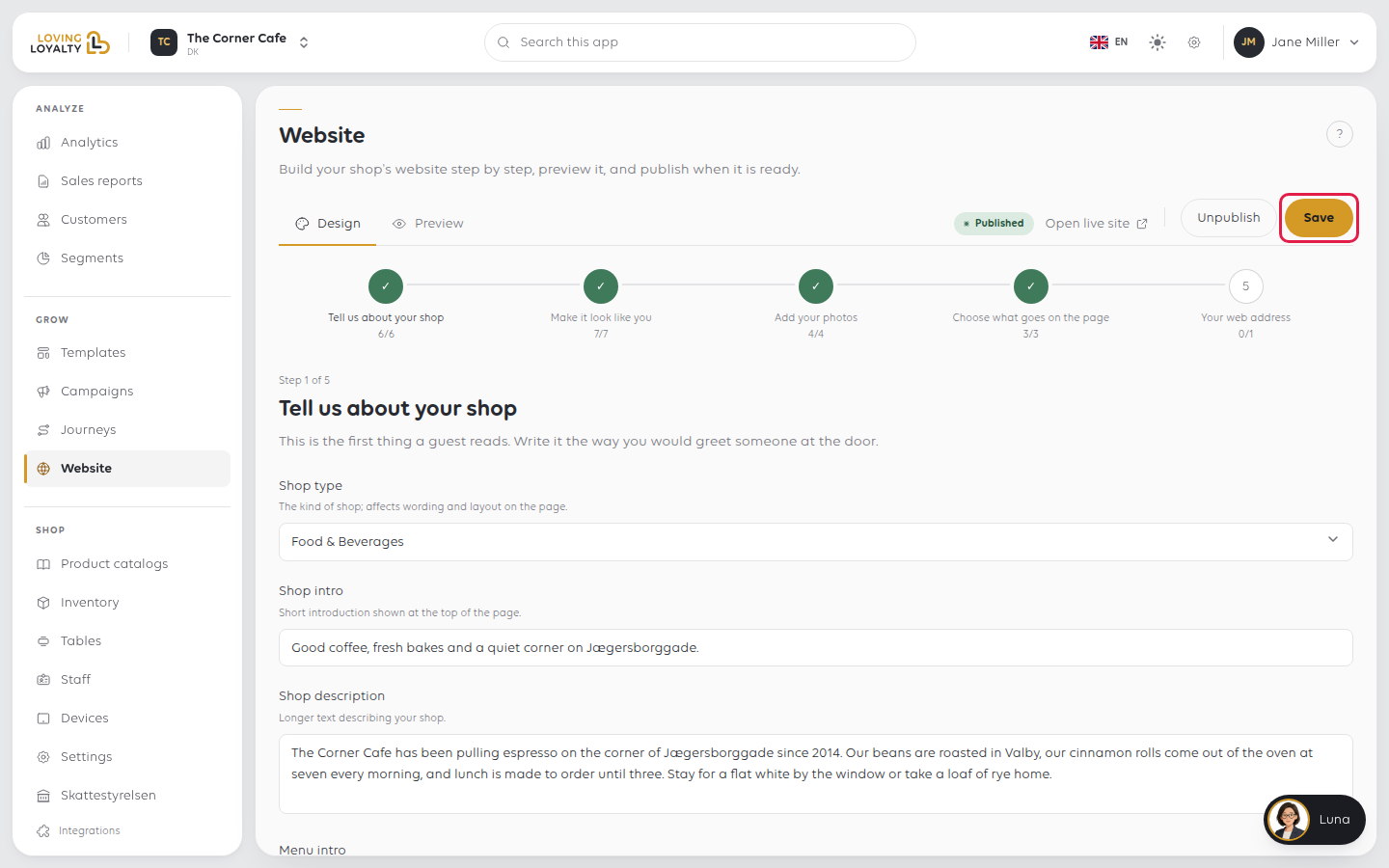
Each block has a small editor (bold, italic, underline, lists) and an HTML view
for anything it cannot do.
Taglines, also in the first step, are short slogans rotated in the page header.
Click Add tagline for each one; add a few and they change on their own.
The other steps:
- Make it look like you: logo, favicon, colours and fonts.
- Add your photos: shop images, banners and the menu image.
- Choose what goes on the page: turns each section of the page on or off, and
picks which locations the site lists. - Your web address: optional. See Connect your own domain.
3. Save and check the preview
Click Save to keep your changes. Open the Preview tab to see the page before
anyone else does.
4. Publish
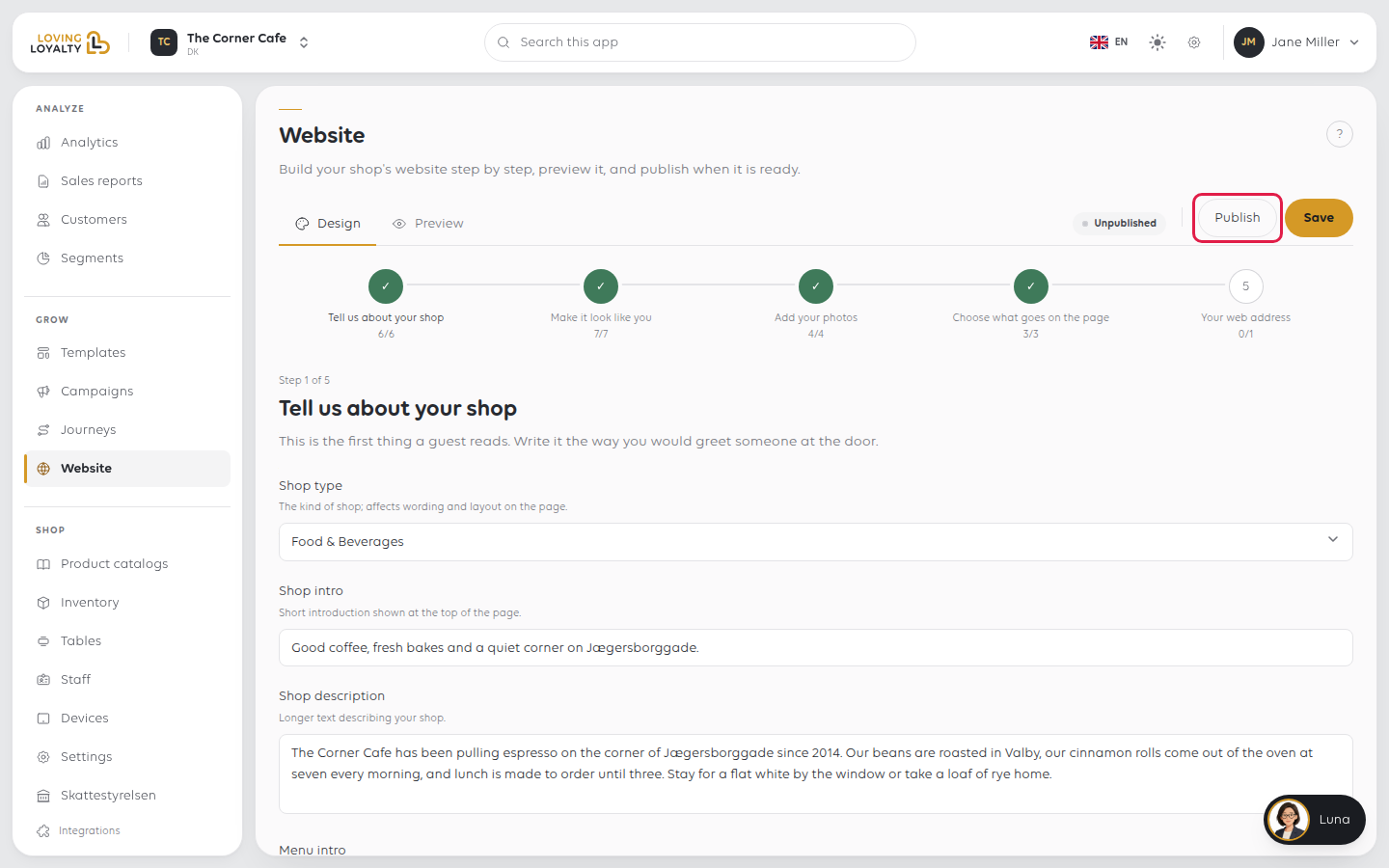
Save does not put the page online. A saved page still reads Unpublished at
the top. Click Publish to make it public.
Once published the header changes to Published and offers Open live site to
see it as a customer does, and Unpublish to take it down again.
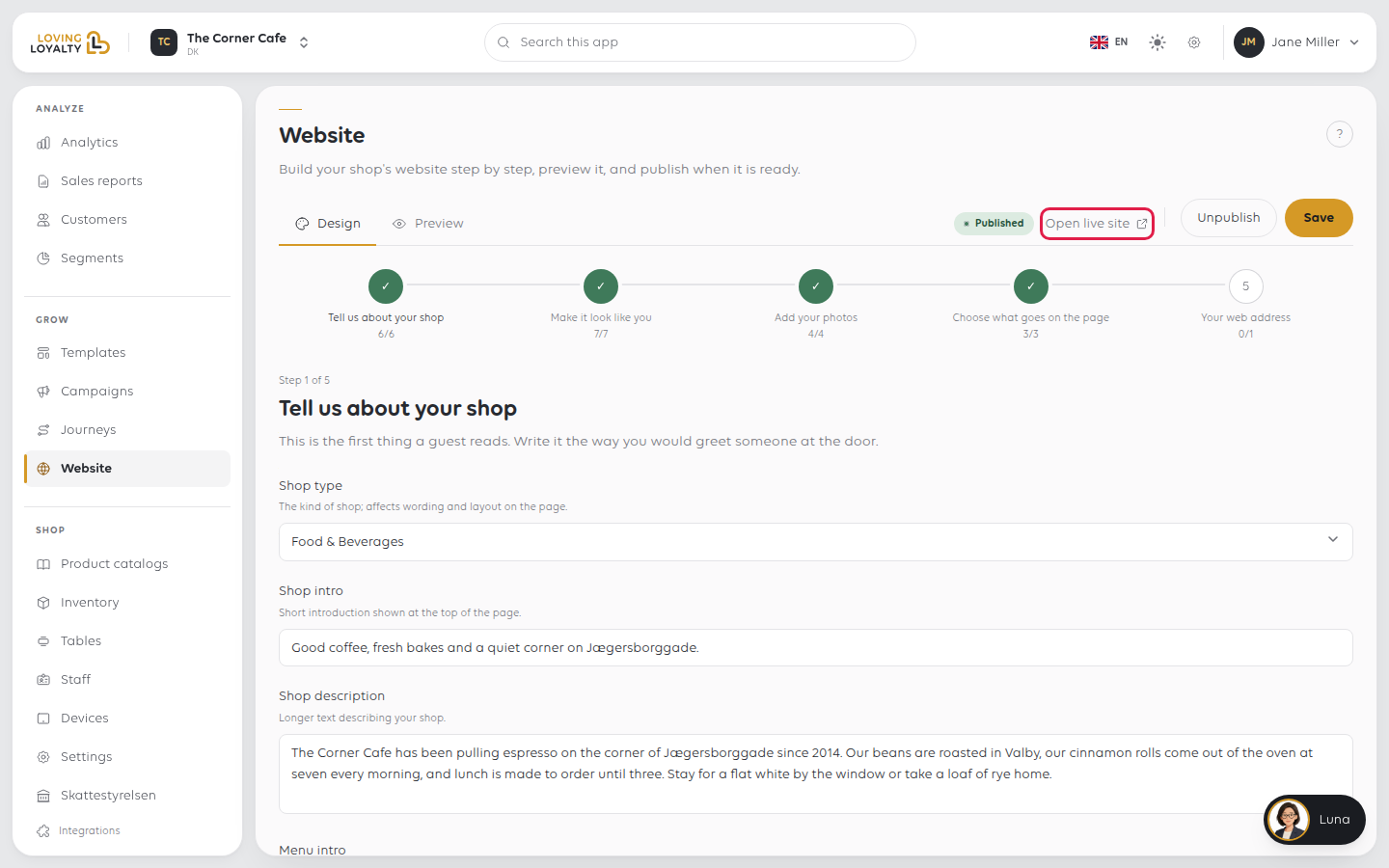
Taking a page down with Unpublish keeps everything you have written; only the
public page goes away.
If something goes wrong
| What you see | What it means | What to do |
|---|---|---|
| No website yet | No website has been created for this location | Click Create website |
| The page shows the wrong products | It follows a catalogue | Check which catalogue the site is using |
| Your text is not showing | The block may be empty, or the page not published | Check the block, then publishing |
Was this article helpful?
Thanks for your feedback!
