
Managing product catalogs
Managing product catalogs
Before you begin: Make sure you are logged in to the Loving Loyalty Manager. If you have not logged in yet, see How to log in and reset your password.
Go to Product catalogs under Manage in the left sidebar to define the items available in your POS.
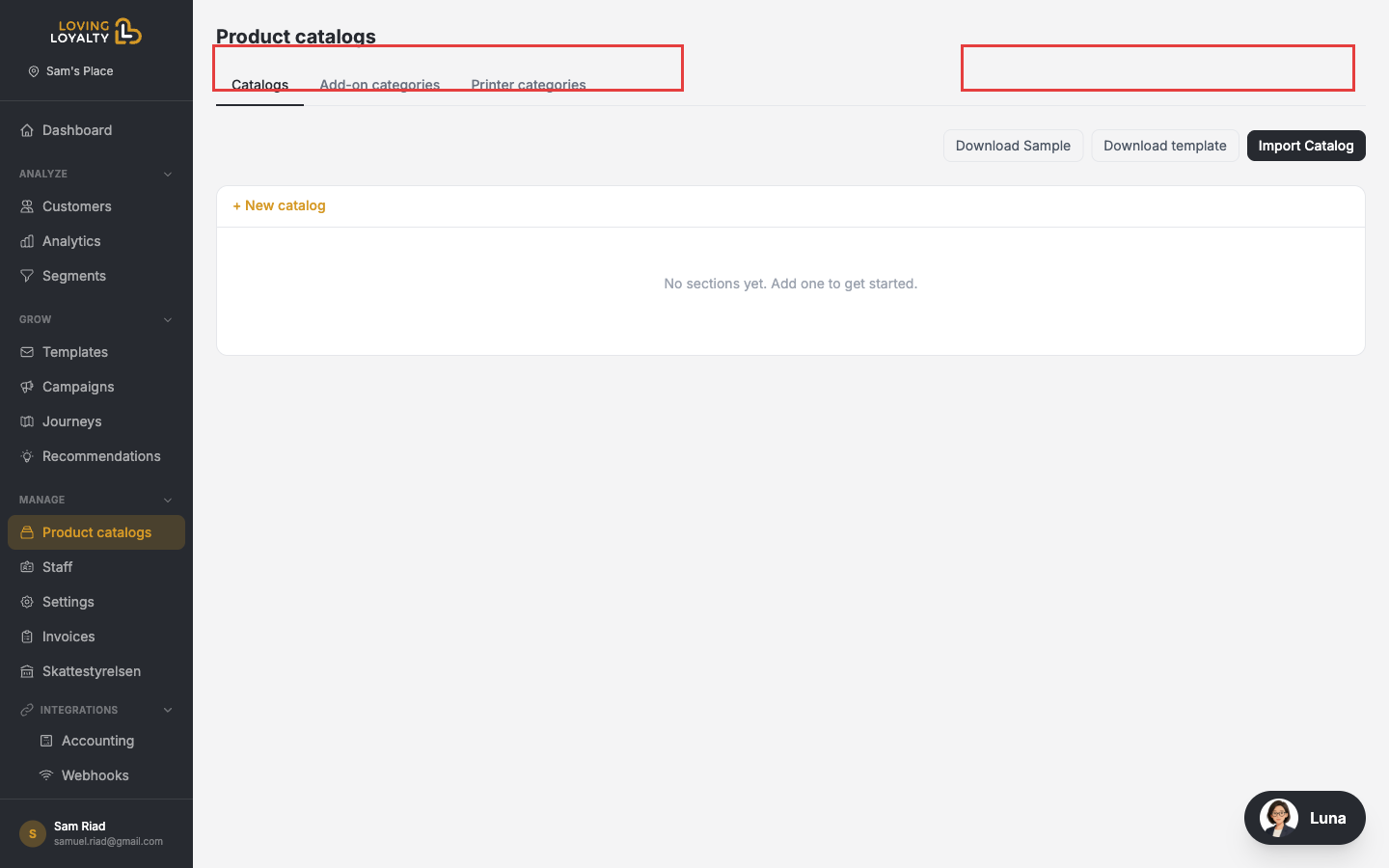
Tabs overview
- Catalogs — Your main product catalog, organised into sections and items.
- Add-on categories — Optional extras added to items at checkout (e.g. toppings, sizes).
- Printer categories — Group items by the printer they should be sent to (e.g. bar printer, kitchen printer).
Creating a catalog
Click + New catalog, then add sections and items with name, price, and any relevant attributes.
Importing a catalog
- Click Download template to get the Excel import template.
- Fill in your items following the template format.
- Click Import Catalog and upload the completed file.
Click Download Sample to see an example of a correctly formatted file.